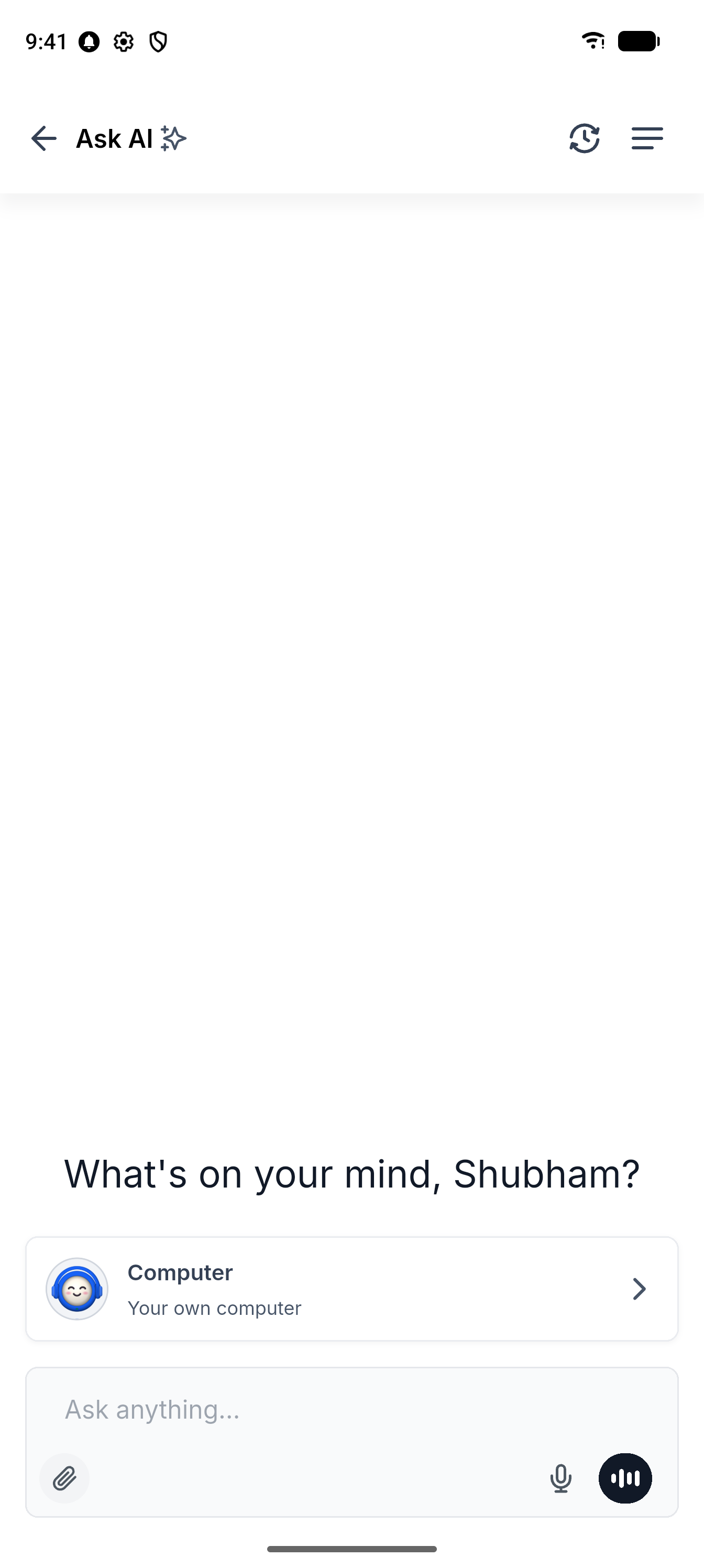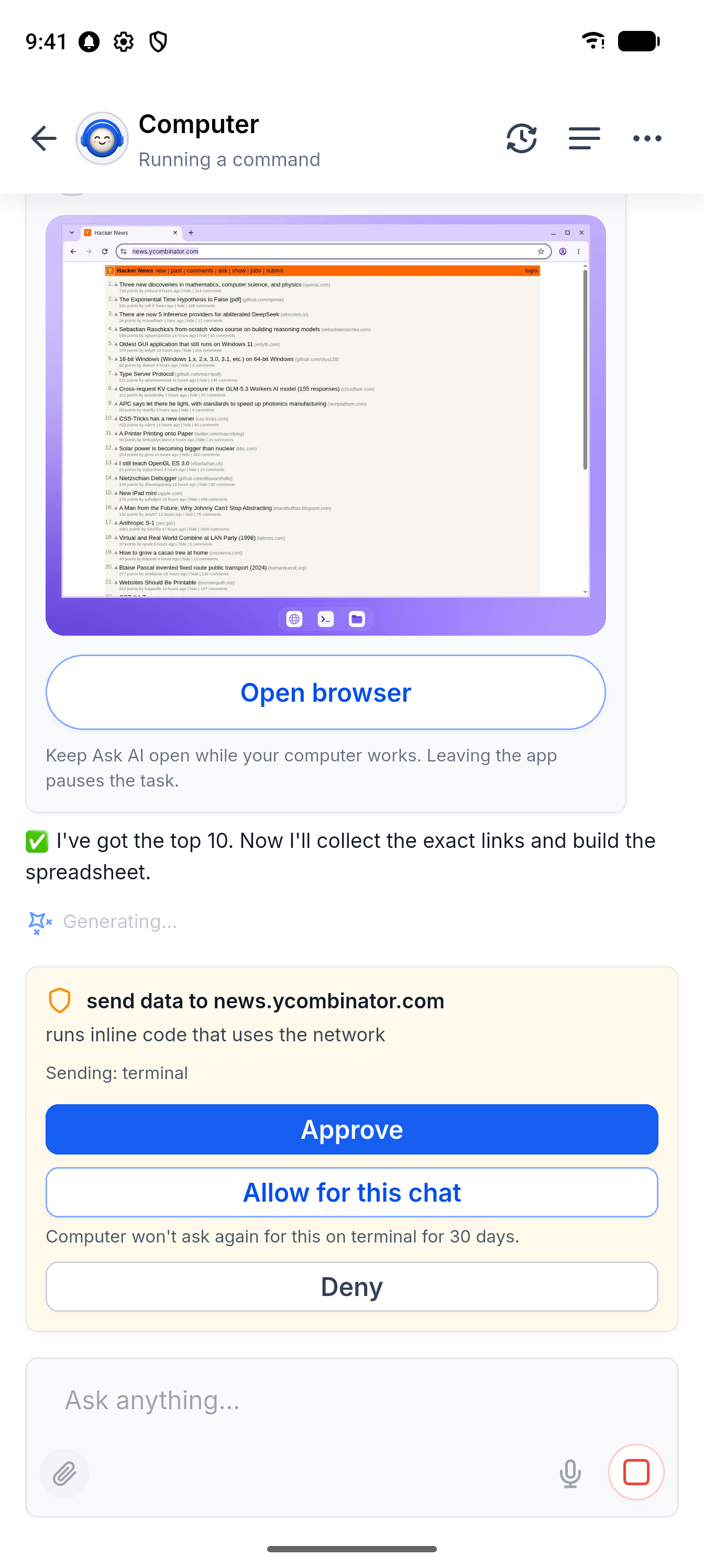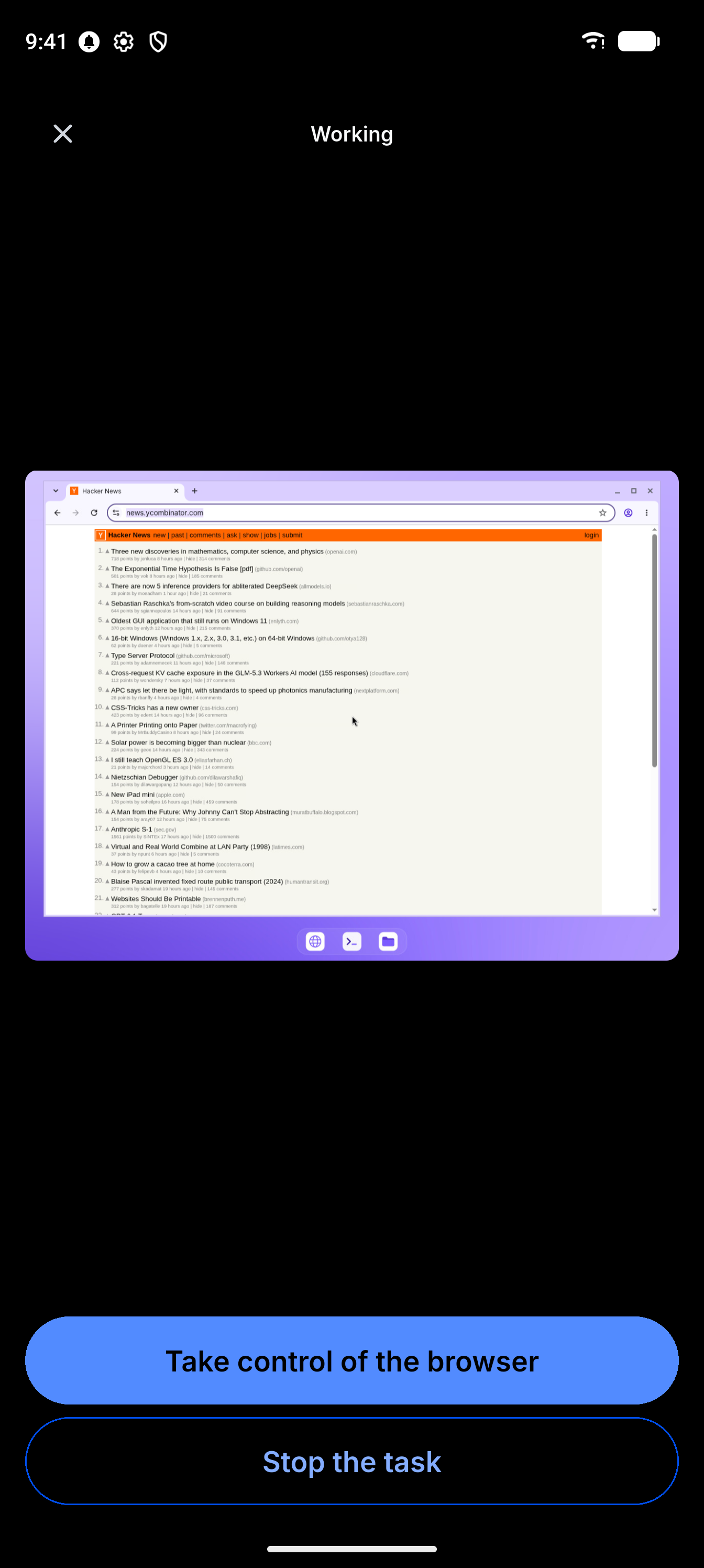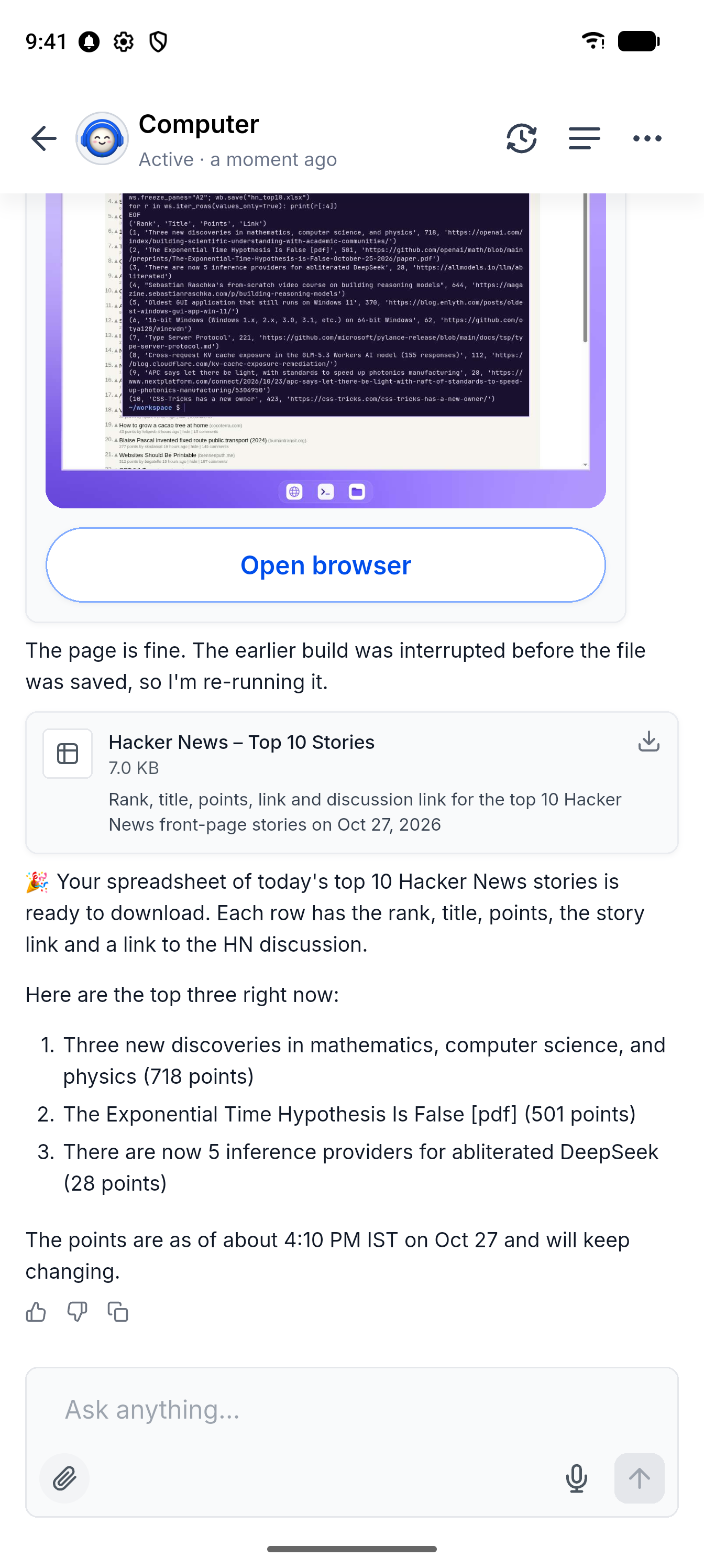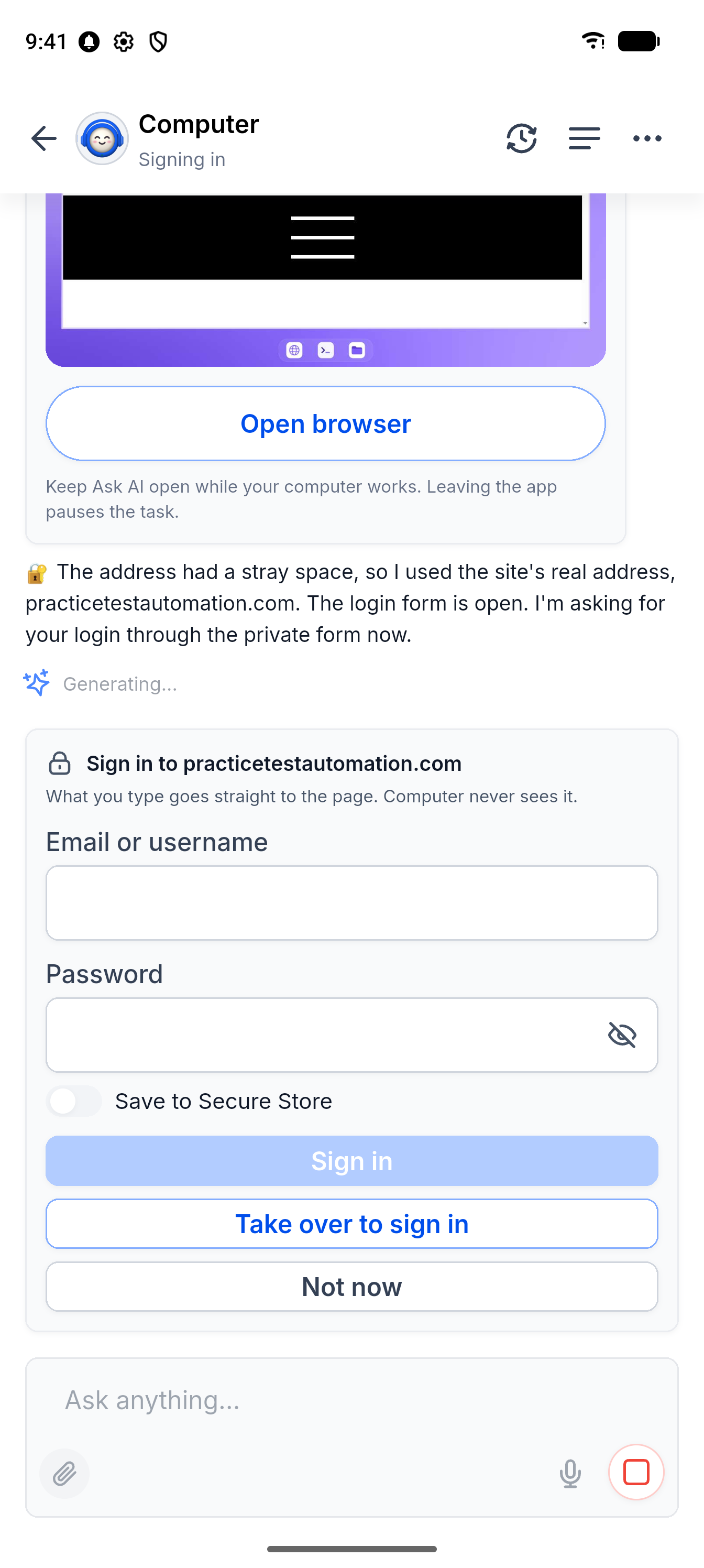
Ask AI Computer is now available in the EveryCatch mobile app. It is the same private cloud machine you use on the web. Ask AI uses it like a person at a desktop: it browses in a real Chrome browser, fills in forms, runs code, and works with files, and you can follow along from your phone. You can start a task from any chat, watch the screen live, take control with a tap, then hand it back. Sign-ins still go through a private form and Secure Store, never through the chat itself.
What changed
- Start in one tap from any chat: every new chat now shows a Computer row above the message box. The Computer also has its own dedicated chat, which you can find in History when you want to reopen or continue a task.
- Watch it work in real time: open the browser full screen to see the actual desktop session. A status line tells you whether it is working, idle, finished, waiting for you, or under your direct control.
- Take over from your phone: tap to click, use two fingers to drag and scroll, and type using your phone’s keyboard. When you are finished, hand control back so Ask AI can continue from exactly where you left off.
- Keep chatting while it runs: a live status pill follows you into any other chat so you can multitask. Tap the pill at any time to jump straight back to the Computer view.
- Respond to prompts on the spot: when the Computer pauses to ask for approval, you can approve, deny, or choose “Allow for this chat” (this stays in place for 30 days for that site). You can review these under Allowed actions in Settings, where you can revoke permissions one by one or clear them all.
- Sign-ins stay private: the sign-in form sends what you type directly to the website, so Ask AI does not see your credentials in the chat or store them in messages.
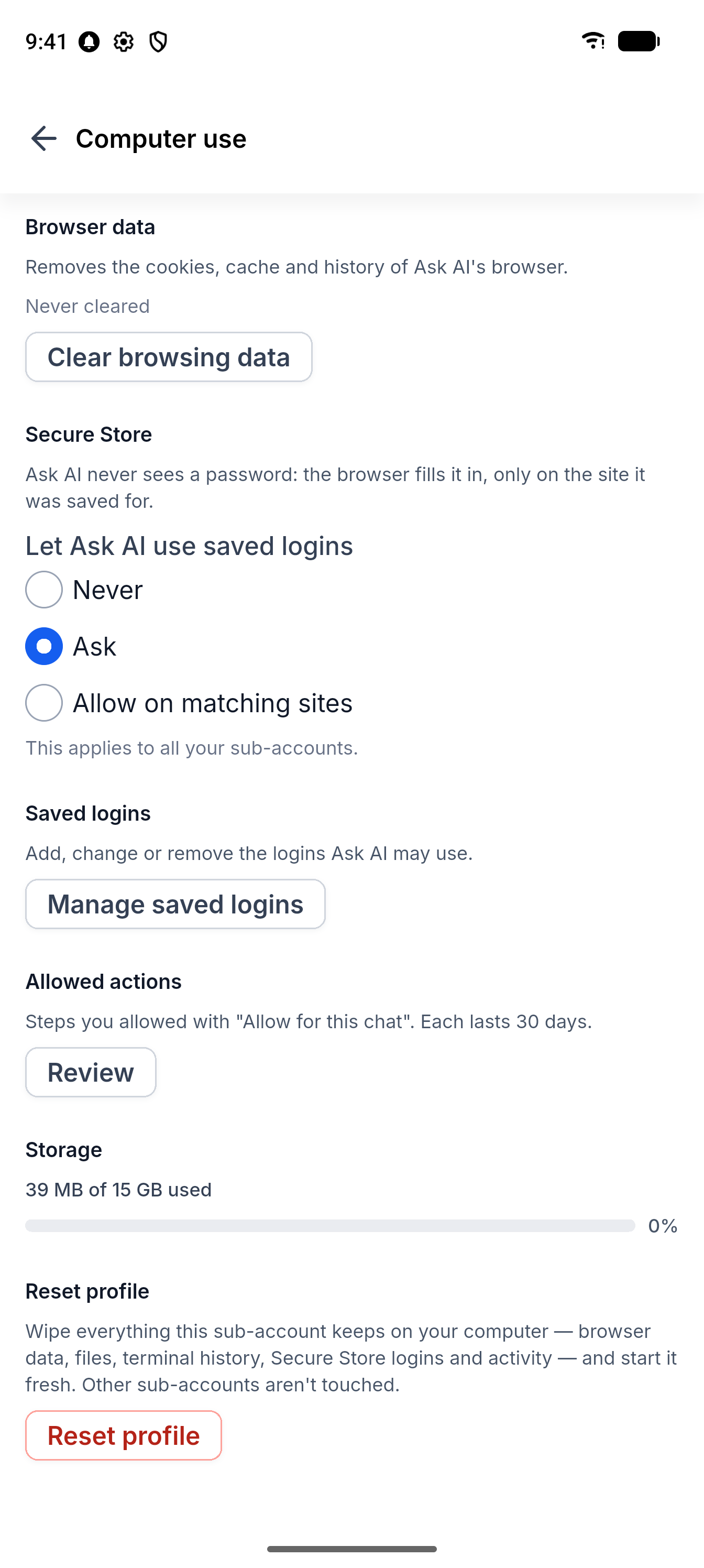
- Save logins to Secure Store, then choose whether saved logins are never used, used only after asking you, or used automatically on matching sites that you approve.
- It will not fill a saved password on a look-alike or mismatched site, which reduces the risk of phishing.
- Secure Store on mobile: you can now add, edit, and delete saved logins for each account directly from your phone.
- Files and results in one place: results like spreadsheets, documents, and PDFs appear as files in the chat. Files you attach in the chat are sent to the Computer. The Files sheet lists your recent files with a storage meter, and you can tap any file to open it from mobile.
- Activity log for transparency: you see a plain-language history of every step the Computer took while working on your task.
- One conversation across devices: any turns you send on the web appear in the mobile chat when you open it. If the Computer’s screen is already open on another device, tap Show here to bring that live view to your phone.
- Settings → Computer use on mobile: you can clear browsing data, set saved-login rules, review allowed actions, check storage, or reset one Computer profile for a specific account without affecting others.
- Automatic recovery: if the Computer is asleep, Turn on wakes it up with your files and sign-ins intact. If the network connection drops, it reconnects. If a task stopped halfway, tap Resume to continue where it left off.
Impact
You can now run Computer tasks when you are away from your desk: start new work or step into an in-progress task from wherever you are using your phone.
You stay in control at all times: live view, take-over controls, and approvals all work on mobile, so you decide what the Computer can do and when.
Your passwords never appear in chat, including when you use EveryCatch on mobile.
You get the same controls as on the web: the same agency switches, account limits, and safety settings apply automatically on mobile, so admins do not need to configure anything new.
Real use cases
Handle blockers while you are out. For example, you start a bank statement pull on the web, then head out. The Computer reaches the bank’s one-time code step, and your phone shows Needs you. From there, you can do the rest right on mobile:
- open the browser view on your phone
- take control and type the one-time code when you receive it
- hand control back so the Computer can finish pulling the statement