
You can now fill Date-Time contact custom fields in EveryCatch workflows using dynamic values instead of only fixed dates and times. In Update Contact Field and Create Contact actions, you can pull in timestamps, values from other date fields, or outputs from Format Date and Time so the value is set at the moment the workflow runs.
What’s improved?
- Choose Standard or Dynamic: Keep a fixed date and time, or switch to a value that is calculated when the action runs.
- Reuse workflow data: Select outputs from Format Date and Time, date tags, or other Date and Date-Time custom fields as your source.
- Keep timestamps on the contact: Save a formatted value straight into a Date-Time field so you can easily reference it later or trigger follow-ups.
How to use it
- Open a workflow in EveryCatch, then add or edit an Update Contact Field or Create Contact action.
- Select your Date-Time contact custom field, open the three-dot menu beside it, and choose Dynamic.
- Pick the source value from the dynamic value picker. To use a Format Date and Time output, make sure you add the formatter step earlier in the workflow.
- Enter a supported date/time format, such as YYYY-MM-DD HH:mm:ss, then save the action and publish or save your workflow.
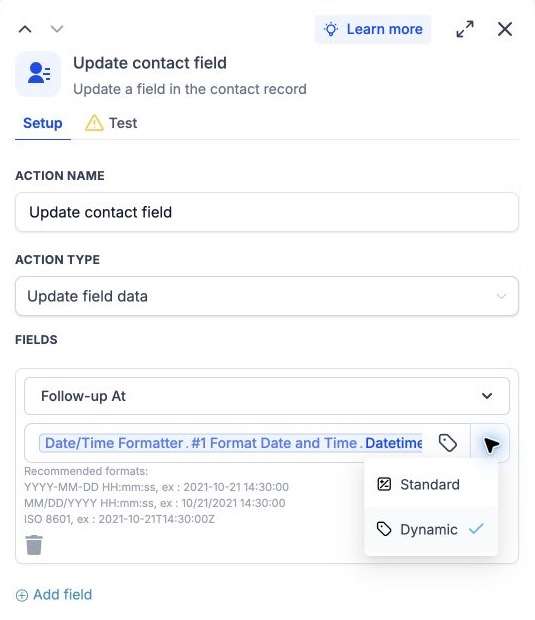
Example
For example, you can use Format Date and Time to format a timestamp in the layout you want, then select that formatter’s output as the dynamic value for a Follow-up At contact field. When the workflow step runs, EveryCatch resolves the date and time and saves that final value into the contact’s Follow-up At field.
Good to know
- Date-only values: When you save a date without a time, EveryCatch stores it at 12:00 AM in your location’s timezone.
- Invalid or empty values at runtime: If the dynamic value is empty or not a valid date/time when the workflow runs, only that field is skipped. Other fields in the action still update, and the execution log shows what went wrong.
- Switching modes: If you change a Date-Time field between Standard and Dynamic, the value you previously entered for that field is cleared so you can set it again as needed.
- Existing workflows: Any static Date-Time values you already use in workflows keep working the same way. Separate Date and Time custom fields behave as before.