EveryCatch now lets opportunities and tasks enroll in workflows even when they are not tied to a contact. Their enrollment history and execution logs now show up alongside contact activity, so you can filter by object type and quickly search for the exact record you want to review.
What changed
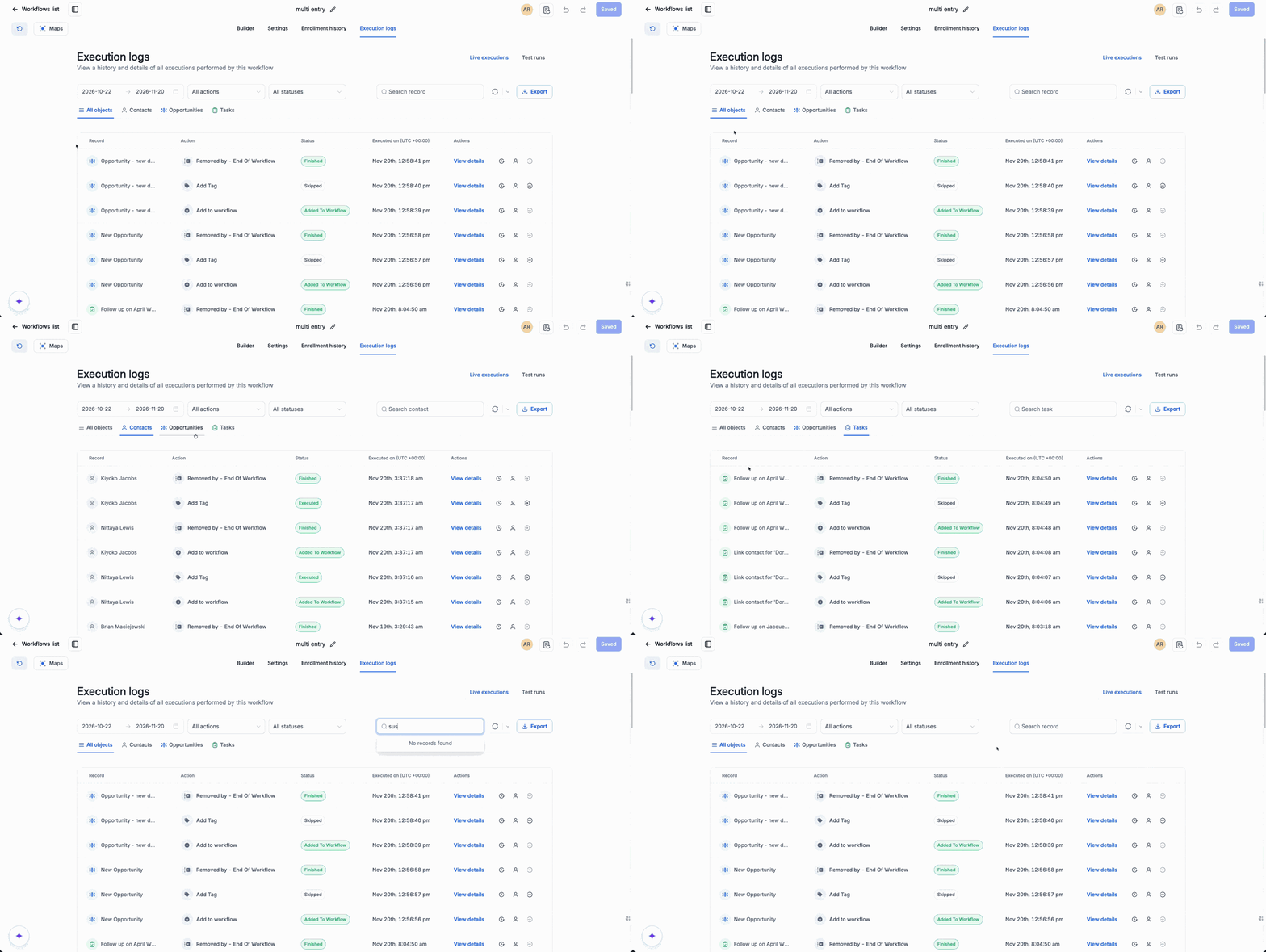
- See activity across objects: Use the object filter to view All objects at once, or focus on a single type by choosing Contacts, Opportunities, or Tasks.
- Find a specific record: Use the search field to look up a record and see its workflow activity. The search options update automatically based on the object type you select.
- Know what you're looking at: The record column now shows both the record type and its name, so you have clear context for each execution line in the log.
Why we built it
Now that opportunities and tasks can move through workflows on their own, you need a reliable way to trace automation activity back to those records, even when they are separate from a contact. You can now pull up any opportunity or task directly and review its full enrollment and execution history without going through a related contact.
This gives you clear visibility into workflow runs that involve deals and tasks, and it makes it simpler to understand exactly what happened to a specific opportunity or task at each step.
How to use it
- Go to Automations > Workflows and open the workflow you want to review.
- Select Enrollment history or Execution logs.
- Choose an object type or select All objects. Then search for a specific record and apply any other filters you need to investigate its activity.
Ways to use it
- Investigate an opportunity: Select Opportunities and search for a specific deal to see every workflow event tied to it.
- Check a task: Select Tasks and search for a task to review the actions and steps logged for that item.
- Review the full picture: Select All objects to scan activity across contacts, opportunities, and tasks, then narrow down to a specific record type when you are ready to drill into the details.