You can now manage your workflows directly from your AI assistant. Workflows in the EveryCatch MCP server, currently in private beta, let tools like Claude, ChatGPT, Cursor and other AI assistants find workflows, explain what failed and for whom, count enrollments, and even build and publish workflows for you.
What changed
- Find workflows – Search workflows by name, status, folder or date so your assistant can quickly locate what you are looking for.
- Read workflows – Ask your assistant to read a workflow’s full definition, including triggers, steps, branches and settings, so you can understand how it is configured without opening the builder yourself.
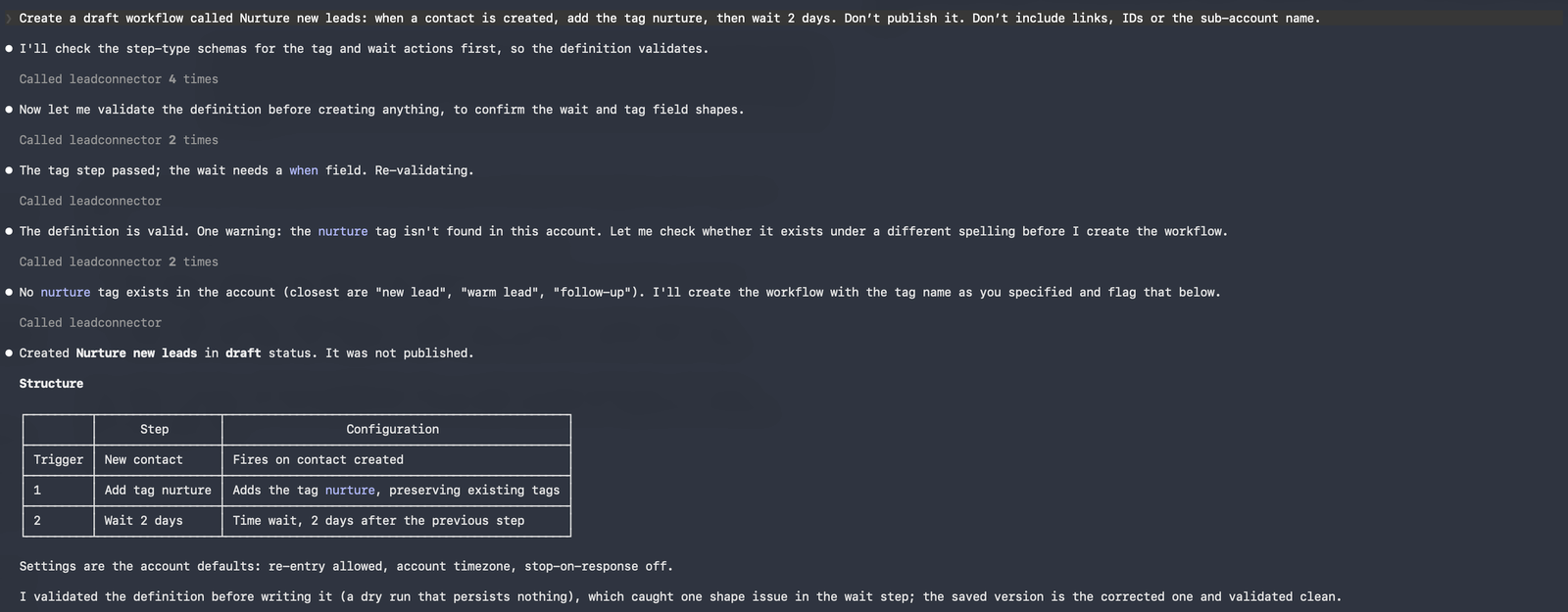
- Build workflows – Describe the workflow you want in plain language. The assistant turns that into a workflow, checks it for basic errors and saves it as a draft in EveryCatch.
- Update and publish – Ask your assistant to change a workflow, publish it, or move it back to draft, all from within your AI tool.
- Delete workflows – Remove a workflow through your assistant, with an extra confirmation step to avoid accidental deletion.
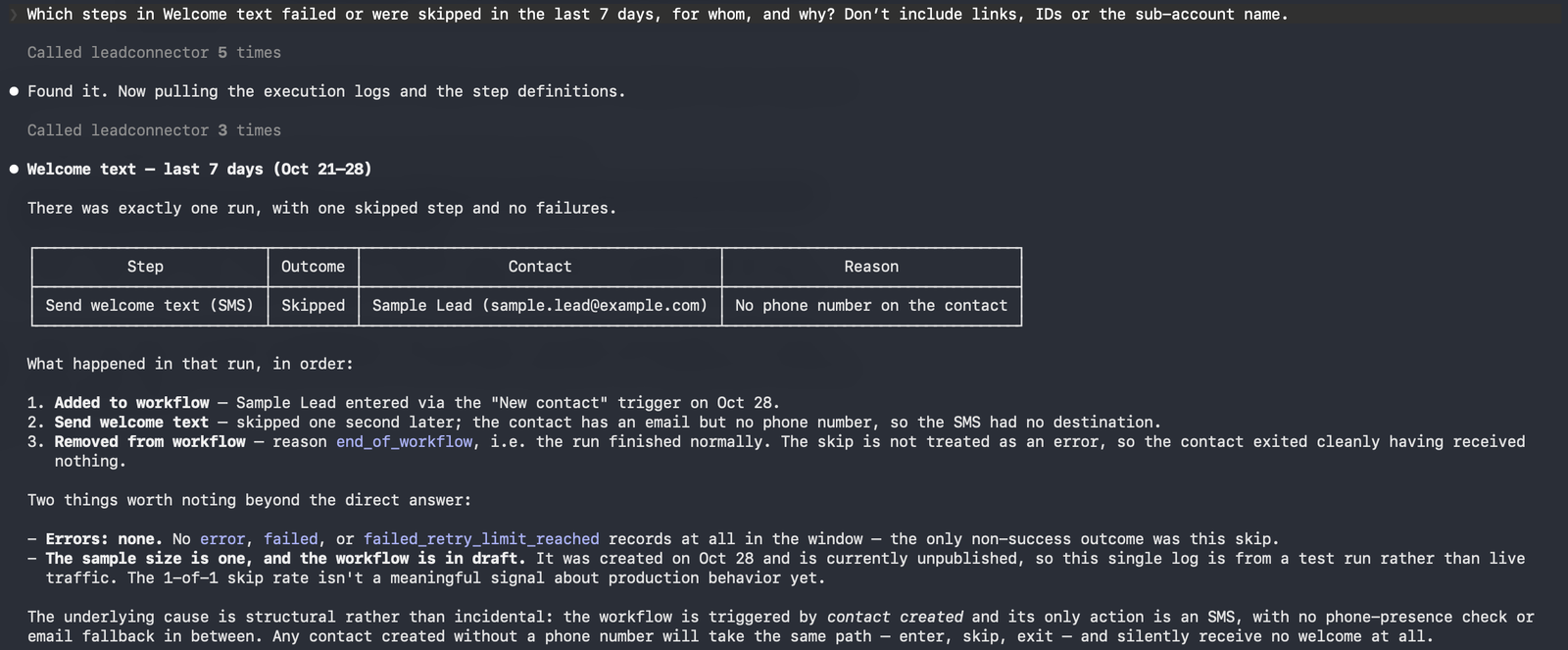
- Execution logs – Have your assistant review who entered a workflow, what happened at every step and which steps failed, including the error messages.
- Statistics – Get counts of enrollments, completions and failures per step, grouped by hour, day or week, without exporting data by hand.
Why this matters
With workflows in the EveryCatch MCP server, you can:
- Answer “what broke, and for whom?” by asking a single question instead of scanning execution logs step by step.
- Get a first draft of a workflow simply by describing what you want to happen.
- Check how your workflows are performing from the AI assistant you already use, without switching tools.
Example use cases
Failure triage
Ask your assistant which steps in the “New Lead Nurture” workflow failed this week. The assistant reads the logs and then lists each failed step with the contact involved and the specific error, so you know exactly where to focus your fixes.
Weekly numbers
Ask how many contacts entered the “Webinar Follow-up” workflow each week this month. The assistant counts enrollments by week and returns one number per week, so you can quickly see trends without running a manual report.
Draft by description
Describe a workflow that tags new contacts as “webinar-lead” and sends a welcome SMS. The assistant validates the setup for errors and then saves a draft workflow in EveryCatch for you to open and review in the builder before you turn it on.
How to get started
- Add the EveryCatch MCP server to your AI tool. In Claude, go to Settings → Connectors → Add custom connector and enter https://services.leadconnectorhq.com/mcp/anthropic/v2. In ChatGPT, turn on Developer mode, open ChatGPT Plugins and add https://services.leadconnectorhq.com/mcp/openai/v2/ as the connection. Cursor uses https://services.leadconnectorhq.com/mcp/cursor/v2.
- Sign in with your EveryCatch account, select the account you want to use and approve the workflow permissions the assistant requests.
- Start a new chat in your AI tool and ask about your workflows, for example “Show me this month’s failures in my onboarding workflow.” The EveryCatch MCP server docs have step-by-step setup instructions for each supported client.
Notes & details
- Private beta: workflows in the MCP server are available in accounts that have the Workflows API enabled. Other accounts will see the error WORKFLOW_API_NOT_ENABLED_FOR_LOCATION. Contact support if you want your account added.
- New workflows created through your assistant are saved as drafts. You or your assistant must publish them in a separate step before they start running.
- When you change a published workflow, it is first moved to draft. While the workflow is a draft, its triggers are turned off and contacts currently in the workflow are paused until it is published again.
- Each request from your AI assistant works within a single account. Support for agency-level connections that can access several accounts is rolling out.
- Deleting a workflow is permanent and stops all contacts currently running through it, so only delete workflows you are sure you no longer need.
- Logs returned through the MCP server cover up to 30 days per request and go back up to 60 days in total. They include live workflow runs; test runs from the workflow builder are excluded.
Support doc here



