What changed
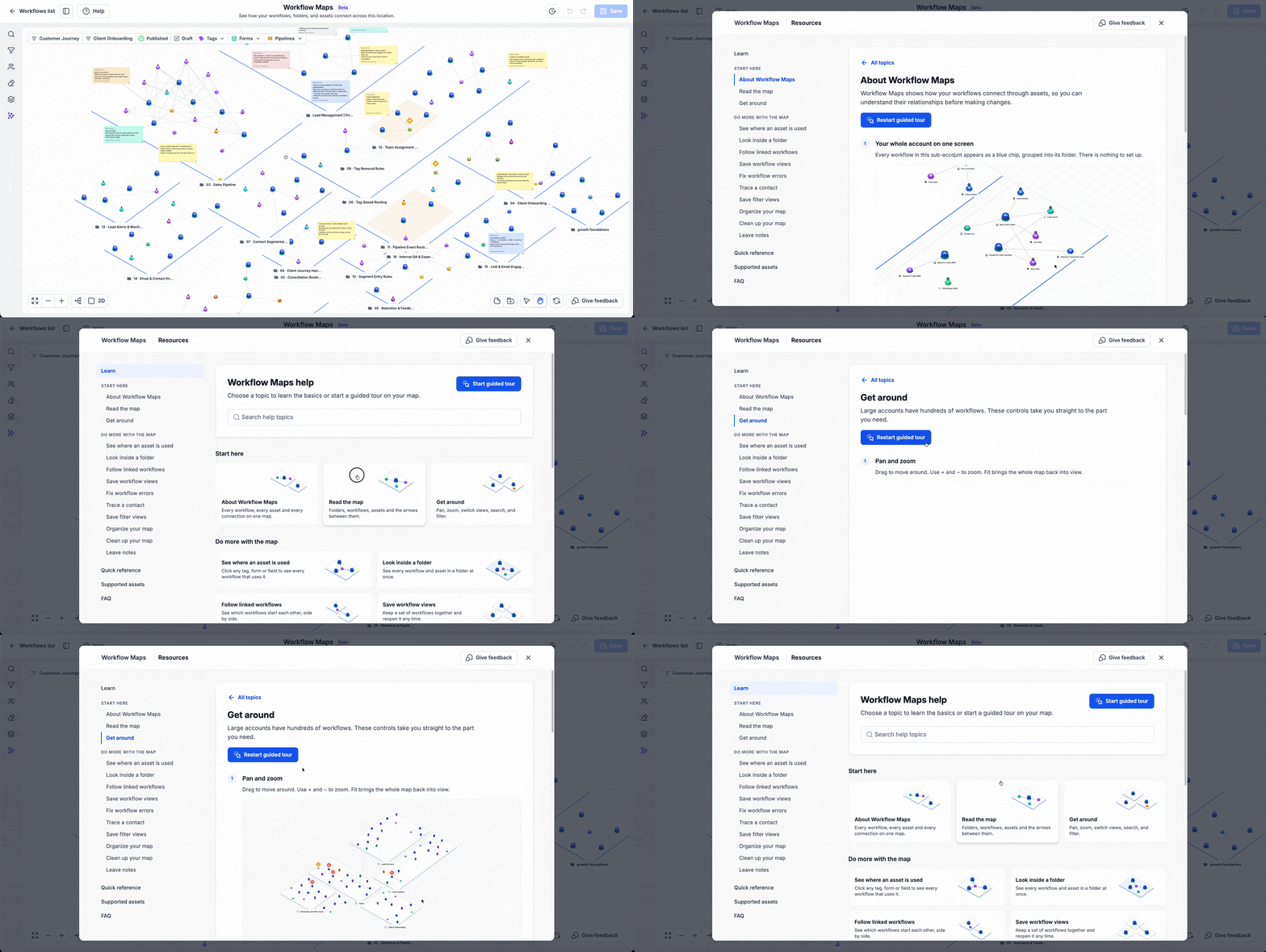
Workflow maps in EveryCatch now include guided onboarding and a built-in resource hub. These help you understand what you are seeing on the map and discover features as you move around and explore your automations.
You can start with a short introduction, choose whether you prefer a 2D or 3D view, and then follow focused guidance for tasks such as tracing a contact’s path, reviewing workflow errors, and checking how assets are used across your account.
Why this matters
Workflow maps give you a visual way to understand your automation. The guided onboarding helps you learn the map controls directly where you use them, and the Resources hub gives you a central place to return to whenever you want a walkthrough, a reminder of a feature, or a quick reference while you work.
How it works
To get started, go to Automation > Workflows > Workflow maps in your EveryCatch account.
- Get oriented: On your first visit, an introduction explains how the map works and lets you choose between the 2D and 3D views.
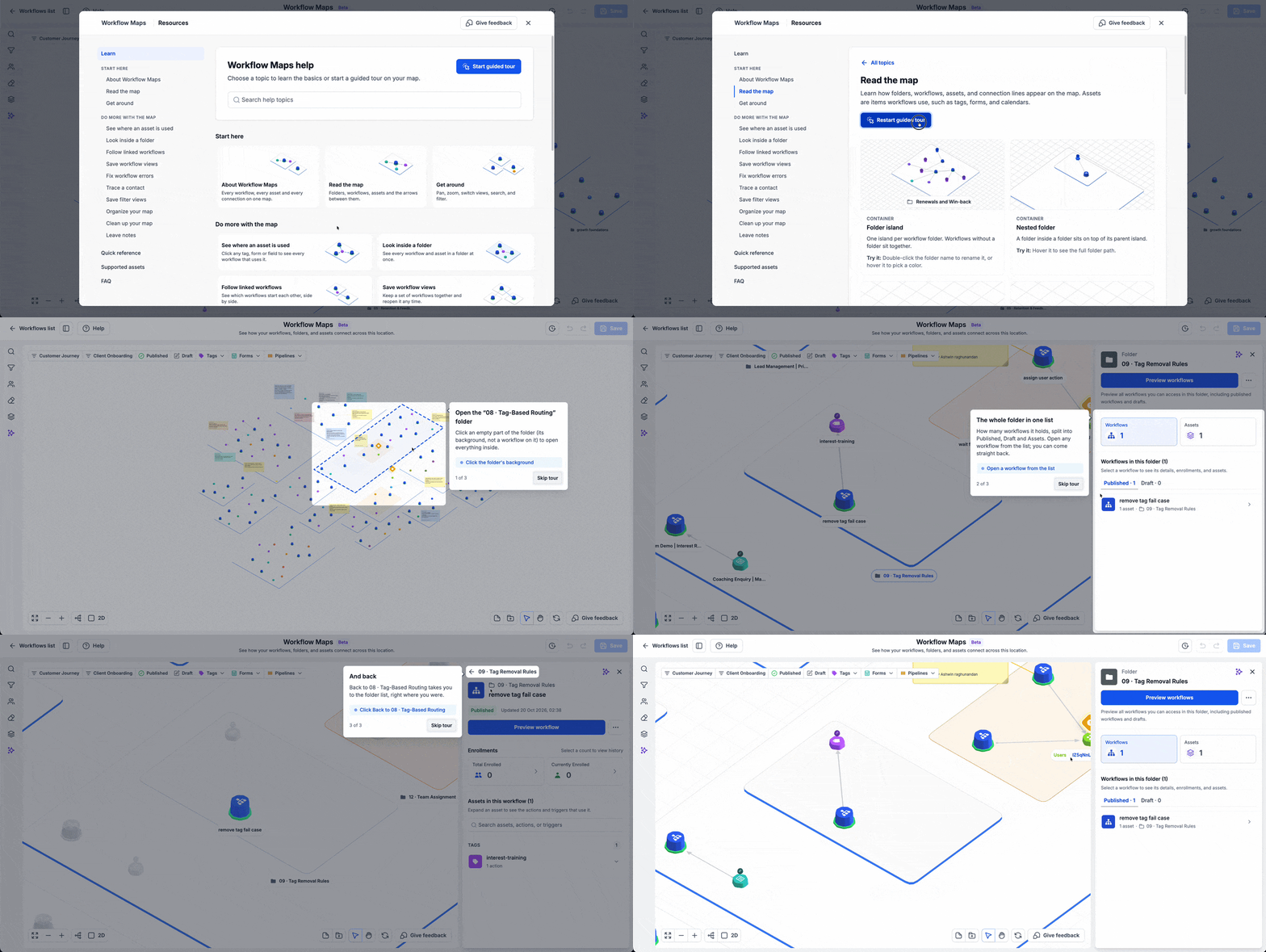
- Learn in context: As you move around the map and explore workflows and their connections, relevant prompts appear to introduce features at the moment you need them.
- Follow walkthroughs: Use guided steps to review errors, trace contacts through workflows, inspect folders, check asset usage, and apply filters to focus the map on what you want to see.
- Open Resources: Select Help on the map at any time to open the Resources hub and find guides that match the task you are trying to complete.
- Find a quick answer: Use search in Resources or jump straight to the Cheatsheet, Supported assets, and FAQ sections for fast clarification.
Common use cases
- Introduce a teammate to workflow maps and help them get comfortable with the visual view of automations.
- Learn step by step how to investigate where an asset is used across different folders and workflows.
- Get targeted guidance while you troubleshoot a contact path or track down the cause of a workflow error.
Additional notes
- Onboarding prompts adapt based on how you use the map, so you see guidance that matches your actions.
- Guidance for editing appears only in areas where your user permissions allow you to make those changes.
- Resources are always available from the map, so you can revisit a topic or walkthrough whenever you need a refresher.
Preview