What changed
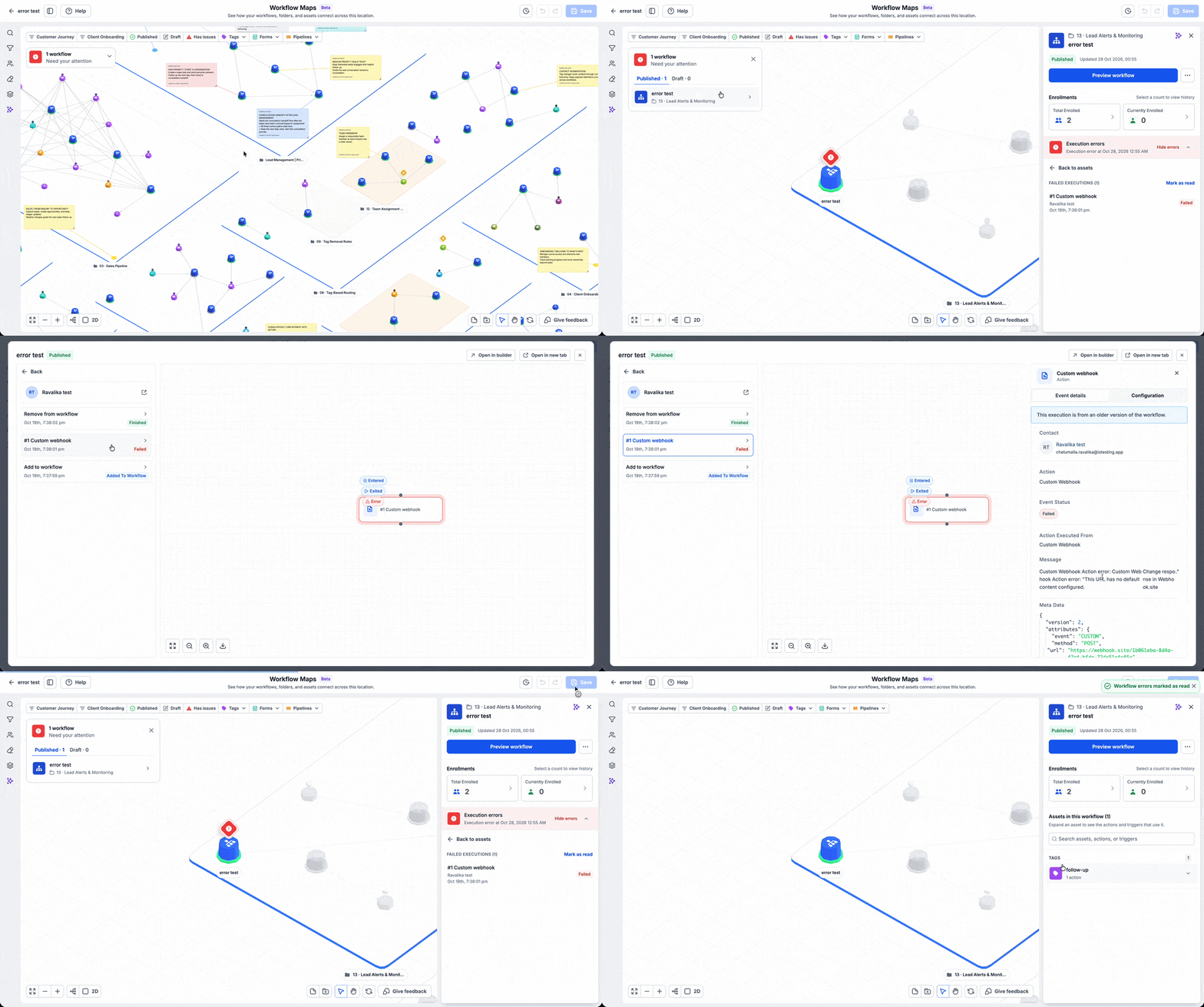
Workflow maps in EveryCatch now brings together workflow execution errors from across your account in one view. You can quickly find workflows that need attention, drill into their failed runs, and jump straight to the step that caused the issue so you can fix it.
Why this matters
When an automation fails, it can delay lead follow-up, break customer communication, or interrupt an internal handoff. Having a single place to see workflow errors helps your team spot issues faster, understand what went wrong, and address it without opening and checking each workflow one by one.
How it works
In your EveryCatch account, go to Automation > Workflows > Workflow maps.
- Spot flagged workflows: An errors badge highlights workflows with errors from recent executions so you know where to look first.
- Open the error summary: Select Review workflows with errors to see all flagged workflows, organized into Published and Draft so you can prioritize live automations.
- Focus your investigation: Use the Has issues filter to narrow the map view to only workflows with problems.
- Inspect the failure: Select a workflow to review its failed executions, the specific step affected, and the detailed error message.
- Resolve the issue: Open the workflow in the builder directly from the map to update or fix the affected step.
- Clear reviewed notifications: After you have investigated, go back to the map and select Mark as read to clear the error indicator for that workflow.
Common use cases
- Investigate failed webhook or integration actions that block data from moving between tools.
- Review automation errors across a large account without opening each workflow individually.
- Identify failures that interrupt a customer’s follow-up sequence so you can restore consistent communication.
Additional notes
- Mark as read only clears the error badge and notification. It does not fix the workflow or retry any failed executions.
- Make any needed workflow updates or corrections in the workflow builder after reviewing the error details.
- Launch access: Workflow maps is currently available only to agency users and agency admins at launch.
Preview