Your WhatsApp customers can now see the familiar "typing..." bubble while your workflow or AI agent prepares a reply. Instead of silence after they message you, they see straight away that their message arrived and that an answer is on the way, so automated WhatsApp conversations feel more personal and fewer people drop off before you respond.
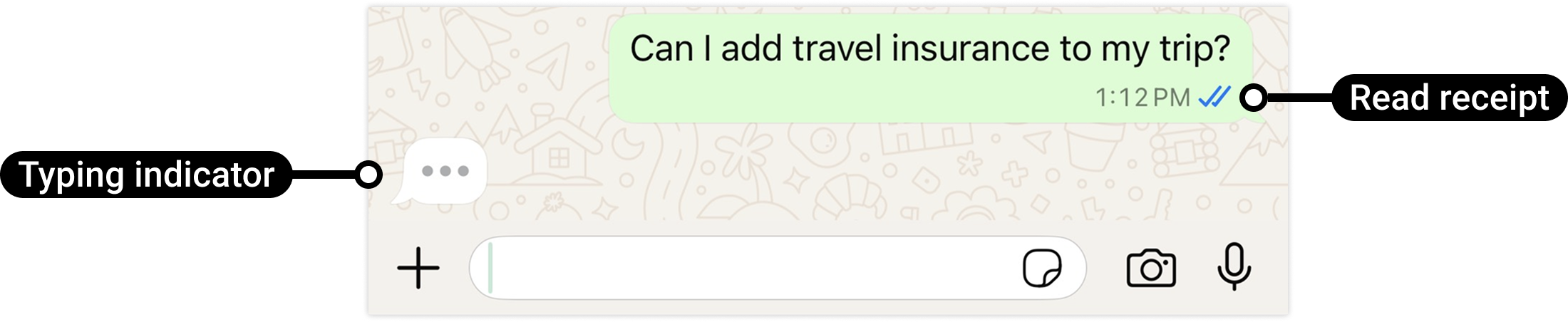
If nothing appears after a message, it can feel like nobody is there. A typing bubble tells your customer you are already working on a reply.
What changed
A new typing indicator action in workflows
- EveryCatch now includes a typing indicator action that you can add to any workflow that replies to an incoming WhatsApp message. Your customer sees "typing..." in their chat, the same way they would from a person.
- It is designed for automated replies. Place it just before an AI agent's reply, a lookup, or a wait step so that the moments where your automation is working do not feel like silence for the customer.
- The indicator clears on its own. It disappears as soon as your reply is sent, or after 25 seconds, whichever happens first.
You decide where it fires
- You have full control over where the typing indicator appears. It only shows up in workflows where you add the action, so customers see it in conversations you are about to answer and nowhere else.
- The typing indicator also marks the customer's message as read (blue ticks). Because you choose exactly where to place the action, you decide when a message moves from delivered to read, instead of this happening automatically.
How this helps in real life
- AI agents answering questions: A customer asks about pricing and immediately sees "typing..." while your Conversation AI agent prepares the answer, instead of wondering whether anyone received the message.
- Booking and order lookups: A customer asks about an appointment or delivery. The indicator keeps them engaged while your workflow looks up and returns the details.
- After-hours enquiries: Even when your team is offline, your automation still feels attentive and responsive because customers see that a reply is being prepared.
How to use it
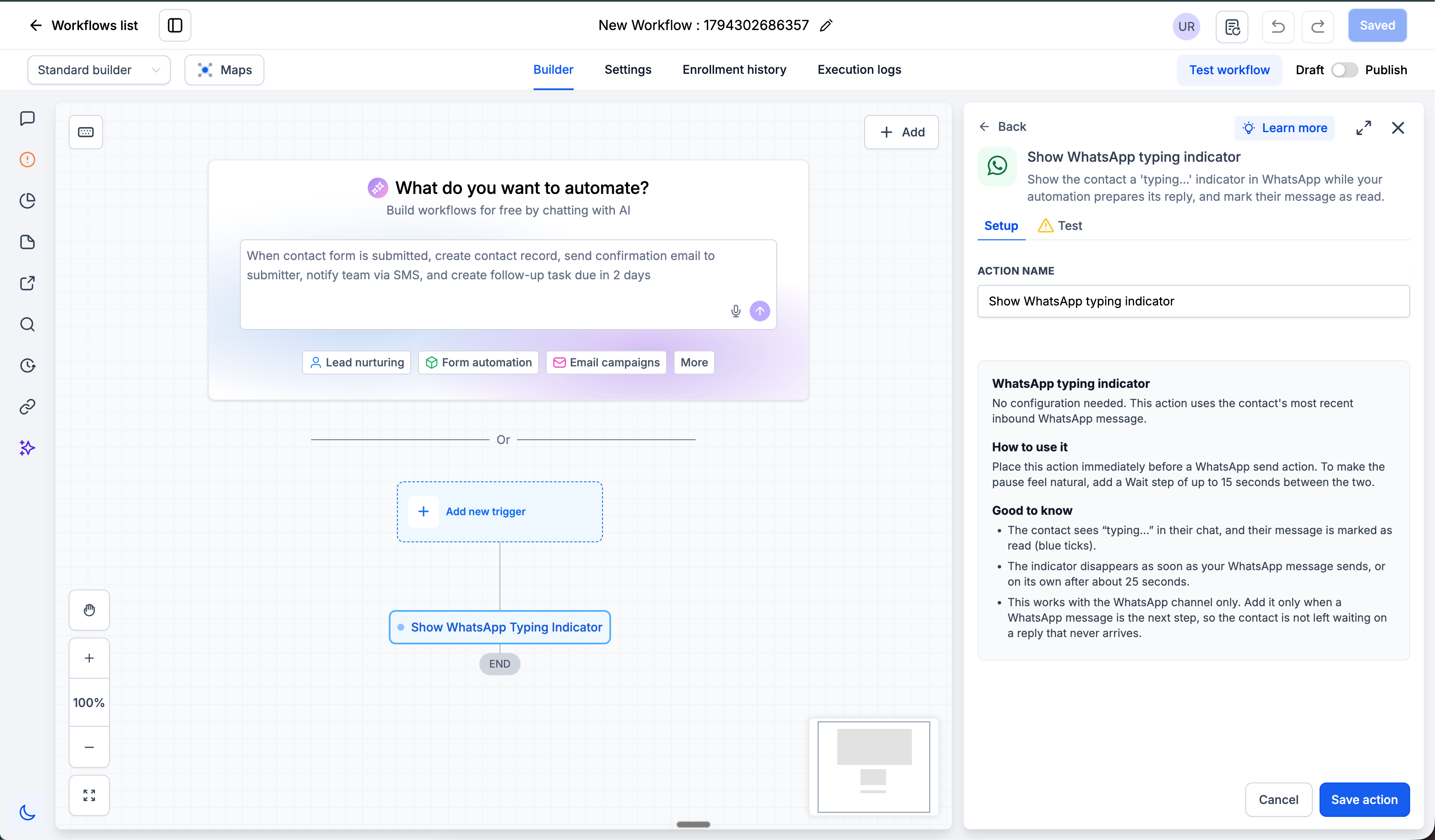
- Go to Automation → Workflows and open a workflow that is triggered by an incoming WhatsApp message.
- Click + to add an action and search for typing indicator.
- Place the typing indicator action right before the step that sends your reply.
- Save and publish your workflow.
Tip: only add the indicator where your workflow will actually send a reply. Showing "typing..." and then sending nothing is a worse experience than leaving the indicator out.
Why this matters for your business
Many WhatsApp conversations are now handled by automation and AI agents, and customers pay attention to how natural those conversations feel. If a chat goes quiet after the first message, it can look broken, which leads to customers repeating themselves or leaving entirely. The typing indicator is a simple way to show them a reply is actively in progress.
- Keep more leads engaged in the conversation by showing straight away that a reply is coming.
- Make automation feel more human so AI-led conversations build trust with your customers.
- Reduce repeat messages from customers who are unsure whether their first message was received.
- Stay in control of exactly when messages are marked as read.
To get started, open your busiest WhatsApp reply workflow in EveryCatch and add the typing indicator action right before your reply step.