
New in Workflow AI analytics, you can now ask detailed questions about what happened in your automations and get clear, step by step answers directly in chat.
This update gives you deeper workflow insight and makes it easier to troubleshoot specific contacts, versions and performance without digging through multiple screens.
Workflow AI in EveryCatch helps you understand how your automations behave in production so you can quickly verify issues, confirm changes and share clear reports with your team or clients.
Workflow AI analytics: query every workflow, trace every contact
You can now ask Workflow AI what happened inside a workflow and get a clear, step by step explanation. The Workflow AI chat can trace a contact's route, follow a contact across all workflows, compare versions, compare workflows, and generate a PDF report for you. This lets you replace manual checking of Enrollment History, Execution Logs and Version History with one conversation in a single place.
What changed
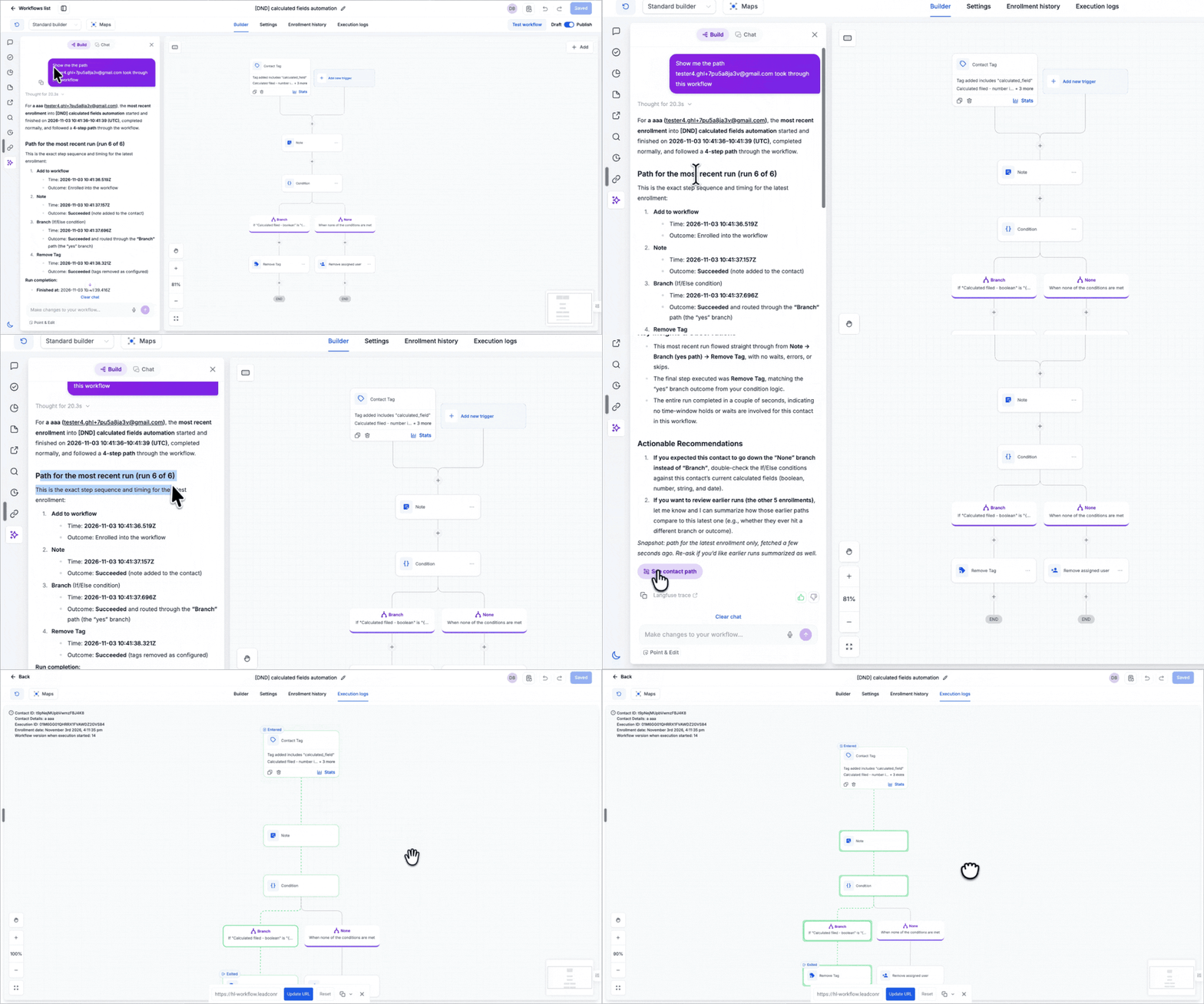
See contact path
- Ask about a specific contact and see their most recent run laid out step by step, including the time and outcome of each step in the workflow.
- Click "See contact path" to open the workflow canvas with that exact route highlighted so you can visually review where things worked or failed.
- Repeat enrollments are clearly labeled so you always know which exact run you are reviewing.
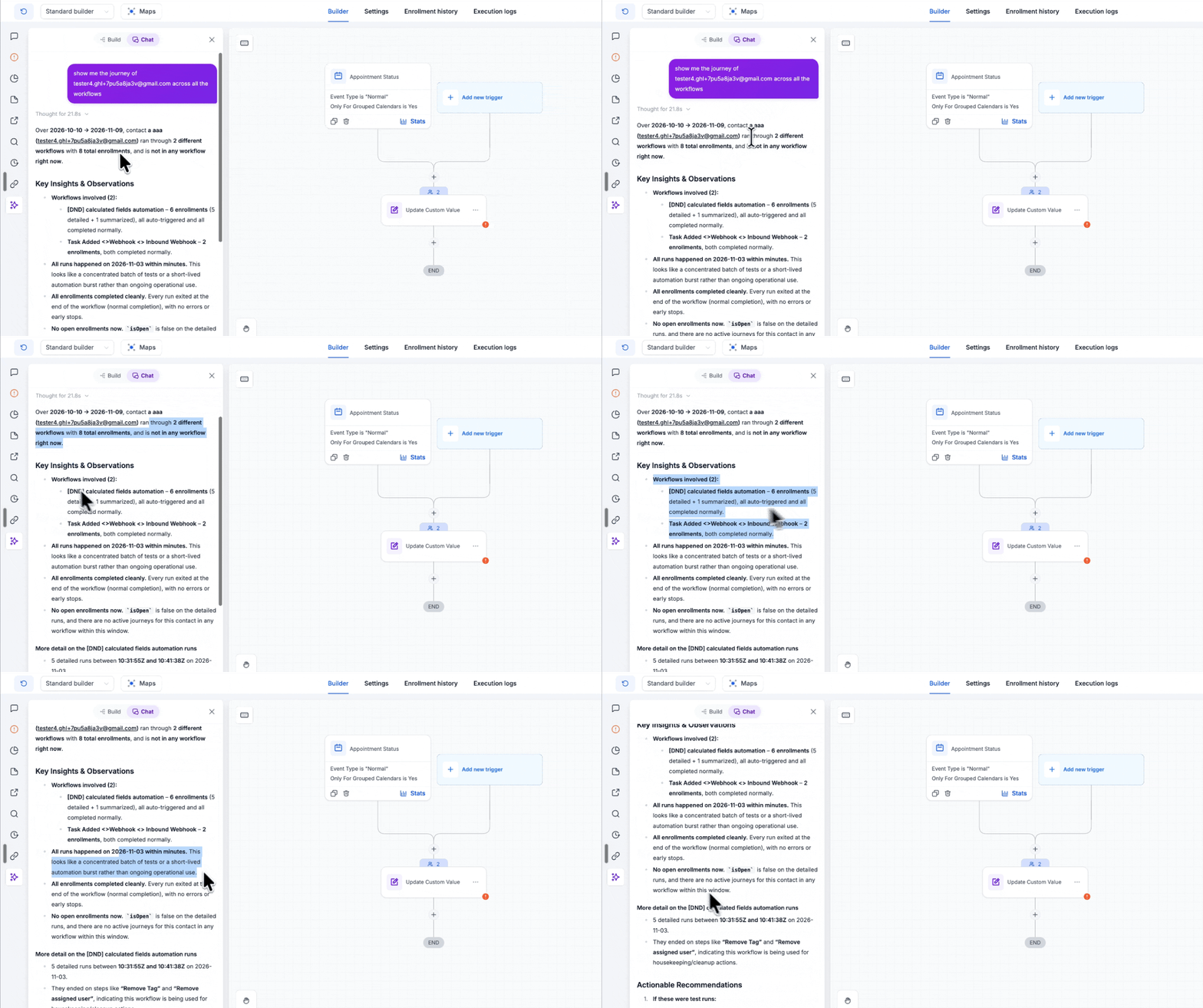
Track a contact across workflows
- Follow a single contact across every workflow in your account to see which workflows they entered, how many times they ran, and how each run finished.
- Check in seconds whether a contact is currently active in any workflow right now.
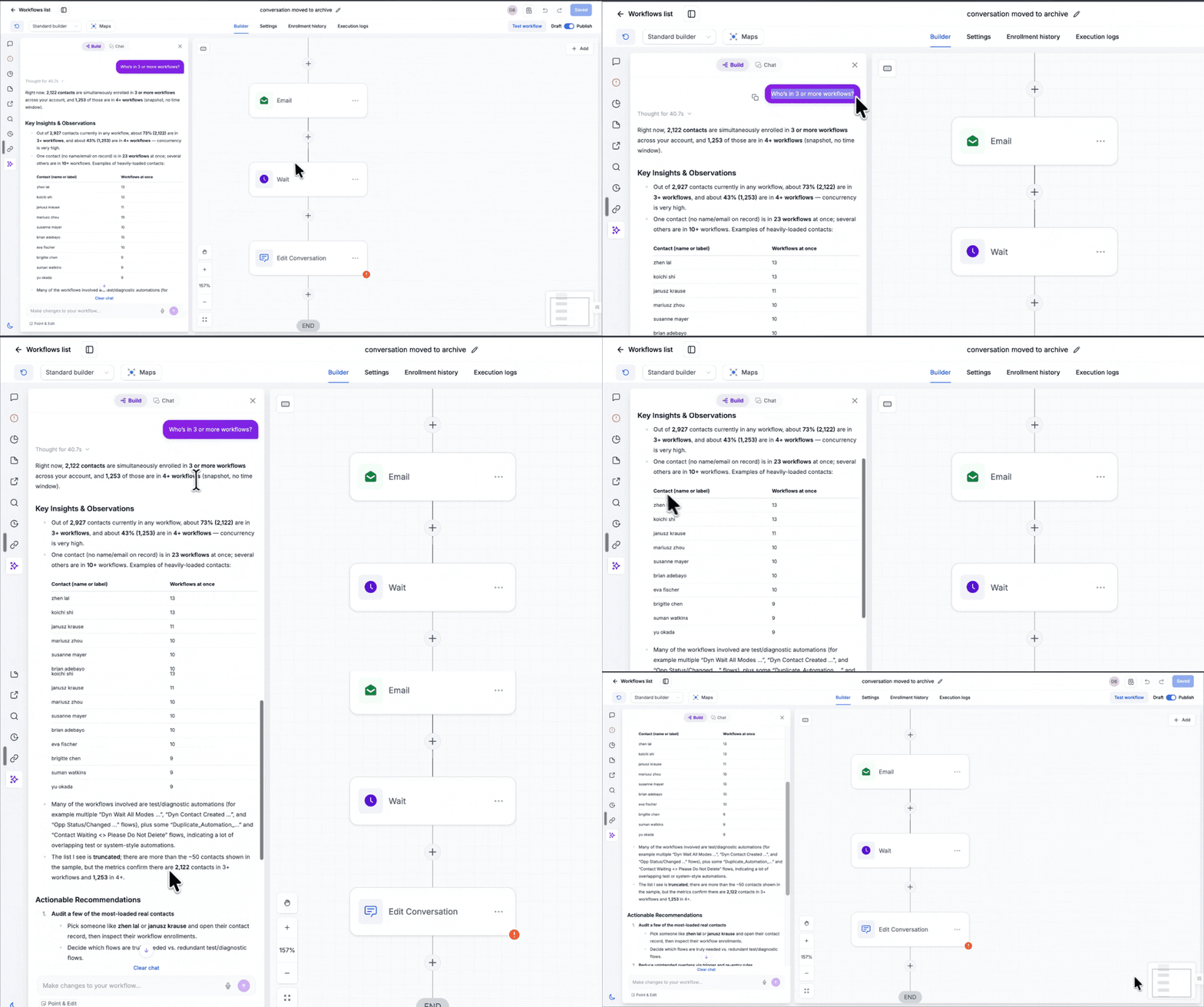
- Ask about broader account patterns, such as "Who's in 3 or more workflows?", and identify the contacts under the heaviest automation load.
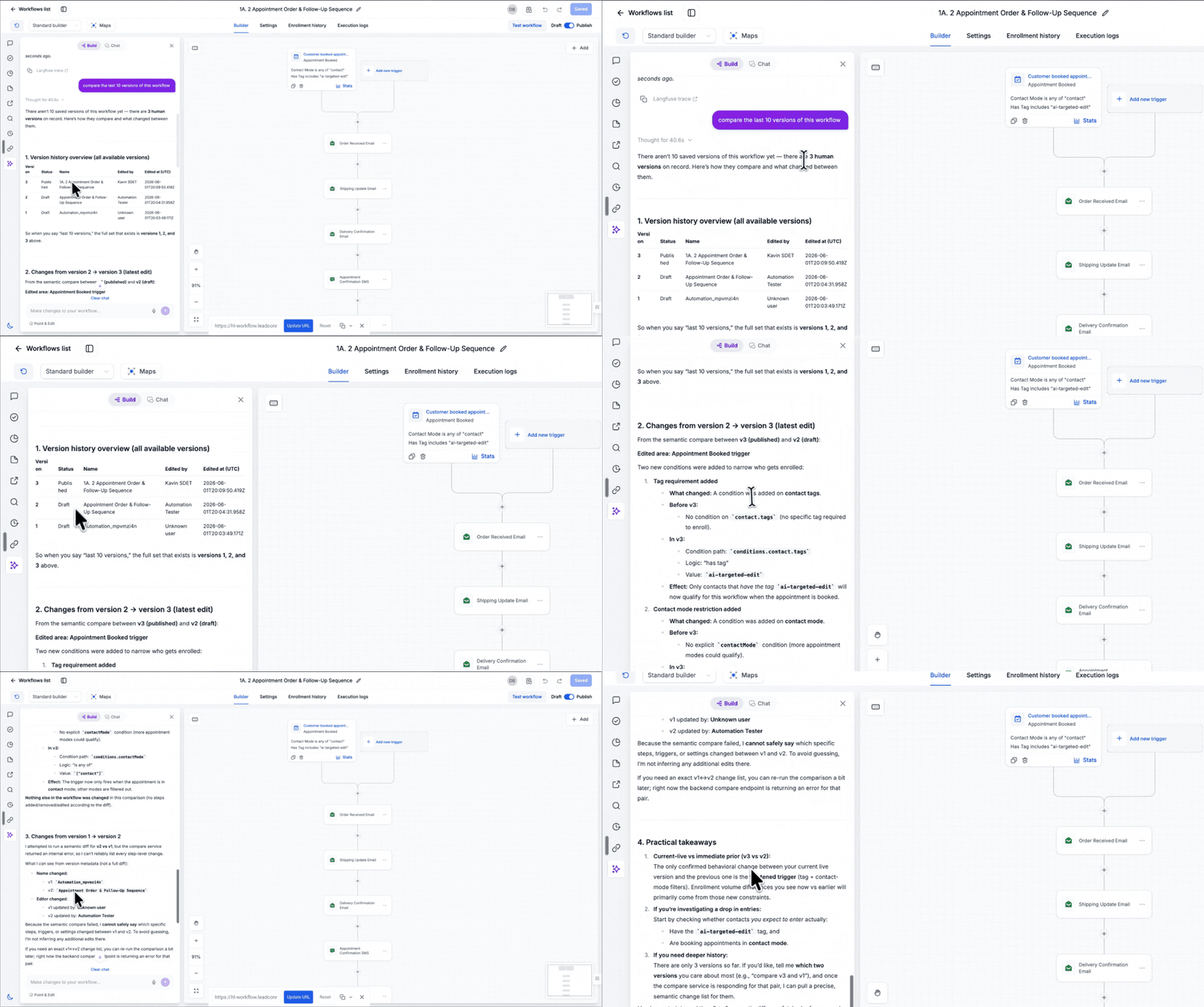
Version history in chat
- See who edited the workflow and exactly what changed between versions, including steps that were added, removed, moved or renamed, along with any field or setting updates.
- Ask whether a specific edit caused an issue. Workflow AI responds with a confidence label such as "Direct cause", "Lines up" or "Can't tell" so you understand how strongly the data supports that conclusion.
- Sensitive or secret values stay hidden for security, even when Workflow AI is summarizing changes.
PDF reports
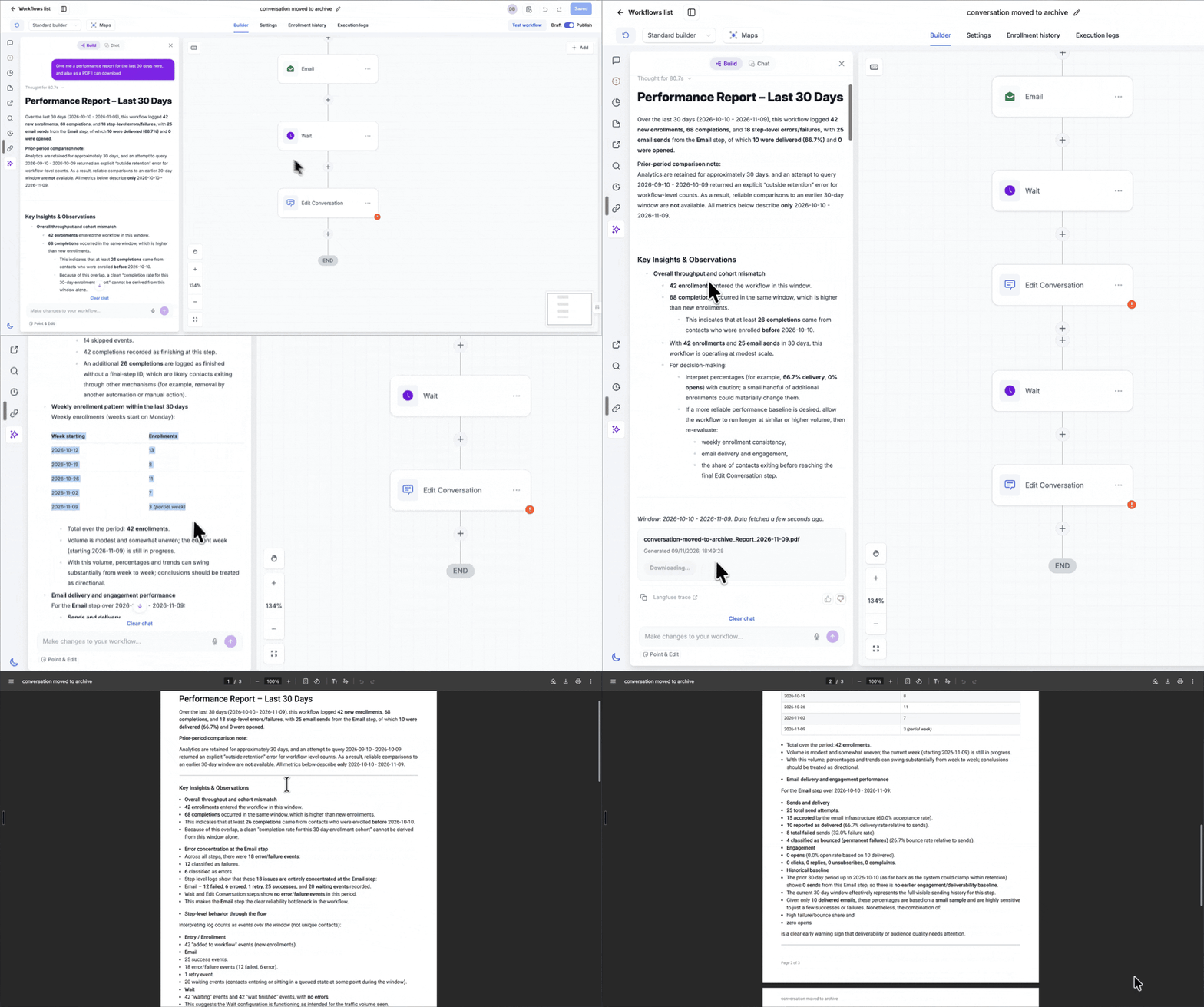
- Ask Workflow AI for a report and mention PDF, download or export in your question to trigger a downloadable version.
- You see the full analysis directly in the chat, with a "Download PDF" card displayed right underneath the response for quick access.
- Reports are only available to users who already have access to the relevant sub account and workflow, so access control stays aligned with your existing permissions.
Compare and summarize
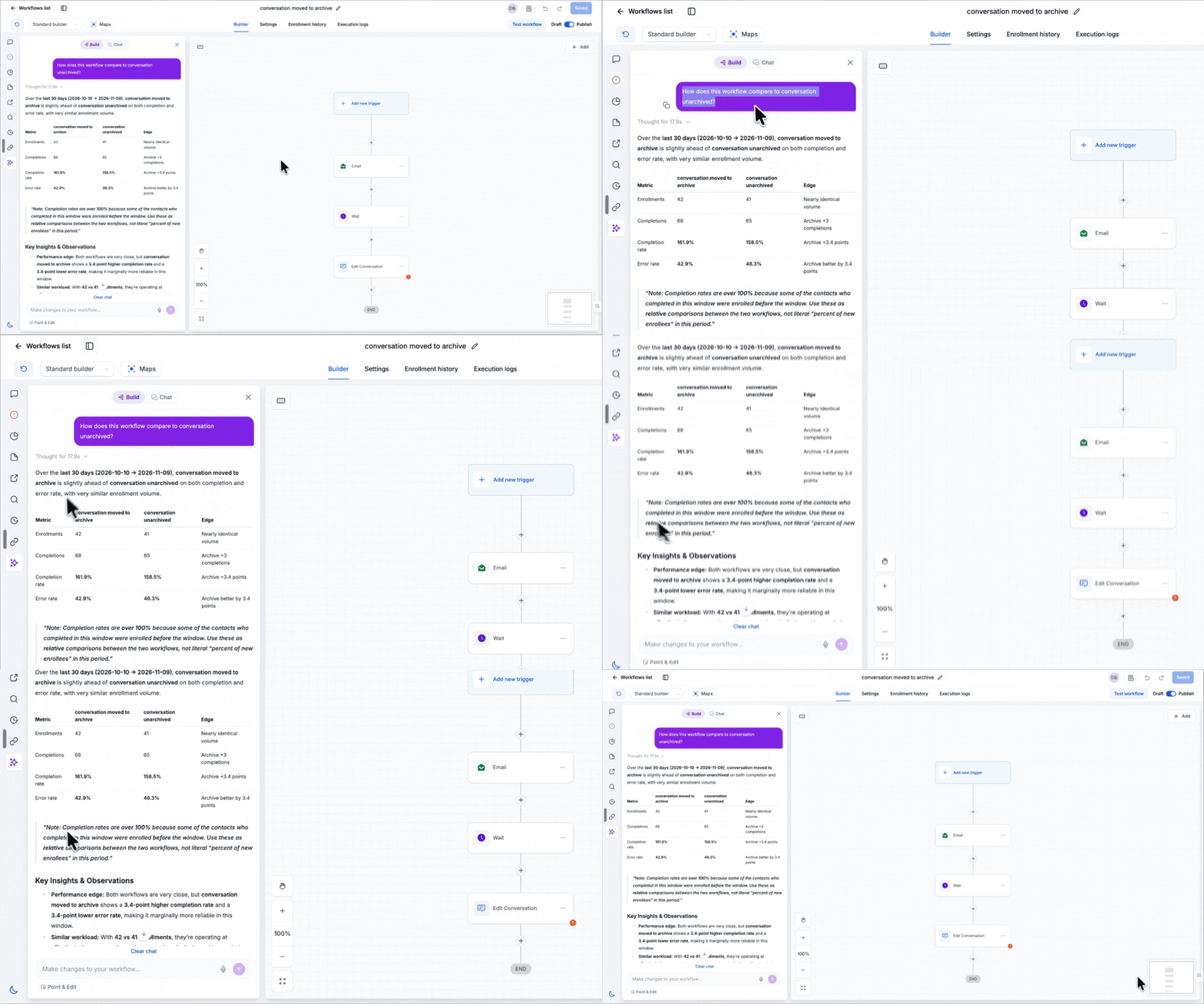
- Run a head to head comparison of two workflows, including enrollments, completions, completion rate and error rate, along with recommendations on what to adjust.
- View a leaderboard that ranks your published or paused workflows by completion rate so you can quickly spot underperformers relative to your account median.
How to use
- Go to Automation > Workflows in your EveryCatch account.
- Open the workflow you want to investigate or compare.
- Click the Workflow AI icon in the left bar, then open the Chat tab.
- Ask your question in plain language. For example, you can try questions like these:
Show me the path jane@acme.com took through this workflow
Show me the activity for jane@acme.com across all the workflows
Compare the last 10 versions of this workflow
Give me a performance report for the last 30 days here, and also as a PDF I can download
How does this workflow compare to Lead Follow Up?
- For a PDF, click "Download PDF" on the card under the Workflow AI response.
Why this matters
"What happened to this contact?" and "What changed?" are the two questions workflow owners ask most often when something looks off. Before this update, you had to look in three different areas to answer them and then manually connect the dots. With Workflow AI analytics in EveryCatch, you can now ask a single question in chat and let the system assemble the full story for you.
- Faster debugging: Understand why a specific contact got stuck or behaved unexpectedly without sifting through raw logs.
- Clear accountability: See exactly who changed what in a workflow, and whether that change appears to have introduced an issue.
- Client ready reporting: Share a structured PDF report instead of collecting multiple screenshots and ad hoc notes.
- Account wide view: Spot workflows that need attention early, before your team or your clients raise concerns.