Overview
EveryCatch now lets you update records that already exist when you re-import from HubSpot. When you run another import, you can choose Overwrite existing records so that matching records in EveryCatch are refreshed with the latest data from HubSpot. Any HubSpot records that do not match something in EveryCatch are still created as new records.
What changed
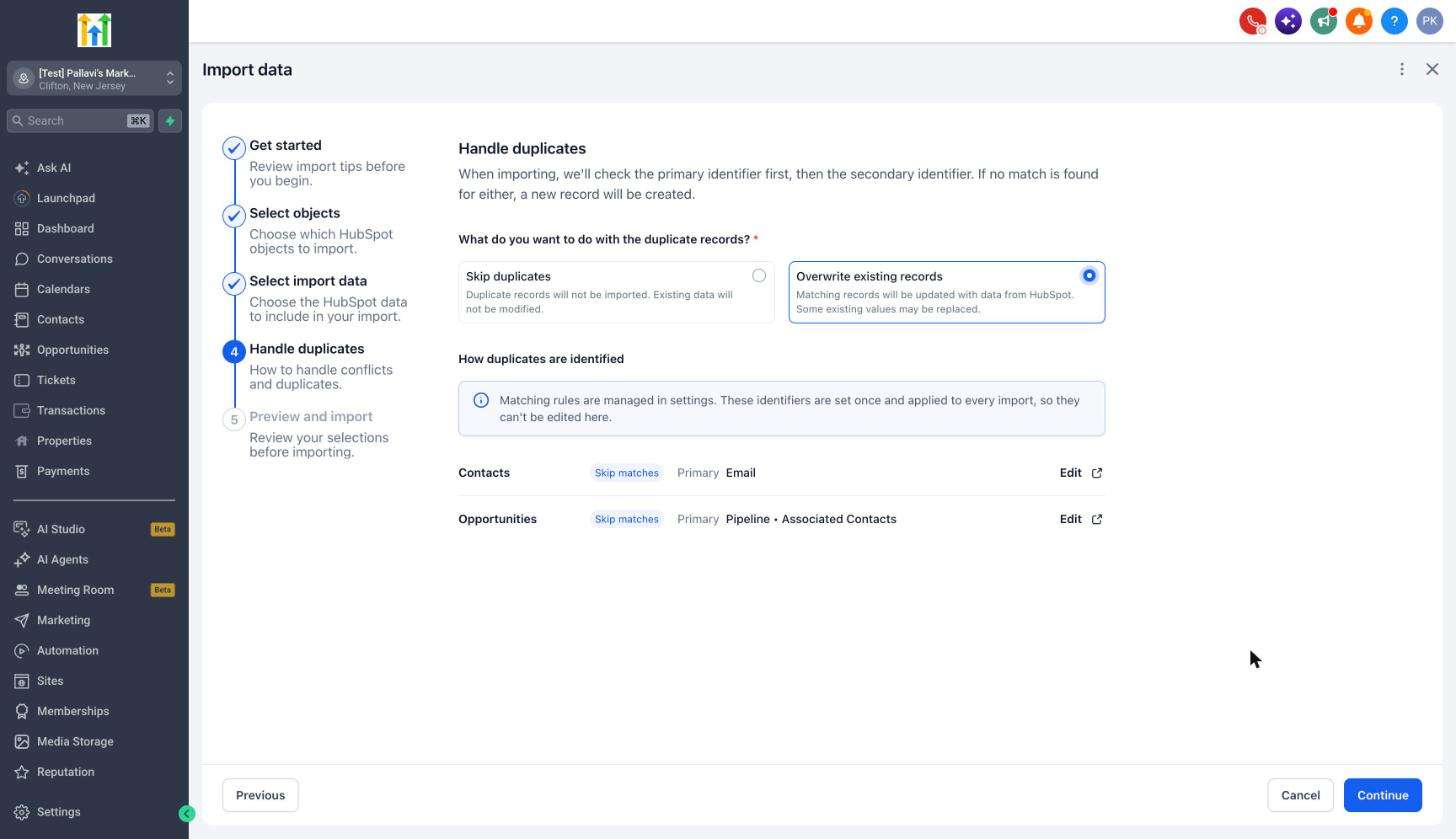
- There is a new choice on the Handle duplicates step: Skip duplicates (the default) or Overwrite existing records
- When you choose Overwrite, EveryCatch updates Contacts, Deals (Opportunities), Companies, Tasks and Notes, plus Custom Fields, Custom Folders and Pipelines
- HubSpot values replace any different values in EveryCatch for the fields you are importing. Fields that are not included in the import stay as they are
- Records are matched using your duplicate rules, which always include the HubSpot record ID
- Import details now shows how many records were Created, Updated and Skipped, and you can filter Record view by Updated
How it works
- In EveryCatch, go to Contacts, Companies or Opportunities > Import > Import data, then choose Import from HubSpot
- Select the HubSpot objects and data you want to bring in as you usually do
- On the Handle duplicates step, select Overwrite existing records
- Review the counts on the Preview and import step, then click Confirm and start import
- When the import completes, open Import details from Import history to see which records were updated
Benefits
- You can keep using HubSpot while you move to EveryCatch, then run another import later to bring in changes
- You can fix data in HubSpot and re-import into EveryCatch without deleting anything first
- You can see exactly which records were created, updated or skipped in each import
Notes
- Skip duplicates is selected by default, so your imports behave the same as before unless you actively choose Overwrite
- Overwrite replaces existing values and cannot be undone. Export a backup first if your team has edited imported records in EveryCatch
- A custom field keeps its existing field type, and pipeline stages keep their order
- Tip: use a HubSpot Last Modified Date filter to update only records that have changed since your last import
- Learn more: Import data from HubSpot