You can now start your next WhatsApp campaign with messages that are already written. EveryCatch’s WhatsApp template library gives you 52 ready-made options based on what businesses send every day, so you can pick a template, adjust the details, and submit it for approval without starting from scratch.
These templates are written for real industries and available in the languages your customers use. Once you find one that fits, you can customise it and be sending approved WhatsApp messages within days.
What changed
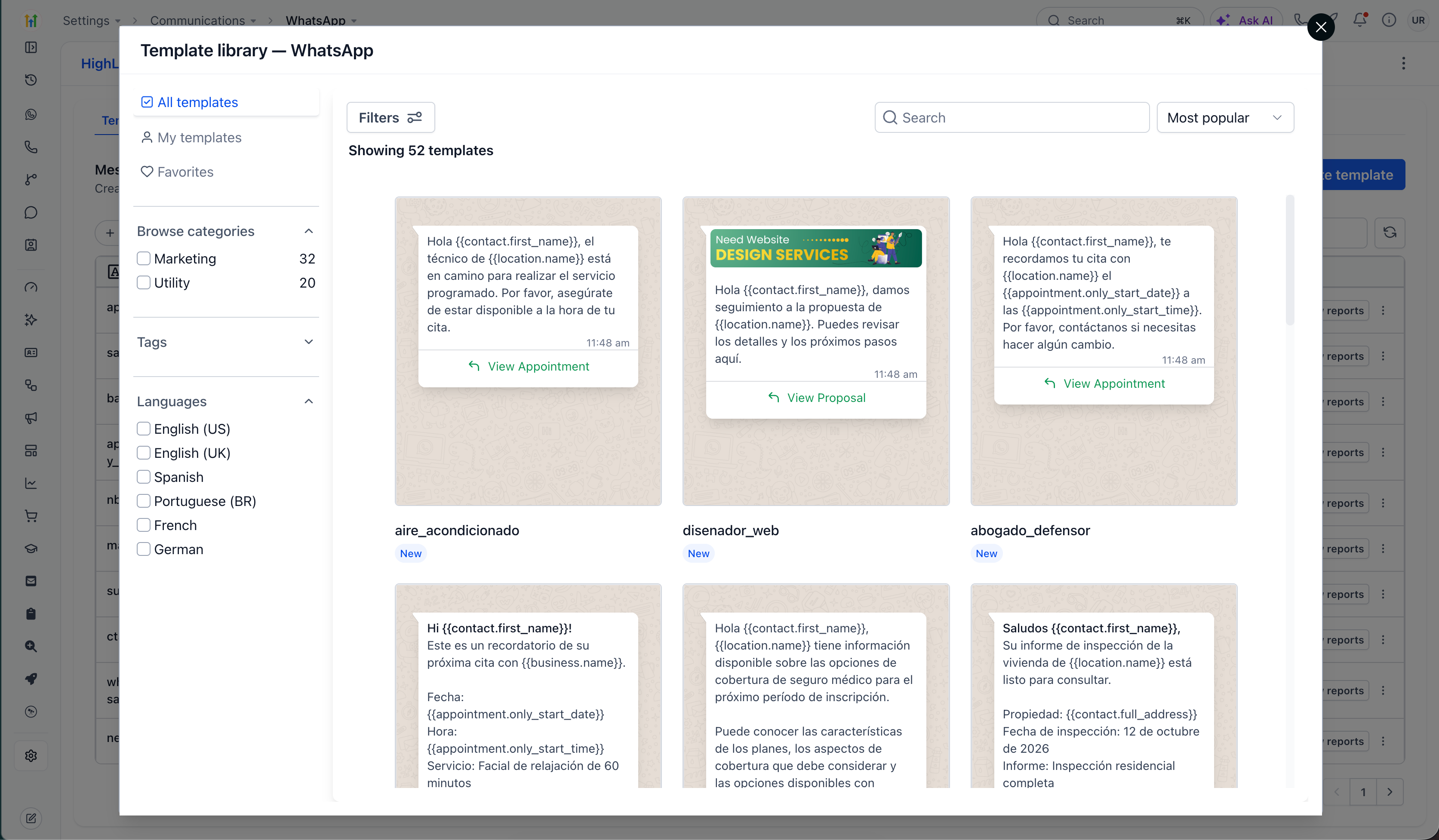
52 templates, ready to use
- Built around proven message types: Appointment reminders, follow-ups, promotions and service updates, split across 32 marketing templates and 20 utility templates. You start from messages that are already structured to perform well.
- Written for specific industries: Home services, web design, legal, beauty and wellness, insurance, property inspection and more. The copy already sounds like your client’s business, so you are mainly tailoring details instead of writing from the ground up.
- Six languages available immediately: English (US), English (UK), Spanish, Portuguese (BR), French and German. Your Spanish and Portuguese-speaking customers receive content written in their language, with tone and phrasing designed for it.
Find the right one in seconds
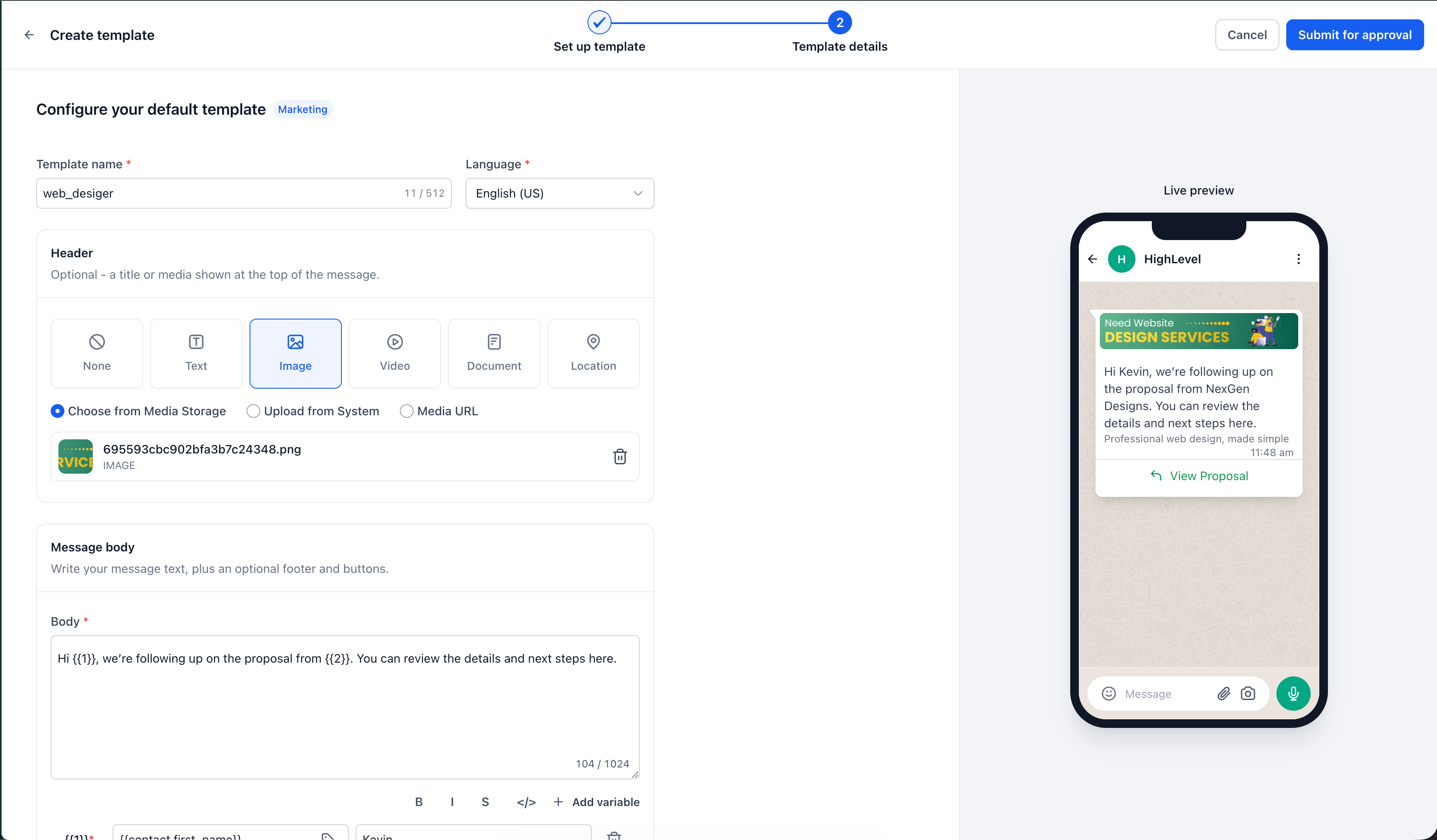
- Browse, search and filter: Narrow templates by category, tag or language, search by keyword, or sort by most popular to see which ones are getting traction for other businesses.
- Keep your favourites close: Mark your go-to templates as favourites and see them alongside the custom templates you create yourself.
Make it yours, then send
- Edit every detail: Adjust the template name, language, header, body text and variables. Add an image, video or document header so the message looks and feels like your brand.
- Check the result before you submit: A live preview shows exactly how the message will appear on your customer’s phone, so you can confirm layout and content before sending it for review.
- Aligned with Meta’s structure: Each template follows WhatsApp’s required format from the beginning, so your submission is consistent with Meta’s expectations and can be reviewed like any other WhatsApp template.
Where this pays off
- Agencies onboarding a new client: Set up a complete WhatsApp template set in the first few days, so clients start sending and seeing results in week one instead of waiting weeks for copy to be written and approved.
- Reaching Spanish and Portuguese-speaking markets: Contact customers in their own language using content written specifically for that language, right where WhatsApp engagement is strongest.
- Teams that are new to WhatsApp templates: Learn the WhatsApp format by editing a working example. Starting from a strong template is a fast way to understand how variables, headers and message types should be set up.
- Businesses running proven plays: Use ready-made appointment reminders, follow-ups and similar high-performing messages. Add your brand, timings and details, then move straight to approval and sending.
How to use it
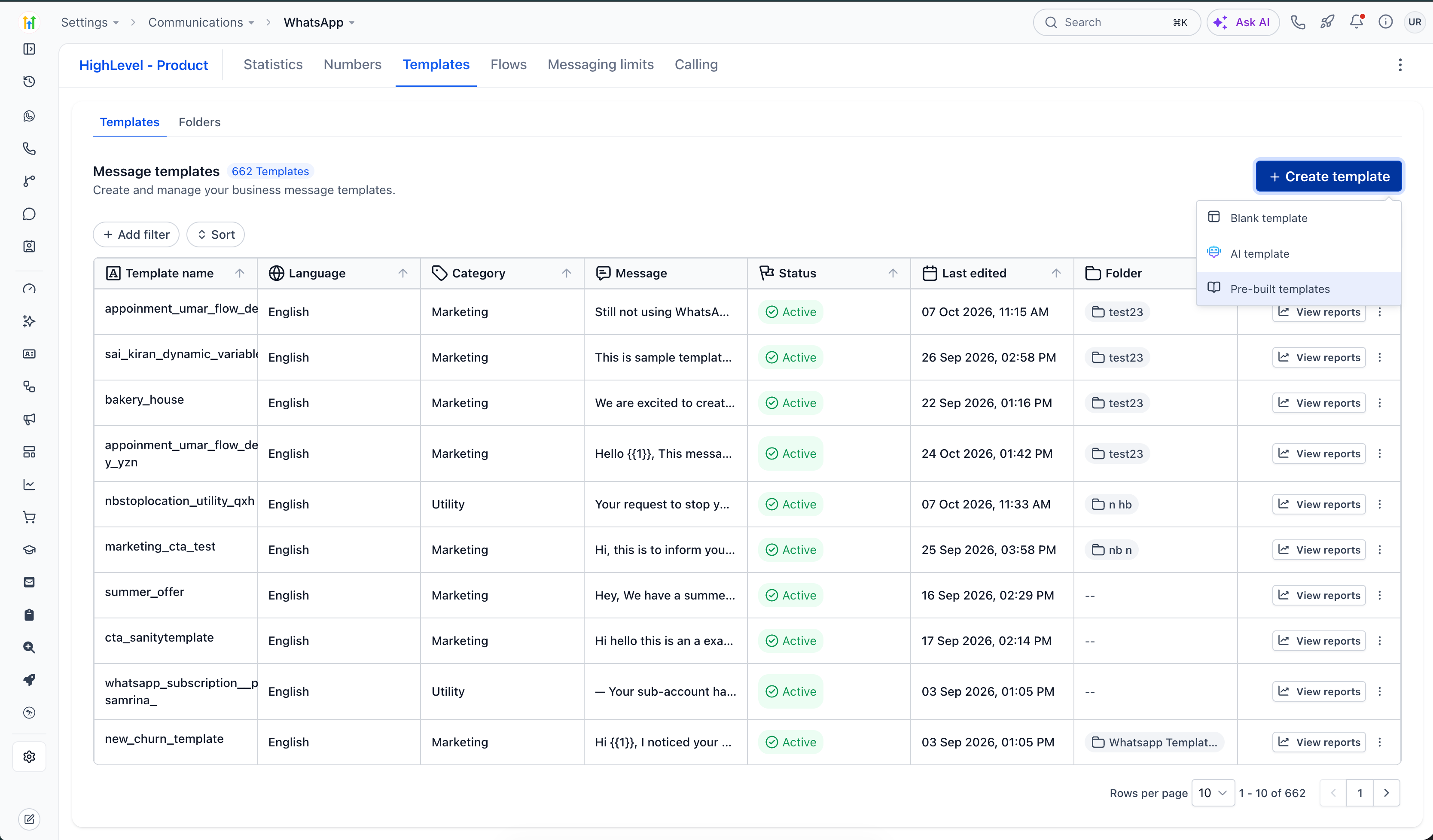
- Go to Settings → Communications → WhatsApp → Templates in your EveryCatch account.
- Click Create template and select Pre-built templates.
- Browse, search or filter by category and language until you find a template that fits your use case.
- Select the template, then edit the name, language, header, body and variables to match your offer and brand.
- Review the live preview and, when you are happy with it, click Submit for approval.
Why this matters for your business
WhatsApp is where many of your customers already spend their time, and strong templates help you turn that attention into conversations, bookings and revenue. The EveryCatch template library gives you a head start with proven formats, industry-focused wording and languages that match your markets, so you can adapt a template in minutes instead of writing everything from the beginning.
- Get new clients sending campaigns in their first week, using a complete template set from day one
- Reach each market in its own language, with content originally written for that language instead of only translated into it
- Save time by reusing solid templates for standard messages and focus your effort on messages that are unique to your business
- Give your whole team clear examples to build from, so effective messaging is not dependent on a single copywriter or specialist
- Work within formats that match WhatsApp’s expectations right from the first draft
Open Settings → Communications → WhatsApp → Templates in EveryCatch, click Create template, and choose a pre-built template to start your next message.
Resources
- WhatsApp template library (support article)



