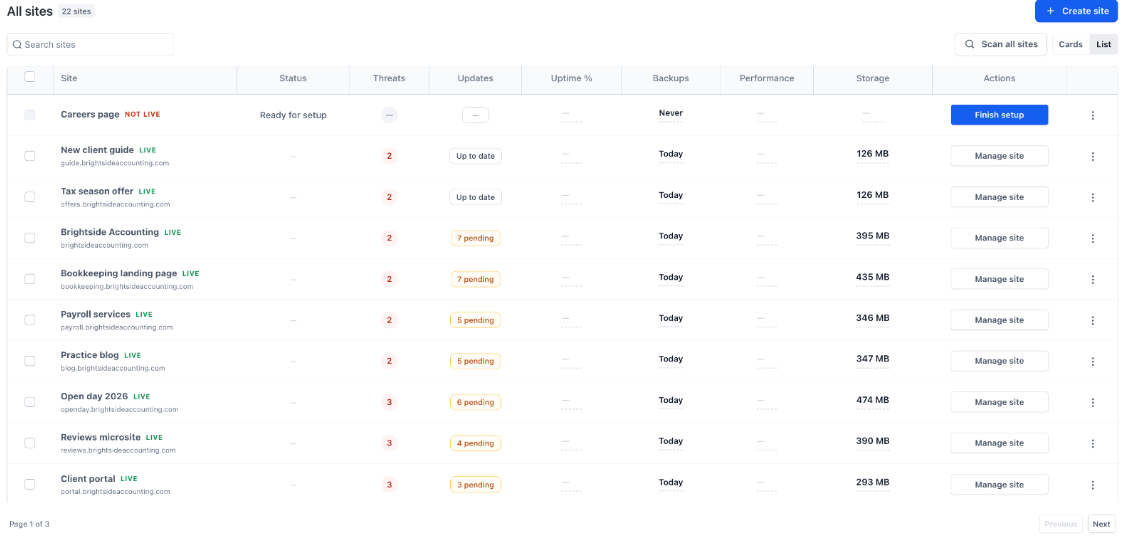
Every WordPress site in EveryCatch now opens on a single, clear overview page with a consistent menu on the left. The sites list also shows the key metrics for every site in one table so you can scan and act quickly.
You can now find any tool in one click, switch between sites faster, and see the health of all your sites at a glance.
What changed
1. One menu for everything
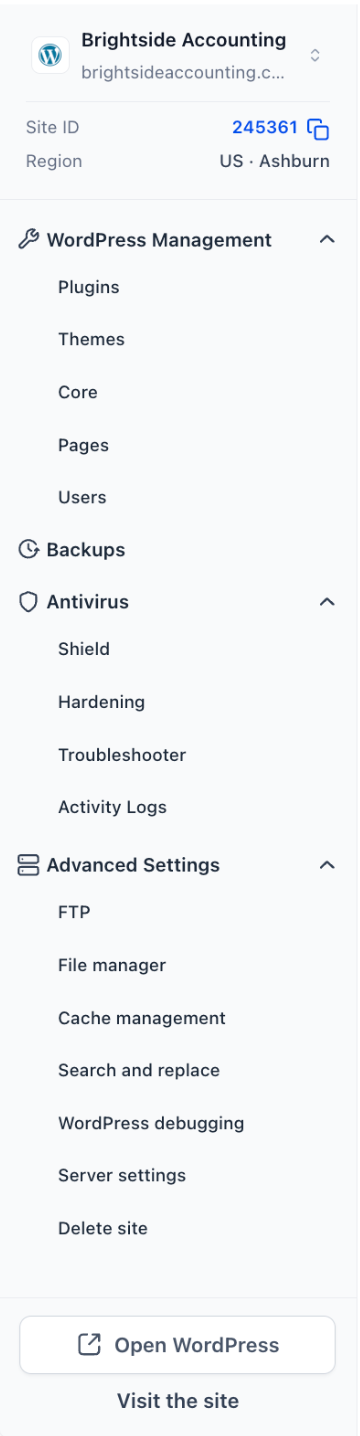
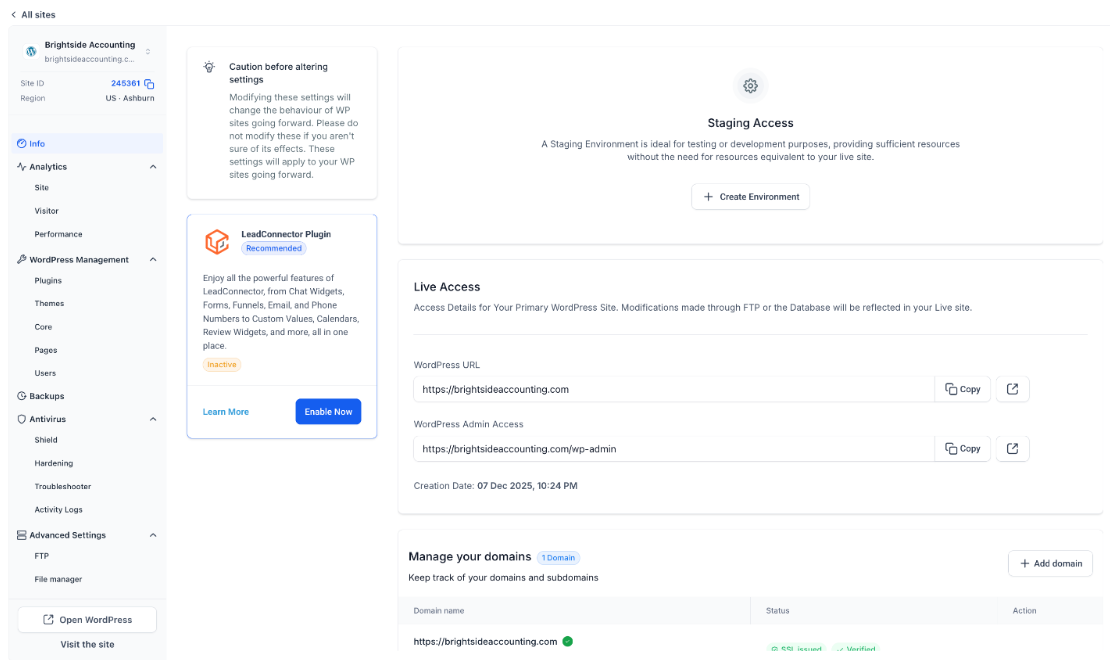
EveryCatch now groups all tools for a site into one left-hand menu, organised by what you need to do:
- Info: live access, staging, and domains
- Analytics: Site, Visitor, and Performance
- WordPress management: Plugins, Themes, Core, Pages, and Users
- Backups
- Antivirus: Shield, Hardening, Troubleshooter, and Activity Logs
- Advanced settings: FTP, File manager, Cache management, Search and replace, WordPress debugging, Server settings, and Delete site
2. Site details always in view
- Key site info now stays visible at the top of the menu, including site name, address, Site ID with a copy button, and region
- Quick actions to Open WordPress and Visit the site now sit at the bottom of the menu so you can jump in or preview with a single click
3. Switch sites without going back
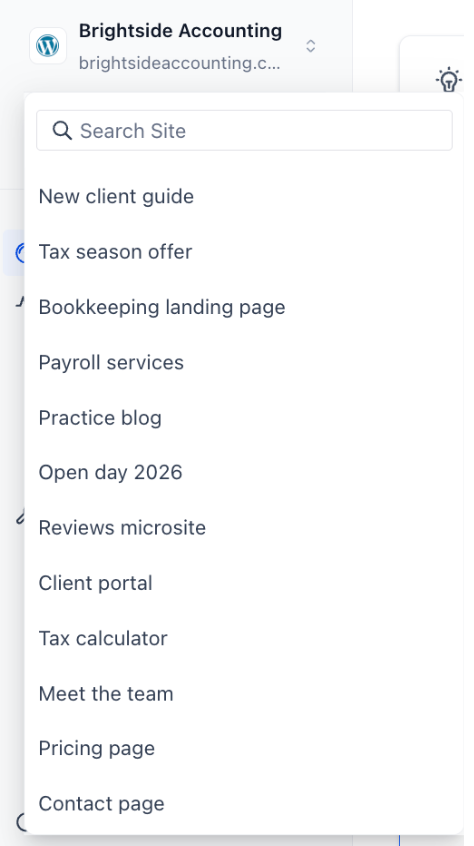
- Use the arrows next to the site name at the top of the menu to move between sites while staying in the same view
- Start typing in the search to jump straight to any other site from wherever you are
4. Troubleshooter and activity logs moved
- Troubleshooter and Activity Logs now live inside the Antivirus group so all security and incident tools are together, and both continue to work the same way as before
5. A full sites table
- The sites list now shows Status, Threats, Updates, Uptime, Backups, Performance, and Storage for every site in one table
- Each site row shows one clear primary action, such as Manage site or Finish setup, so you always know the next step
- You can search sites, switch between List and Cards views, and page through large site collections to find the site you need quickly
How to use this feature
- Go to Sites → WordPress in your EveryCatch account
- Find your site in the list and click Manage site
- Use the left-hand menu to open any tool or section for that site in one click
- Use the arrows next to the site name at the top to switch directly to another site without leaving the page
Why it matters
- You can reach any site tool quickly without moving through multiple screens
- Managing many client sites takes fewer clicks and less time
- You can see which sites need attention straight from the list, based on status and key metrics
Notes
- Only the layout and tool locations have changed. Your existing sites, data, and settings stay the same
- Troubleshooter and Activity Logs now appear under the Antivirus section in the site menu



