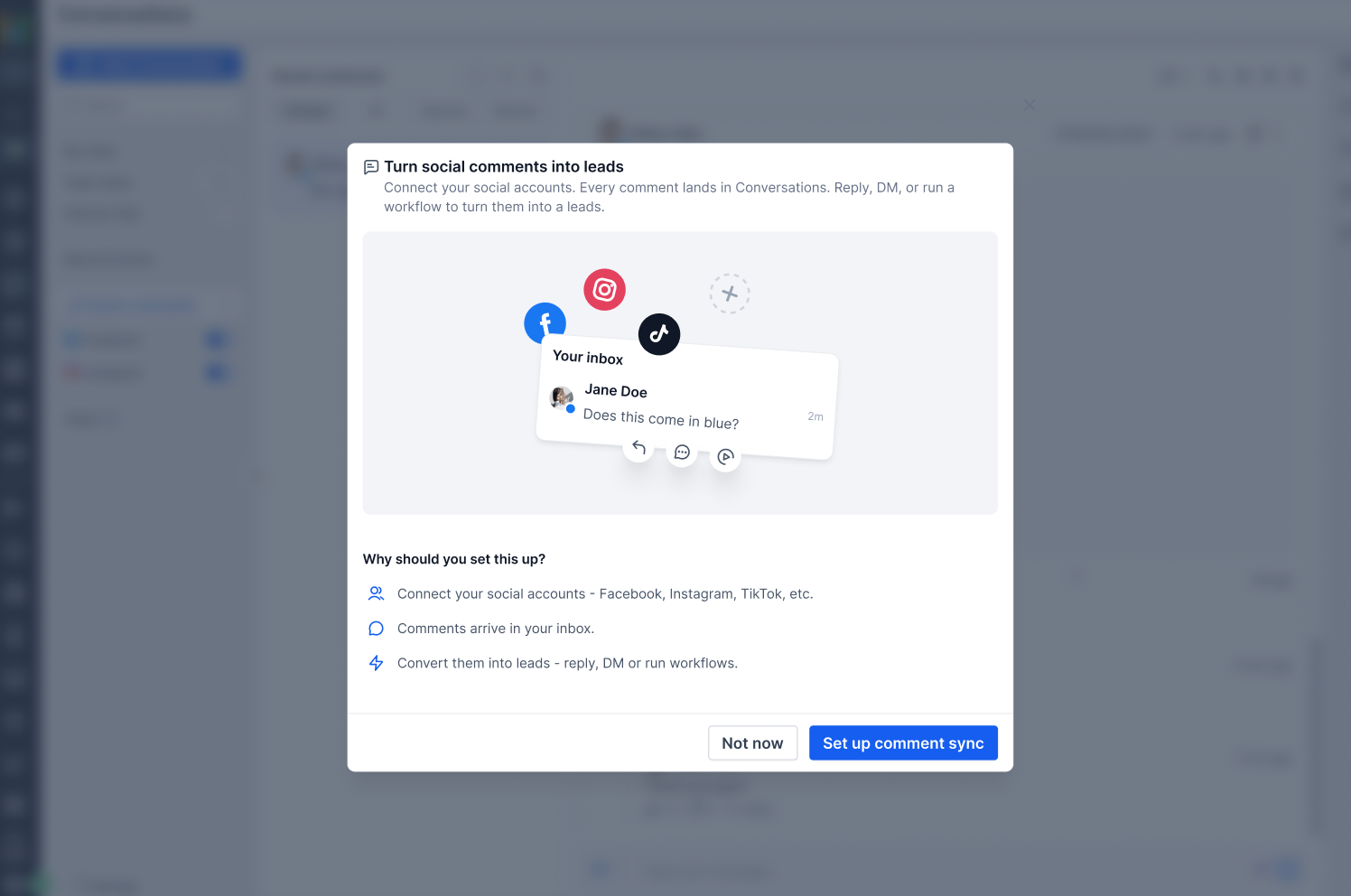
Social comments in Conversations brings comments from posts you publish through Social Planner straight into your EveryCatch Conversations team inbox, right beside SMS, email, and DMs. Your team can reply to comments, move the discussion into private messages, spot high-intent leads, and automate follow-up without switching tools.
What changed
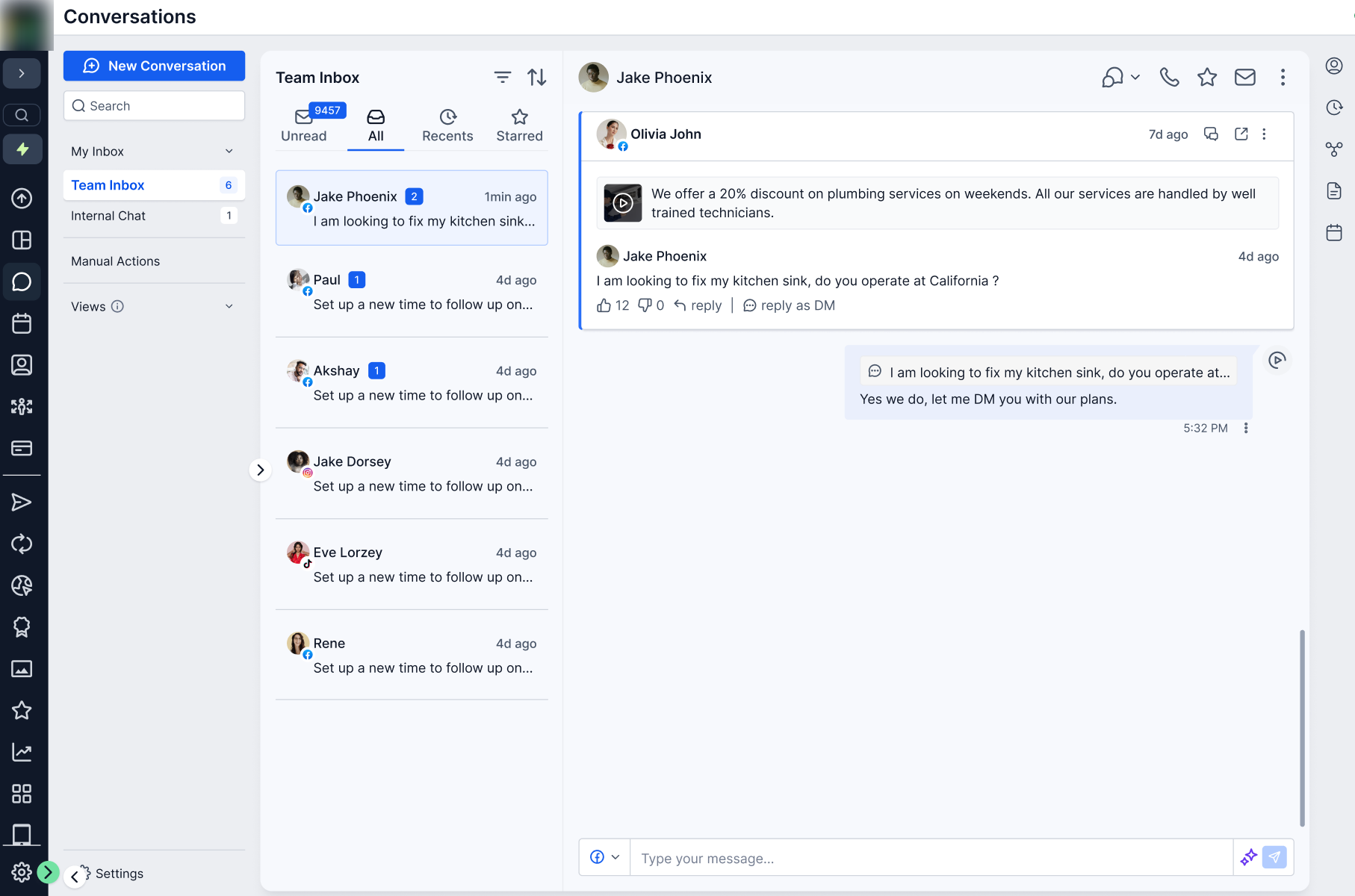
- You can now see social comments directly inside Conversations, along with key context for each interaction:
- Commenter name or social handle
- A short preview of the comment
- The original post the comment is attached to
- The social platform it came from
- The exact time the comment was created
Use the Social comments filter in Conversations to quickly locate and manage all social comment threads in your inbox.
- Each social comment conversation now includes the original post, so your team has full context before replying.
- You can see the post thumbnail, caption, social account, platform, and a View post link that opens the original post on the social network.
3. Automatic contact creation
- Every new commenter is automatically created as a contact in EveryCatch, so you can turn social engagement into a trackable lead or opportunity.
- If that person comments again in the future, EveryCatch matches them to the existing contact instead of creating a duplicate.
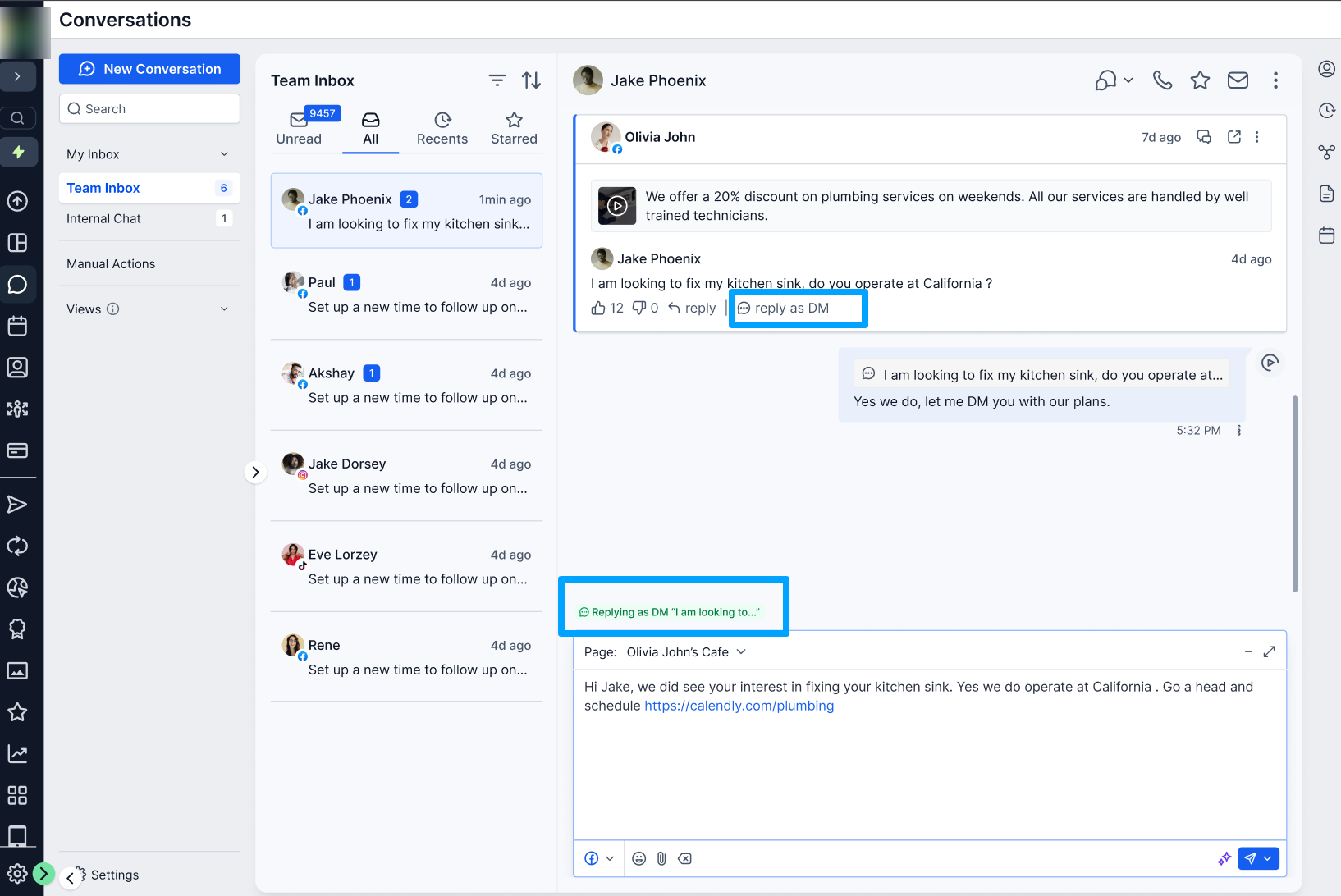
4. Public replies & private dms
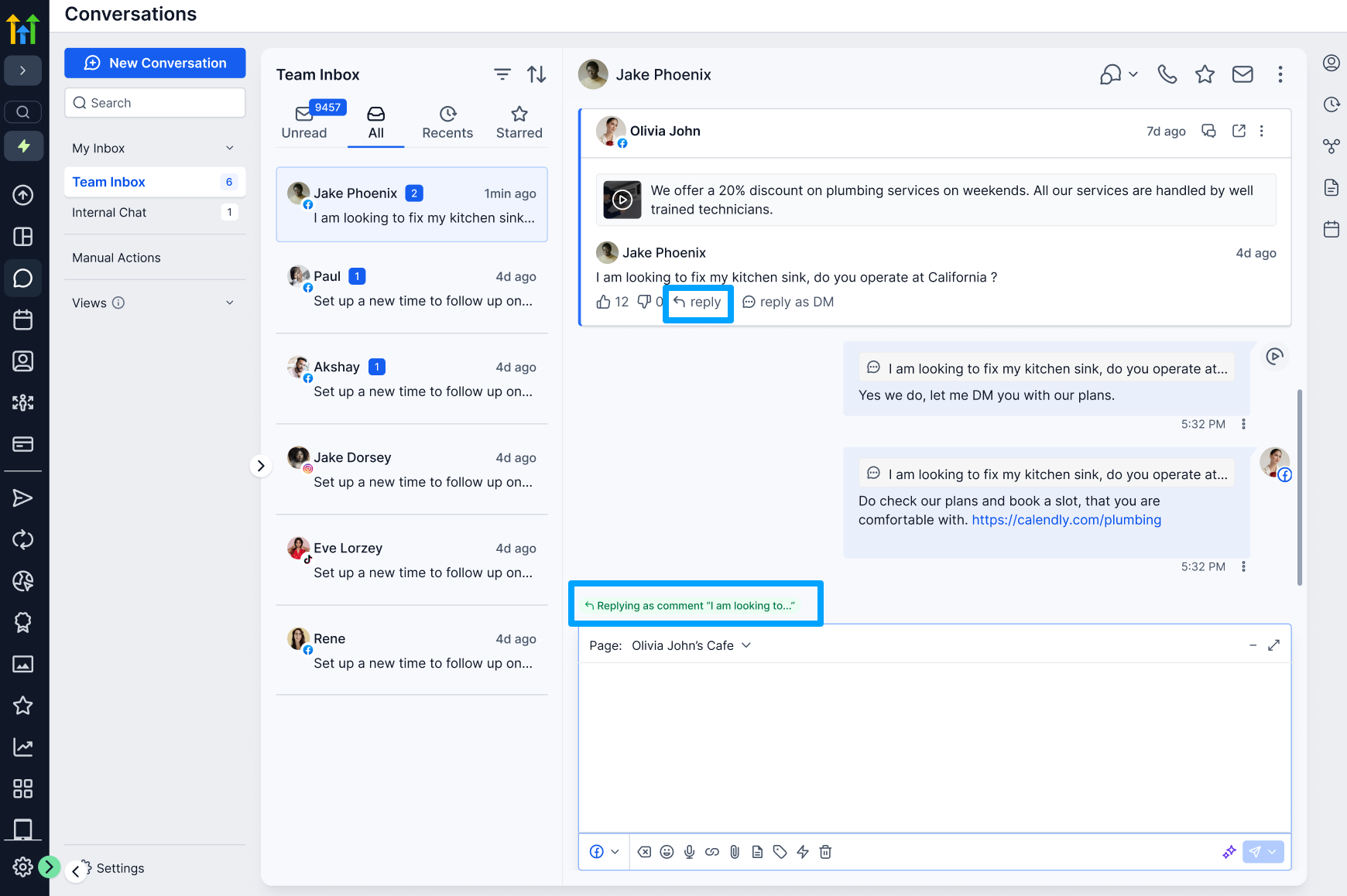
You can now reply to social comments directly from Conversations.
- Public reply: Post a reply directly under the original social comment on the platform.
- Send DM: Switch into a private conversation through a standard DM thread in the inbox.
Your team can start with a public interaction on a post, then smoothly move into a one-to-one sales or support conversation without leaving EveryCatch.
5. Prioritize high-intent comments
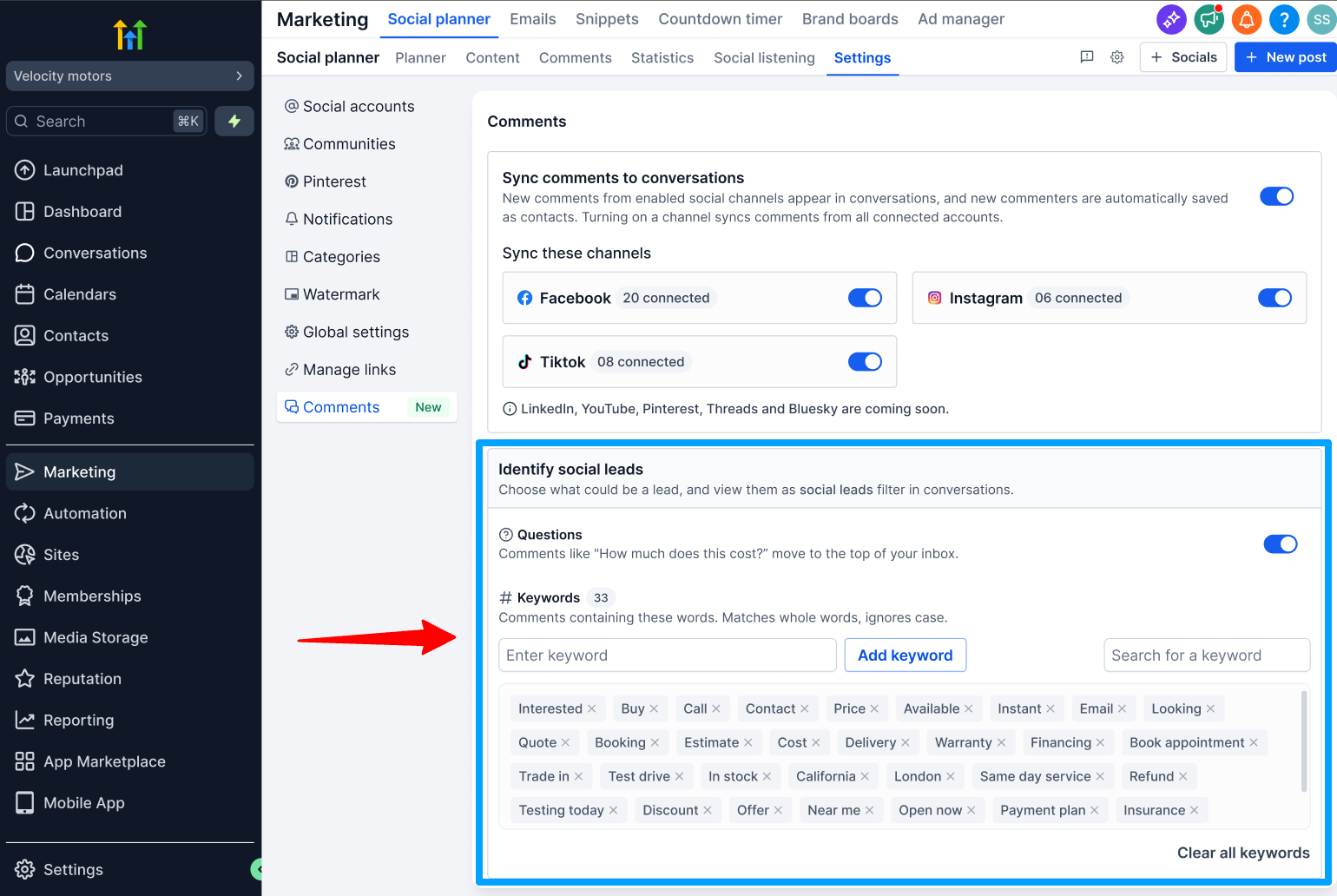
- You can highlight the comments most likely to turn into leads by adding buying-intent keywords such as “price,” “interested,” or “how much.”
- You can also prioritize comments that include questions, so your team can quickly spot and respond to people who may be ready to purchase.
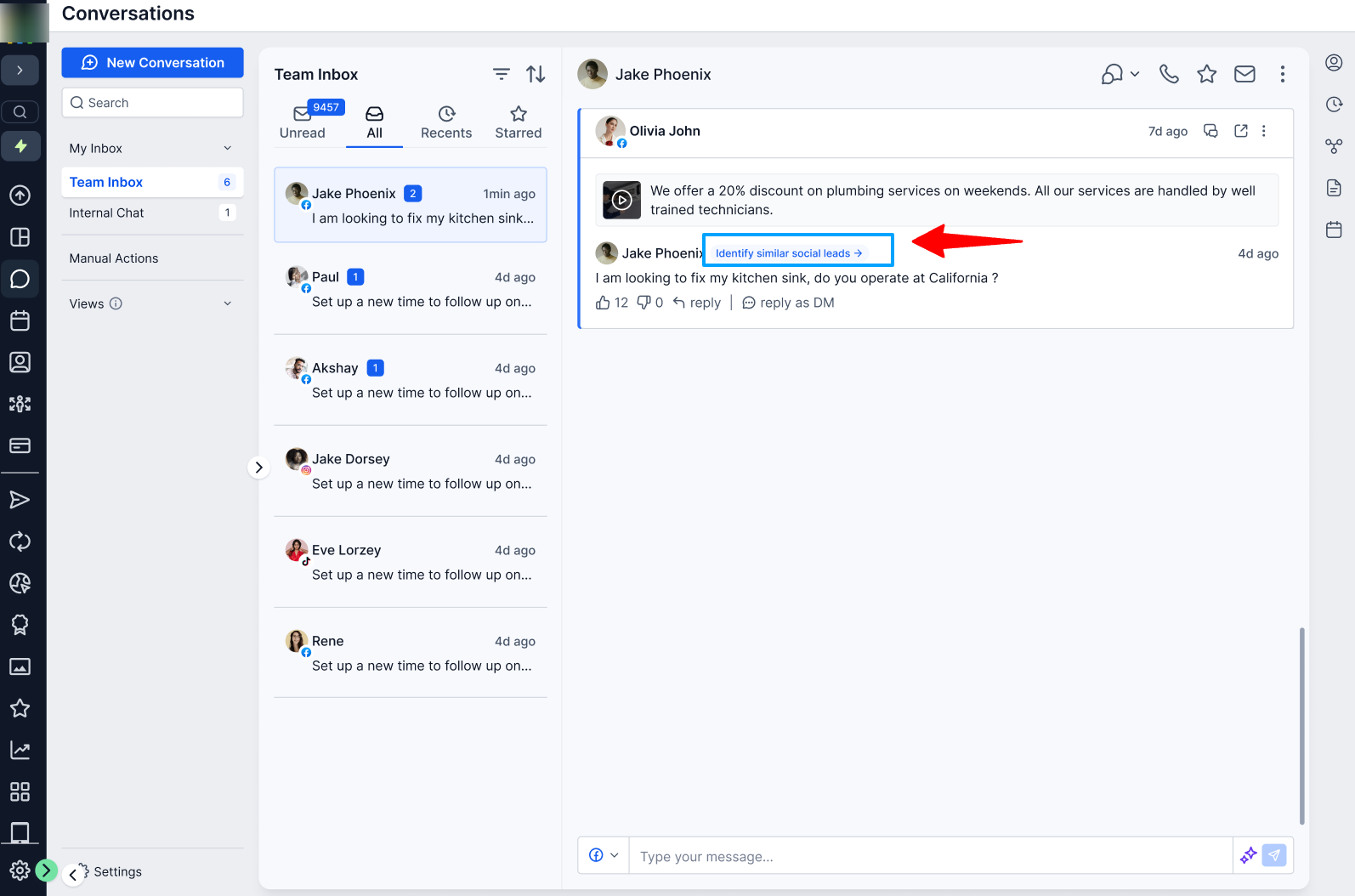
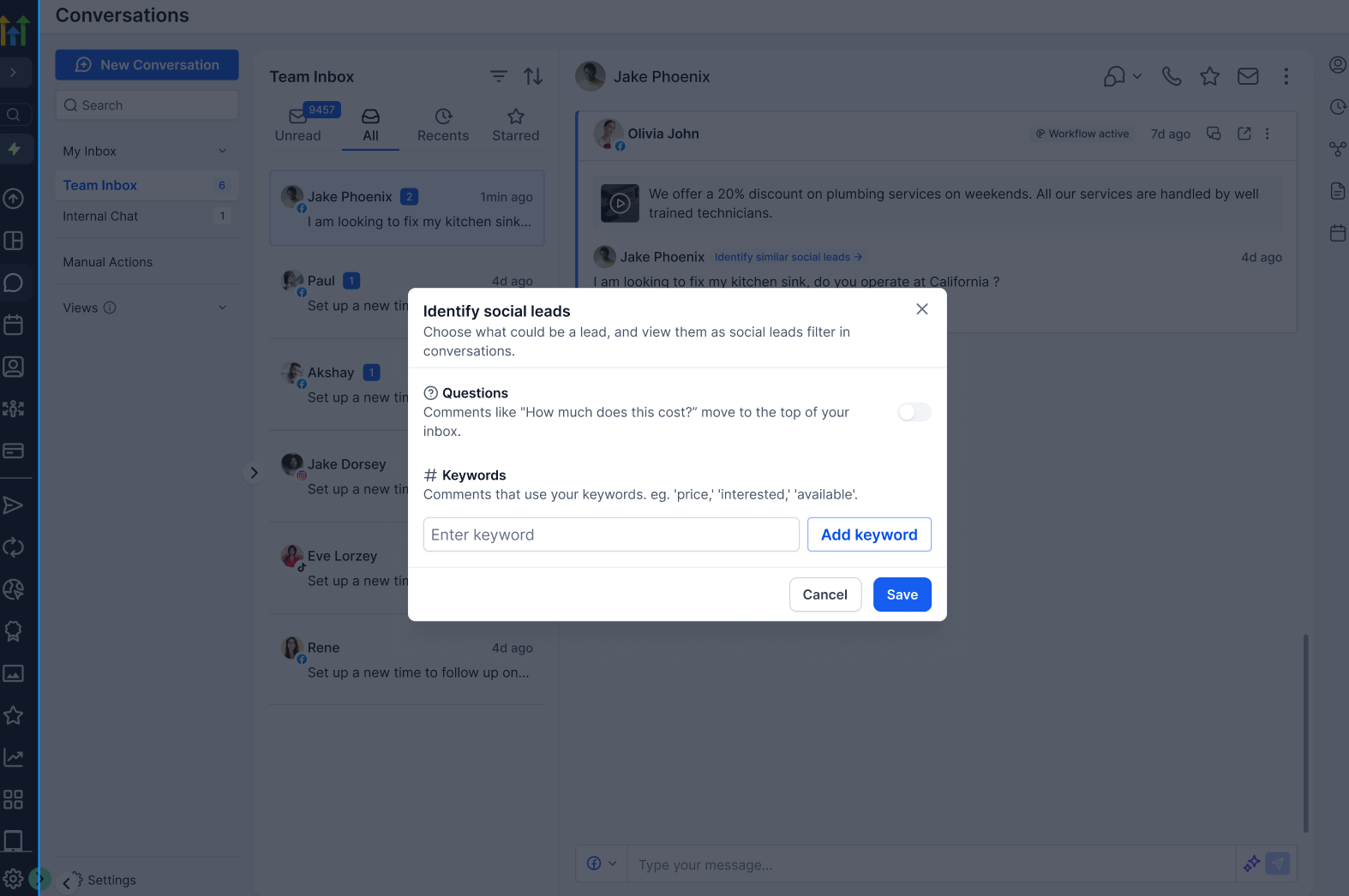
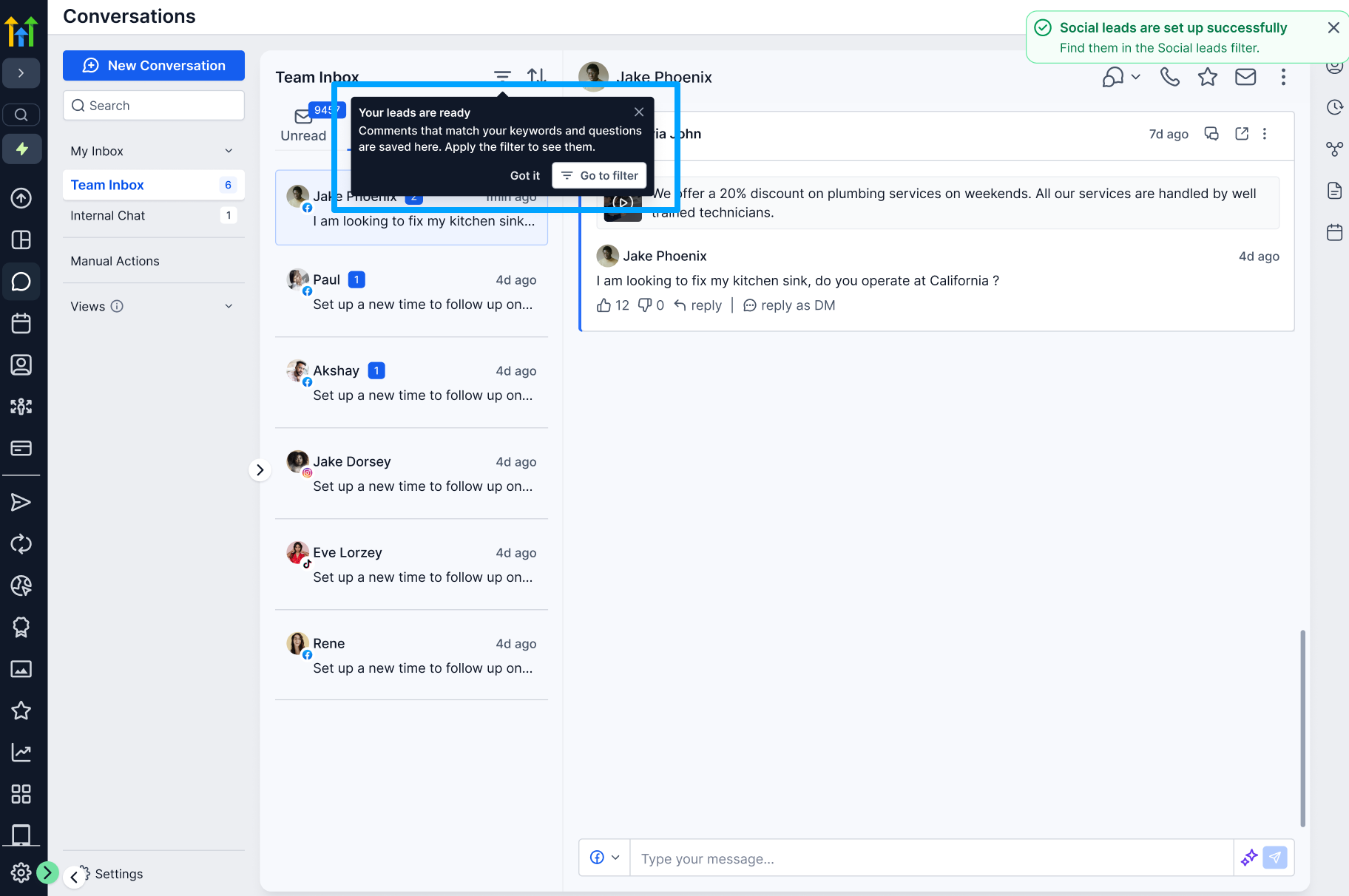
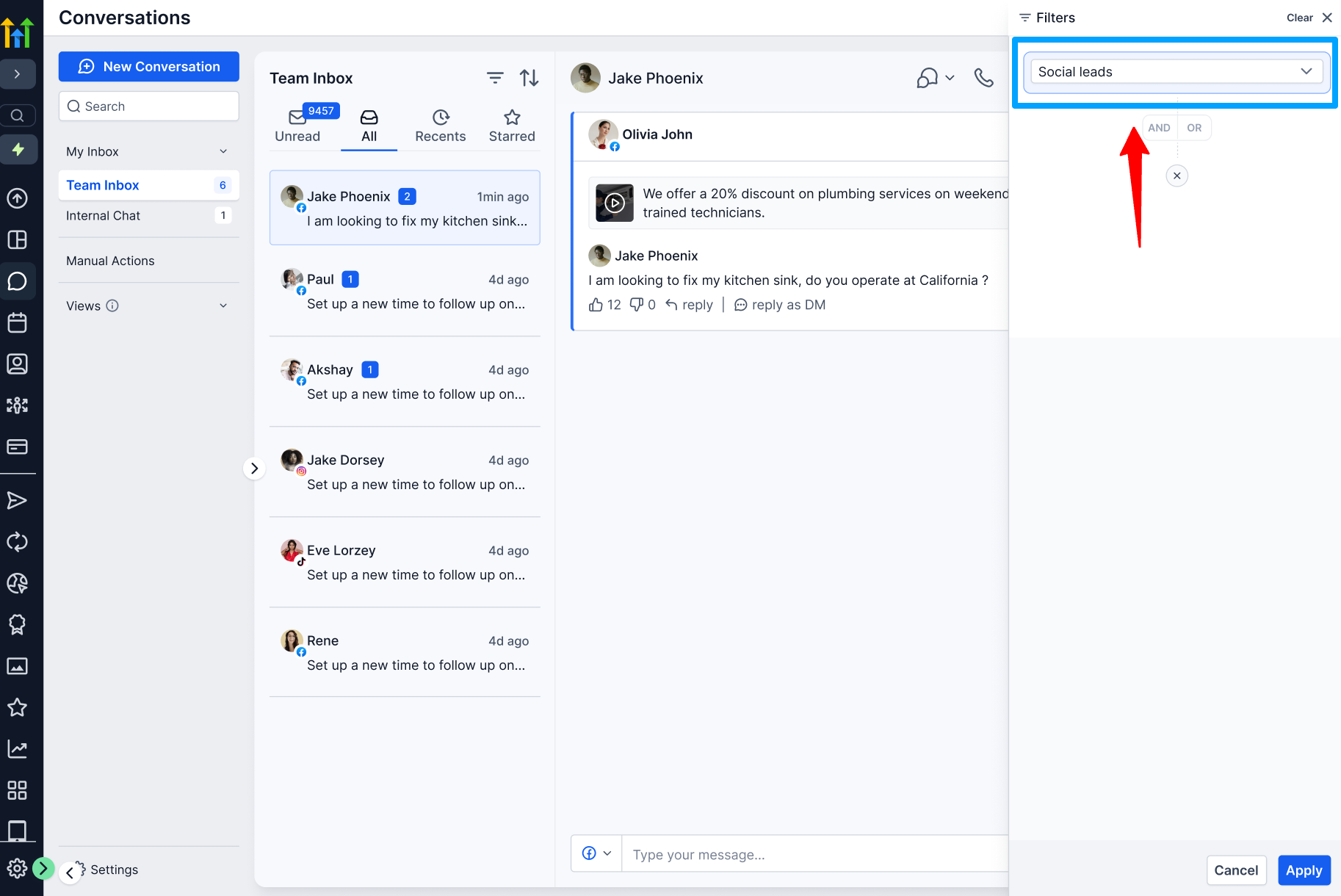
You can also configure and adjust these prioritization settings at any time from Social Planner settings.
6. Agency & channel-level controls
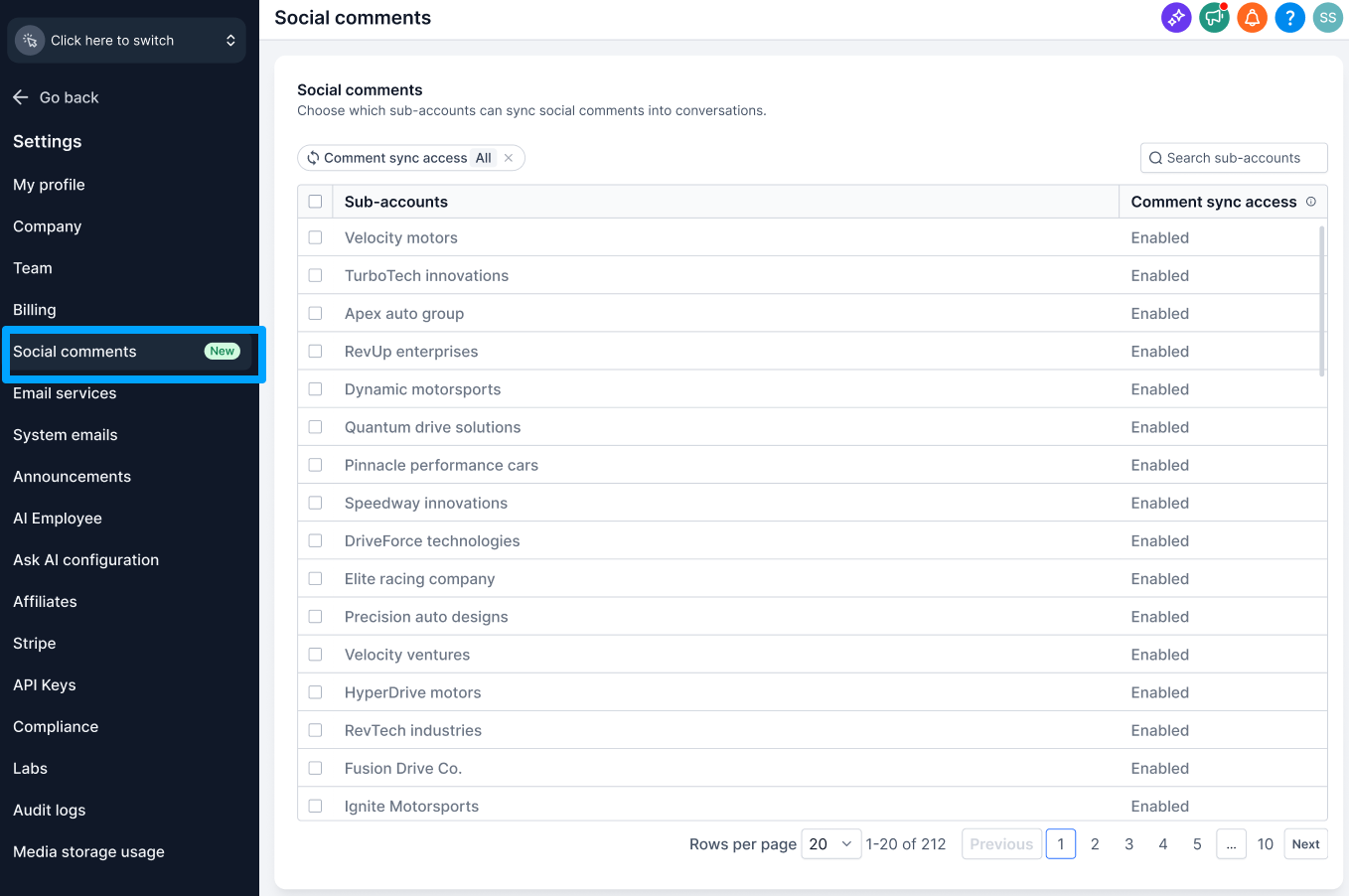
- Agency admins can manage which accounts sync social comments by going to: Agency settings → Social comments.
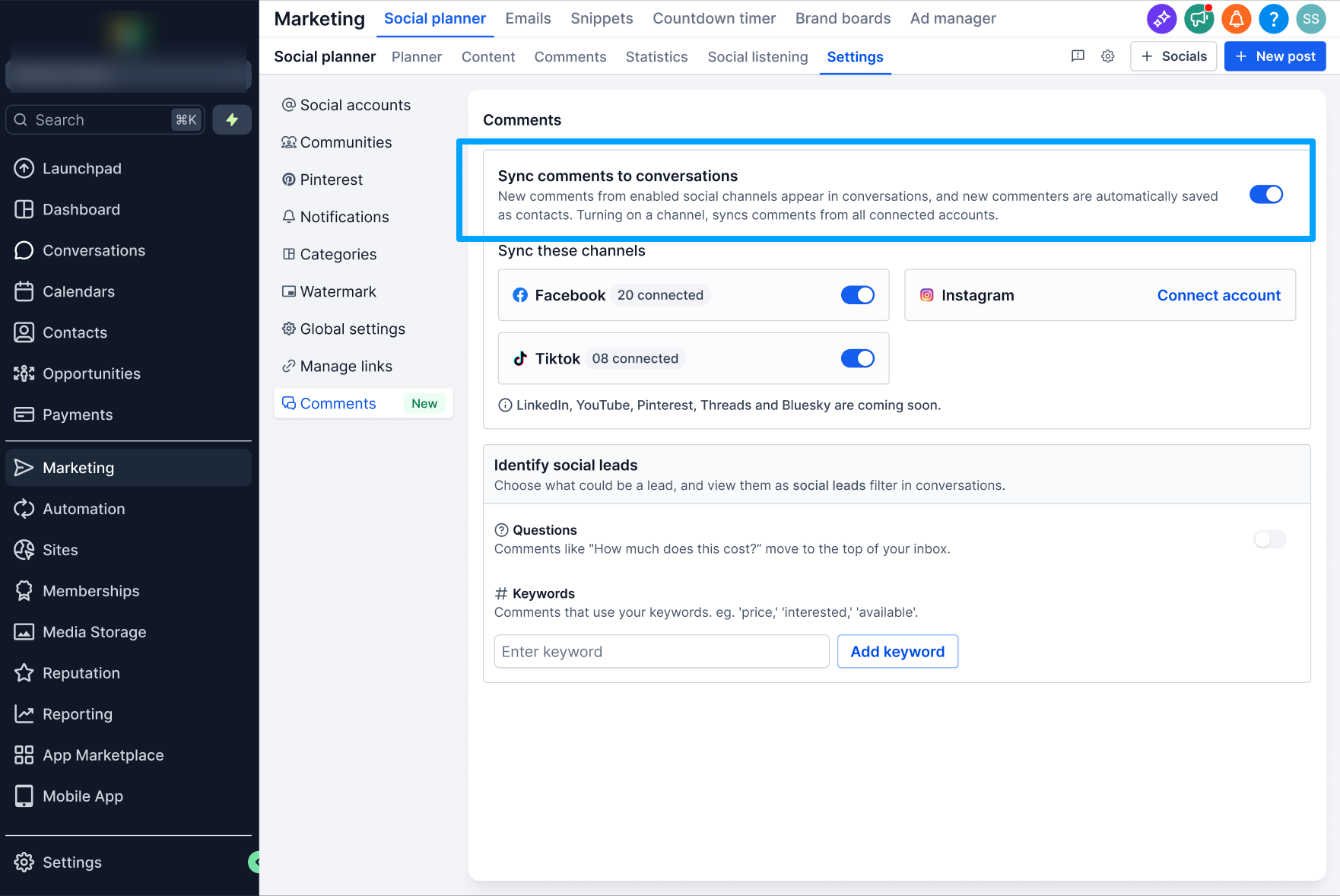
- At the account level, you can choose which connected social platforms sync comments from: Marketing → Social Planner → Settings → Comments.
Why it matters
Social comments often show early interest or questions from potential customers. By pulling those into Conversations, your team can quickly act on that signal by:
- Turning social engagement into leads and opportunities that are easy to track
- Handling social conversations in the same inbox as SMS, email, and DMs
- Replying faster because there is no need to switch between tools
- Automatically creating contacts from people who comment on your posts
- Prioritizing the social conversations that show higher intent
- Reducing back-and-forth between Social Planner and Conversations
Supported platforms
Available at launch
- TikTok
Coming soon
- YouTube
- Threads
- Bluesky
- Community
Notes
- Only comments on posts that you publish through Social Planner will sync into Conversations.
- When you enable comment sync, EveryCatch automatically creates contacts for new commenters.
- If you turn off comment sync, new comments stop syncing into Conversations, but existing contacts, conversations, and workflows remain as they are.
- Any existing comment-based workflow triggers continue to work without changes.
- You can still manage comments directly in Social Planner in the same way as before.
- If a social account connection expires, reconnect it from Social Planner settings to start syncing comments again.
- Instagram DM and Instagram interactive messenger workflow actions are not supported for Instagram accounts that are connected through Facebook in Social Planner.



