Your workflow AI agent action can now run on its own hosted chat page. Turn on the hosted chat page inside the AI agent action, share the link, and your customers can chat with the agent directly. No website, no widget, and no code are required.
What changed
- Hosted chat page: Every AI agent action now gets its own optional shareable link from the Share section, so you can expose that agent directly to customers.
- Verified visitors: Visitors sign in with their email and a one-time code. The email must match an existing contact in your EveryCatch account before they can start chatting.
- Page appearance: You can set a display name, avatar initials, and a welcome message that visitors see when they first land on the page.
- Suggested prompts: Add one-click prompts so visitors can start common conversations quickly, without wondering what to type.
- Unavailable message: Choose the message visitors see when the page is offline so expectations are clear.
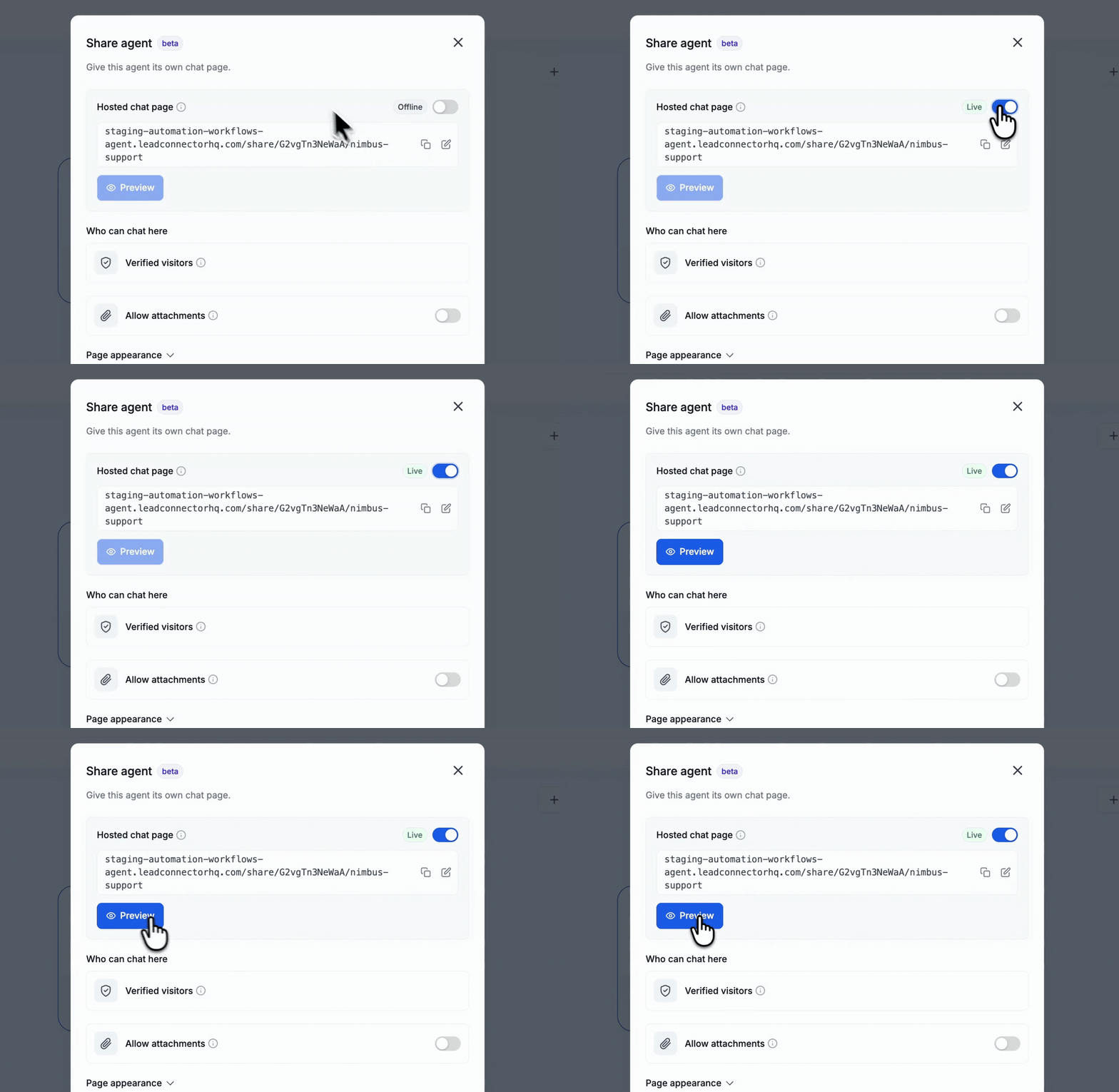
- Offline or live: The page stays offline until you turn it on. You can preview it privately before you share the link with anyone.
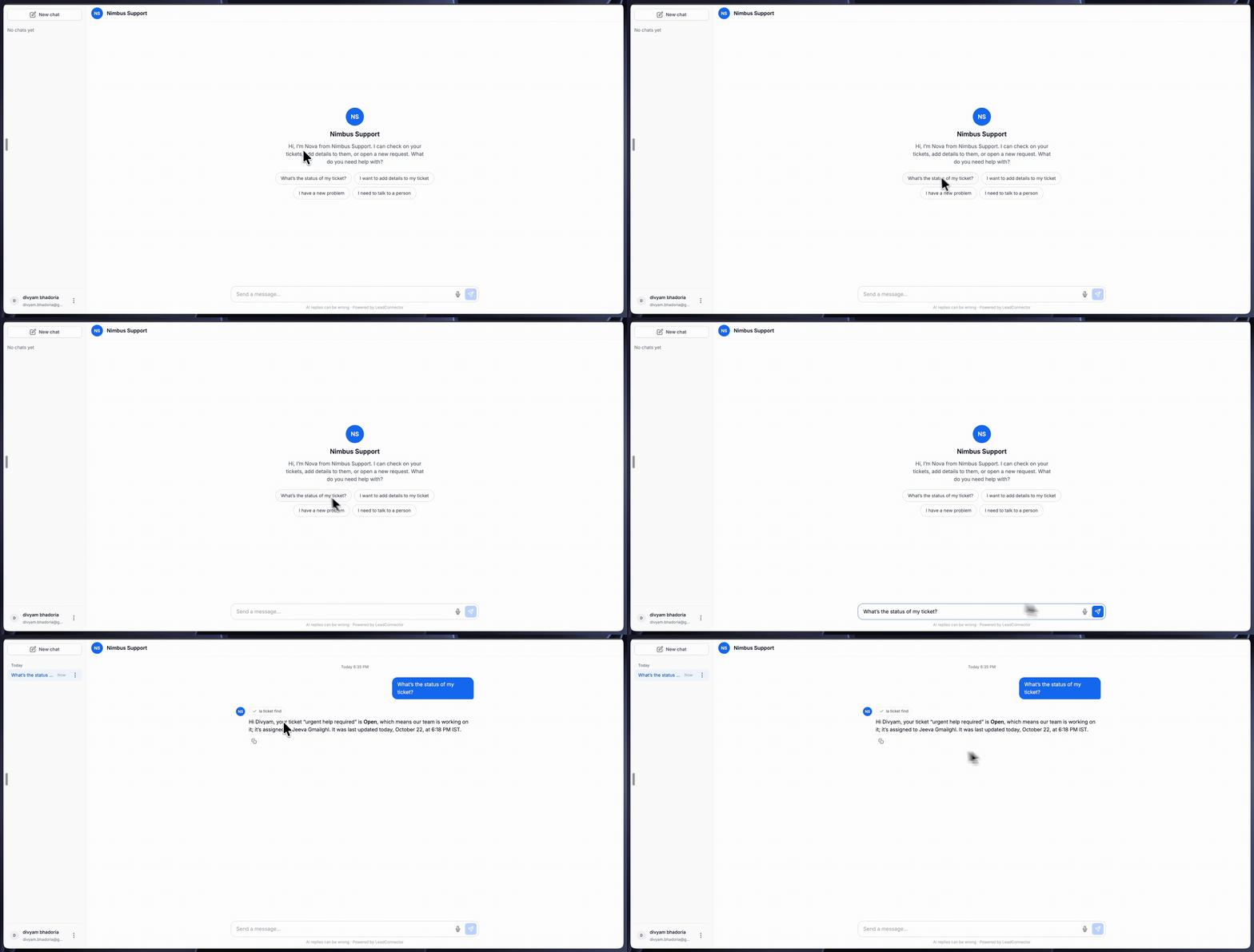
- Full chat experience: Visitors can type or dictate messages, start new chats, and return to past conversations from the sidebar on the page.
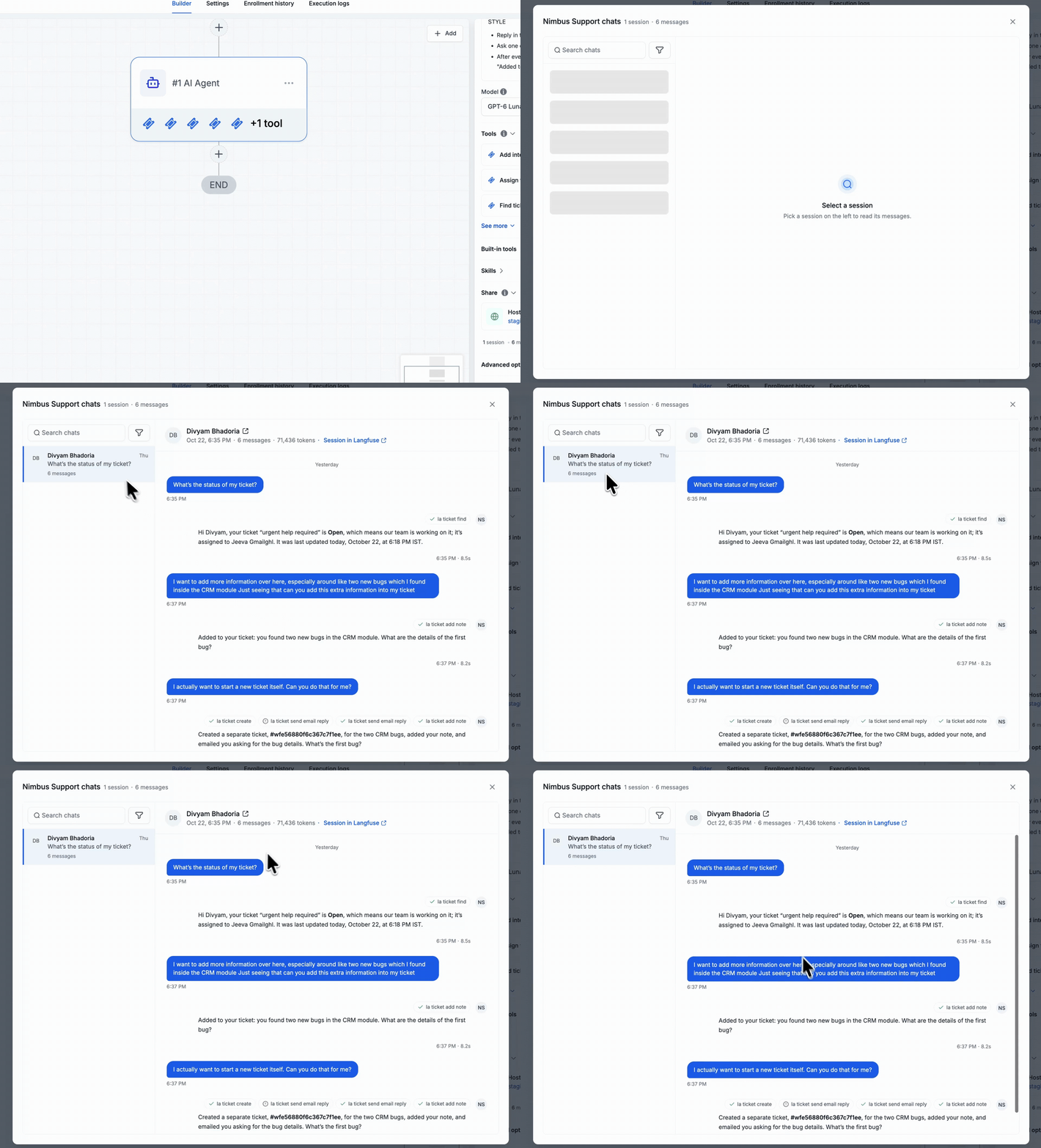
- Agent chats: You can review every session in one place, including each message, which tools the agent used, and the tokens consumed.
How to use
- Go to Automation > Workflows in EveryCatch.
- Open the workflow that contains your AI agent action and click into that action.
- Scroll down to the Share section and click Set up shareable link.
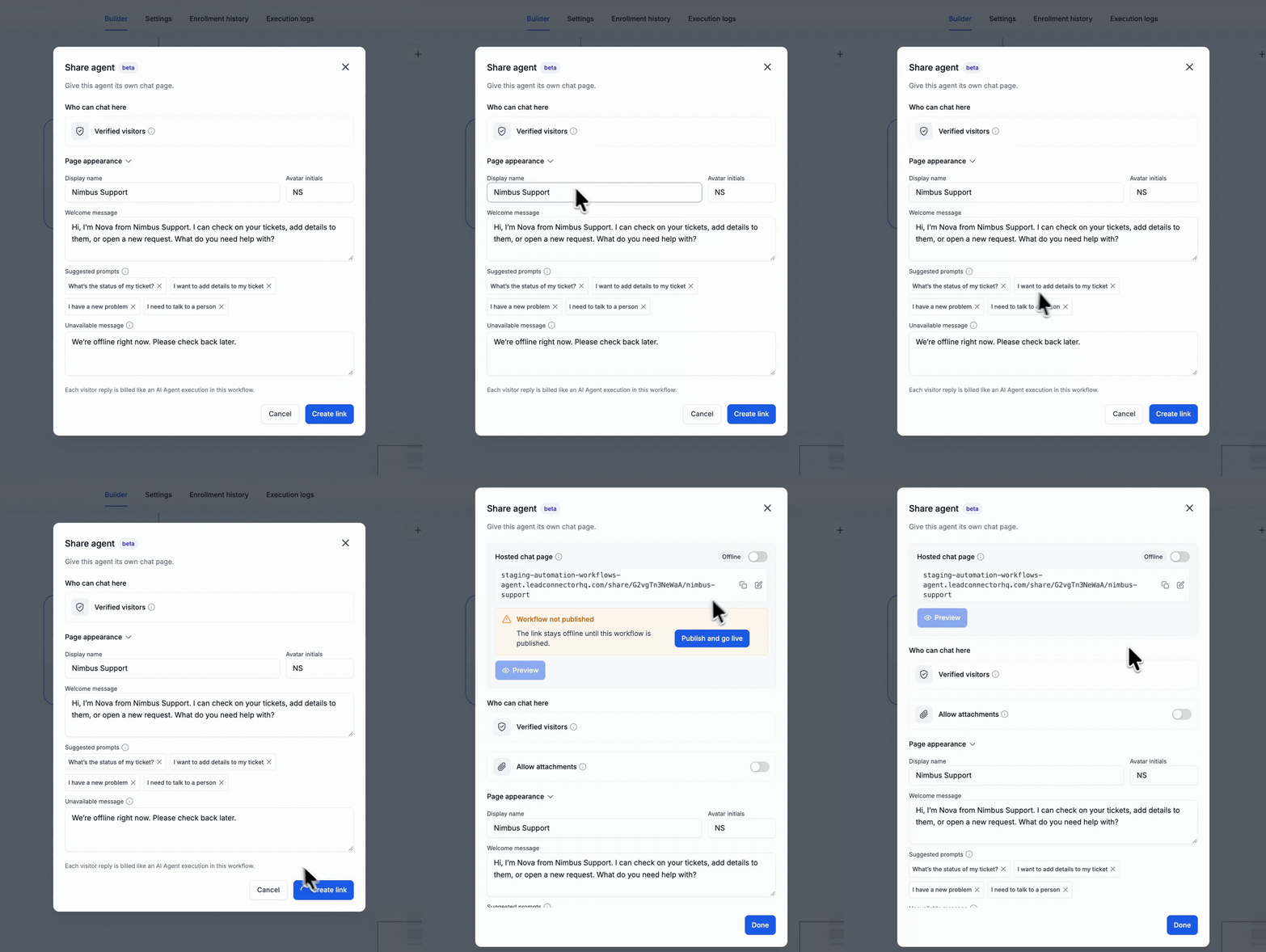
- Fill in the display name, avatar initials, welcome message, suggested prompts, and unavailable message for the hosted chat page.
- Click Create link to generate the shareable URL for this agent.
- Publish your workflow so the hosted page can go live.
- In the Share section, switch the hosted chat page from Offline to Live when you are ready for visitors.
- Click Preview to open the hosted page and confirm the experience from your customer’s perspective.
- Share the link with your customers anywhere you like, such as email, your help center, or in-app messages.
- From the Share section, open Agent chats to review each customer session and see how the agent handled it.
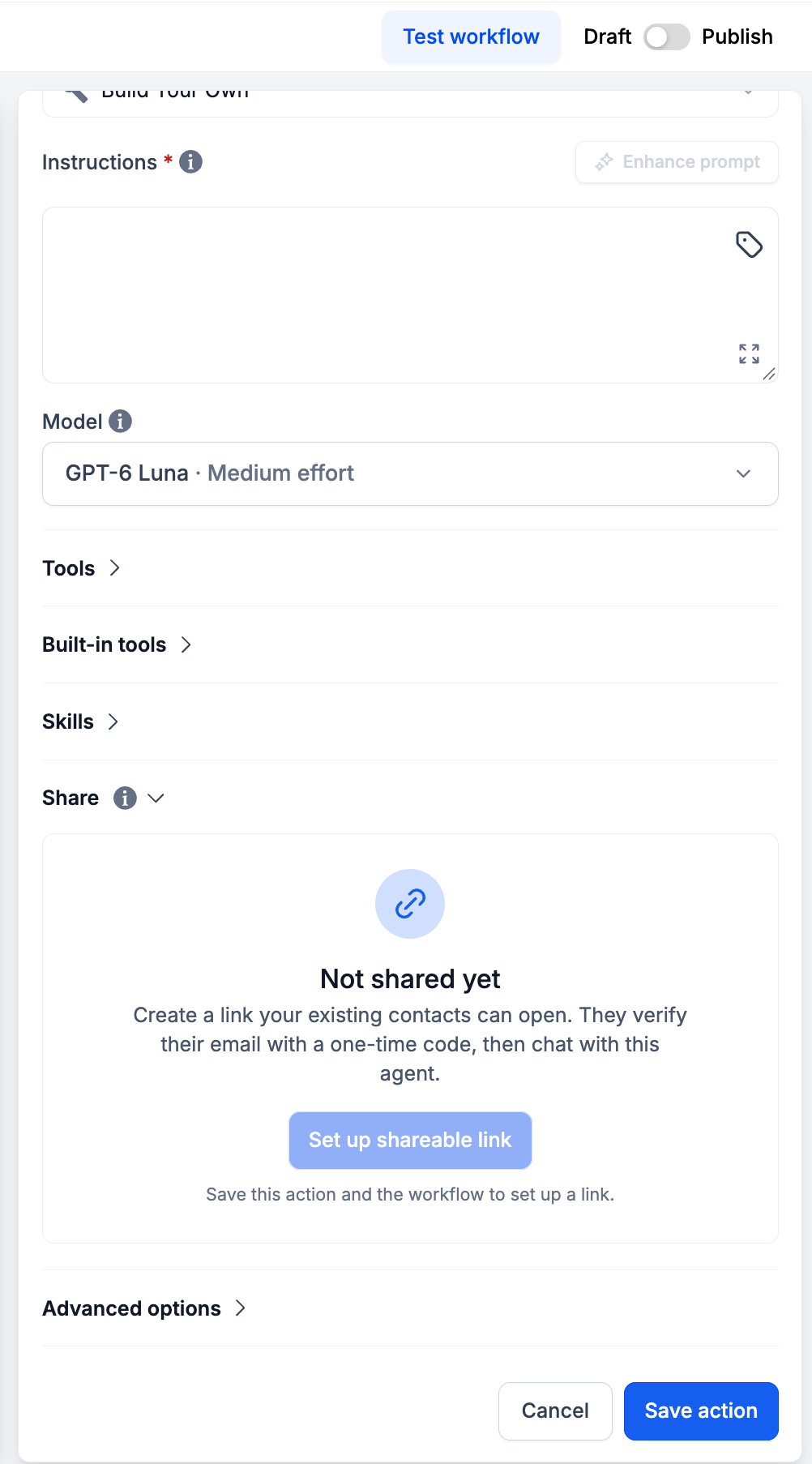
Important: Each visitor reply on the hosted chat page is billed the same way as an AI agent execution inside your workflow. The shareable link stays offline until the workflow that contains the agent is published.
Worked example: a support desk that never closes
Imagine a support page where customers can manage their own tickets at any time of day.
You configure the AI agent action with a clear instruction, such as “You are an assistant for a software company,” and connect your ticketing actions as tools: find a ticket, add a note, create a ticket, and other actions your process requires.
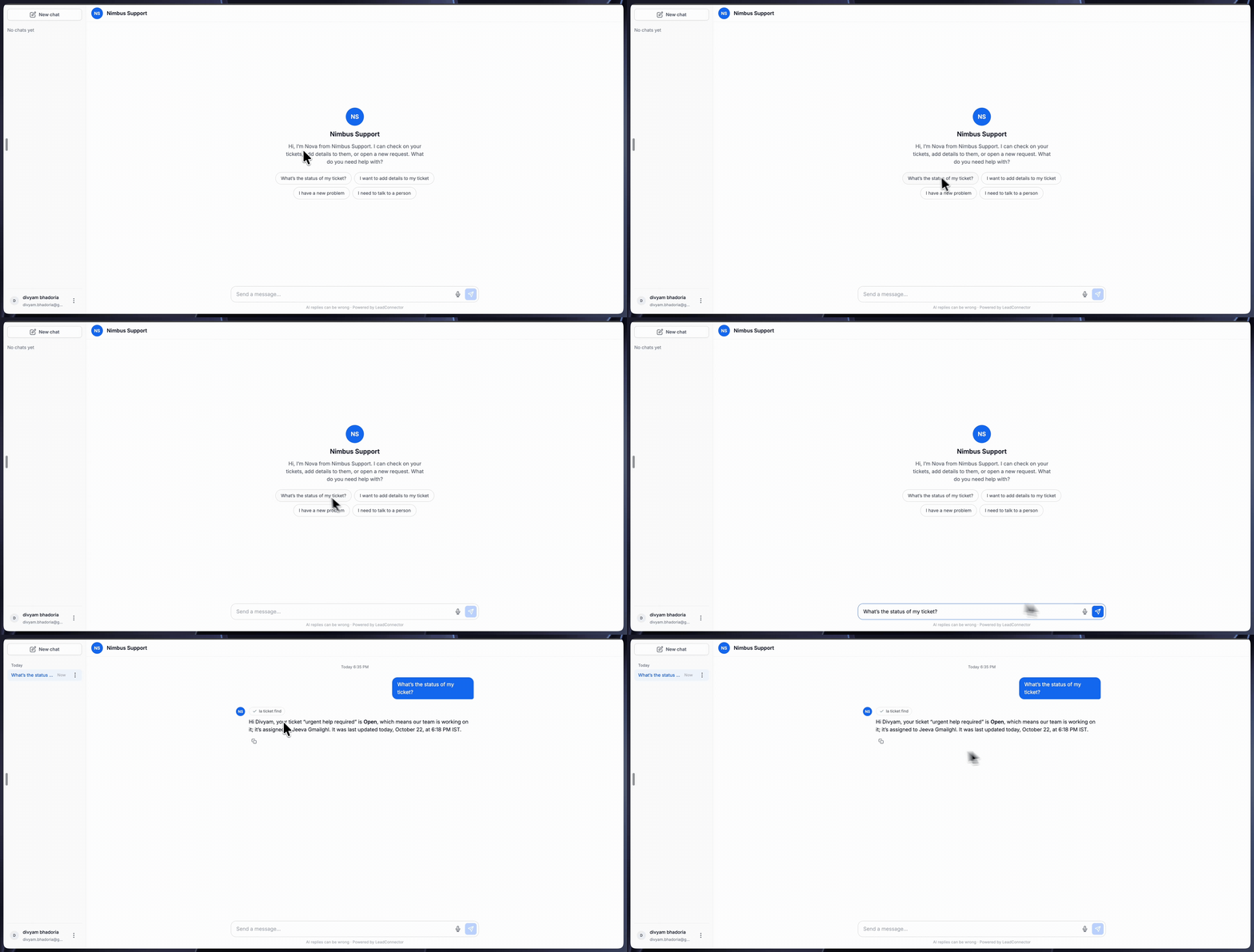
On the shared page, a customer signs in, then asks “What’s the status of my ticket?” The agent uses the ticketing tools to find the right ticket and responds with its status, owner, and last update. The customer then dictates two new bugs. The agent adds them to the existing ticket as a note. When the customer asks to open a separate ticket, the agent creates a new ticket from that request.
Why this matters
Previously, your AI agent only worked inside your workflow logic. EveryCatch now lets your customers talk to that same agent directly through a simple hosted page.
Self service: Customers can get answers and perform key actions on their own schedule, without waiting for a human agent to be available.
Any use case: Ticketing is one example. You can share any agent you build, including support, bookings, lead qualification, onboarding, or internal request handling.
Full visibility: You can review every session, each tool call, and each reply, so you always have a clear view of how your agent behaves and where to improve it.
Good to know
- Only verified visitors can chat. A visitor must already exist as a contact in your EveryCatch account for the email and one-time code login to work.
- AI-generated replies can be wrong. The hosted page shows a clear note about this to visitors so they understand the limits of the agent.



