Overview
You can now use Inbox Preview in the EveryCatch email builder to see how your emails actually look in real inbox environments before you send them.
Instead of relying only on standard desktop or mobile previews, you can review live renderings from email clients such as Gmail, Outlook and Apple Mail, so you can catch visual or formatting issues before your contacts receive the email.
What changed
Real email client previews
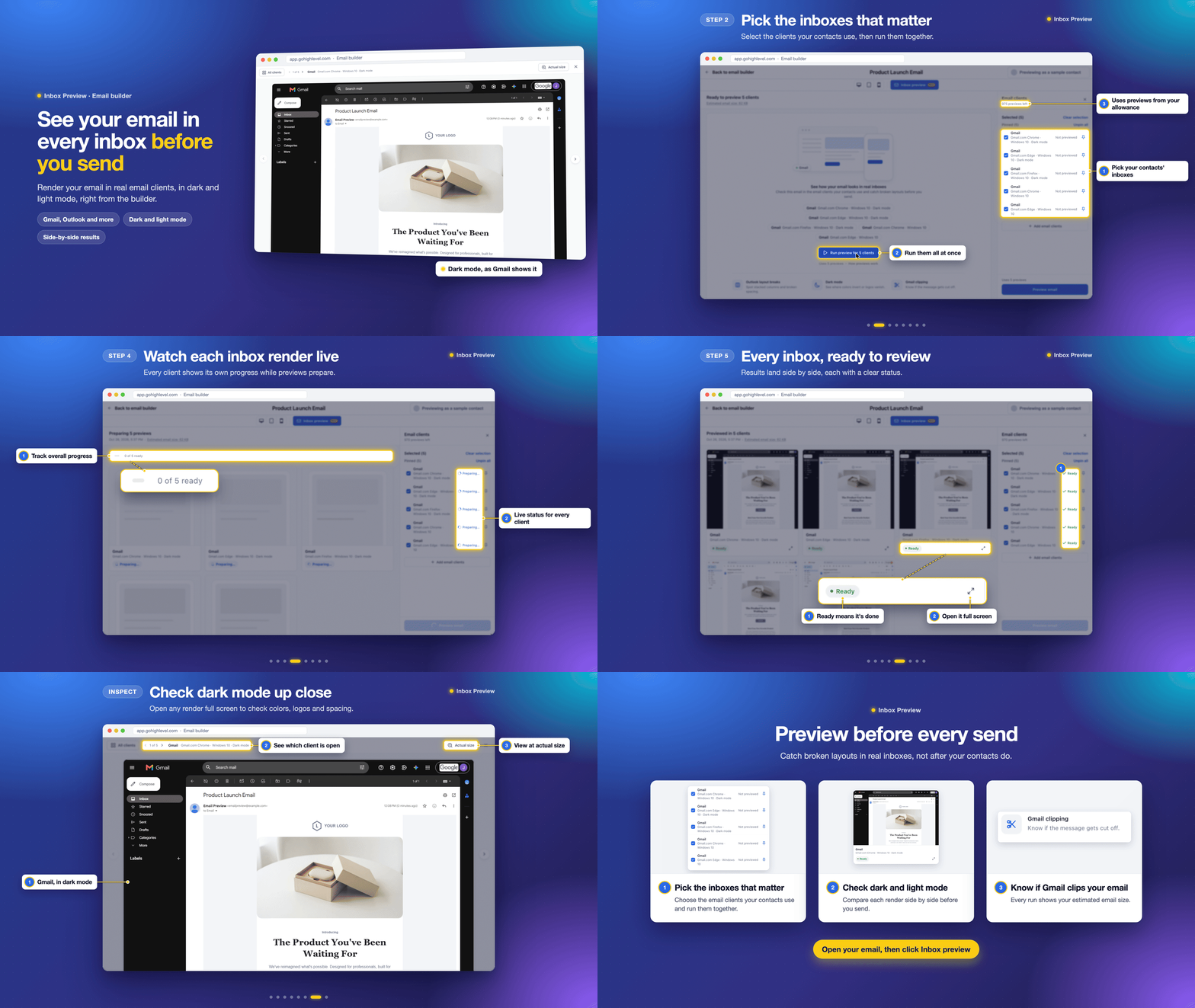
- Preview exactly how your email appears in clients like Gmail, Outlook and Apple Mail.
- See real captured screenshots from those clients instead of viewing only simulated desktop, tablet or mobile previews.
- Preview as a specific contact so you can verify how merge fields and personalized content appear for them.
Preview across multiple email clients
- Choose which email clients you want to test, or start with a preselected set of popular options.
- Filter by device type (web, desktop, mobile) and appearance mode (light, dark), and pin your most-used clients so they are selected by default in future sessions.
- Compare layouts across clients to spot issues with formatting, images or design alignment.
- Open any preview to full size and switch between clients to inspect details closely.
Identify rendering issues before sending
- Find Outlook-specific rendering problems, dark mode styling issues and potential Gmail clipping before your email is delivered.
- Check your email’s estimated size and see a warning if it is likely to be clipped in Gmail.
- When you update the email content, Inbox Preview clearly shows which client previews are out of date so you can refresh them and avoid reviewing older versions.
How to use
- Go to Settings > Labs in EveryCatch and turn on Inbox Preview.
- Open an email in the email builder or in the AI editor.
- Click Inbox preview in the toolbar, or open it from the Preview & test menu.
- Select the email clients you want to include in your test run.
- Click Preview email, then review each client’s preview as results are generated.
Why it matters
- Better email experience: Confirm that your emails look the way you intend across different email clients.
- Fewer rendering issues: Catch layout, spacing and formatting problems before you send a campaign or automation.
- Higher campaign quality: Send polished, consistent emails that present your brand clearly to your audience.
- Simpler testing: Handle email rendering checks directly in the EveryCatch email builder without using separate testing tools.
Availability
Inbox Preview is available in both the email builder and the AI editor. You will see it as Inbox Preview after you enable it in Labs.
Good to know
- Each EveryCatch account has an included allowance of inbox previews. Failed previews are not counted, so you can retry those previews without using up your quota.
- Learn more: Inbox Preview help article



