What changed
EveryCatch now includes workflow maps, a visual view that brings your workflows, folders, assets, and their connections into one place.
You can see how automation is set up across your account and how different parts work together. Workflows appear inside their folders, and connected assets such as tags, forms, calendars, pipelines, and custom fields show how everything relates.
For example, a form can start a workflow, that workflow can apply a tag, and that tag can trigger another workflow. Workflow maps helps you see these links clearly so you understand the full flow at a glance.
The map is created automatically from your existing workflows, so you can start exploring immediately without building or updating a diagram yourself.
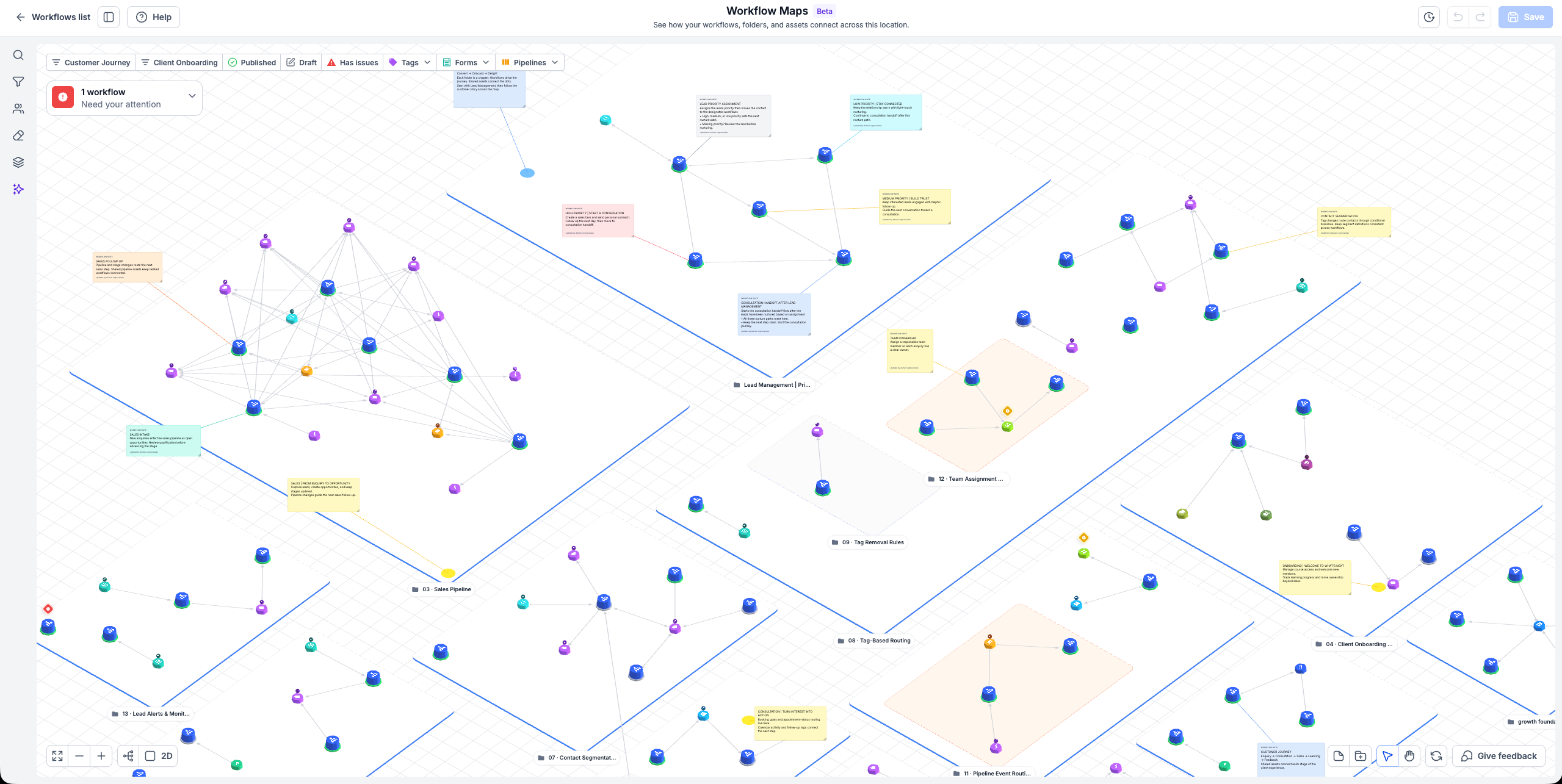
View workflows and their connected assets together in a single map so you can understand how your automation fits across the account.
Why this matters
As your EveryCatch account grows, a single customer experience often runs through several workflows. Until now, understanding that path usually meant opening workflows one by one and trying to rebuild the relationships in your head. Workflow maps gives you an account-wide view so you can review, adjust, and explain your automations much more quickly.
How it works
Go to Automation > Workflows > Workflow maps in EveryCatch. You can also open maps directly from within a workflow’s builder.
- Explore the account: See your workflows grouped inside folders, with their related assets around them so you can review structure and coverage.
- Find what you need: Use search to look for workflows, assets, triggers, or actions by name and jump straight to the right item on the map.
- Focus your view: Apply filters so you only see the workflows and assets you want to investigate at that moment.
- Move between overview and detail: Pan, zoom, fit the map to your screen, and switch between 2D and 3D views to match how you like to work.
- Look closer: Select a workflow or asset to open its details and see its direct connections on the map.
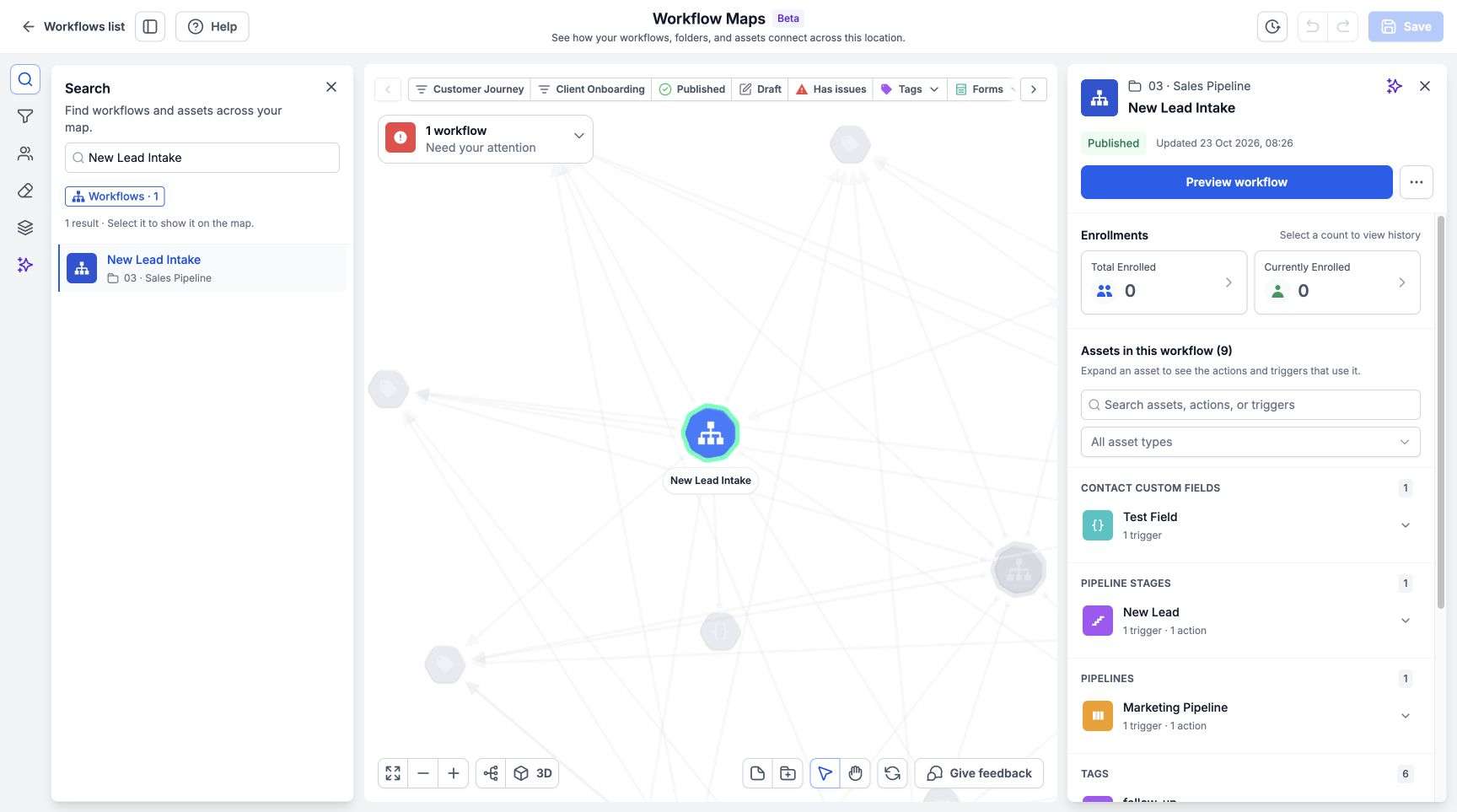
Search for a workflow by name, then review its status, active and past enrollments, and the assets it connects with, all from the same view.
Explore more with workflow maps
Workflow maps in EveryCatch also brings together several tools that help you understand and manage your automation in one place.
- Explore contact activity: Find a contact and trace which workflows they entered. Review where they enrolled, where they finished, where they are currently waiting, and where any errors occurred.
- Troubleshoot workflows: Spot workflows that require attention, inspect failed executions, and review the exact steps that caused issues so you can fix them confidently.
- View linked workflows with Workflow Canvas: Open connected workflows together and follow the handoffs between them to understand a larger automation process.
- Review your account with Cleanup: Quickly find workflows that still have default names, workflows without recent enrollments, and empty folders so you can decide what to rename, archive, or remove.
- Get help from the AI assistant: Ask questions about your automations directly from the map and get help understanding, troubleshooting, and organizing your account.
- Learn through onboarding and resources: Follow guided introductions as you explore the map, then revisit the resource hub for walkthroughs, quick references, and answers to frequent questions.
Common use cases
- Understand an unfamiliar account: Open the map to get a clear overview of the workflows in the account and how they connect to each other.
- Investigate a customer experience: Start from the account map, then dive into the specific contact path or workflow that relates to the experience you are reviewing.
- Review dependencies before a change: Select an asset and see which workflows depend on it so you can adjust or test safely before updating anything important.
Additional notes
- Each EveryCatch account has its own workflow map, so you always see the structure that belongs to that specific account.
- Launch access: At launch, workflow maps is available only to agency users and agency admins. If you need access for others, please coordinate within your agency team.
Preview
Explore asset usage across workflows
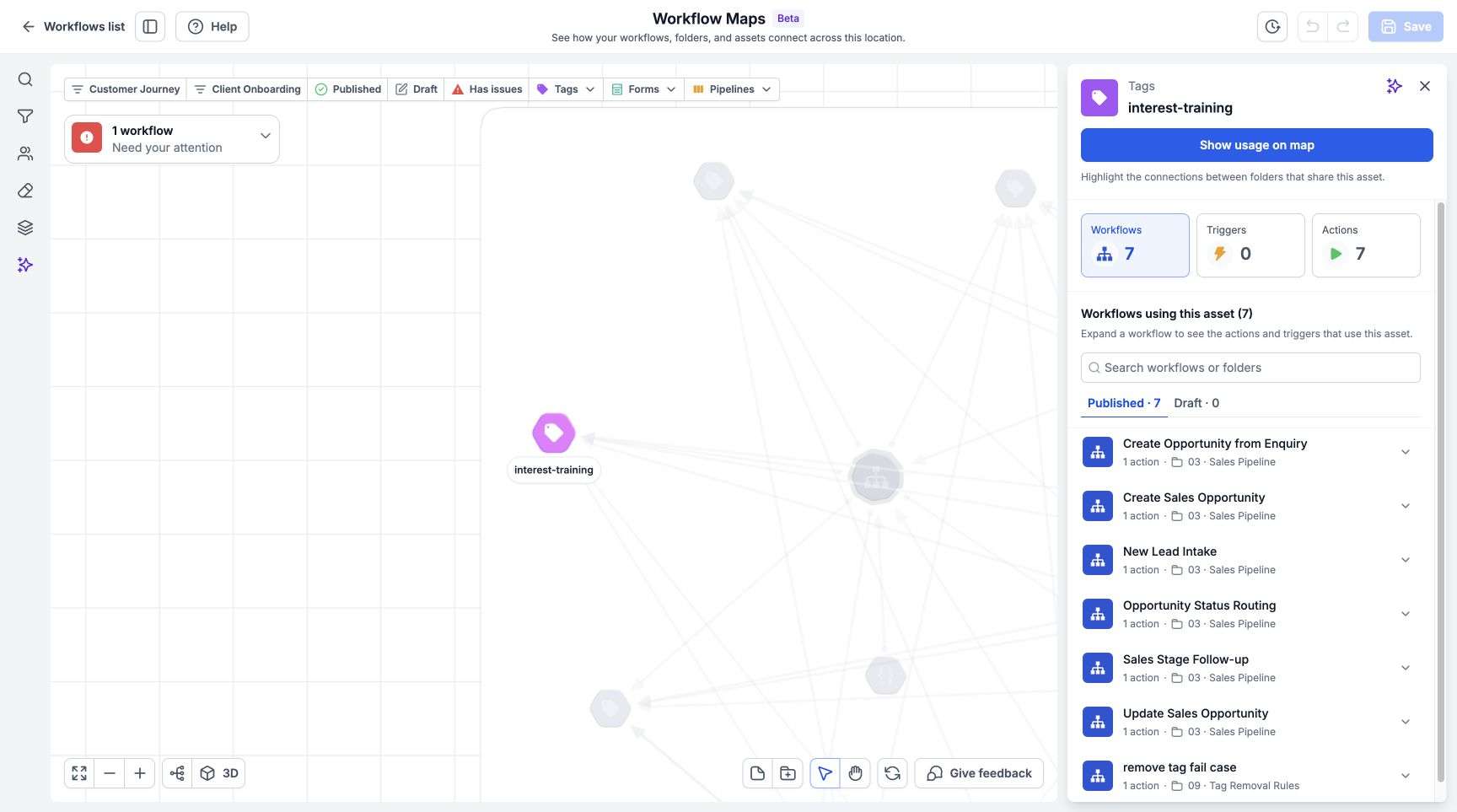
Select an asset such as a form, tag, calendar, or pipeline to see which workflows use it and explore how those workflows connect to each other on the map.
Follow a contact’s activity across workflows
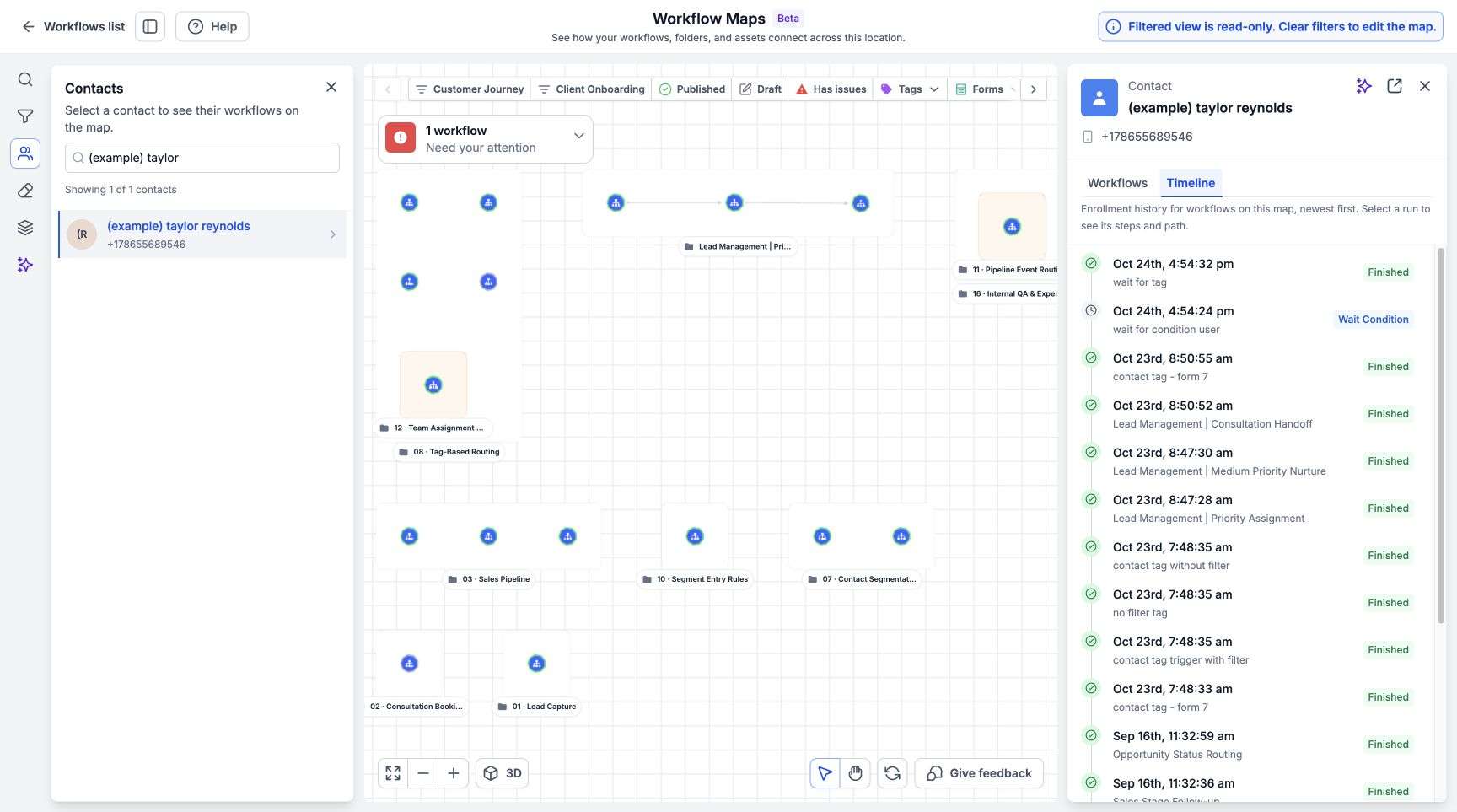
Follow an individual contact across workflows and review their enrollment history in the Timeline so you can understand exactly what happened and when.



