Overview
Many service visits naturally include product sales, like take-home items or add-ons. EveryCatch now lets you attach retail products directly to a service appointment from the in-app appointment modal. Services, products, payment details, and inventory stay together in one place, with a single total that covers everything your customer is buying in that visit.
What changed
Add products when you book or edit an appointment
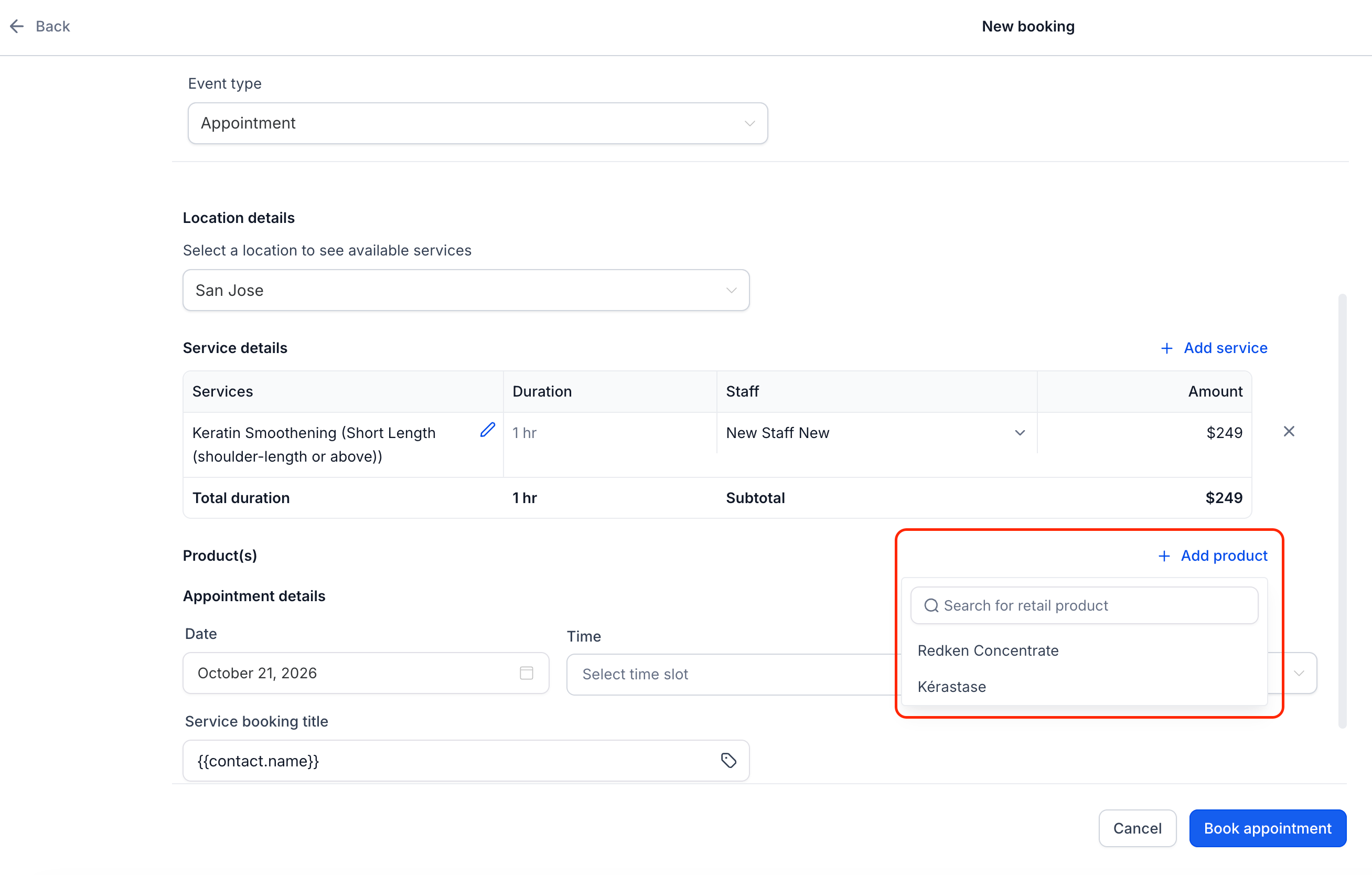
You can now choose a product or variant from your product catalog right inside the appointment modal, whether you are creating a new appointment or editing an existing one. There is no need to cancel, recreate, or move the appointment to add what the customer decides to buy on the spot.
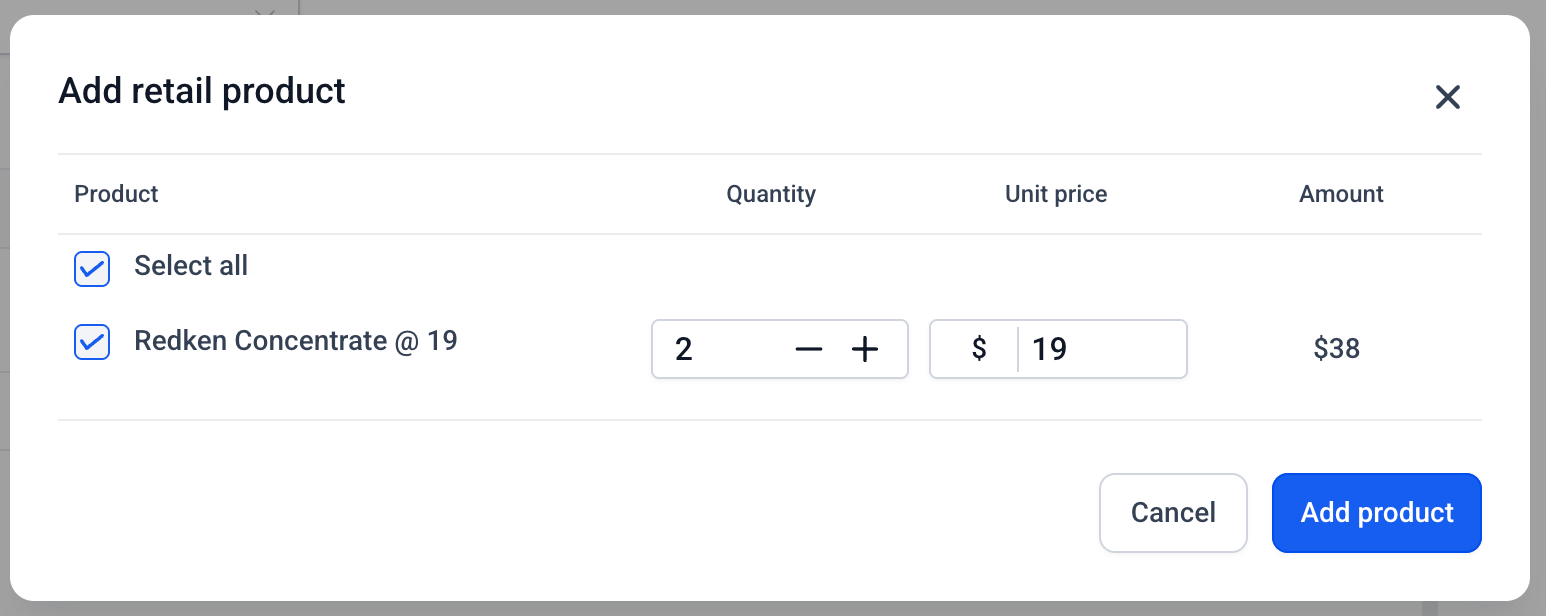
Set quantity and price per product
EveryCatch lets you add multiple units of the same product to an appointment and adjust the unit price for that specific visit if needed, such as for a discount or package. The change only affects that appointment, so your main catalog price stays the same for future use.
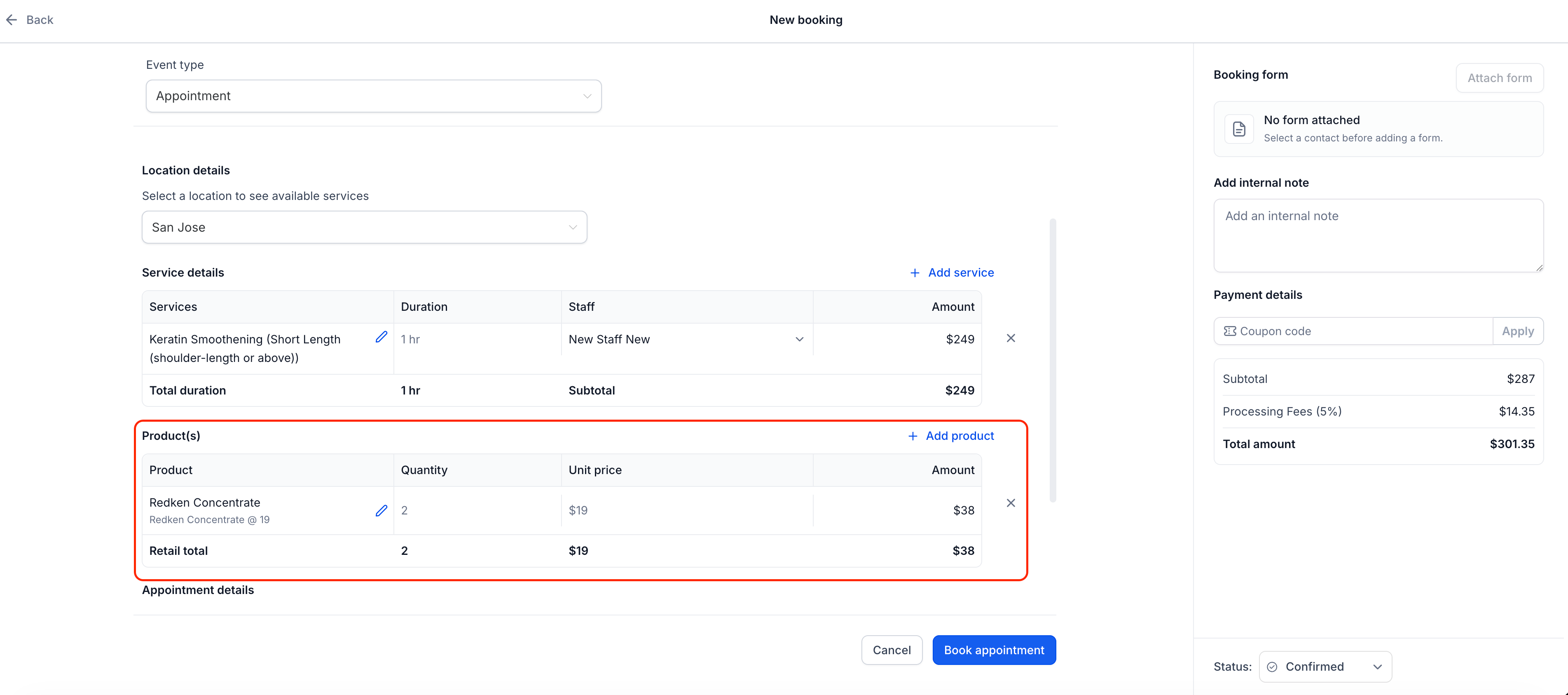
One total, one payment view
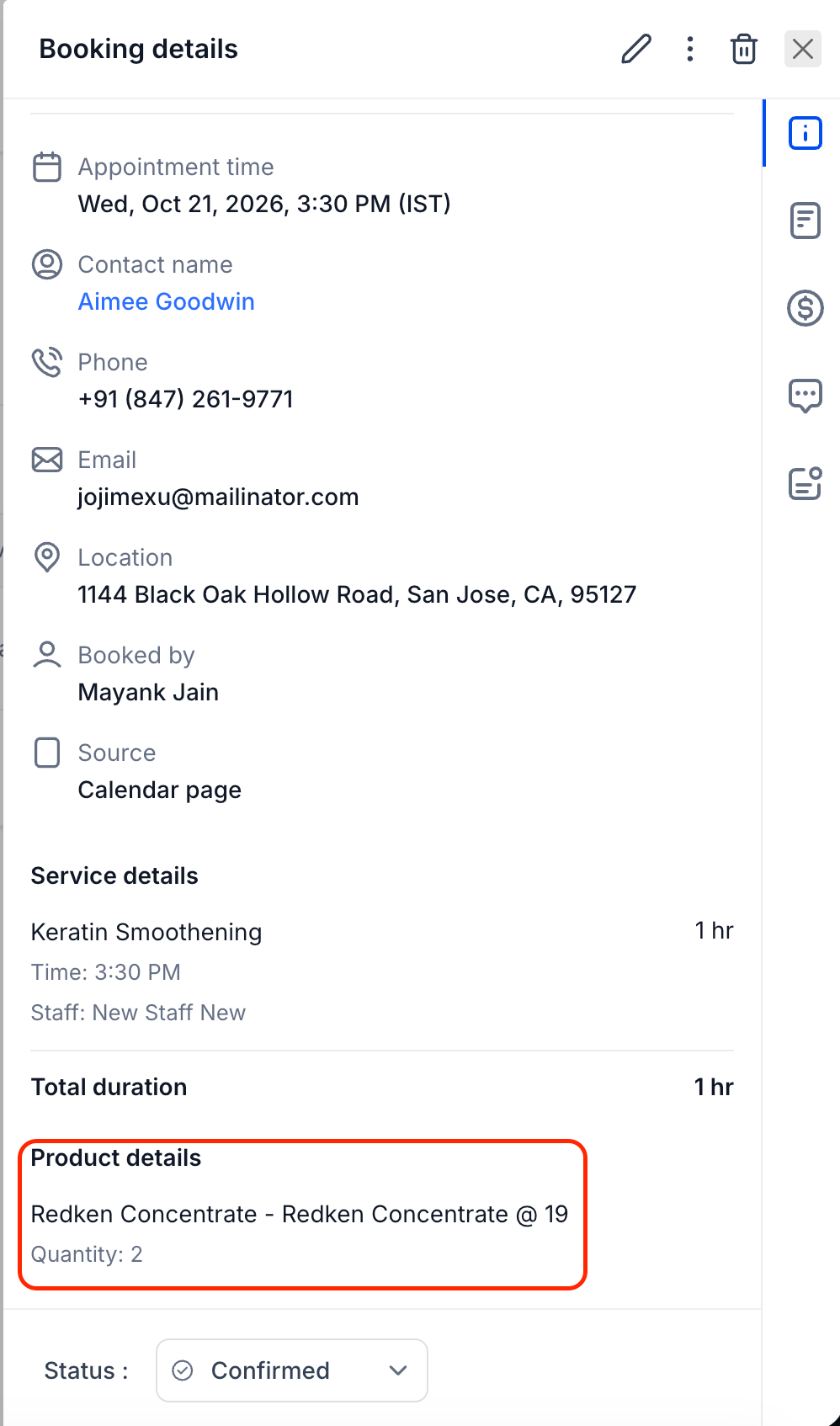
Retail products now appear alongside services in both the appointment details and the Payments tab. If you update the products on an appointment that already has collected or pending payments, the payment status clearly shows whether the customer still owes money or is due a refund based on the new total.
Inventory that keeps itself up to date
For products with inventory tracking turned on, stock is automatically reduced when you add a product to an appointment and increased again if you remove it or lower the quantity. If the requested quantity exceeds available stock, you see a clear error message so you can adjust. Products set to "Continue selling when out of stock" follow that setting, and any product without inventory tracking does not change stock levels.
How to use it
- Open the service appointment modal (for a new or existing appointment) and click + Add product.
- Select the product, then adjust the quantity or unit price if needed. The appointment total updates in real time as you make changes.
- Save the appointment, then open the Payments tab to review the full breakdown of services, products, and the total amount due.
Note
- Create and manage your retail products under Payments > Products. They do not appear under Services and need to be set up in the Products section first.
- Retail products can be added to appointments only from within the EveryCatch app. They are not available for customers to add themselves on the public booking page.
Why this matters
- Your team can sell services and retail products in a single visit, without creating a separate product order or invoice.
- Each appointment total and payment status shows the complete transaction, so you always know exactly what has been paid for.
- Inventory stays accurate in the background whenever products are sold through appointments, which reduces manual adjustments and errors.
- Past appointments keep a precise record of what was sold at that time, even if you later change catalog prices, product names, or availability.