You can now put your workflows through realistic tests before you turn them on. EveryCatch now lets you test a single trigger or a single action using real events from your own account, then run the full workflow step by step while you watch what happens. When a test passes, you can see exactly how the workflow behaved on real data. The new Test workflow experience is available now in EveryCatch Labs.
What changed
Test a trigger with a real event
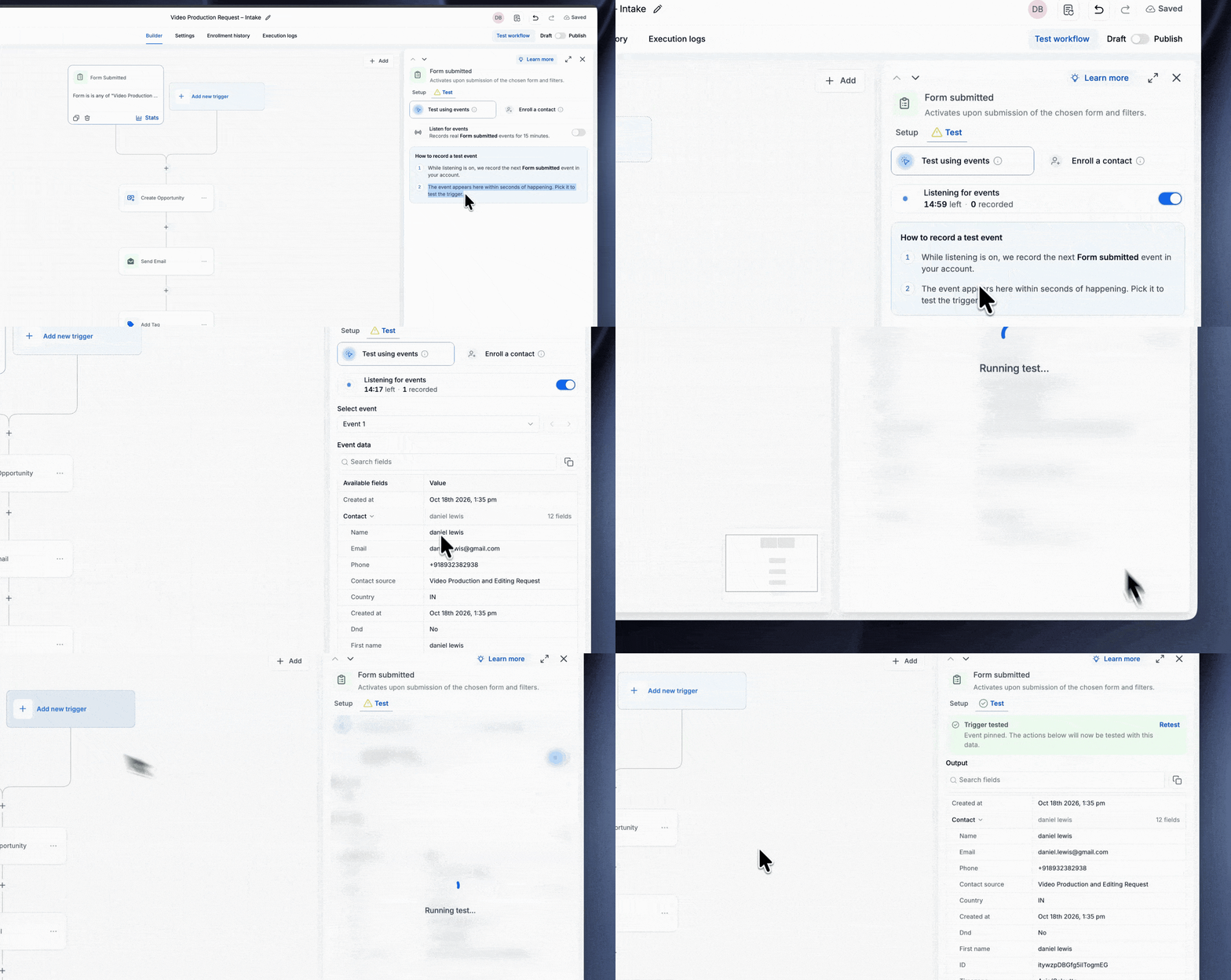
- Open the Test tab on any trigger and turn on Listen for events. Fire the trigger once, for example by submitting the form, and the live event appears within seconds.
- Click Test trigger. That event is now pinned so every action under the trigger uses that same data when you test.
- Previously, testing a workflow meant running the whole thing on a contact. Many triggers and actions do not depend on a specific contact, so those tests were often unhelpful. Testing is now based on the event itself, which makes it work for a much wider range of workflows.
Test one action at a time
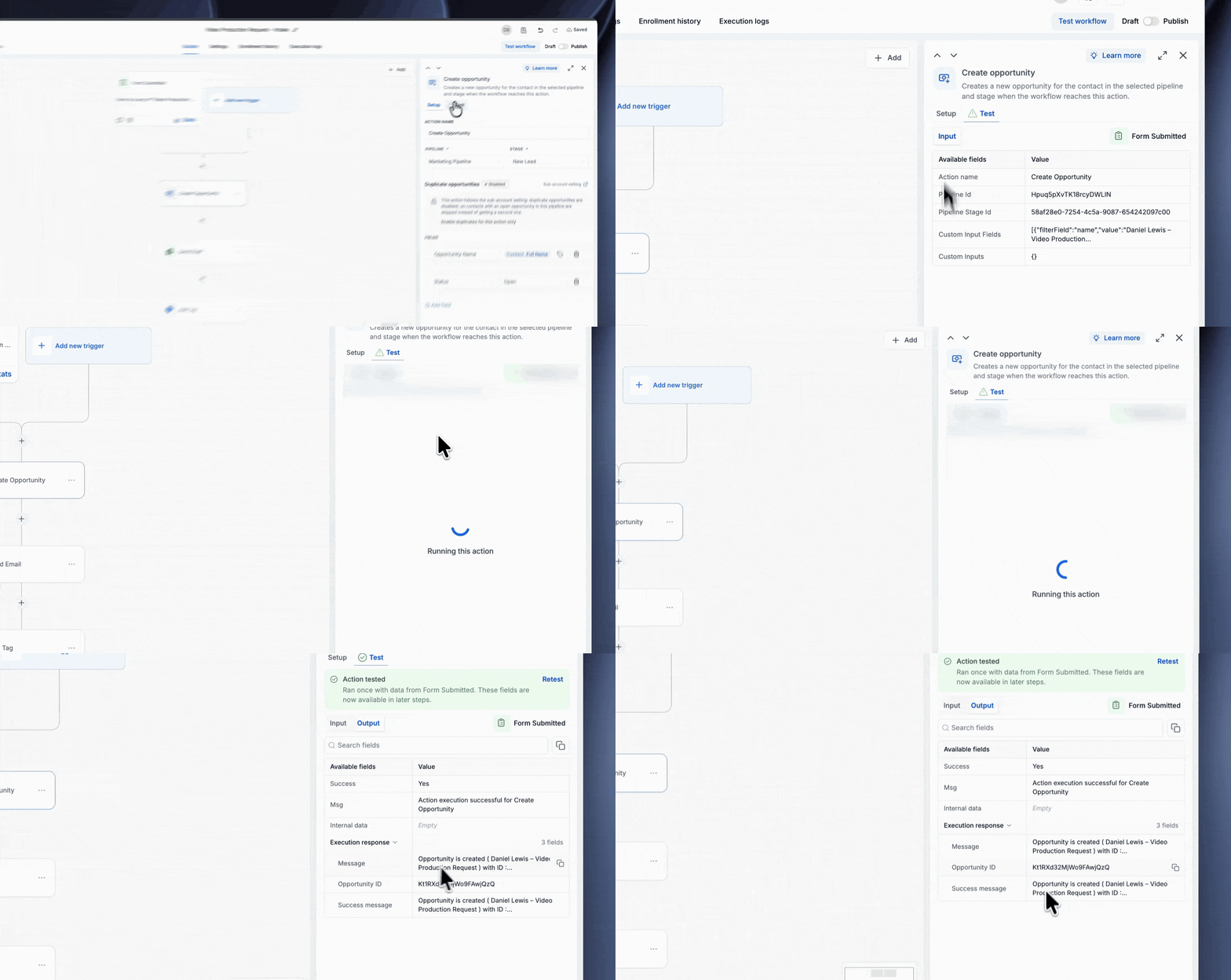
- The Test tab on any action shows its Input, which is built from the pinned event. Review the data, then click Test action.
- The Output shows exactly what came back, such as the message content and the ID of any new record that was created. Those output fields are immediately available to use in the steps that follow.
Run the whole workflow and watch it live
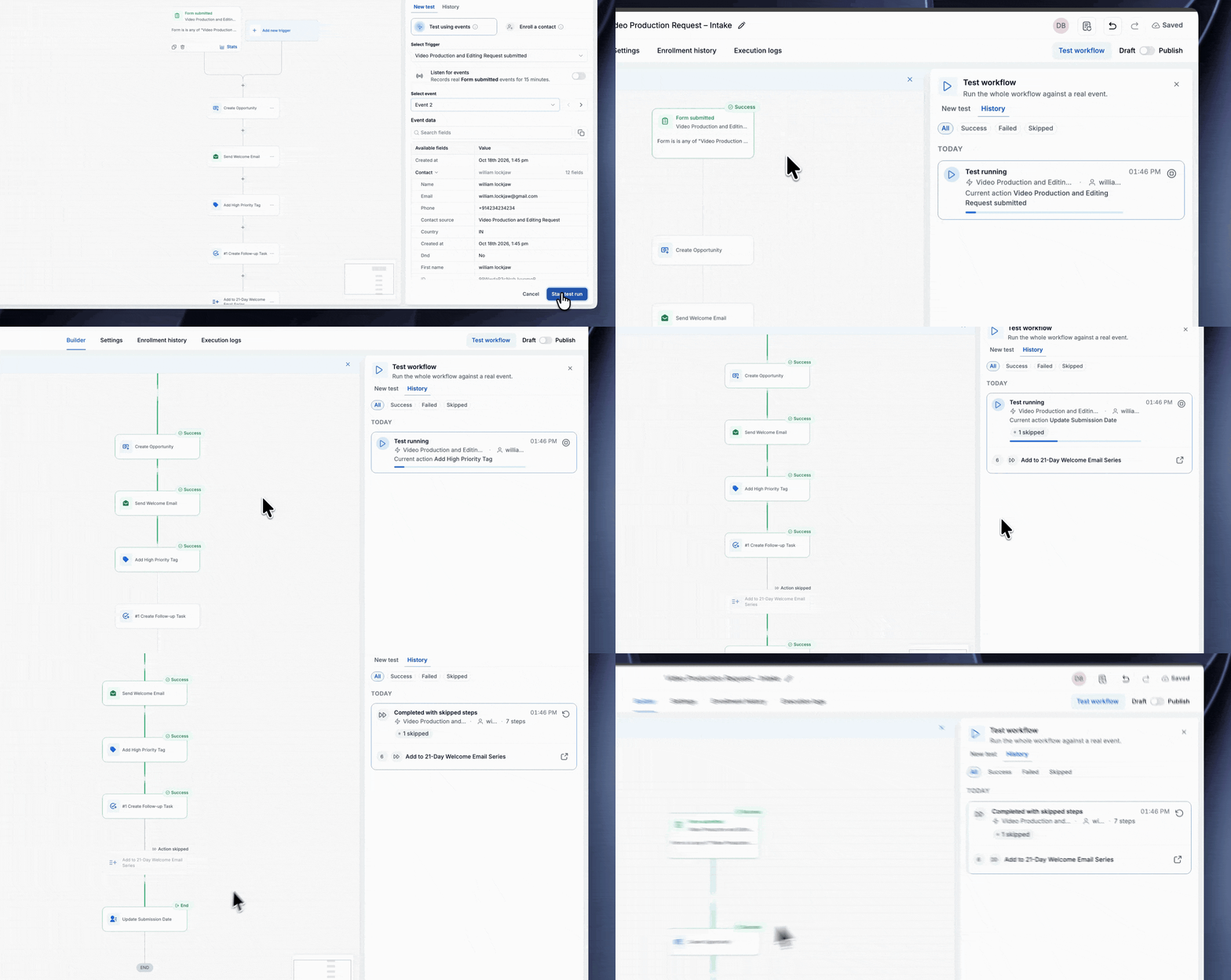
- Click Test workflow, choose the trigger and the event you want to use, then click Start test run.
- As the test runs, each step on the canvas updates to show Success, Failed, or Skipped. Click any step to open its detailed Input and Output so you can see exactly how the data flowed through.
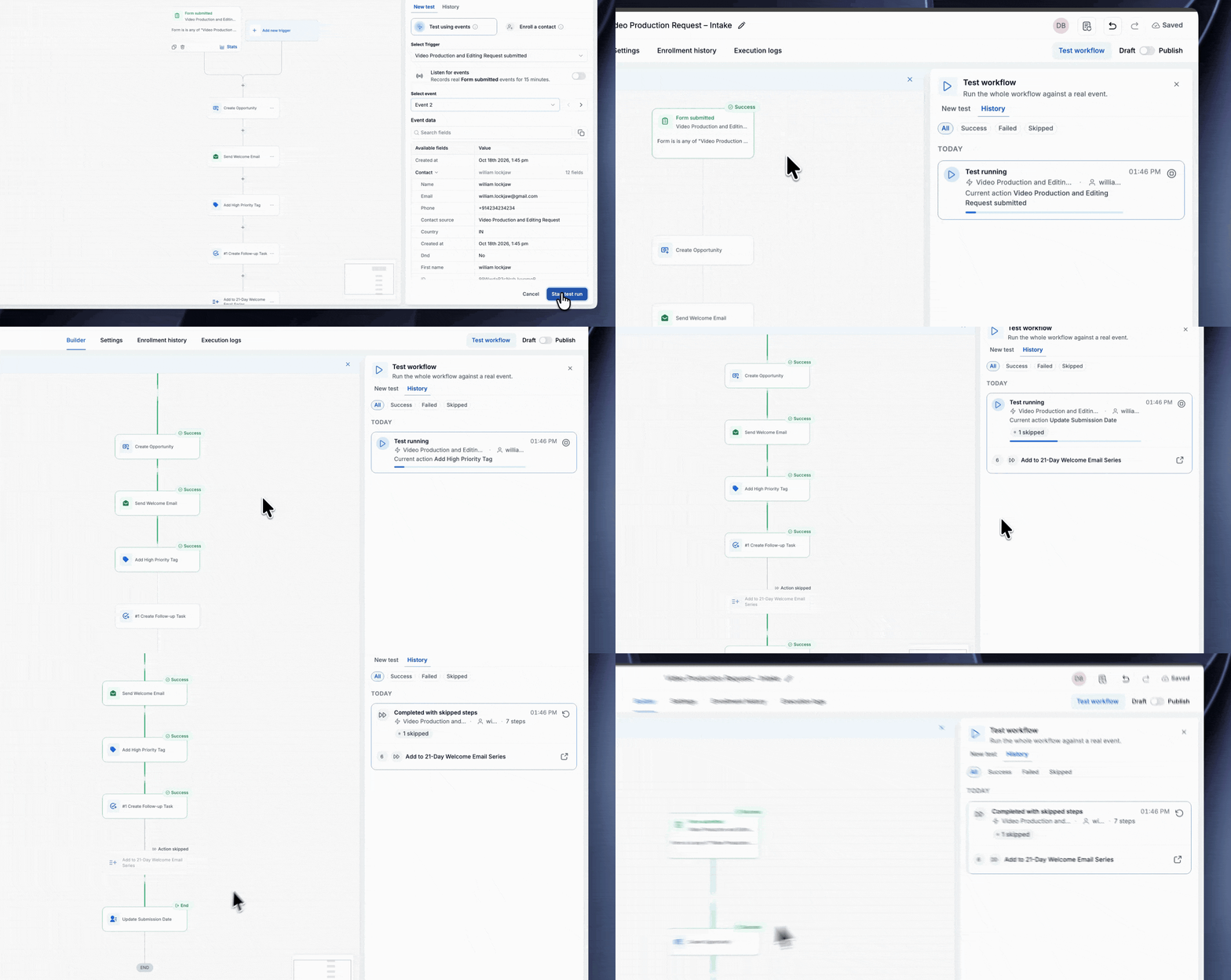
History and retry run
- The History tab keeps a record of every test run, with filters for All, Success, Failed, and Skipped so you can focus on the runs you care about.
- Retry run repeats a previous test with the same trigger data and the same action configuration. Fix a step, click Retry, and you immediately see whether your change resolved the issue.
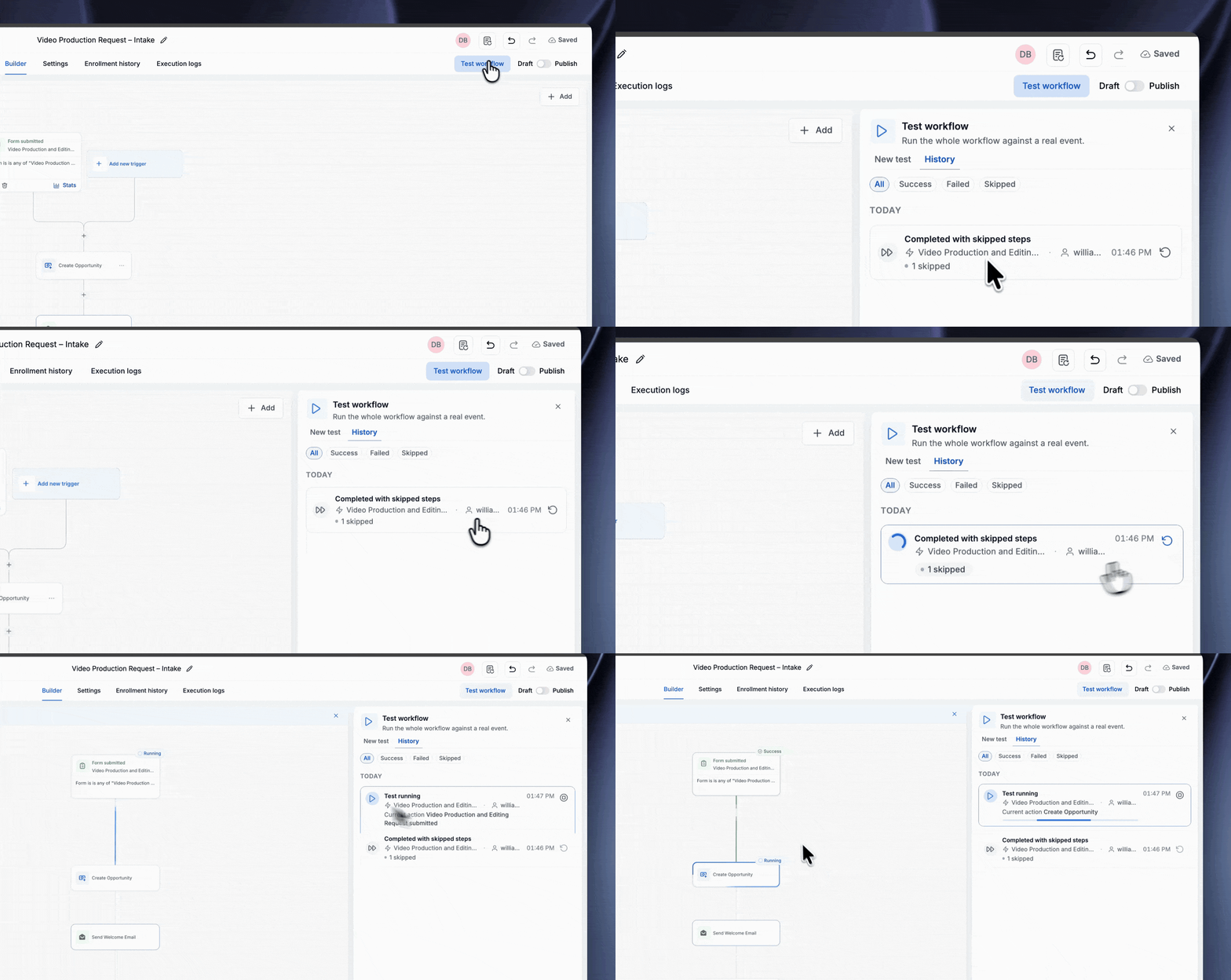
How to use
- Open EveryCatch Labs and turn on "The New Test Workflow" feature toggle.
- Go to Automation > Workflows and open the workflow you want to test.
- Click the trigger, open the Test tab, and choose Test using events.
- Turn on Listen for events, then fire the trigger once from your account.
- Select the captured event and click Test trigger.
- Click any action, open its Test tab, and click Test action if you want to validate that step on its own. This step is optional.
- Click Test workflow, choose the trigger and the event you pinned, and click Start test run.
- Review the result of each step on the canvas, make any adjustments you need, then save and publish your workflow.
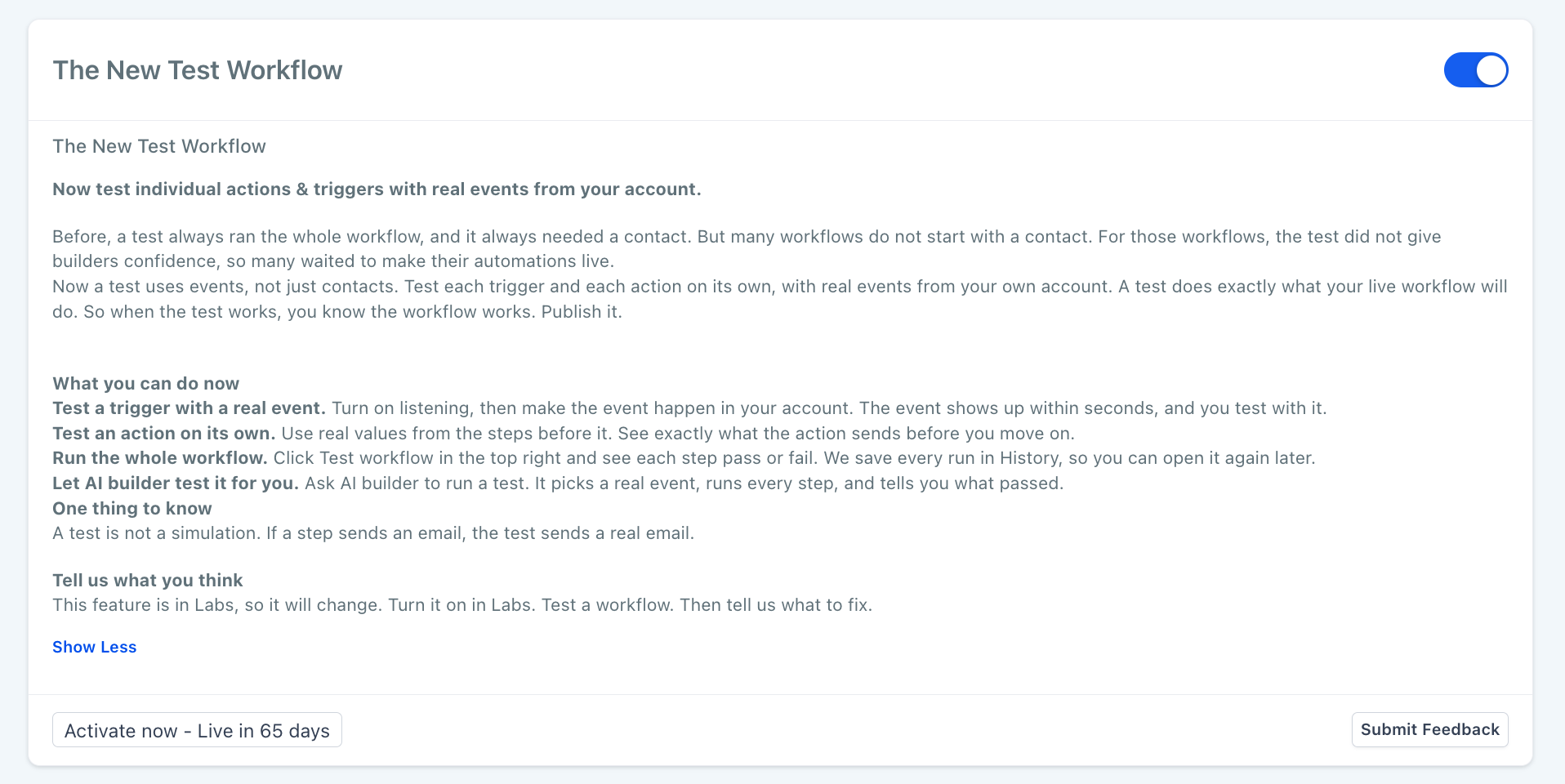
Important: Every test runs the actual steps in your workflow. Messages are sent, and records are created or updated. Use your own contact details or a dedicated test form entry when you do not want to contact a real customer.
Why this matters
You can now see how a workflow behaves in real time instead of relying on log digging or trial runs in production. Each step tells you immediately whether it ran successfully and what data it produced.
- Confidence to publish: You can go live knowing every step has already run successfully on real data from your account.
- Faster debugging: The step that failed shows its own input and output in one place, and Retry run lets you re-run the exact same test with a single click after you fix the issue.
Good to know
- Listening for events runs for 15 minutes at a time. If your event arrives later, turn Listen for events on again.
- Test the trigger before you test an action. Action tests use the event that the trigger test pinned.
- Testing is optional. You can still save and publish workflows without running tests first.
- If you do not have a real event you can fire, choose Enroll a contact to test using a specific contact you select.



