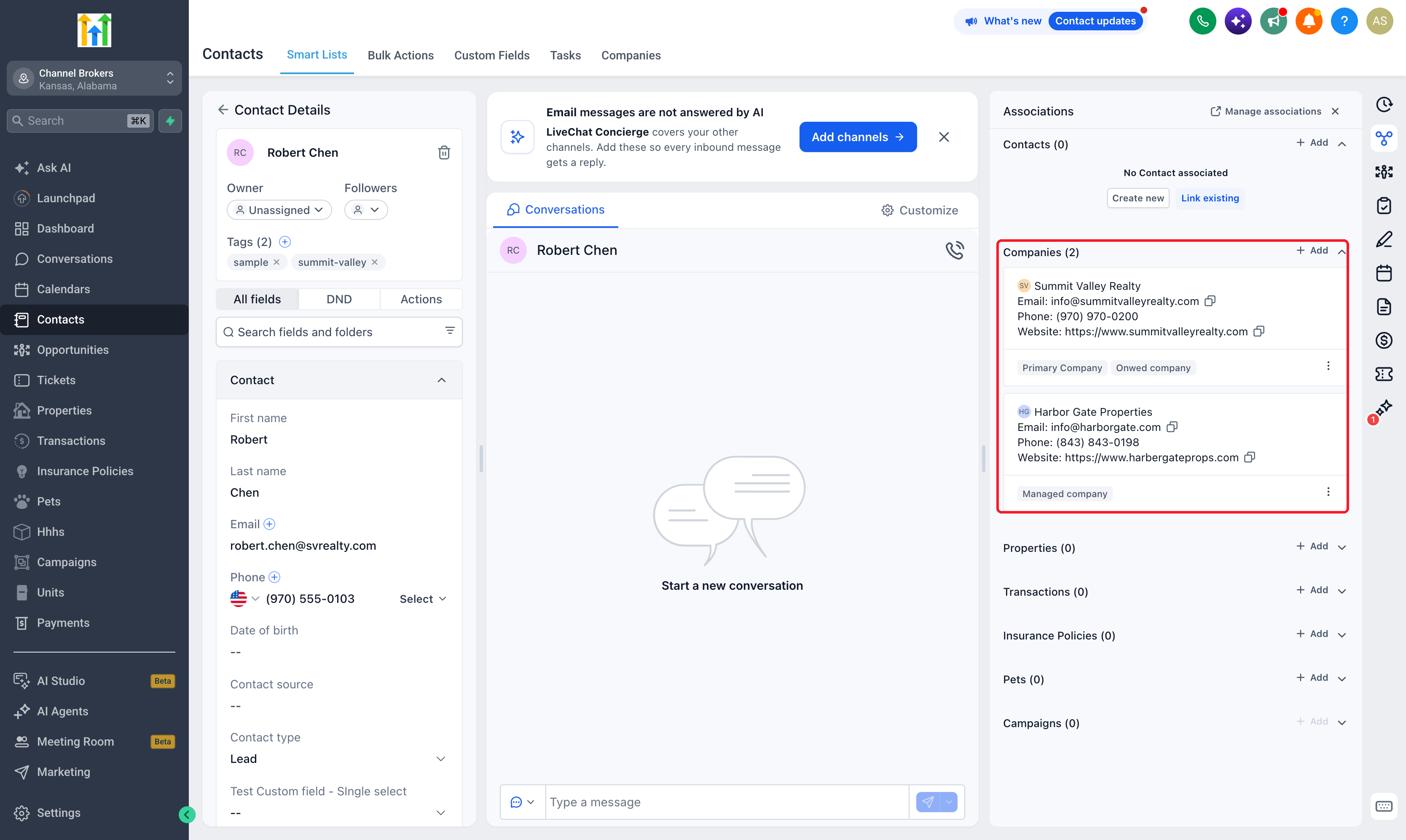
You can now keep a single contact record connected to every company that person works with. "Primary Company" is a system label that cannot be edited, so instead you create a new association label between contacts and companies and use it to link consultants, shared finance contacts, and owners across accounts without duplicating their details or overwriting their Primary Company.
What changed
- Multiple company links: EveryCatch now lets you create a custom association label between contacts and companies that allows connections to many companies, so you can link one contact to each company they work with.
- Keep adding after the first: After you add the first company, you can link more companies from the contact’s Associations area using the same label, as long as it allows multiple companies.
- Link from either side: You can add companies to a contact from the contact record, or open a company and link an existing contact from the company’s Associations tab.
- Primary Company stays central: Domain name automation and business name automation still associate contacts with companies using the Primary Company label by default. Any extra custom links appear alongside Primary Company instead of replacing it.
Why this matters
- Manage people across accounts: A single consultant can now be connected to each client company using one shared contact record in EveryCatch.
- Keep shared contacts easy to find: You can link an accountant, bookkeeper, or legal contact to every company they support so teams can find them from any account.
- Avoid duplicate records: Maintain one set of personal details for a person while clearly showing their relationships to several companies.
How to use
- Turn on Association Labels and Multiple Companies for contacts in Labs so you can set up custom company-contact relationships.
- Go to Settings > Objects > Companies > Associations, click Create association, choose Contacts, name your labels, and set the relationship type to Many Companies so one contact can link to several companies.
- Open a contact, click Add next to Companies, select the company you want to connect, and choose your new association label.
- Save the link and repeat for other companies until you reach the limits you set for that label.
- You can also start from a company: open the company, then from Associations > Contacts, link the existing contact using your multi-company association label.
Pro tips
- Primary Company cannot be edited: It is a system label that links exactly one company to each contact. Use an additional custom association label for every extra company relationship you need to track.
- Use existing records: Before creating a new contact or company, search for an existing record so your multi-company links stay clean and accurate.
- Check relationship limits: Make sure the association label you pick is configured to allow the number of company links your workflow needs for each contact.
- Company merge fields use Primary Company: Email and other templates that use company merge fields still pull their values from Primary Company. Keep Primary Company accurate so your content uses the details from the intended company.
Learn more in the support doc: see setup steps, examples, and FAQs for contact-company associations in EveryCatch.



