Your email might look polished on a laptop, but many of your readers open it on their phones. Mobile view controls in EveryCatch let you fine-tune how emails appear on small screens, with separate styling for supported sections and elements so you can keep both views consistent and clear.
What changed
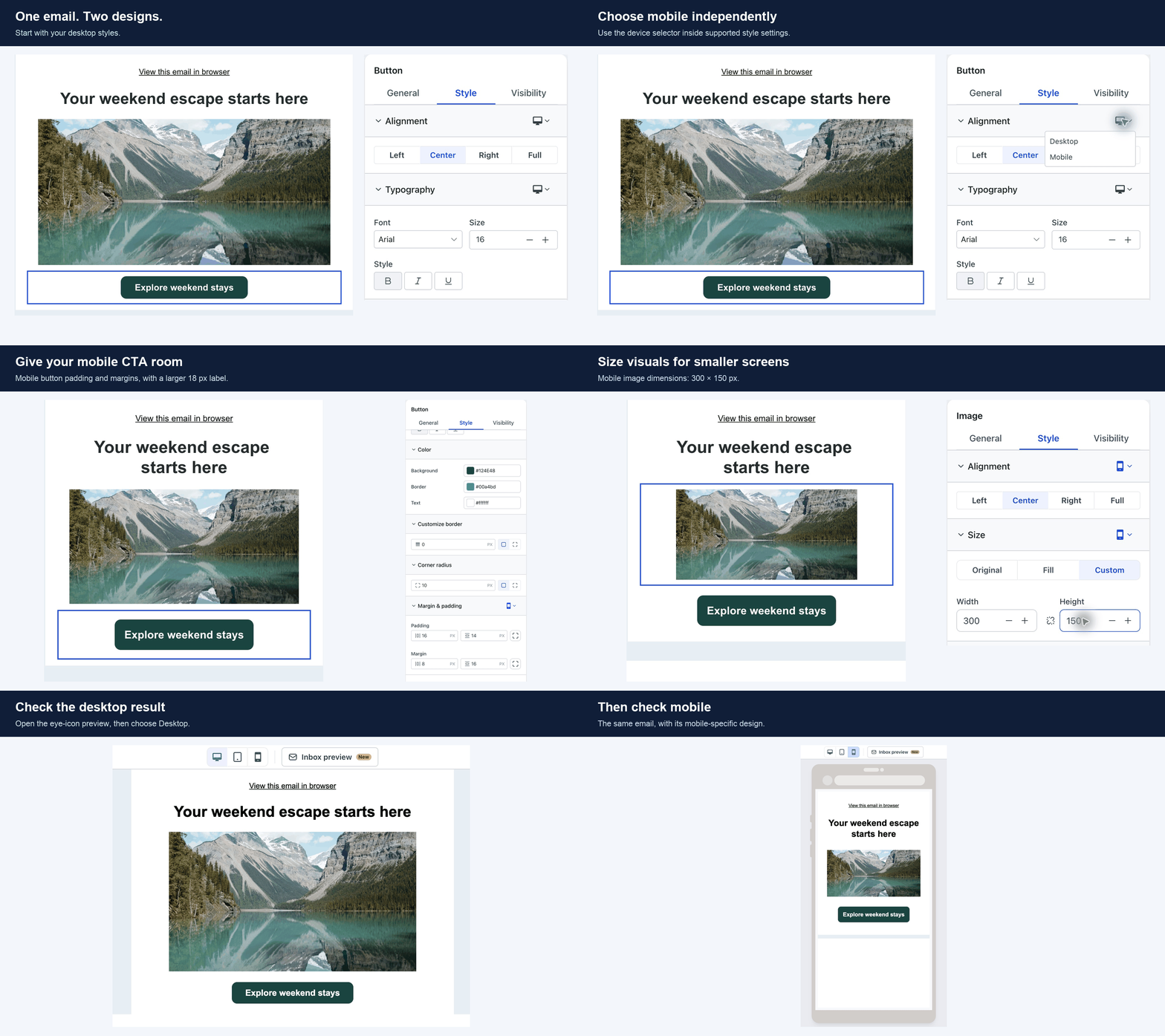
- Design for desktop and mobile independently: In the Design Editor, you can switch between Desktop and Mobile for supported styling sections. Mobile settings start by matching your desktop design, and you only change what you need, which means you can refine the mobile version without rebuilding the email.
- Give content room to breathe: Adjust mobile padding and margins for sections and supported elements. Reduce large gaps, add space where content feels cramped, and shape the layout specifically for smaller screens.
- Make your call to action stand out: Choose how buttons align on mobile, including full-width, and adjust button typography and spacing so the action is easy to see, tap and read on a phone.
- Keep visuals in proportion: Set mobile alignment, dimensions and padding for images, logos and videos. Aspect-ratio locking keeps visuals in proportion while you resize. Social icons also include mobile controls for alignment, size and spacing.
Why it matters
Subscribers often read your emails on the go, so elements like spacing, button width and image size can affect whether they engage. With mobile view controls, you can tailor those details for phones while preserving the desktop layout you already designed.
How to use it
- Go to Marketing > Emails in EveryCatch, then create a new email or open an existing campaign or template in the Design Editor.
- Select a section or a supported content element that you want to adjust for mobile.
- Open the Style panel and use the device selector beside the specific setting you want to change.
- Choose Mobile, update the values for that setting, and check how it looks in the mobile preview inside the editor.
- Save your changes, click the eye icon to open Preview, then switch between Desktop and Mobile to review and compare both designs.
Good to know
- Mobile styles start by inheriting desktop values, and they only become different when you change them for Mobile.
- Existing campaigns and templates keep their current appearance until you edit and save their mobile styles.
- Available controls depend on the element you select. Use the device selector wherever you see it to customize mobile settings.



