Overview
EveryCatch’s calendar view now gives you clearer control over how you see your schedule and how you work with it. A new calendar view settings panel keeps all your display options in one place, export options let you take the exact view you are looking at into a file, and filters and event colors are easier to use. These updates only affect how the calendar looks and behaves for you. Your availability, booking rules, and what customers see on your public booking page stay the same.
What changed
Calendar view settings, one click away
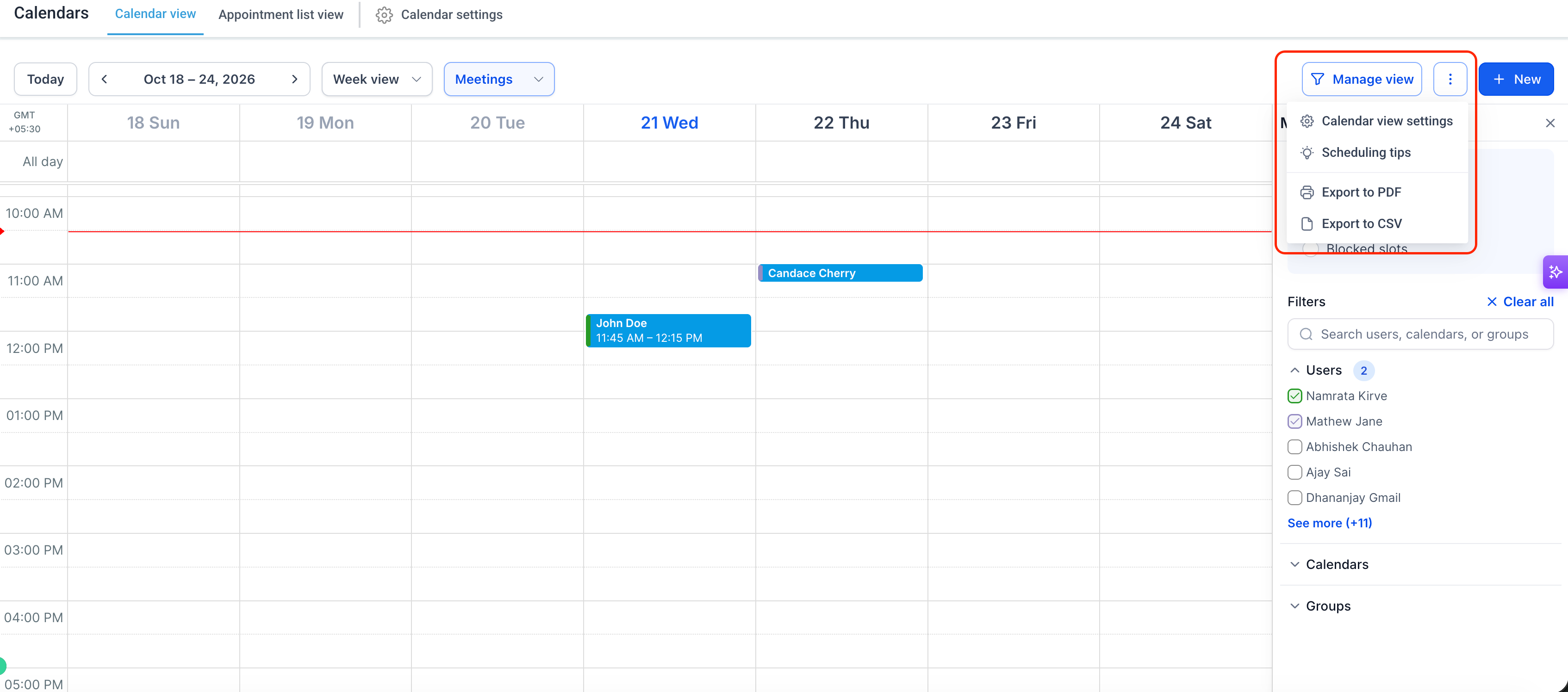
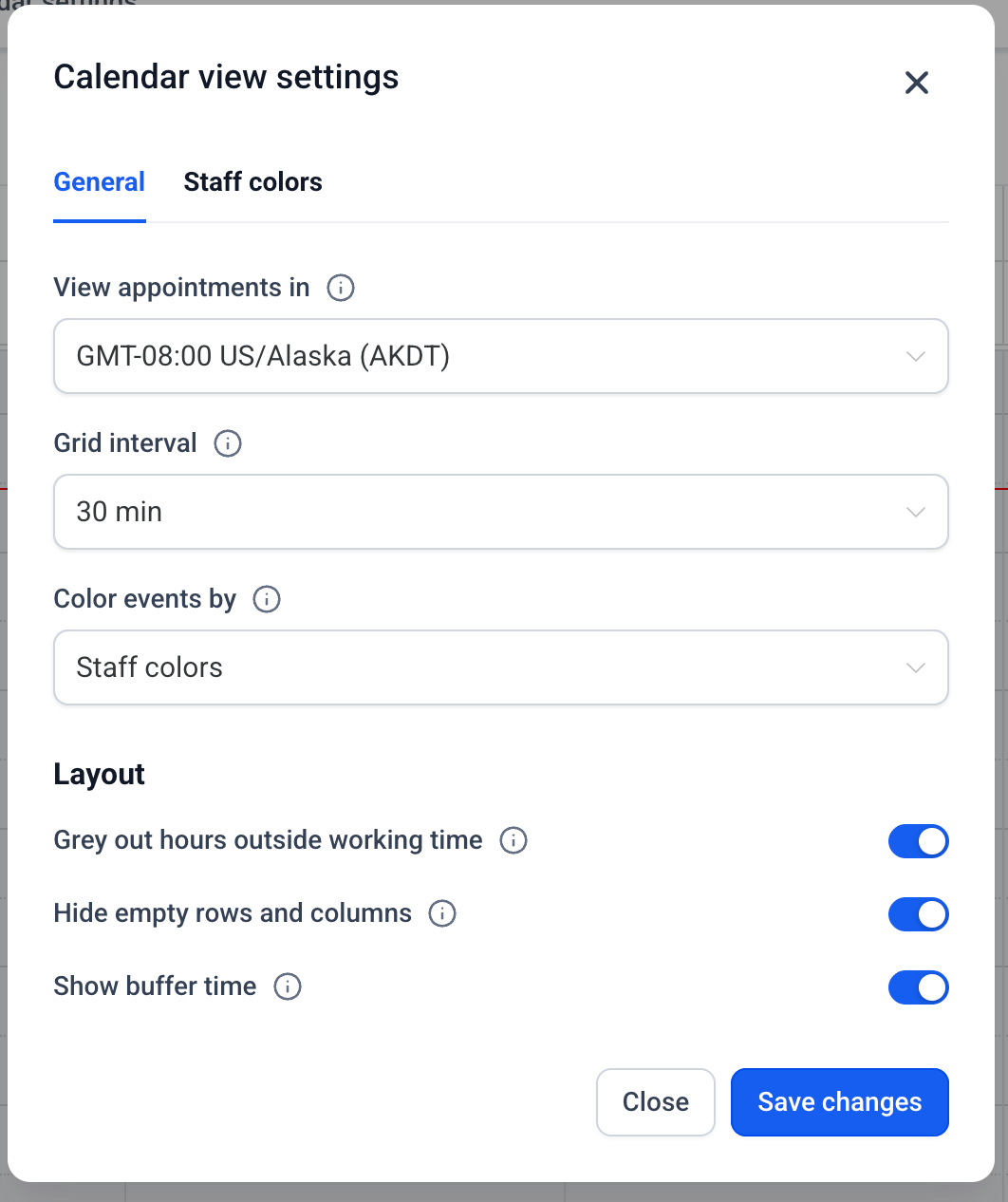
On the calendar toolbar, open the more options (3 dots ⋮) menu next to Manage view and select Calendar view settings. This opens a single panel where you can set your calendar display preferences. Once you choose your settings, EveryCatch remembers them for the next time you open the calendar.
Preferences you can tune
- View appointments in: Choose the timezone you want to see times in across your calendar screens. This also applies to your appointment-related emails. Note: This setting is only for your own view. It does not change availability, how others book, or the preferences for other team members or customers.
- Default grid interval: Set how detailed the day and week grids are on the calendar (15, 30, or 60 minutes).
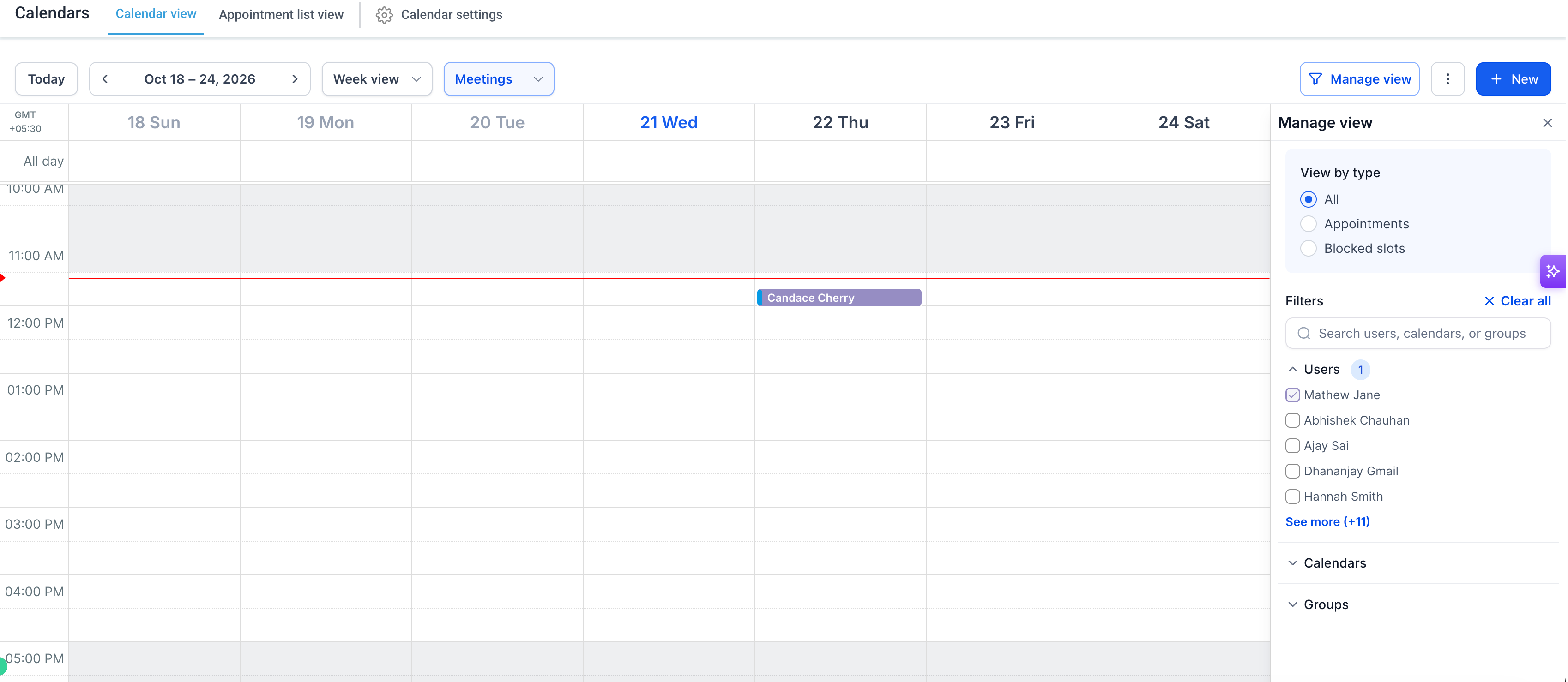
- Grey out hours outside working time: Automatically shade non-working hours for each staff member based on their schedule for that date.
- Hide empty rows and columns: Focus on booked resources by hiding calendars, staff, or resources that have no appointments in the current view.
- Show buffer time: Display the buffer time before and after staff appointments anywhere a slot is blocked by buffers.
Timezone now lives with your other view settings
The "View in timezone" control has moved into the calendar view settings panel from Meetings Preferences and the Services/Rentals global settings. Any timezone you had set earlier is carried over automatically, so you do not need to update it unless you want to change how you see times.
Staff colors for admins
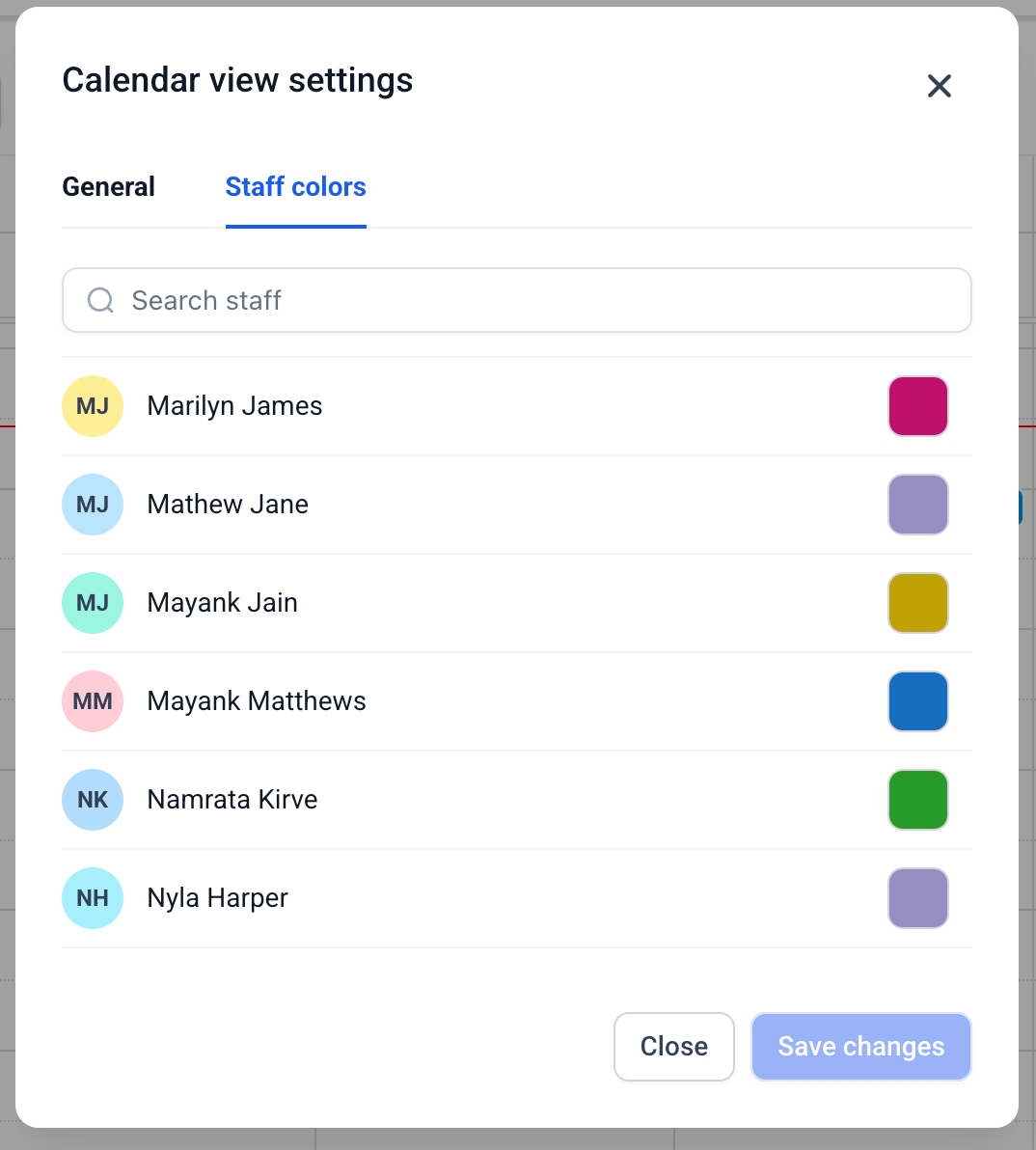
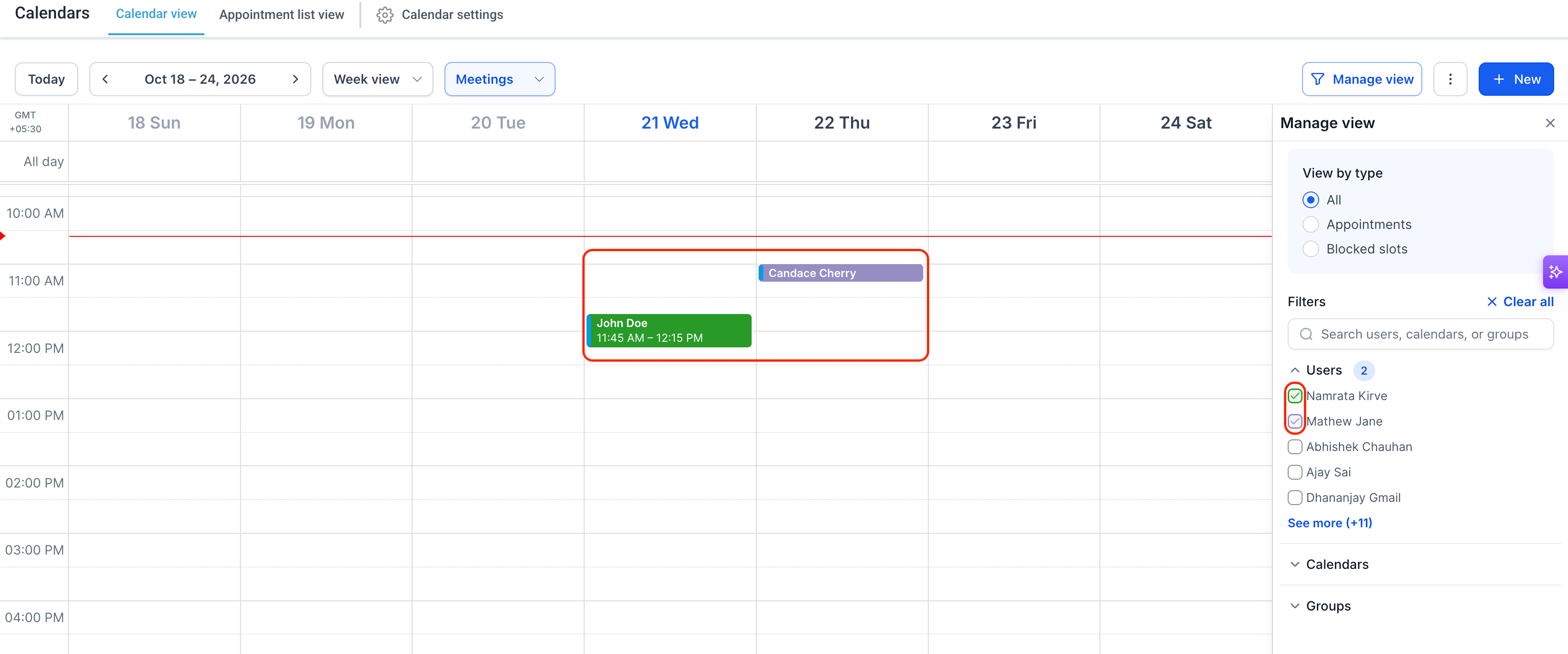
If you are an admin, you now have a Staff colors tab where you can adjust the colors used for each staff member’s appointments. This helps you give each person a color that works for how your team reads the calendar.
Color events by calendar, service, or staff
You can decide how each event tile is colored. Choose whether the main fill color uses the calendar or service color, or the assigned staff color. The second color still appears on the left strip of the tile so you can see both pieces of information at once.
A wider color strip
The color strip on the left side of each event tile is now wider. This makes it easier to scan for which staff member, calendar, or service an event belongs to without opening the event details.
Export what you're looking at
From the same more options (⋮) menu on the unified calendar, you can choose Export to PDF or Export to CSV. EveryCatch exports the current view using the same filters and date range you are seeing on screen, so the file matches exactly what you have open.
How to use it
- On the unified calendar, open the more options (⋮) menu next to Manage view and select Calendar view settings to adjust your display preferences, including timezone, grid interval, shading, and buffers.
- If you are an admin, open the Staff colors tab to change the colors assigned to each staff member’s appointments.
- To export what you see, open the same more options menu and choose Export to PDF or Export to CSV to download the current view with your active filters and date range.
Why this matters
- Each user can set up the calendar to match how they read schedules, without going into deeper calendar configuration screens.
- Clear shading of non-working hours reduces the chance that truly unavailable time looks like it is open for bookings.
- Exporting the exact view on your screen makes it simpler to share schedules with others or work with the data in tools like spreadsheets or reporting systems.
- Filters that apply in stages let you review your selection in the settings panel before the live calendar updates, so you stay in control of what changes.