Overview
EveryCatch Rentals now supports additional fees: mandatory charges that automatically apply to every booking on a listing, such as cleaning fees, resort fees, service fees, or damage waivers. You can create reusable fee templates in a global catalog, attach them to one or many listings, and set up flexible pricing with full tax support. Your customers see all fees clearly in the booking widget and as separate line items on their invoices, so there are no last-minute surprises at checkout.
What changed
Global fee catalog
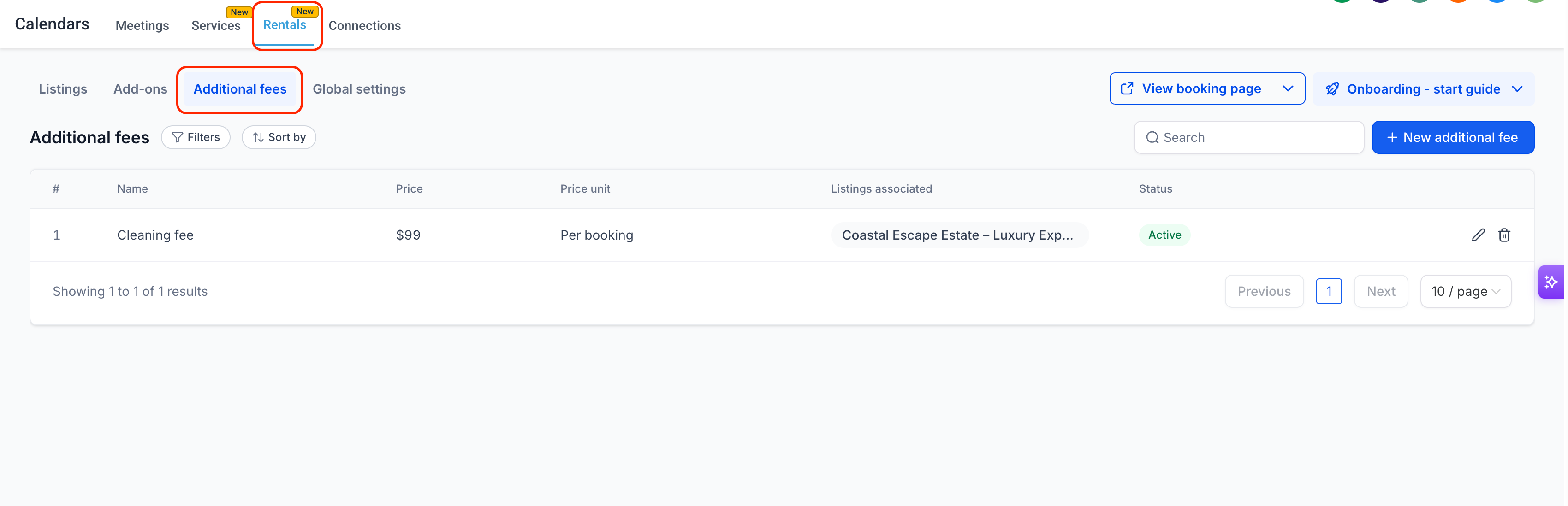
You can now create reusable additional fee templates from Calendars → Calendar settings → Rentals → Additional fees. Each template defines the fee name, pricing type, amount, and tax settings. Once created, you can attach the same template to as many listings as you like without recreating it each time.
Flexible pricing options
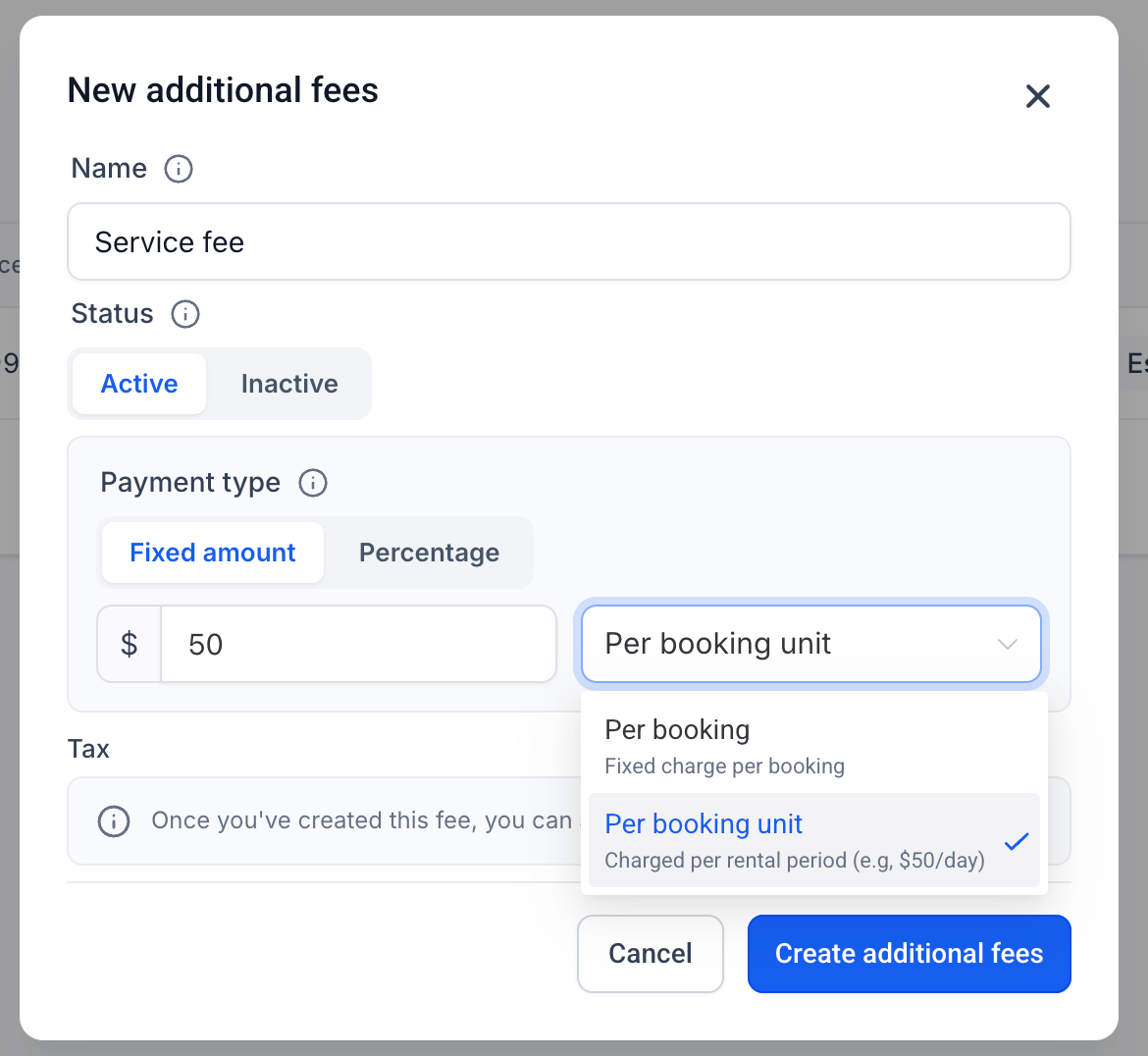
EveryCatch now lets you set two pricing types for fees: a flat amount (a fixed currency charge) or a percentage (calculated on the base rental subtotal). Flat fees can also be configured as per booking (one fixed charge applied once per booking) or per booking unit (charged per hour, day, week, or month, aligned with the listing’s booking unit).
Price overrides
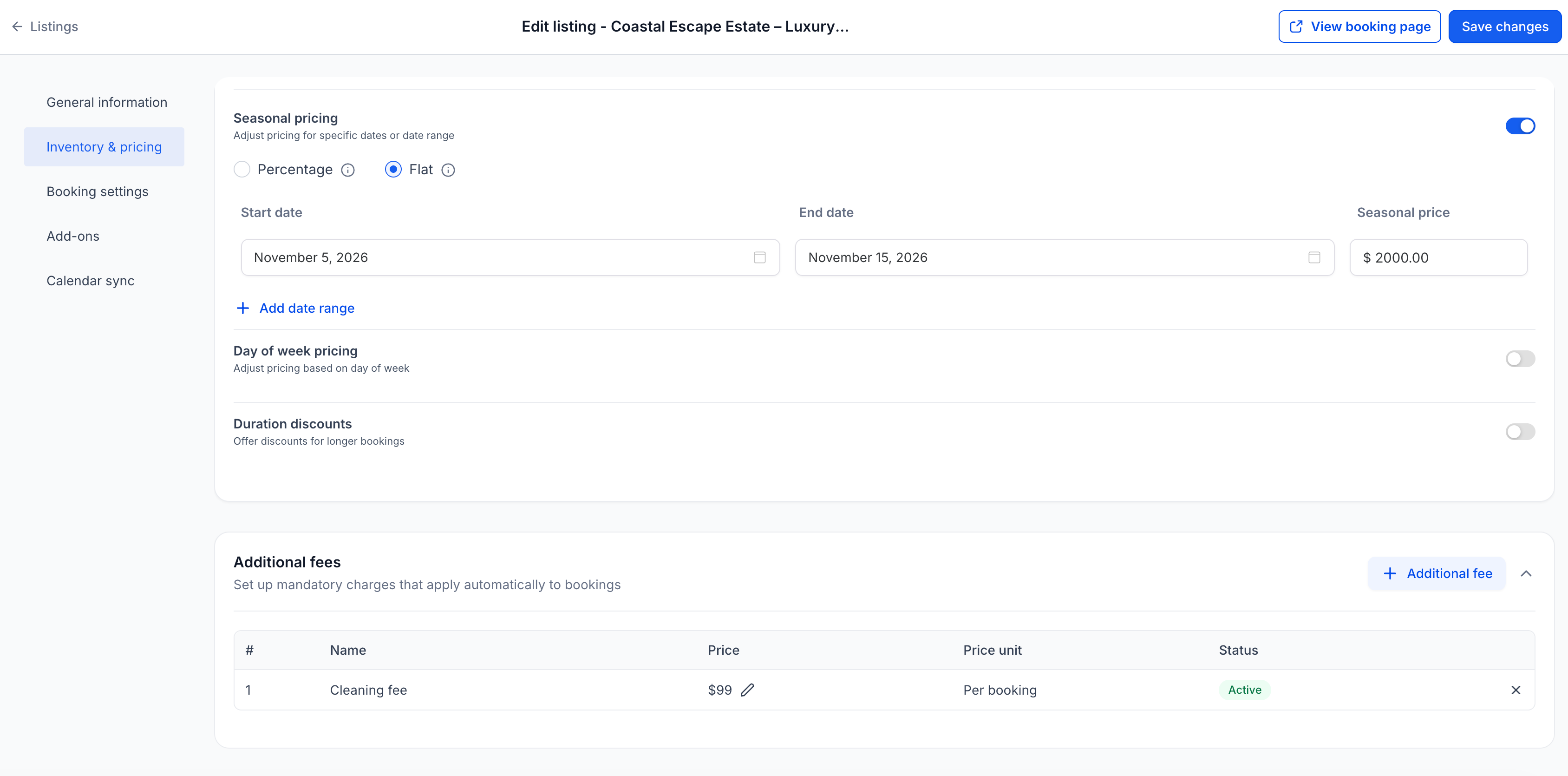
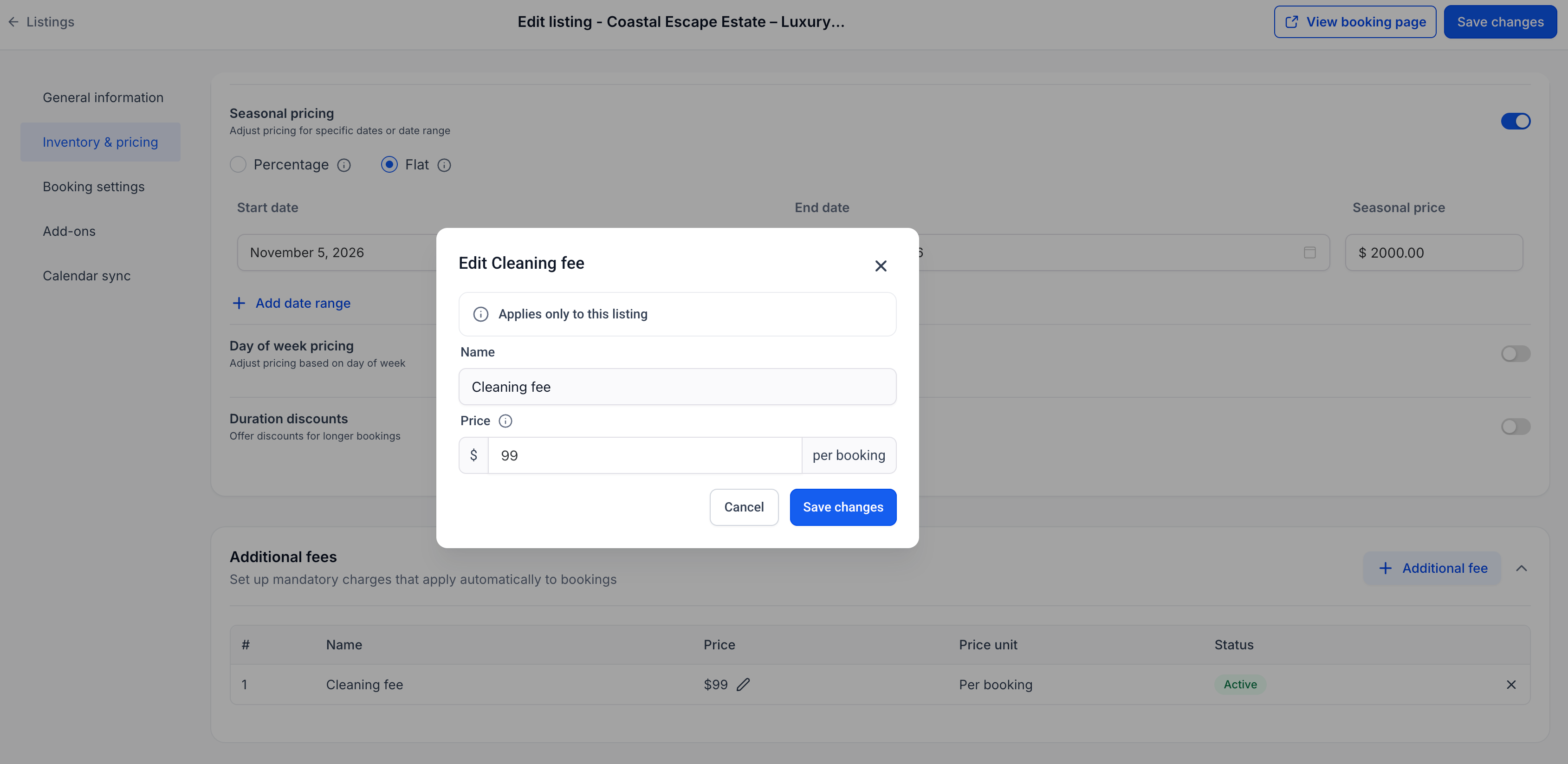
You can override a fee’s amount for a specific listing without changing the global fee template or affecting any other listings. To do that, use the Inventory & pricing tab for that particular listing and adjust the fee there.
Transparent customer experience
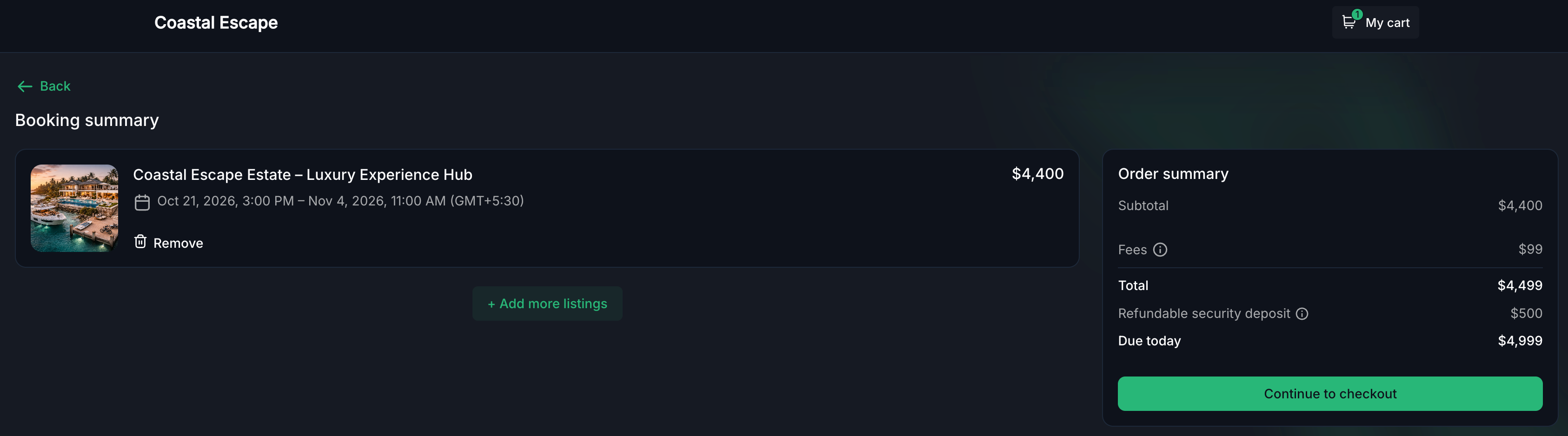
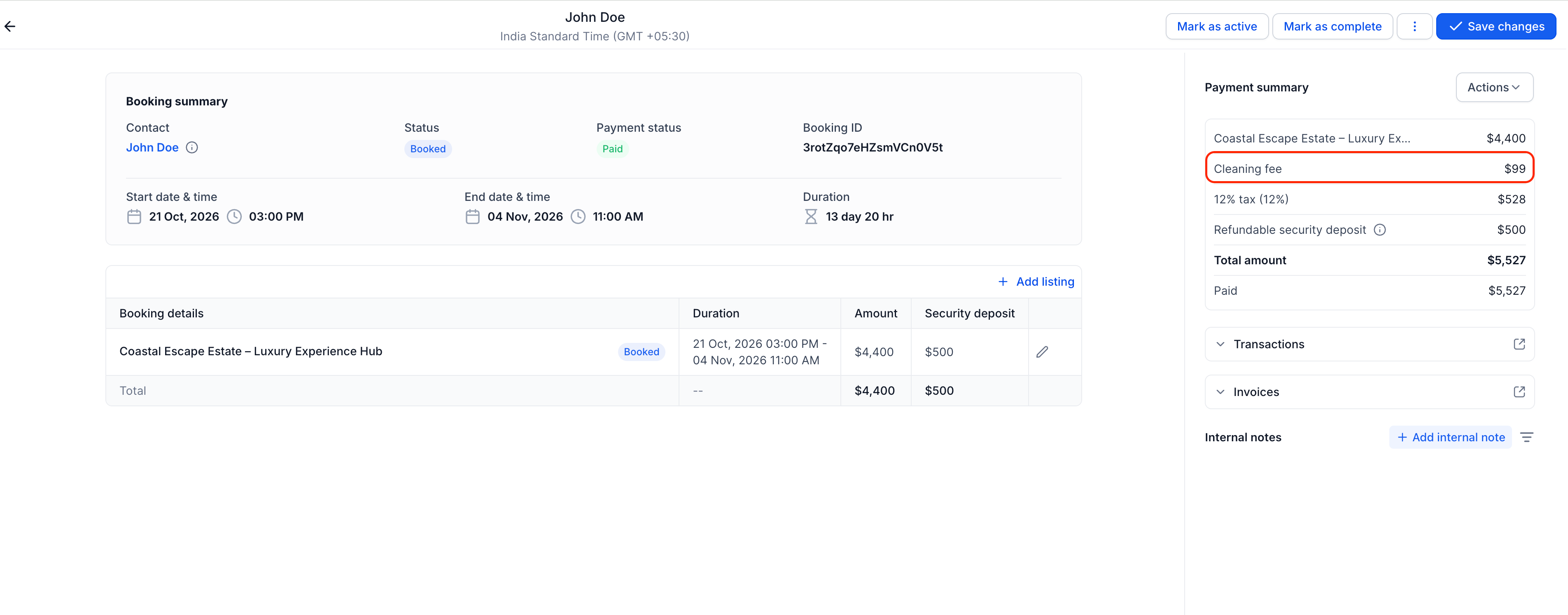
All additional fees are visible to your customers before they confirm a booking. Fees are included in the first total shown in the booking widget and are itemised on invoices so customers can see exactly what they are paying for.
Tax configuration on fees
You can apply taxes to additional fees separately from the base rental price. Tax on fees is calculated directly on the fee amount and shown as its own line item. That separation keeps fee amounts clear and helps you maintain accurate tax and financial reporting.
How to use it
- Go to Calendars → Calendar settings → Rentals → Additional fees.
- Click + New additional fee, then enter the fee name, choose a pricing type (Flat or Percentage), set the amount, and select the pricing unit.
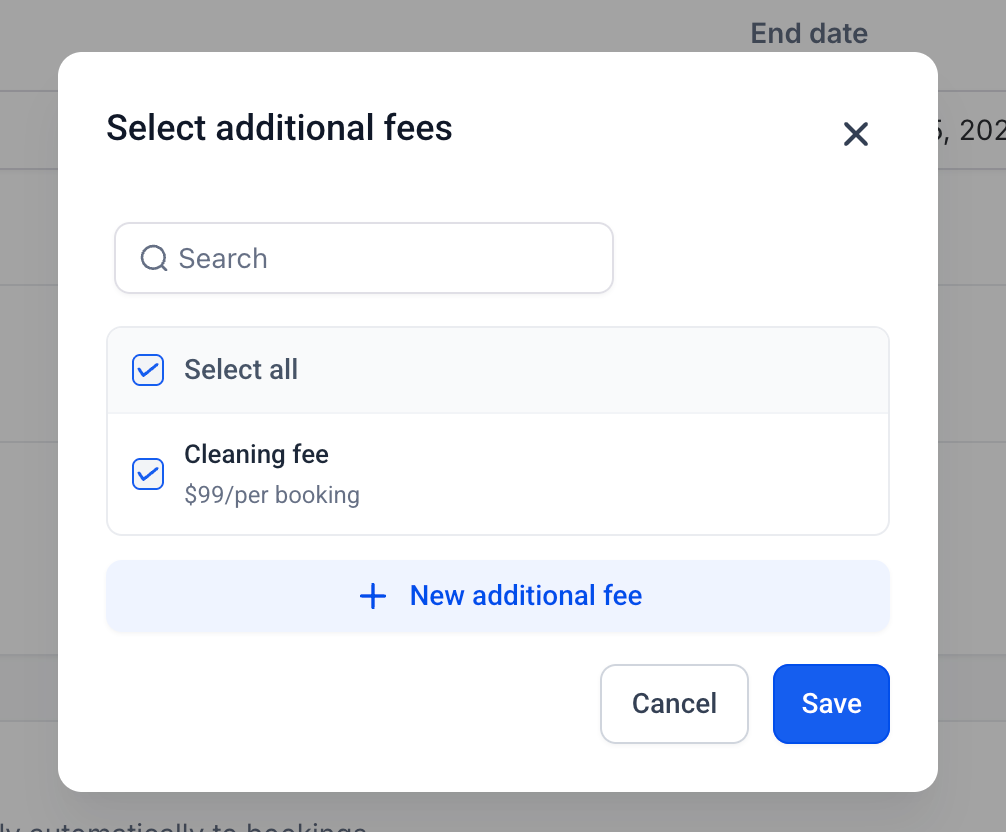
- To attach a fee to a listing, click the Edit icon for that listing, open the Inventory & pricing tab, scroll to the Additional fee section, and click + Additional fee.
- To override a fee amount for a specific listing, open that listing’s Inventory & pricing tab, find the fee under Additional fees, and click the edit icon on the amount.
- To configure tax on a fee, edit the fee and click Configure tax.
Why this matters
- Rental businesses of all types, from short-term stays to equipment and venue rentals, can now apply charges like cleaning or service fees without folding them into the base price or relying on workarounds such as duplicate listings.
- Fees are shown upfront in the booking process, which reduces pricing misunderstandings and helps prevent disputes at checkout.
- Reusable global templates with listing-level overrides give admins detailed control without needing to rebuild the same fee on every listing.
- Dedicated tax settings on fees support cleaner financial reporting and help keep invoices compliant.
- This enhancement makes Rentals consistent with common booking platform practices and removes a key blocker for beta users who are ready to run live on the module.