You can now repeat a group of workflow actions for each item in a list, directly inside EveryCatch. The new Loop action runs the actions inside it once for every item in a list, or once for each number in a number range. One trigger can now update many records without any custom code.
What changed
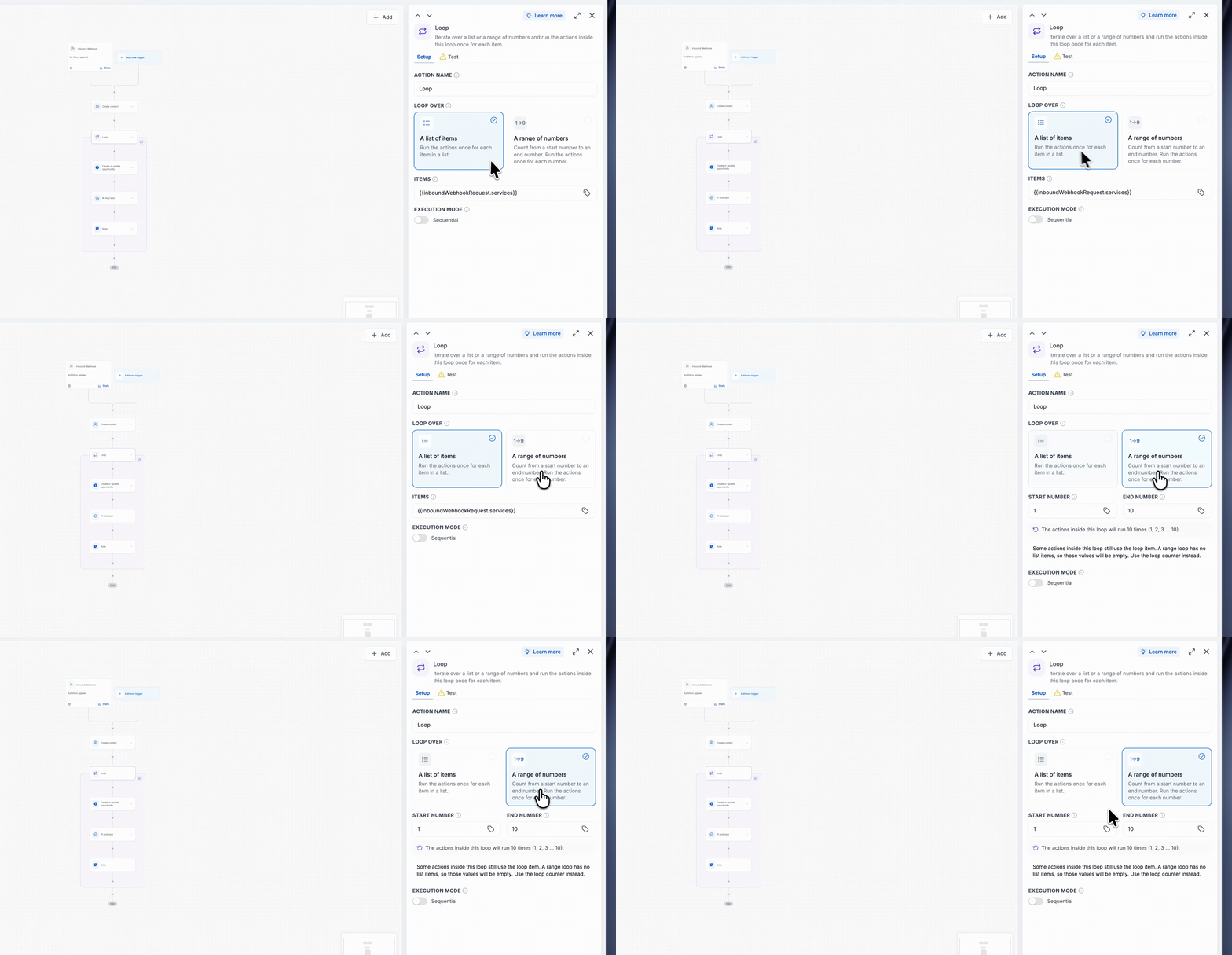
- Loop over: Choose whether to loop over "A list of items" or "A range of numbers". An "i" tooltip next to each field explains what it does.
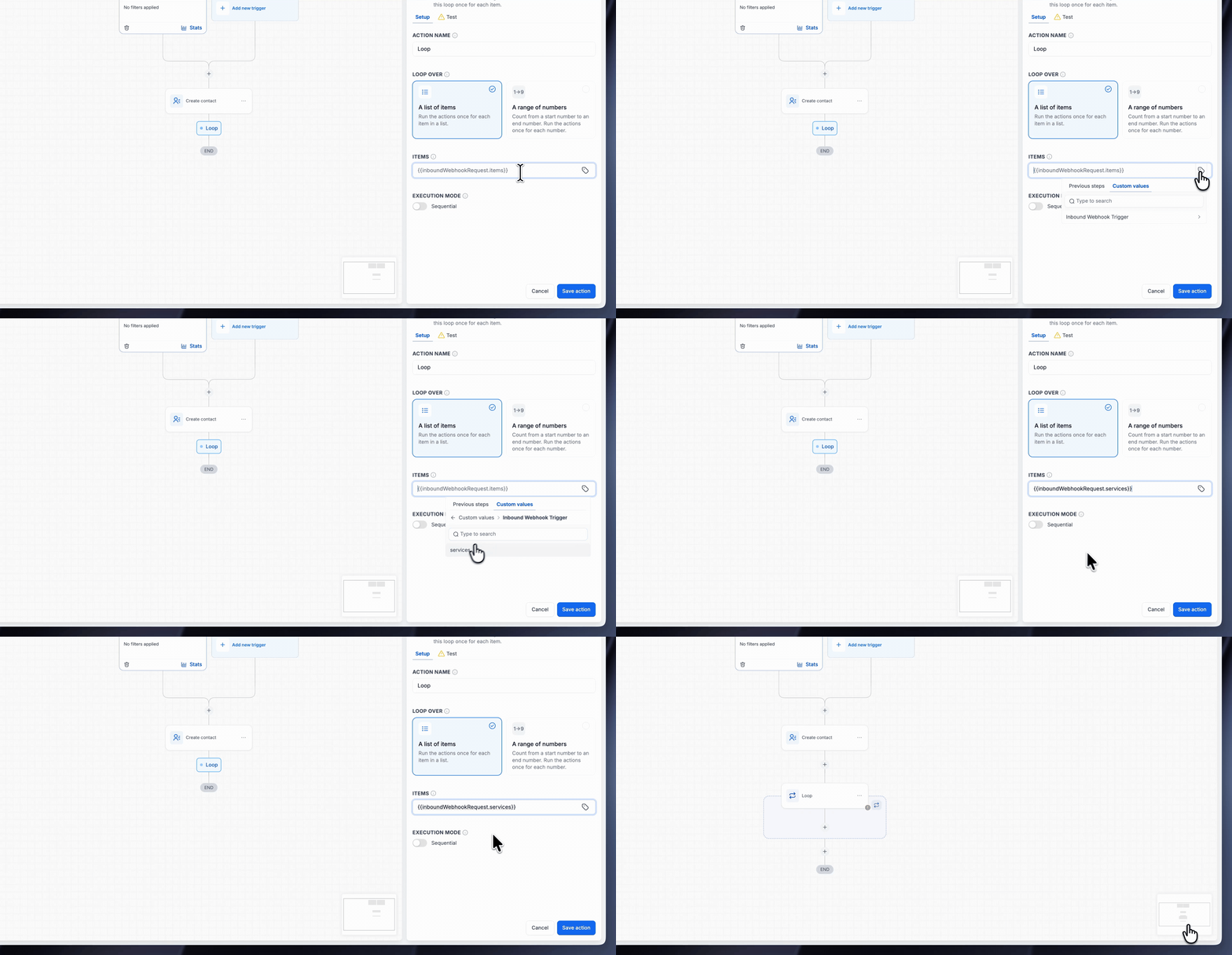
- Items from any earlier step: Use the tag icon to select a list produced by a previous step, such as an array from an Inbound Webhook or another workflow action.
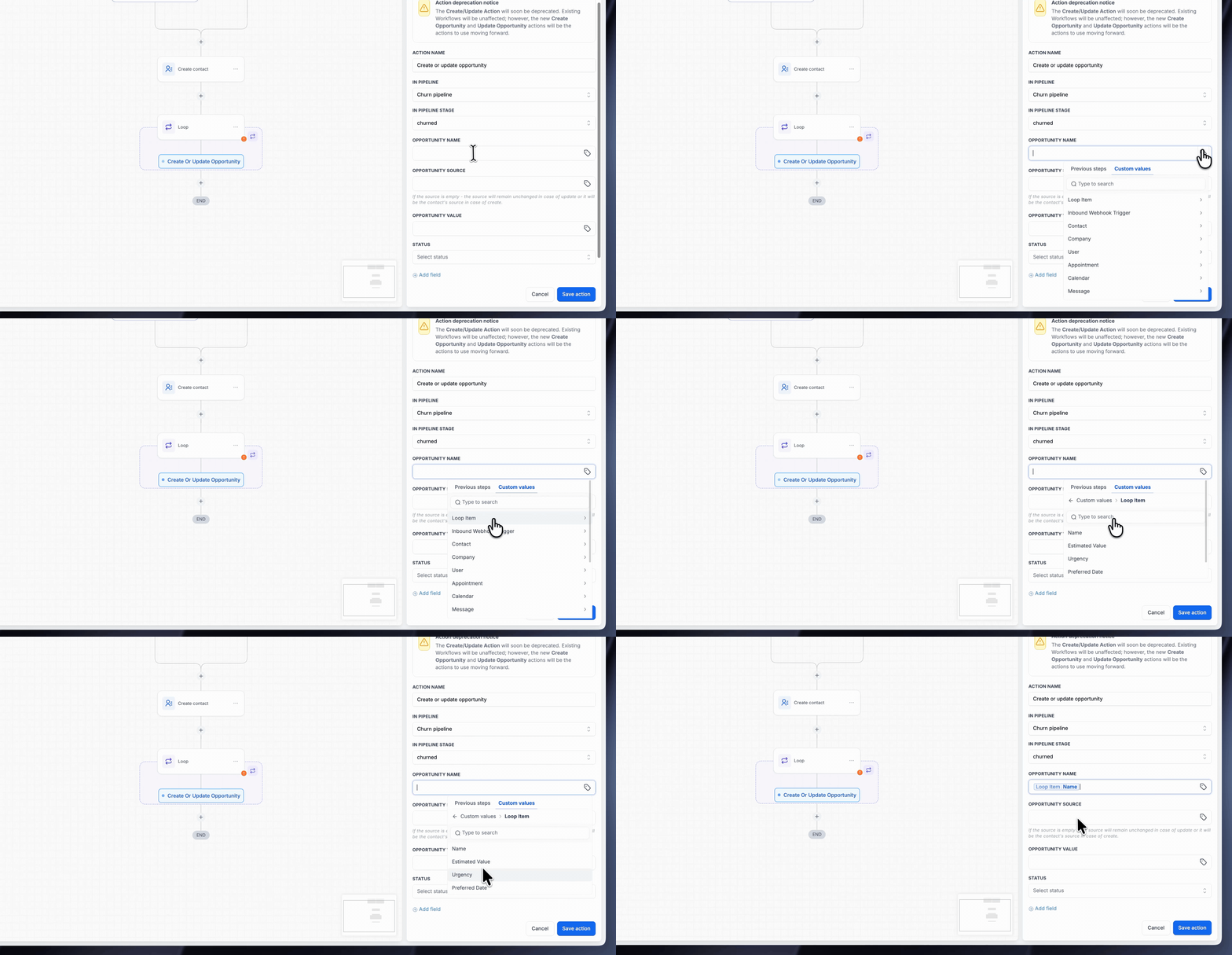
- Loop item: Inside the loop, open Custom values > Loop Item to map fields from the current list item into any action you place inside the loop.
- Range of numbers: When you choose a range, set a Start number and an End number. The configuration panel shows how many times the actions will run.
- Execution mode: By default, loops run Sequentially, one iteration at a time. You can turn on Parallel execution to run multiple iterations at the same time.
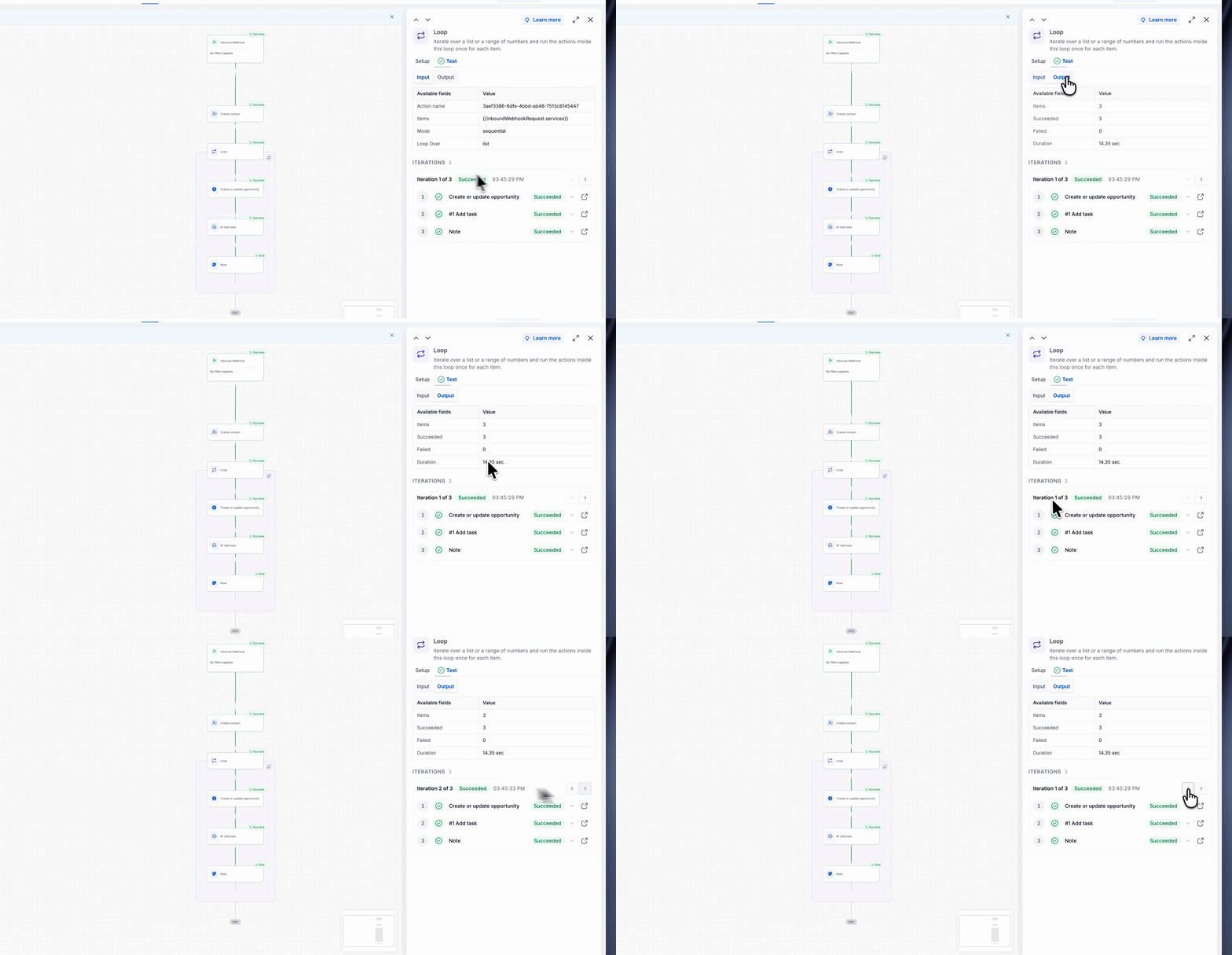
- Results for every iteration: The Test tab on the Loop step shows each loop iteration, every action that ran inside it, and whether that iteration succeeded or failed.
How to use
- Go to Automation > Workflows in EveryCatch and open the workflow you want to edit.
- Click the + icon where you want the loop to begin, then select Loop from the action list.
- Under Loop over, choose either A list of items or A range of numbers.
- If you chose a list of items, click the tag icon in Items and select the list output from a previous step. If you chose a range, enter a Start number and an End number.
- Set the Execution mode. Leave the toggle off to keep it Sequential, or turn it on to use Parallel execution. This is optional.
- Click Save action to add the loop to your workflow.
- Inside the dashed loop box, click the + icon and add the actions you want to repeat. Use Custom values > Loop Item to populate fields from the current item in the loop.
- Save and publish your workflow to start using the loop in live runs.
Worked example: one webhook, three opportunities
In this example, a service request form sends one webhook per customer, which includes a list of requested services. You want EveryCatch to create a separate opportunity, task and note for each requested service.
- Trigger: Inbound Webhook. The services list in the webhook contains three items: Roof repair, Gutter cleaning and Exterior painting.
- Loop: Set Loop over to A list of items. For Items, select the services list that comes from the webhook payload.
- Inside the loop: Add a Create or update opportunity action, with Opportunity name set to Loop Item > Name and Opportunity value set to Loop Item > Estimated Value.
- Inside the loop: Add an Add task action, with Due date set to Loop Item > Preferred Date.
- Inside the loop: Add an Add notes action, with Note set to Loop Item > Urgency.
When you run a test, the loop runs three times and creates three opportunities, three tasks and three notes. In the Test tab for the Loop step, you will see 3 items, 3 succeeded, 0 failed, along with details for each iteration.
Why this matters
Many triggers bring in several related records at once, such as multiple services in a single request or multiple products in a single order. Previously, processing each of those records often required custom code or a long series of repeated actions. With the Loop action, you design the steps once and EveryCatch runs them for each item in the list.
Range mode helps when you want to run a set of actions a specific number of times, for example 5 or 10, even when you do not have a list. Parallel mode helps loops finish faster when the actions inside them call external systems or APIs, since several iterations can run at the same time.
Good to know
- Only the actions inside the dashed loop box are repeated. Any actions you place after the loop box run once, after the loop has finished all its iterations.
- A range-based loop does not have list items, so Loop Item fields that refer to list data will be empty. Use the loop counter available under Loop Item to reference the current iteration number instead.



