You can now use your existing photos inside EveryCatch to create AI‑generated images and videos, without having to download files or upload them again.
Managed agents can now access photos directly from your EveryCatch media library. This makes it easier to create personalized, on-brand content using the images, logos, and product photos you already have in just a few steps.
What changed
Access photos directly from media library
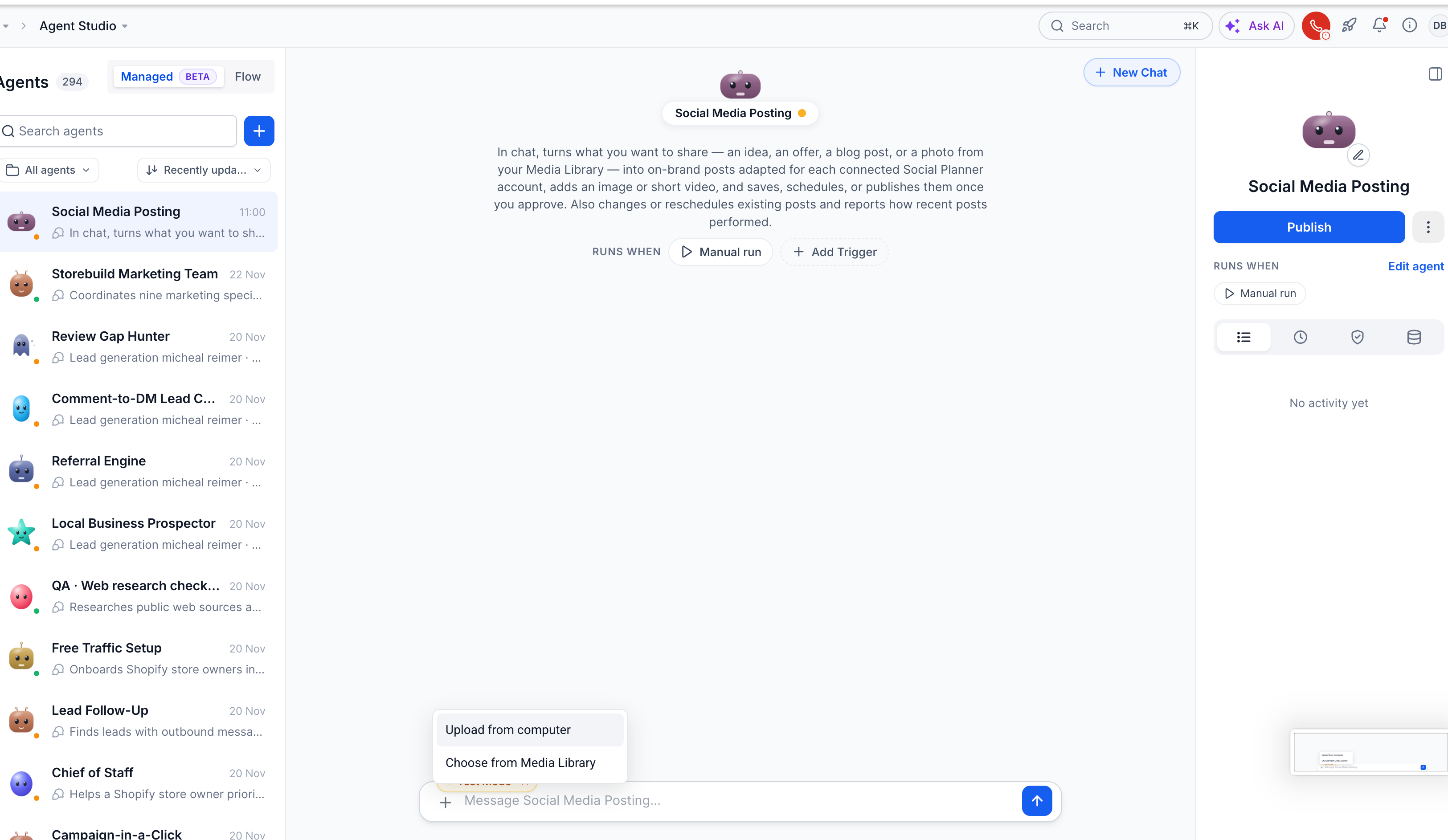
In any managed agent chat, you can now select images directly by clicking + → Choose from media library.
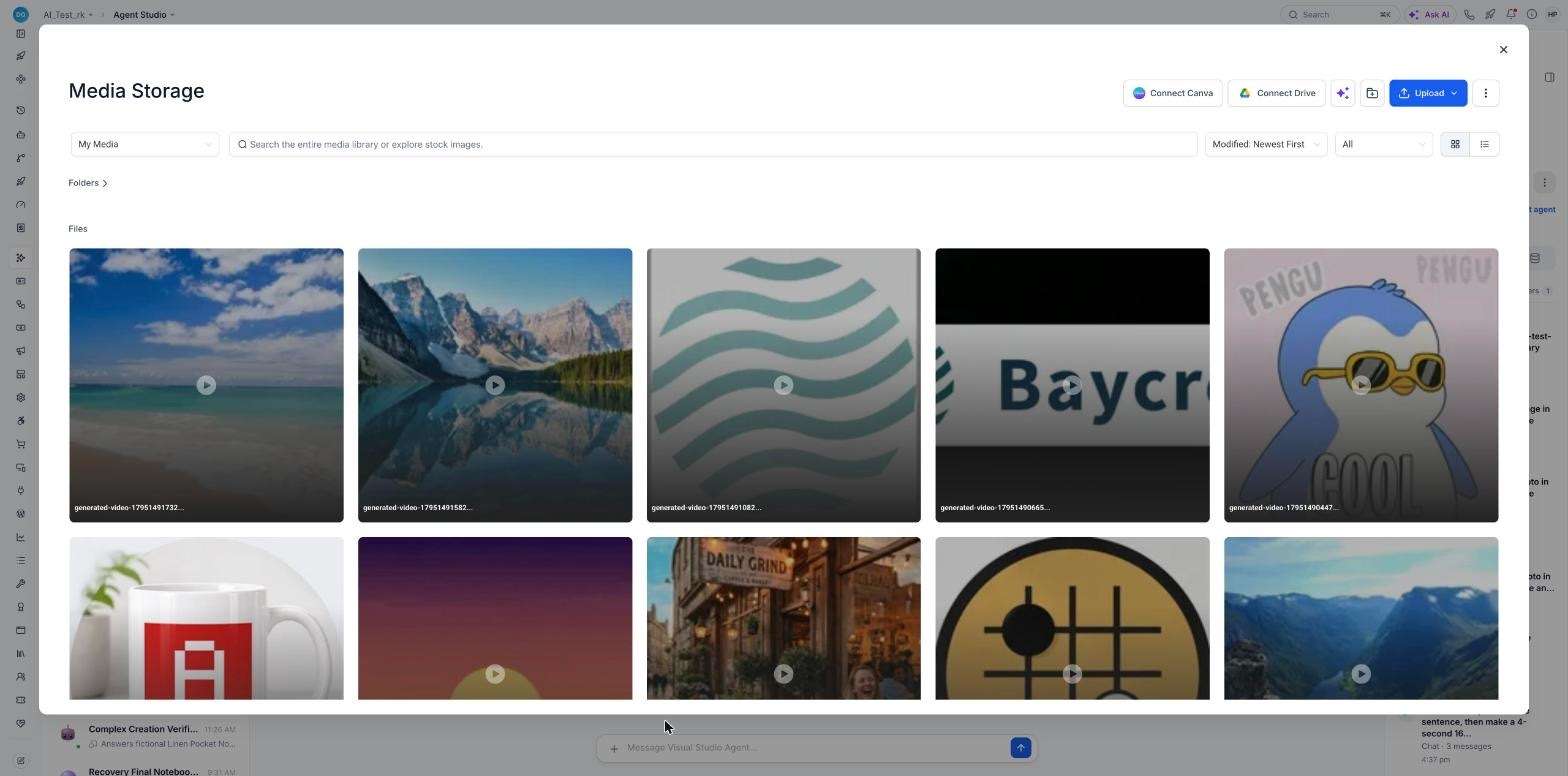
From there, you can browse the photos you have already uploaded, as well as stock images from Unsplash and Pixabay, without leaving the chat.
This removes the extra step of downloading an image from your library and uploading it again when you want the agent to use it.
Find images using natural language
You can simply tell your agent things like "Use our logo" or "Create a video using our storefront photo" and let it handle finding the right file.
When image lookup is enabled, managed agents can automatically search your media library by image name and attach matching files to the content they create.
Turn photos into images & videos
EveryCatch now lets you use existing photos as the first frame or visual reference for AI‑generated videos, so your outputs start with your real brand visuals.
You can also generate new images that take your own photos as a reference, helping you keep style and subject matter aligned with your brand.
This makes it easy to create personalized marketing content that features your actual products, locations, and brand assets rather than generic stock.
The media picker supports PNG, JPEG, WebP, GIF, and SVG image formats from your media library.
When needed, EveryCatch automatically resizes very large images so they work properly with image and video generation.
How to get started
1. Go to AI agents → Agent studio → Managed agents in your EveryCatch account.
2. Open a managed agent that has image or video generation enabled in its settings.
3. In the chat, either click + → Choose from media library to manually select a photo, or ask your agent to find a specific photo by its name in the library.
4. Describe what you want to create so the agent knows how to use the selected images.
Example prompt
"Create a 6-second promotional video using our storefront photo, with a smooth cinematic zoom."
Why it matters
Faster content creation: Turn existing photos into new images and videos in a few seconds, right inside the agent chat.
Consistent branding: Use your own logos, product shots, and business photos so your campaigns stay visually aligned with your brand.
Less re‑uploading: Your media library is now directly connected to managed agent conversations, so you can attach existing assets in one click.
Expanded creative options: Use your current library of images to quickly build engaging posts, ads, and videos without starting from a blank canvas.
The integration supports images up to 20 MB when selected from the media library.
Video files in your media library cannot be selected through the new image picker and are not available to agents through this feature.
Automatic image lookup by name is only available when the agent has image or video generation enabled.
Your photos. Your brand. AI‑powered creativity inside EveryCatch.