In EveryCatch AI Studio you can now choose which AI model builds each message, including Claude, GPT, or Gemini. You can also leave the setting on Auto and let AI Studio select a model for every message on your behalf.
The challenge
Previously, every message in AI Studio used the same models whether you were creating a full multi-page asset or making a quick one-line copy tweak. You could not switch to a more capable model for complex builds, pick a faster and lower-cost model for small edits, or see which model handled each step in your workflow.
What changed
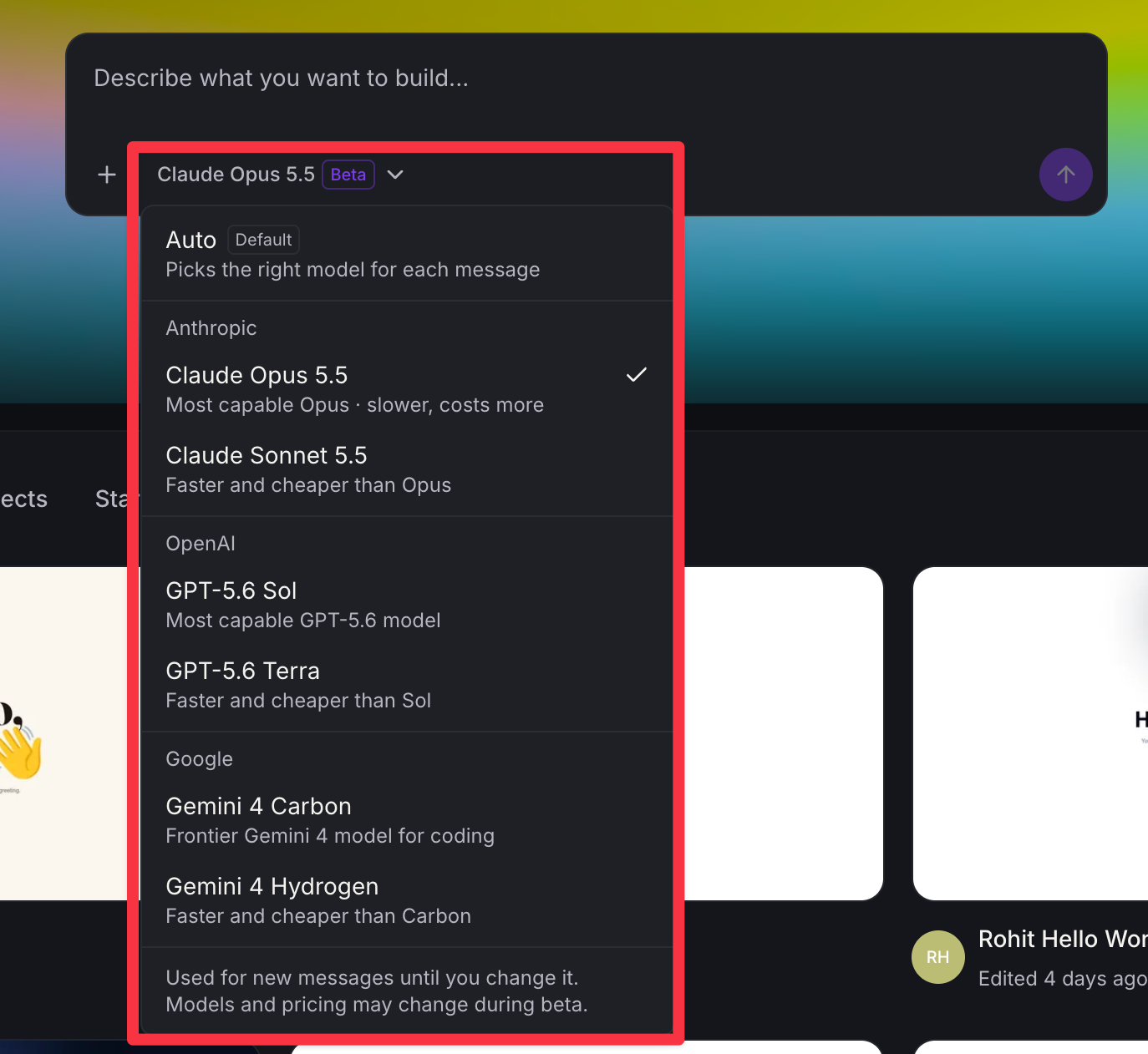
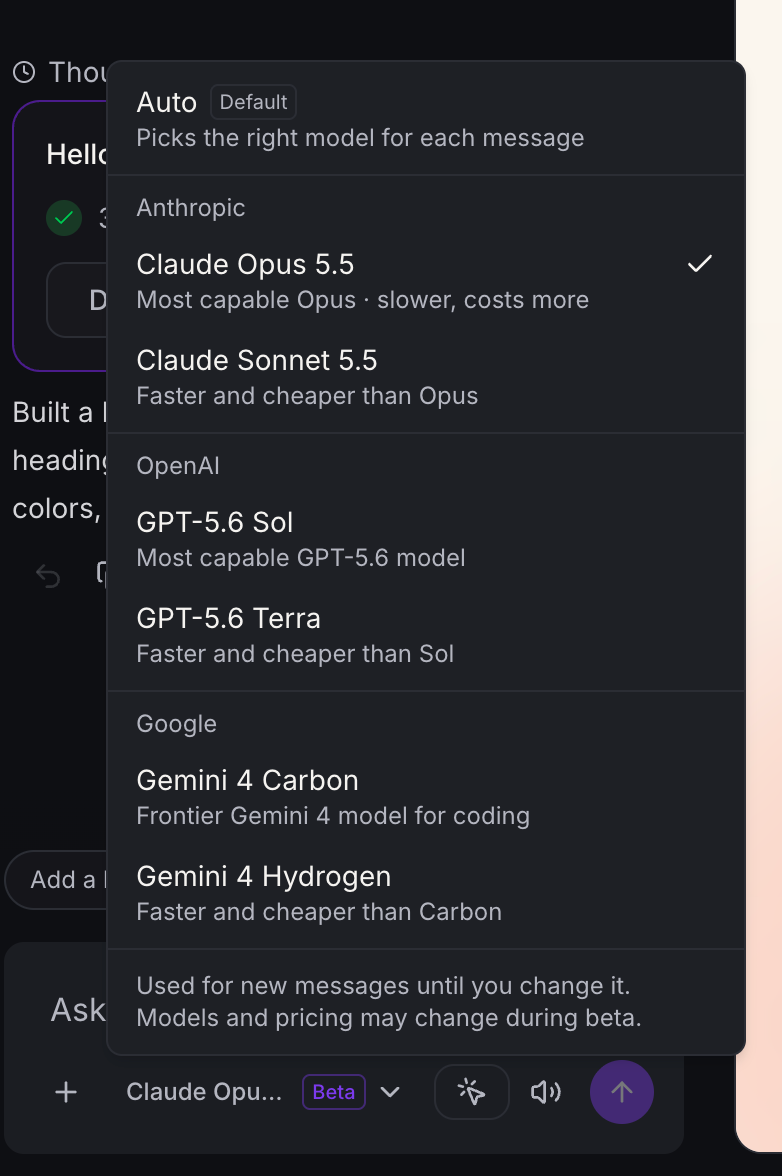
- Model picker in the composer: A new Auto · Beta chip under the chat box on the AI Studio dashboard and in the builder opens a menu of models grouped by provider.
- Six models at launch: Claude Opus 5.5, Claude Sonnet 5.5, GPT-5.6 Sol, GPT-5.6 Terra, Gemini 4 Carbon, and Gemini 4 Hydrogen, each with a short note explaining where it works best.
- Auto stays the default: Auto selects a model for each message, so your existing workflows keep working if you prefer not to change anything.
- Pick per message, remembered per project: You choose a model for a message, and that choice stays active until you change it. A new project starts with the last model you selected from the dashboard.
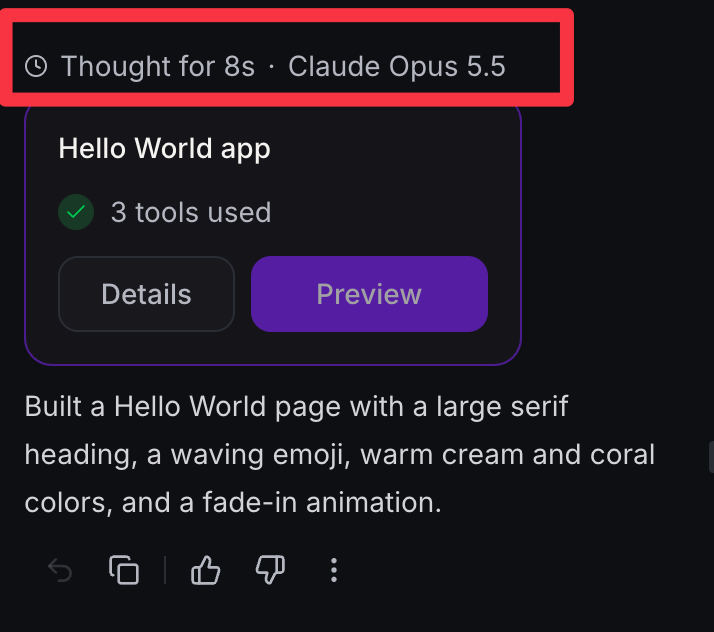
- See what built it: Every completed turn is labeled with the model that ran it, for example “· Claude Opus 5.5”, so you can track which model produced which output.
- Safe while building: The picker locks while a turn or build is running and unlocks again when it finishes, so the current message always runs on the model that was active when you sent it.
- New models without updates: New models can be added or hidden without requiring you to update the app, so you see fresh options as they are made available.
How this helps your business
- The right tool for each job: Use the most capable models for complex, high-stakes builds, and faster, lower-cost models for quick edits or experiments.
- Control over speed and cost: You decide when it makes sense to use a premium model and when a lighter option is sufficient.
- Transparency: Every turn clearly shows which model did the work, so you can compare outputs and refine your choices over time.
- Room to grow: You get access to new models as they are introduced, without having to change your day-to-day process.
How to get started
- Open AI Studio: Go to Account › AI Studio, then open an existing project or start from the AI Studio dashboard.
- Activate the picker: Click the Auto · Beta chip under the chat box and choose the model you want to use.
- Use it: Send a message. AI Studio builds the response with your chosen model, and the finished turn displays that model’s name so you can see exactly what ran.
Good to know
- Beta access: Available to agencies on the Founder Plan and to accounts on the AI Employee plan. Other accounts keep running on Auto and do not see the model picker yet.
- Billing: Usage is billed at the cost of the model that ran the message. Premium models like Claude Opus 5.5 will be charged at a higher rate per message than faster, lighter models.
- Models and pricing may change during beta as we tune the experience and available options.
- Answers to AI Studio’s follow-up questions in a turn continue on the same model that turn was already using, so the conversation stays consistent.