You can now create a complete website or app in Ask AI just by describing what you want. Ask AI passes your request to the AI Studio agent, which builds the project for you in the background. You can preview it, refine it in plain language, and publish it live, all inside the same chat. This uses the same AI Studio engine you already rely on in EveryCatch.
What changed
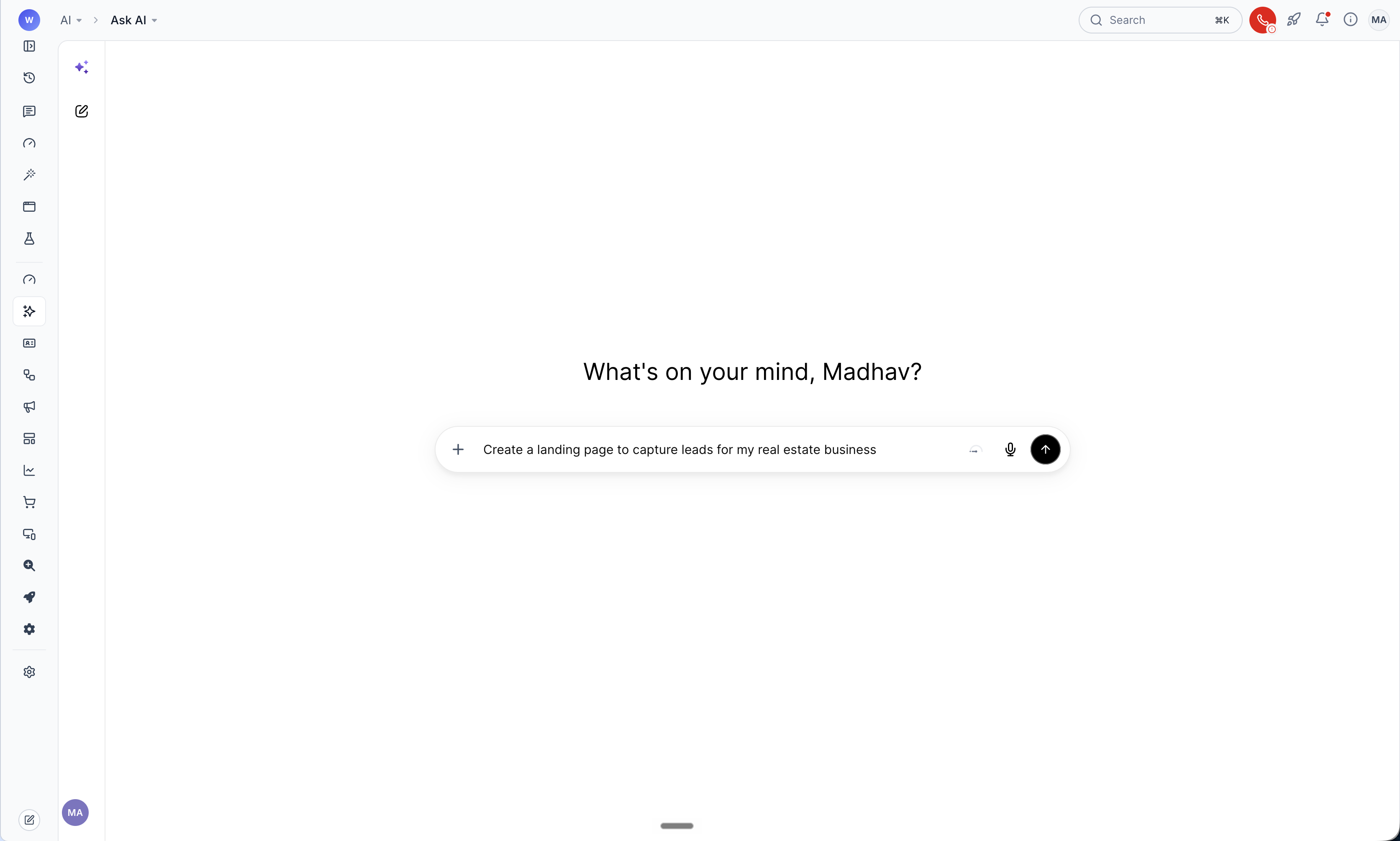
- Build from a prompt: Start a new Ask AI chat, describe the website or app you need, and the AI Studio agent builds the project for you based on that description.
- Use your own files: Attach a brief (PDF) or images such as your logo or brand assets, and the agent incorporates them into the build where relevant.
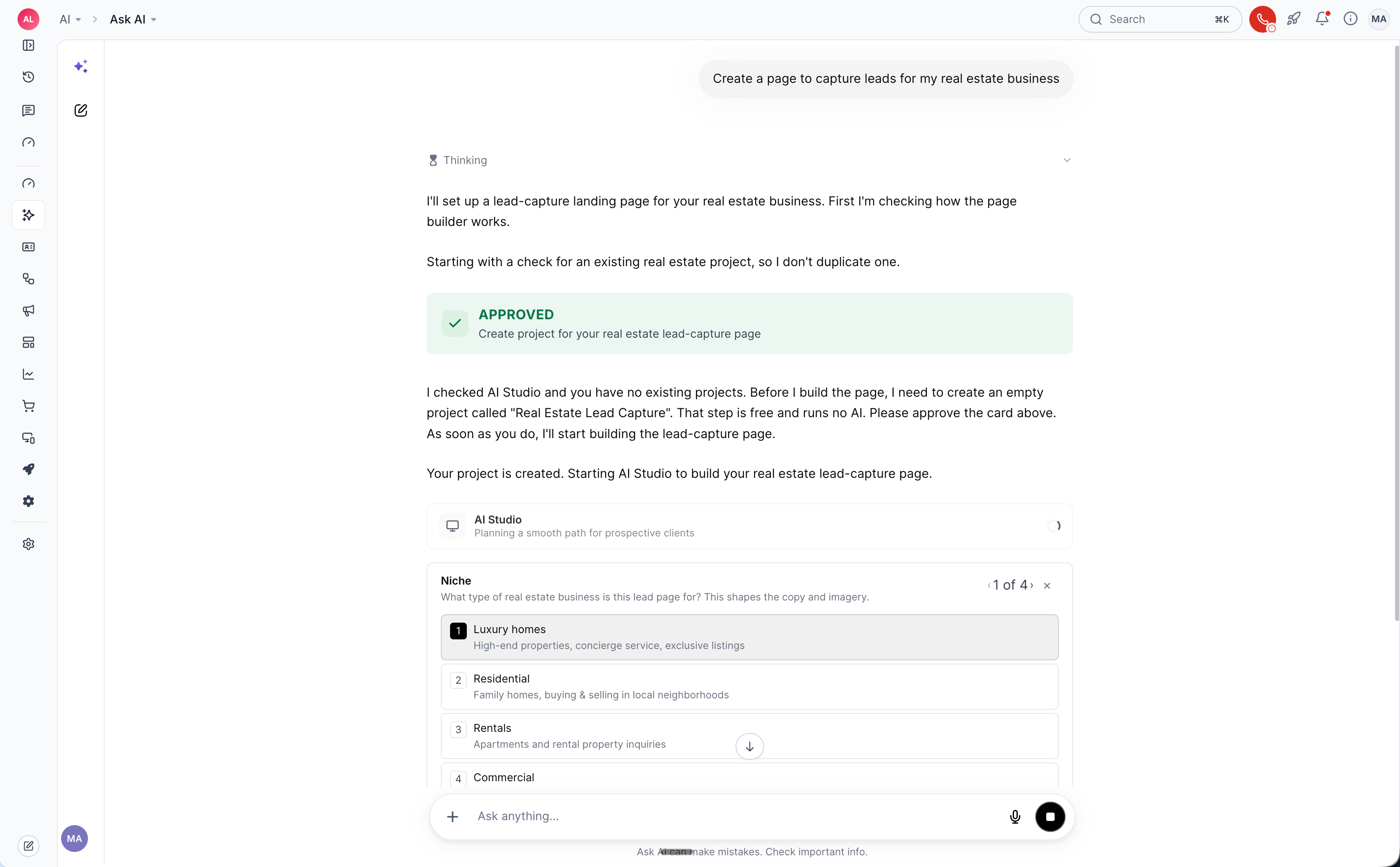
- Answer questions inline: When the agent needs your input on details like colour palette, fonts, layout, or which calendar to connect, it asks directly in the chat with clickable choices so you can decide quickly.
- Live progress: A step-by-step checklist shows what the agent is working on in real time. You can click Stop at any point to cancel a build that is still running.
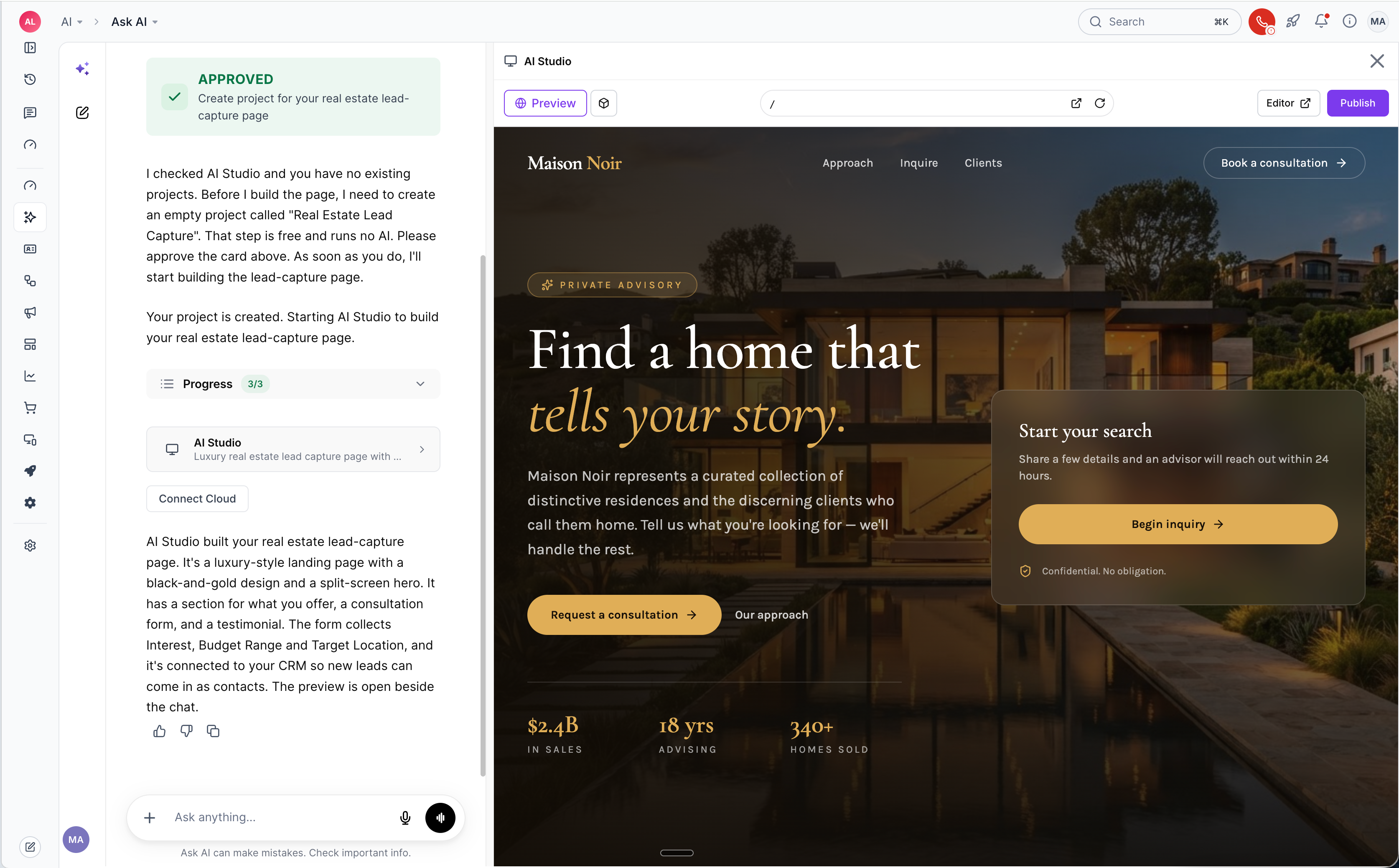
- Live preview: Your project appears right inside Ask AI as a live preview. You can refresh the preview whenever changes are made or open it in a full browser tab for a closer look.
- Conversational edits: Ask for updates in plain language, such as "add an FAQ section" or "change the phone number", and the project updates in place. If a revision is not what you wanted, you can also ask Ask AI to undo the change.
- Clear summaries: After each build or major edit, Ask AI explains what was updated, anything it could not complete, and recommended next steps so you know where you stand.
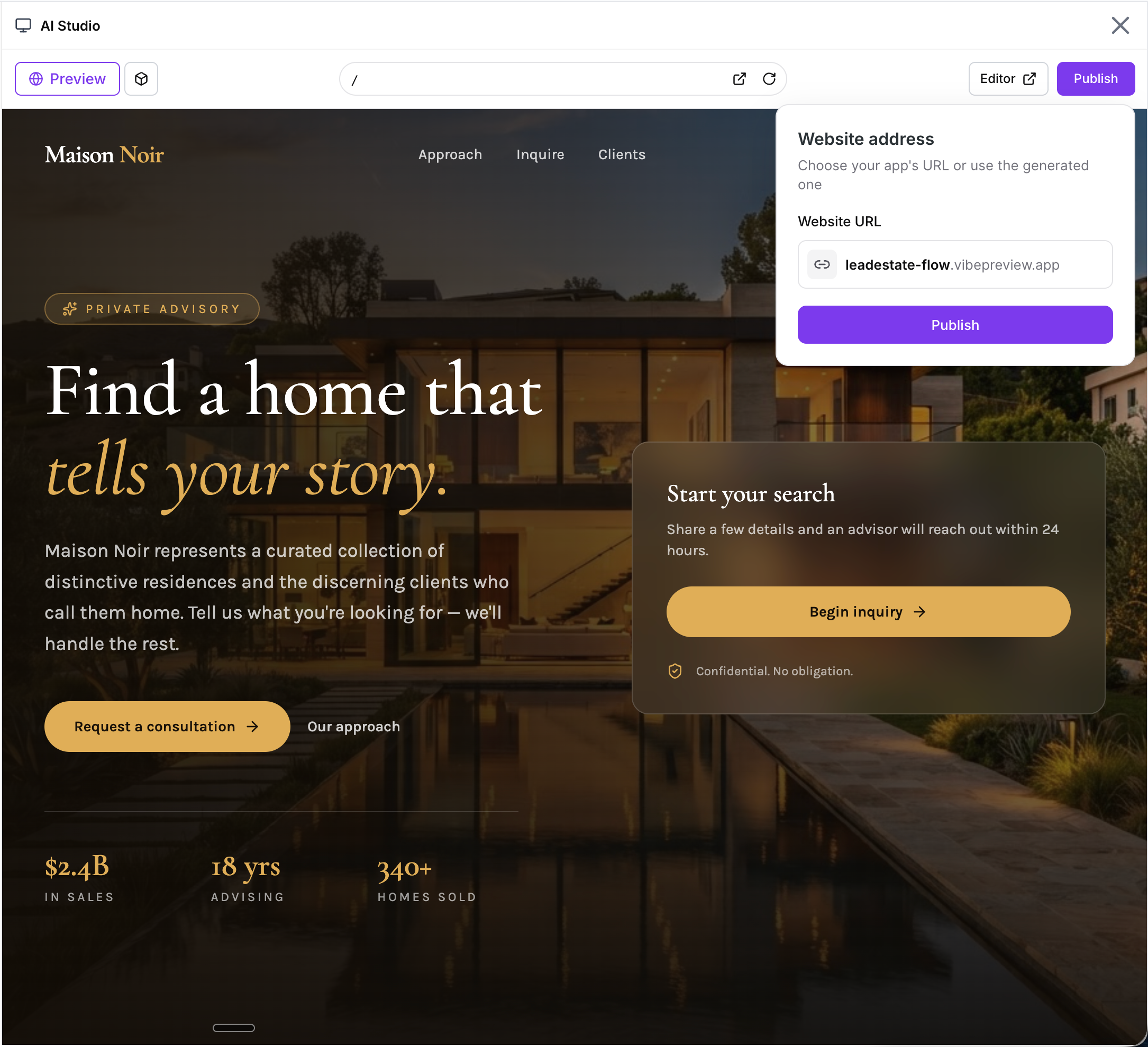
- Publish from Ask AI: When you are happy with the project, you can publish it directly from the chat on the default domain without opening another screen.
- One click into the editor: If you want finer control or advanced features, you can open the project in the AI Studio editor with a single click from the chat.
How to use
1. Open Ask AI and start a new chat. Describe the website or app you want to build, including your goals, audience, and any key sections you need. Attach a brief or images, such as a logo or brand guide, if you already have them prepared.
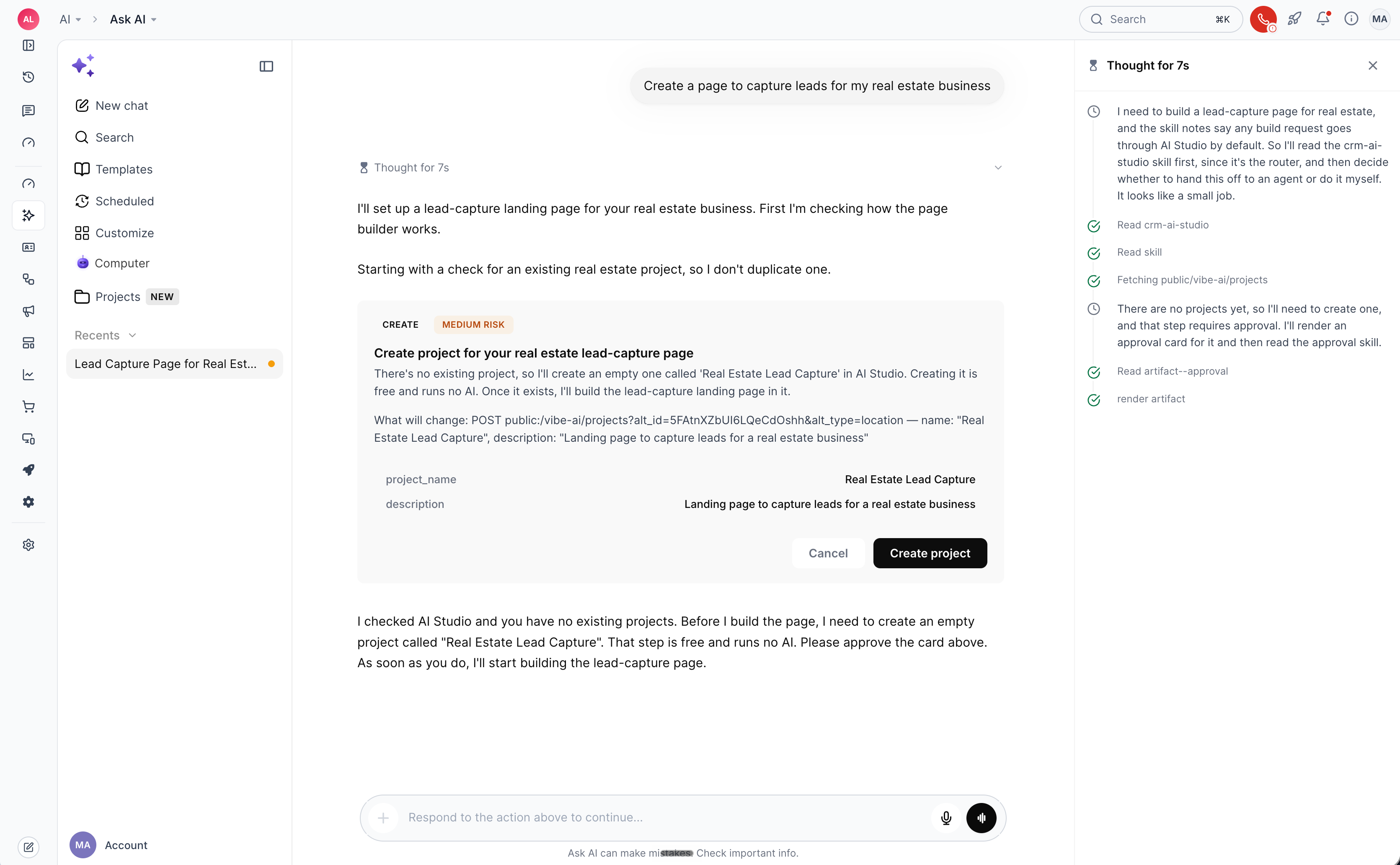
2. Approve the project. If there is no existing project linked to this conversation yet, Ask AI will prompt you to approve creating a new AI Studio project. Approving this only creates the project shell and does not use any AI credits or incur AI usage.
3. Answer the agent's questions. The AI Studio agent may ask you to choose the niche, visual style, layout preferences, or which calendar to connect. Select your answers directly in the chat using the clickable options so the build reflects your preferences.
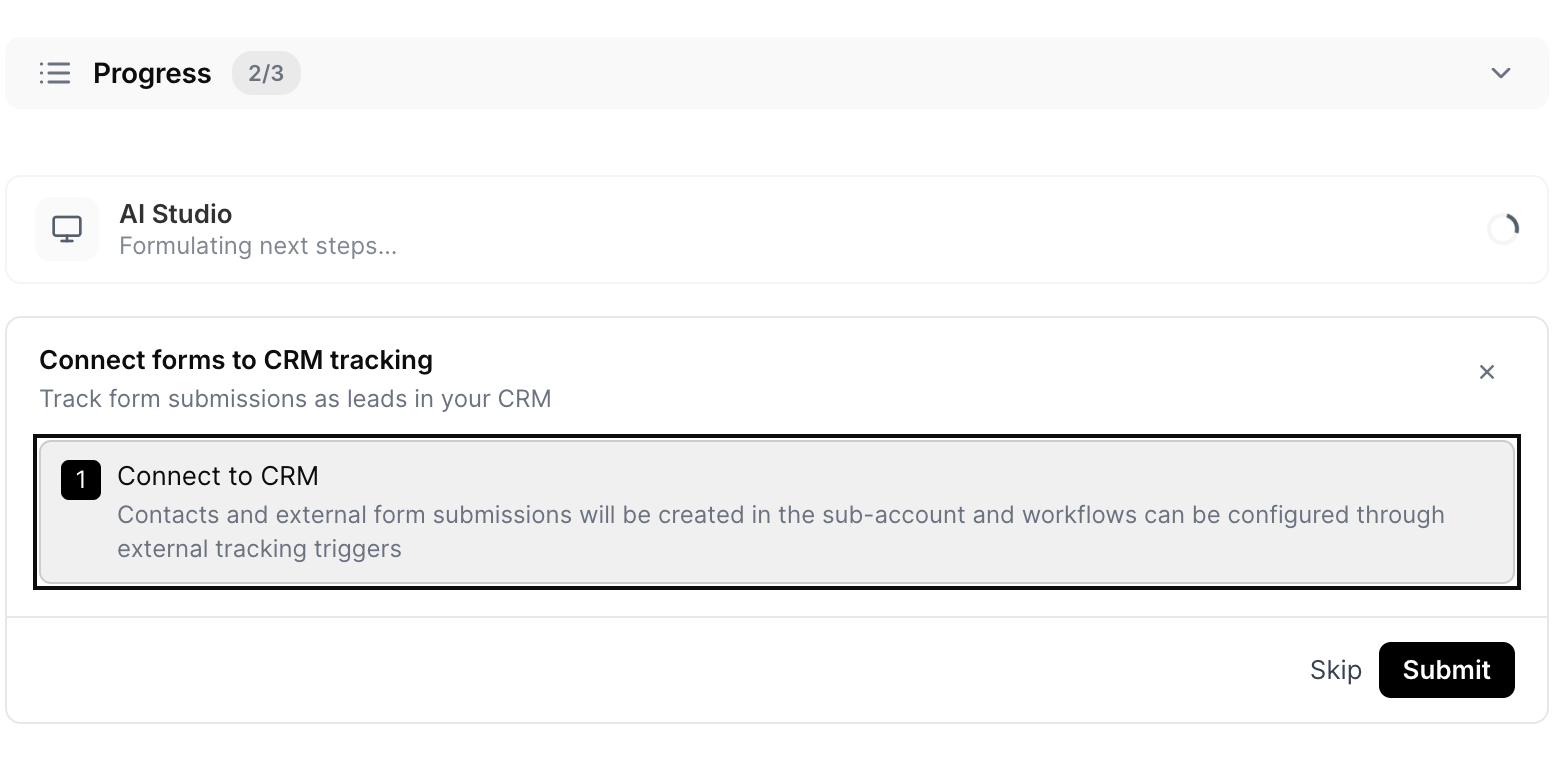
4. Watch the progress. The checklist in Ask AI shows each build step as it runs, such as creating pages, adding forms, or styling sections. During this time, the agent may ask follow-up questions, for example whether to connect forms to your CRM or which pipeline to use. Respond in the chat so the setup is completed correctly.
5. Review and refine. When the build finishes, a live preview appears beside the chat along with a summary of what was created. Review the pages, content, and layout, then ask for adjustments until the project matches what you need, such as updating copy, changing colours, or adding new sections.
6. Publish. When you are satisfied, click Publish in Ask AI to take the project live on the default domain. If you want to configure custom domains, automations, or advanced design options, open the project in the AI Studio editor directly from the chat and continue there.
Good to know
- Build time: A new build or edit typically takes a few minutes to complete. Let the current run finish before sending a new build or major change request so updates do not conflict.
- Republish after edits: Any changes you make after the first publish stay in draft inside the project until you publish again. Ask AI will remind you when changes are pending so you can push them live.
- Replace sample content: To complete your layout, the agent may use placeholder text, example reviews, or sample contact details. Ask AI highlights these so you can see what needs updating. Before you publish, replace all sample content with your real business information.
- Default domain only: Publishing from Ask AI sets the project live on the default domain for that project. If you want to use a custom domain, open the AI Studio editor and connect the domain there, then publish from the editor.
- AI usage: All builds and edits performed by the AI Studio agent from Ask AI count toward your account's AI usage in EveryCatch, the same as using AI features inside AI Studio directly.