What changed
- 11,000+ icons, emojis, and illustrations: EveryCatch now includes a built-in graphic library inside the Funnel, Website, Store, and Webinar builders, with category browsing and search so you can quickly find what you need.
- Color customization for icons: You can adjust icon colors so they match your brand and page design directly in the editor.
- AI-generated and custom uploads: When you want something specific, you can generate new illustrations with AI or upload your own graphics alongside the built-in library.
- Attach to elements or drop as standalone: You can place graphics as standalone elements on the canvas, or attach them to existing elements, such as a leading icon on a button or heading.
Why this matters
Icons and emojis have been one of the most requested features in the EveryCatch builders. Until now, you had to find graphics on third-party sites, download them, then upload them into your page, or use workarounds like SVG elements and styled buttons. With the new graphic library, you can work entirely inside EveryCatch, quickly add on-brand visuals, and create custom illustrations with AI when the built-in options do not cover your use case.
How to use
- Open a page in the Funnel, Website, Store, or Webinar builder.
- Open the graphic library from the left panel, from an element's settings, or by typing ":" while editing text.
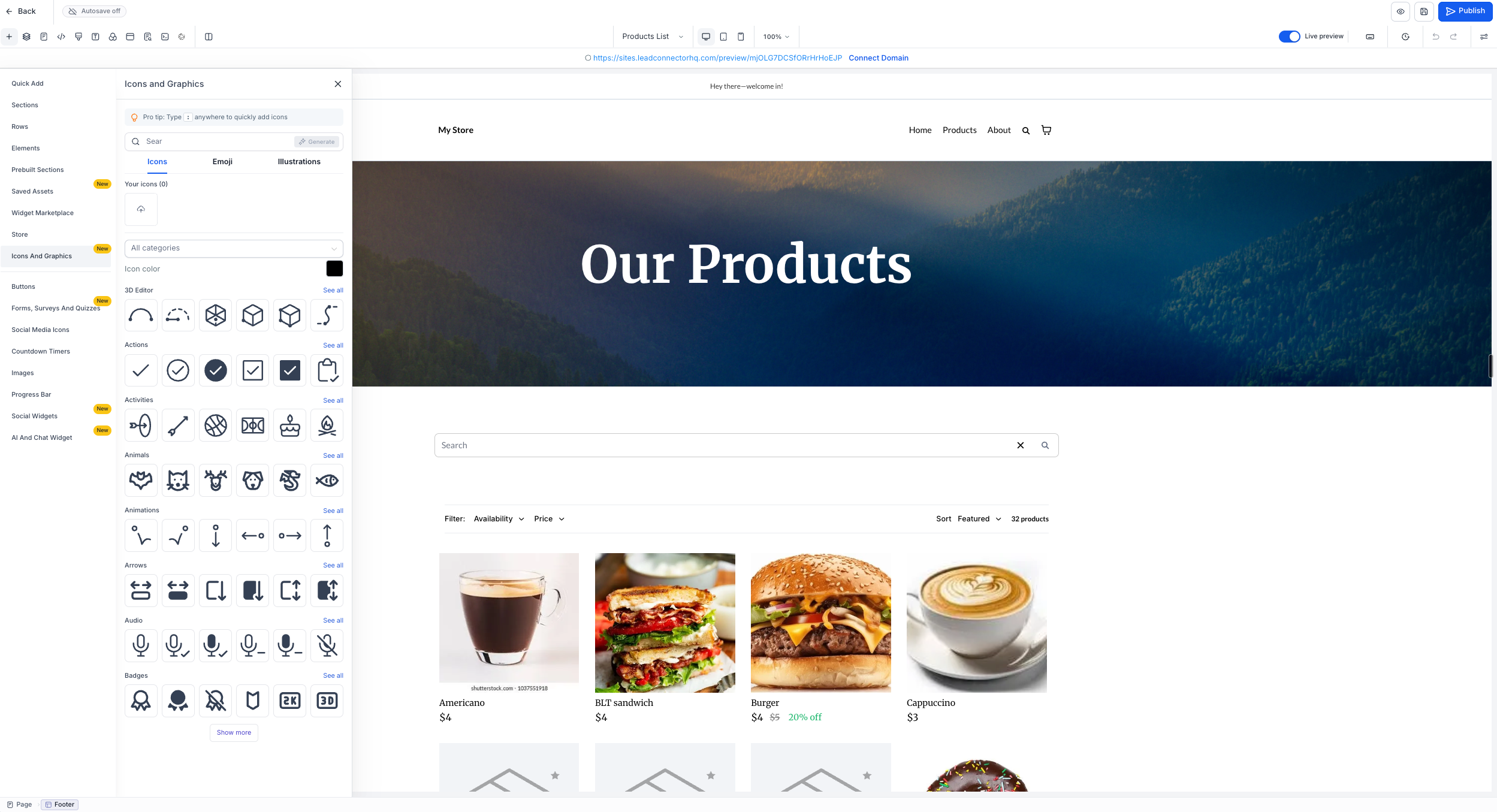
- Switch between the Icons, Emojis, and Illustrations tabs, then browse by category or use search to narrow down what you are looking for.
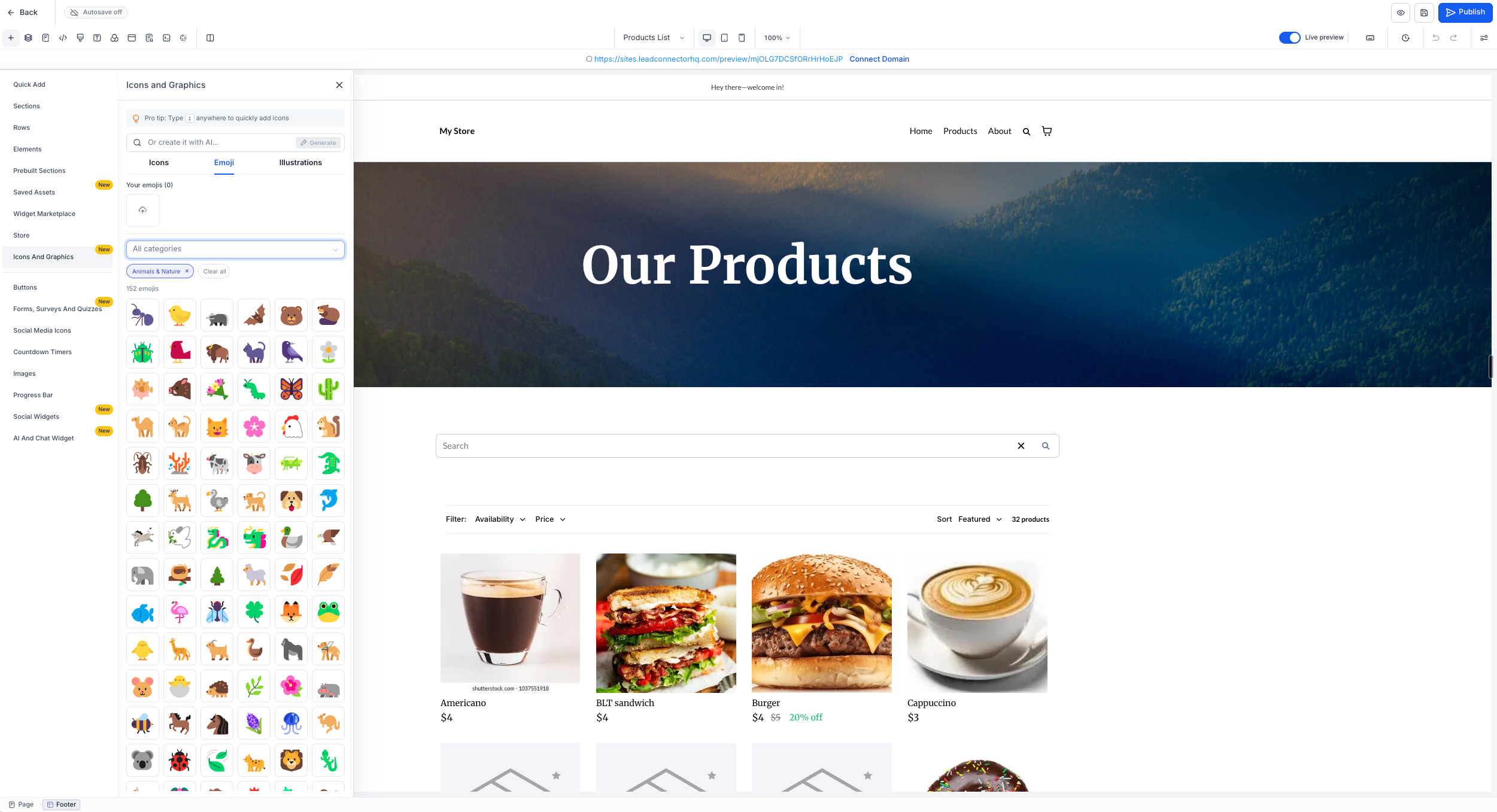
- Click a graphic or drag it onto the canvas, then adjust its color if you are using an icon and want it to match your design.
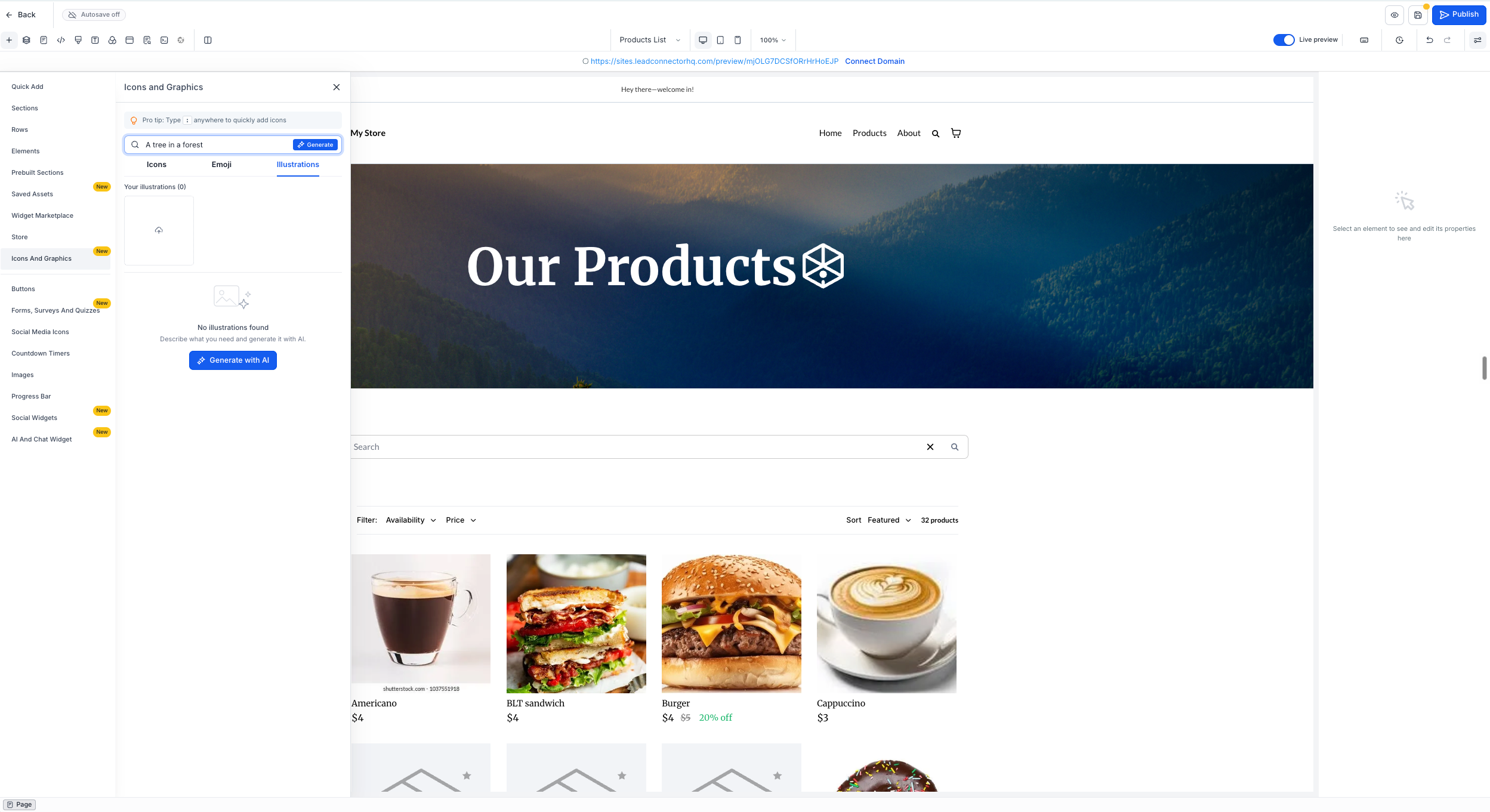
- To create a custom illustration, use the Generate with AI option or upload your own file. You can see the Generate with AI button in the screenshot below.
Notes
- Color customization currently applies to icons only; illustrations use their original colors.
- The graphic library is available now in the Funnel, Website, Store, and Webinar builders.
- Support for additional builders, including emails, is planned.



