Overview
EveryCatch forms used to need contact details before anything could be created in the CRM. If you wanted a form to open a deal, set up a company, or add a custom object, you first had to collect a name, email, or phone number. You can now build forms that create an opportunity record on its own, with no contact at all. You can also use a single form to create and link two records together, such as an opportunity and a company, an opportunity and a custom object, or a company and a custom object.

What changed
- Opportunity-only forms: you can build a form that includes only opportunity fields so each submission opens a new opportunity, with no contact record. This works well for quote requests, project inquiries, or any form where the deal details matter most and the individual contact is secondary.
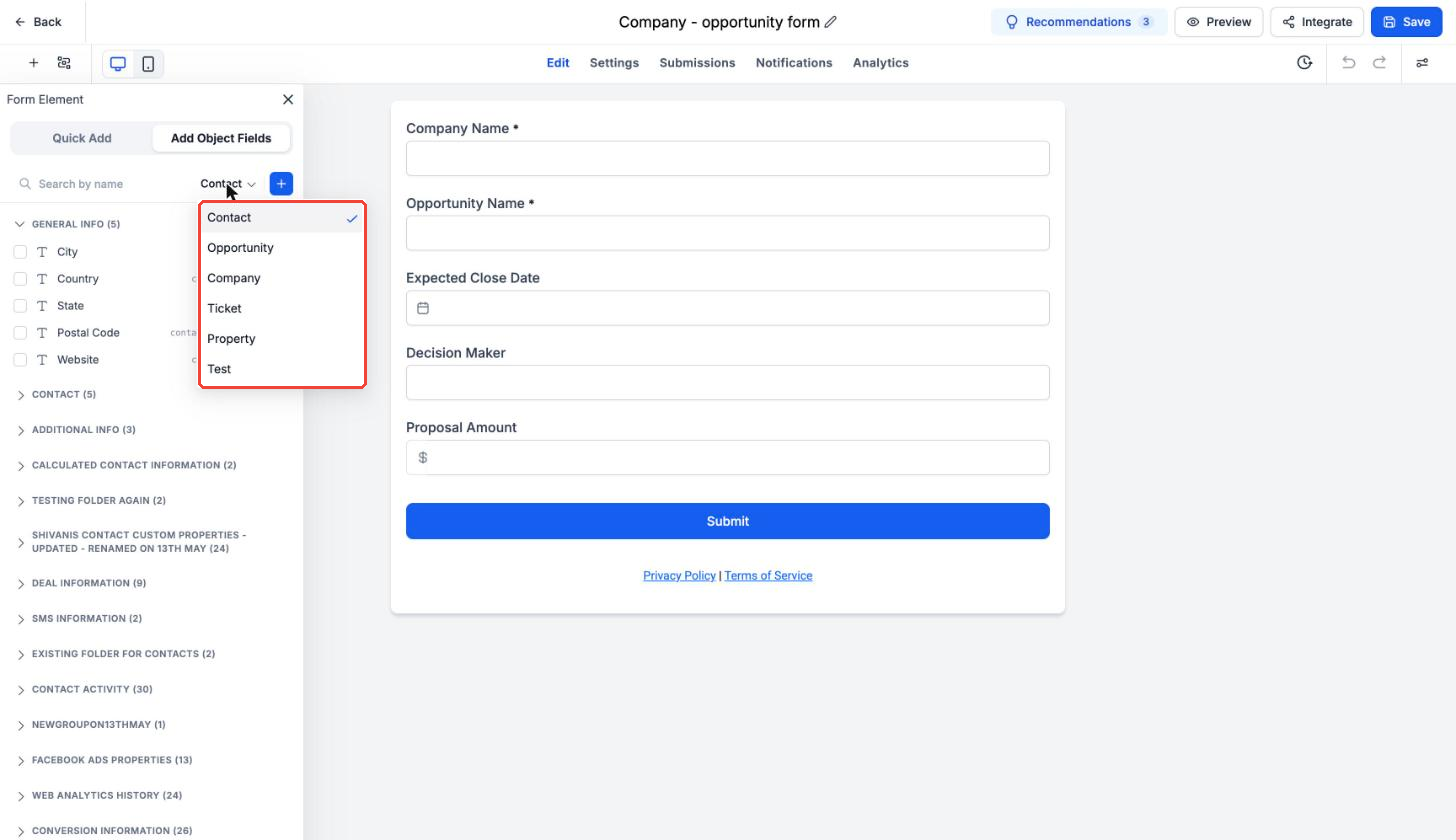
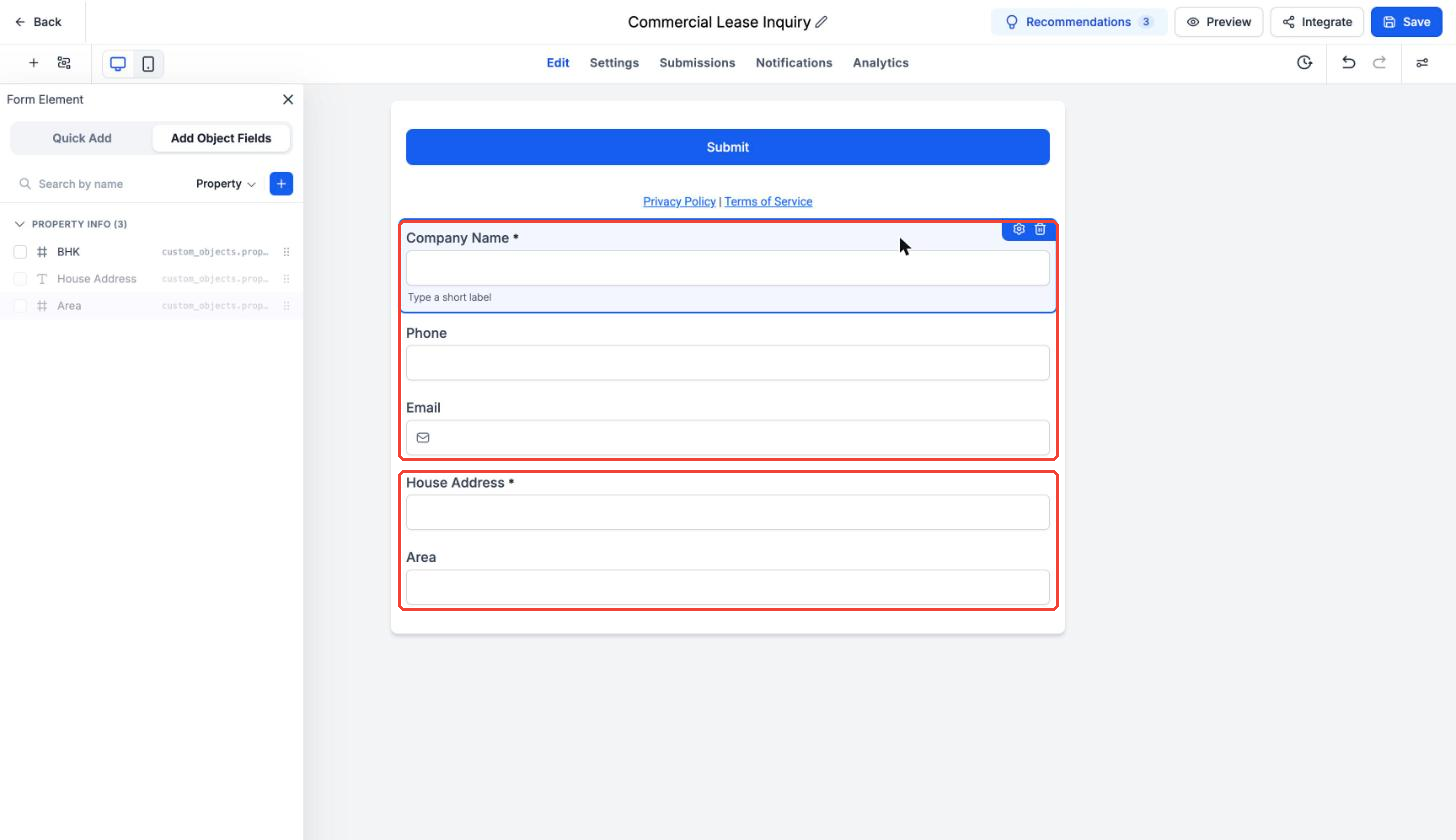
- New form combinations, no contact required: - Opportunity + Company, for example a partner deal registration form that creates the opportunity and the partner company - Opportunity + Custom Object, for example a property viewing request that creates the deal and the property record - Company + Custom Object, for example a commercial lease inquiry that creates the company and the property
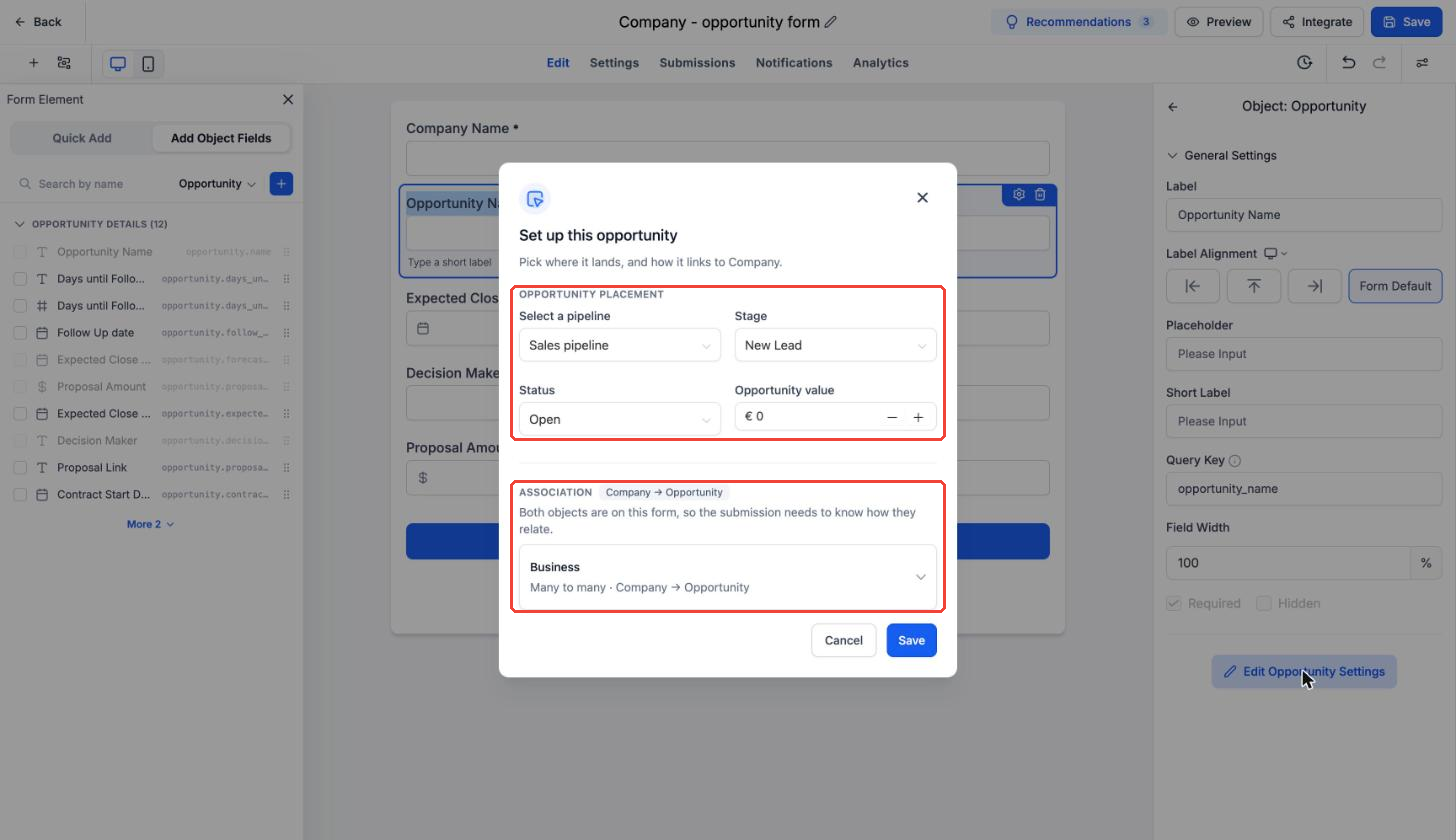
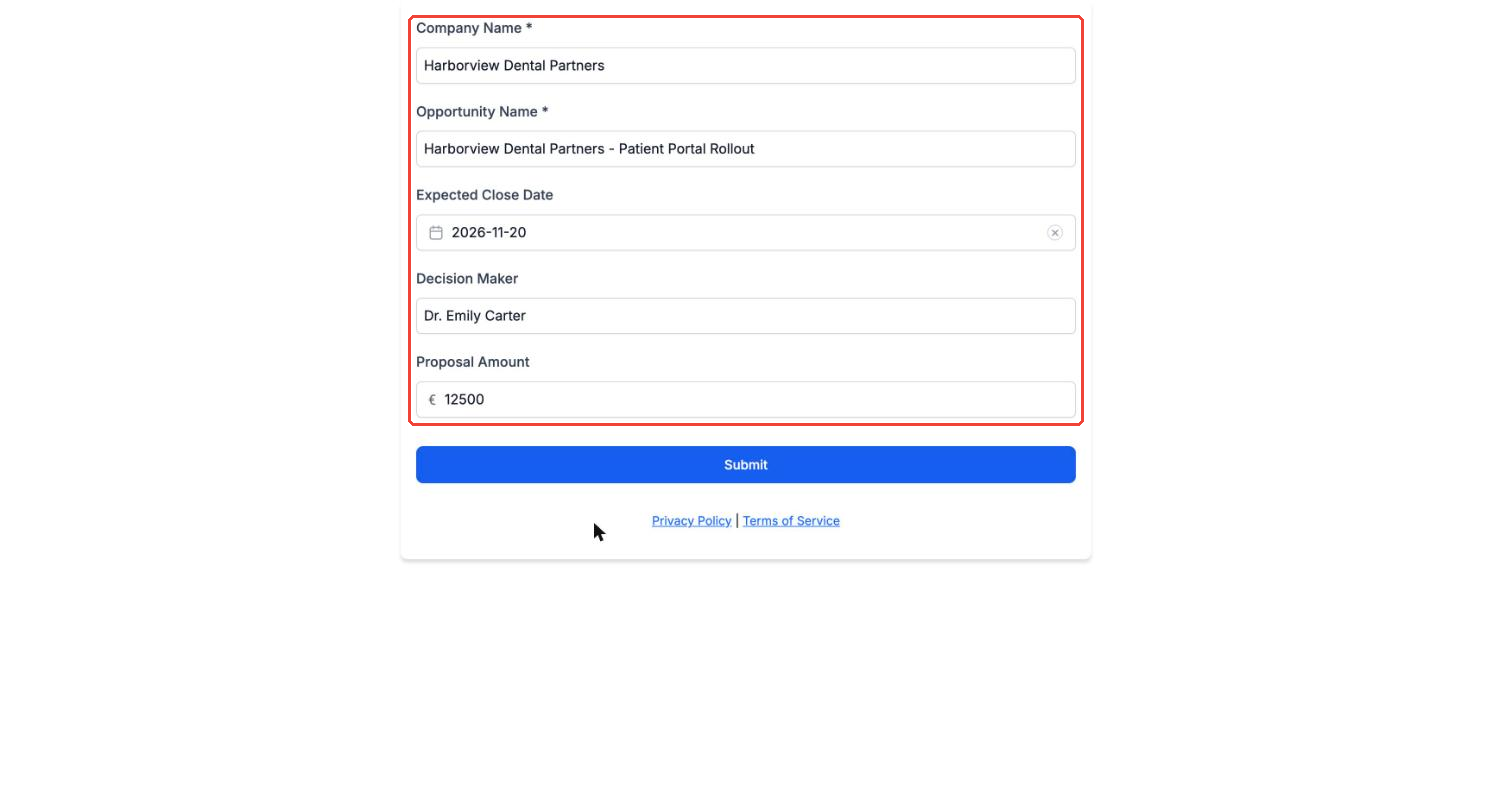
- Add Object Fields: in the form builder you can choose Opportunity, Company, or any custom object and then add fields from that object directly into your form. Any form that includes opportunity fields must include Opportunity Name as a required field.
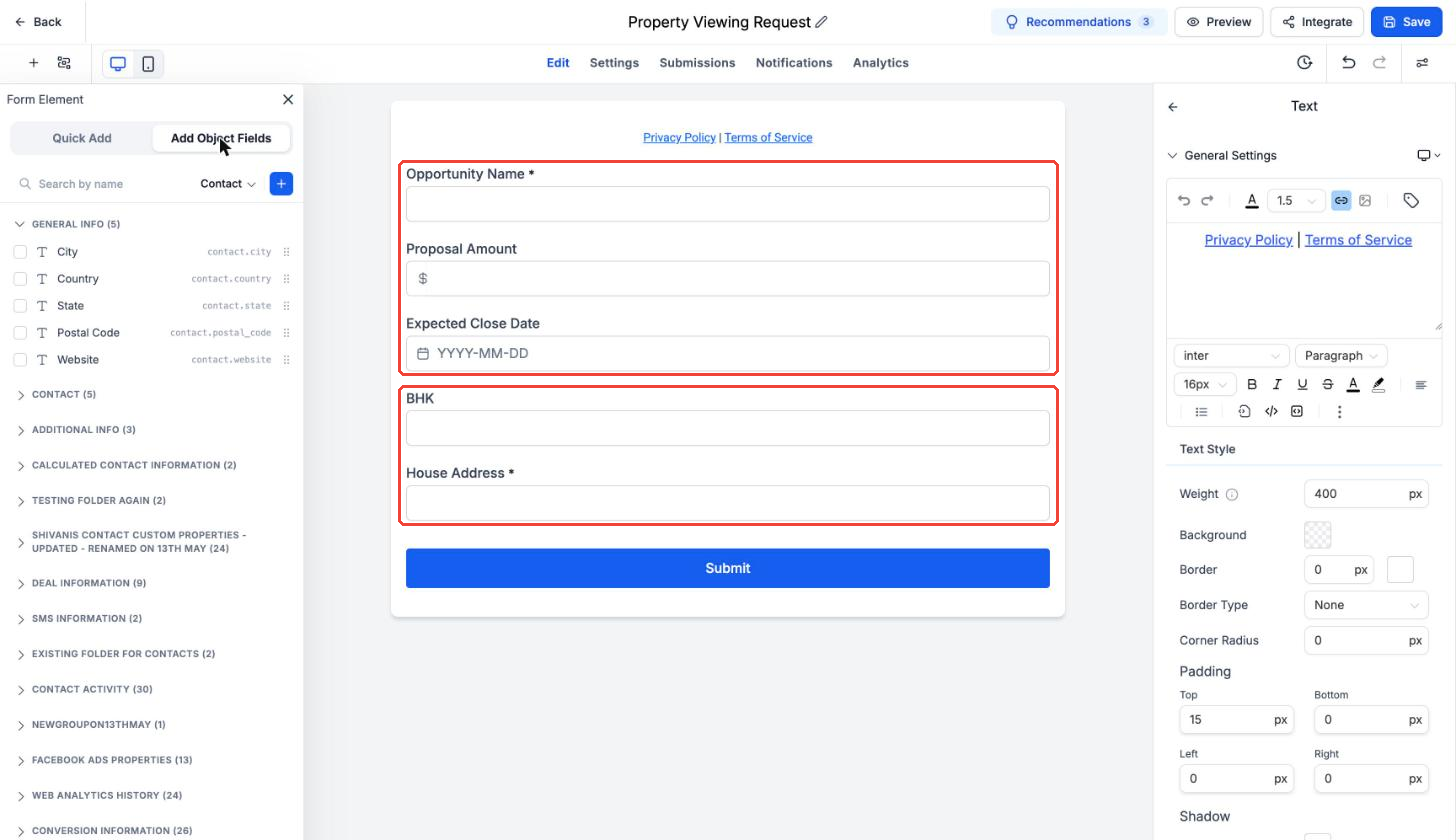
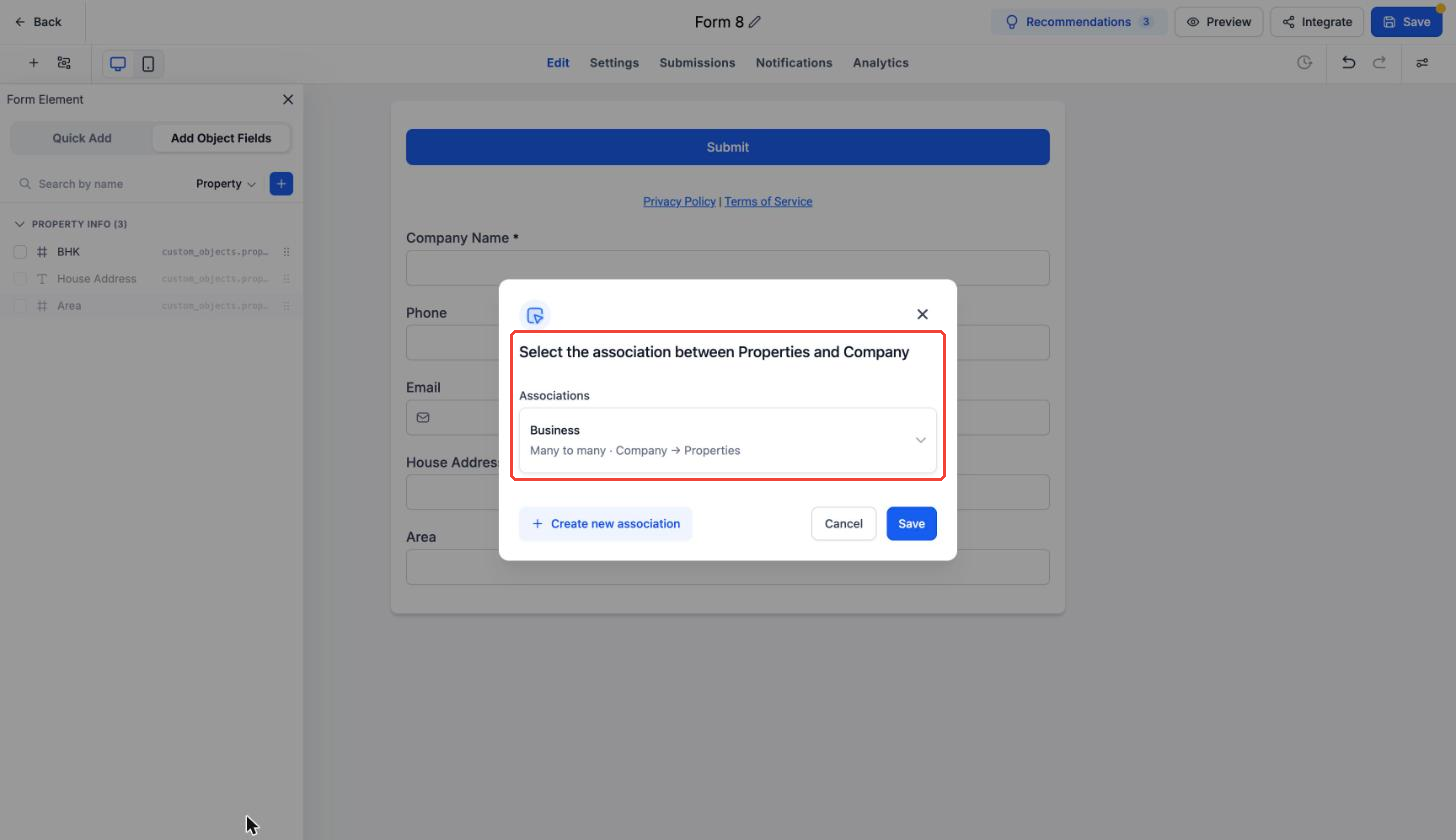
- Association label: when you add a second object to your form, you choose how those two records should be related. For example, you can set the link as Business, Primary Company, or Listing. The options here come directly from the association labels you have configured in your association settings.
- Set up this opportunity: for any form that includes opportunity fields, you can define the pipeline, stage, status, and default opportunity value that will be applied to every submission.
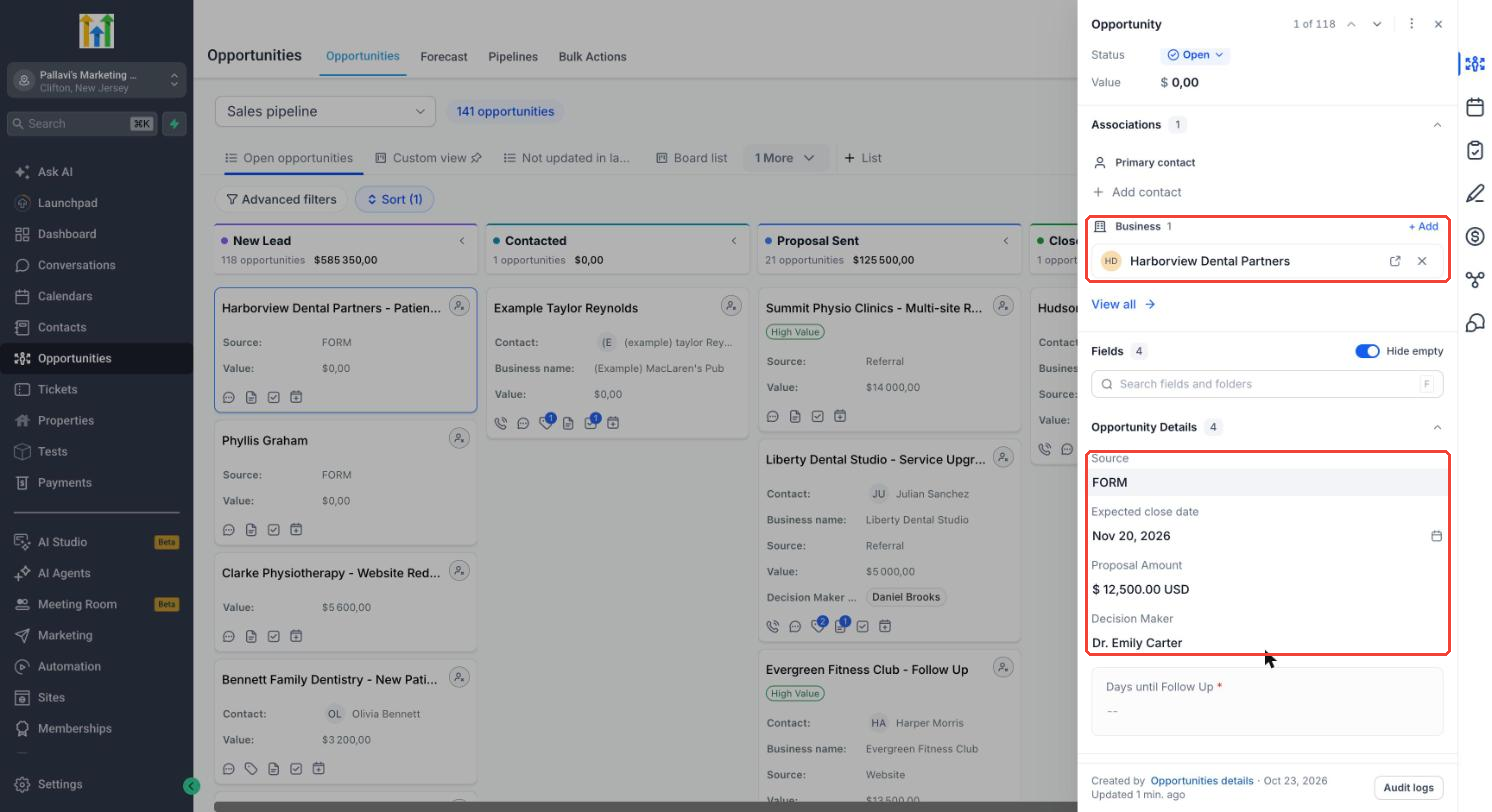
- When someone submits the form, EveryCatch creates both records and links them with the association label you selected. New opportunities will appear in the pipeline stage you chose, with the Source set to FORM.
How to use
- Go to Sites > Forms, open an existing form or create a new one, and remove the default contact fields if you do not need them.
- Click Add Object Fields and choose Opportunity or Company, then add the fields you want visitors to complete.
- To create a second record from the same form, change the object dropdown to Company or a custom object, add its fields, select the association label in the pop-up, and click Save. If you only want an opportunity record, you can skip this step.
- For forms with opportunities, click on the Opportunity Name field, select Edit Opportunity Settings, and set the pipeline, stage, status, and opportunity value for new submissions.
- Save your form and share it as usual. You can view and manage all incoming records from that form in the Submissions area.
Why this matters
- Quote, deal, partner, and property forms now create the exact records you need instead of temporary or placeholder contact records.
- New records are automatically linked with the correct relationship label so your CRM structure stays consistent.
- One form can capture everything you need and replace a contact form plus manual record creation and linking in your CRM.
Pro tips
- Opportunity Name is always required on forms that include opportunity fields.
- The opportunity value is taken from the Set up this opportunity configuration, not from any field the visitor fills in. To capture an amount from the visitor, use an opportunity custom field such as Proposal Amount.
- If you need a specific association label, create it first under Settings > Objects > Associations before you set up your form.
- This feature is part of the Opportunity-First private beta. Locations that are in the beta already have this enabled.



