You can now see exactly who does what at each company in EveryCatch. Add labels such as Employee, Billing contact, or Decision maker to show each contact’s role, keep responsibilities current, and make sure you reach the right people every time.
What changed
- Flexible roles for your workflow: Create your own company and contact association labels in object settings so role names match how your business runs.
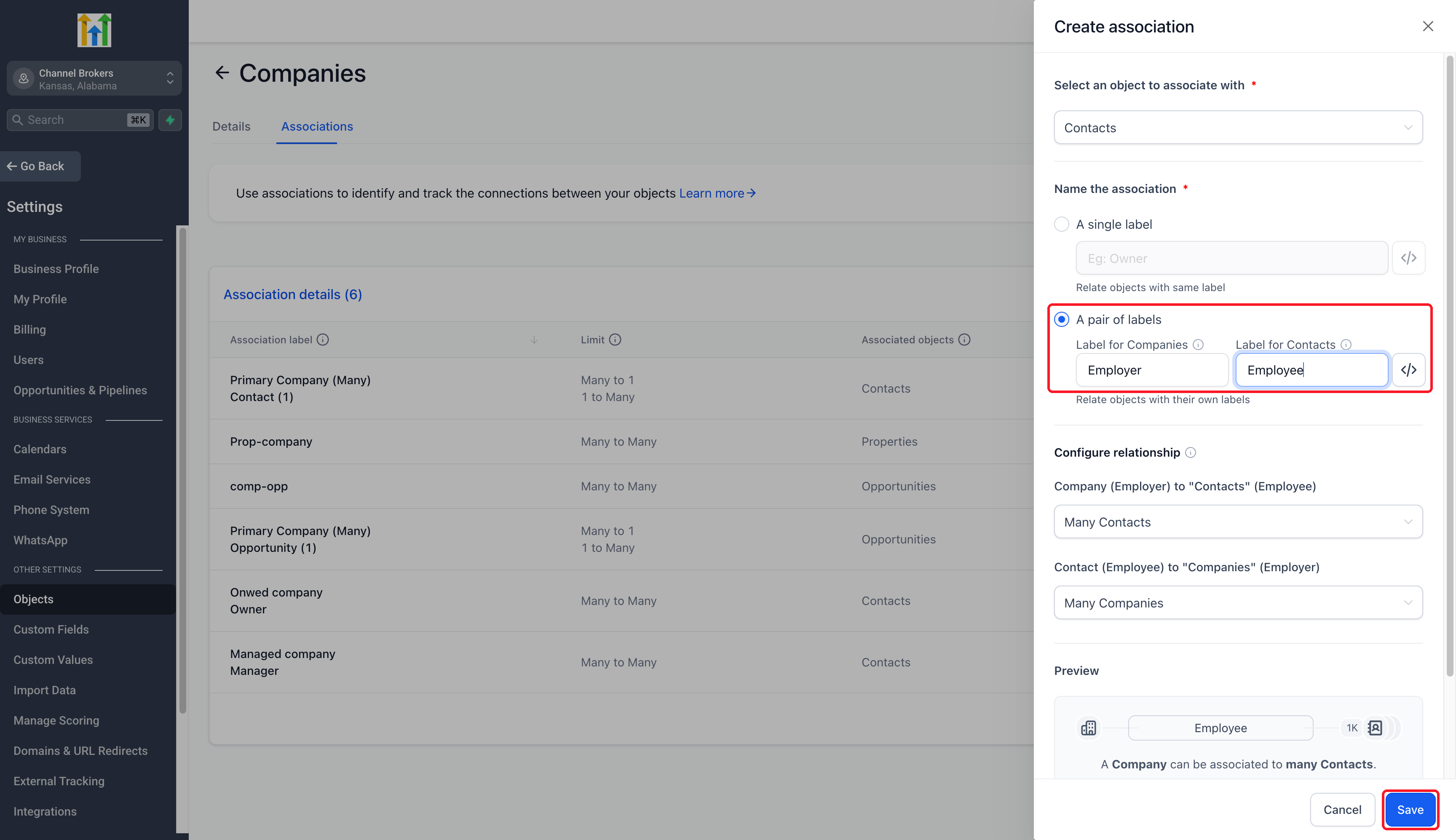
- Single or paired labels: Use one shared label on both sides, or separate names such as Employer and Employee. You can set relationship limits in each direction, for example one employer per contact and many employees per company.
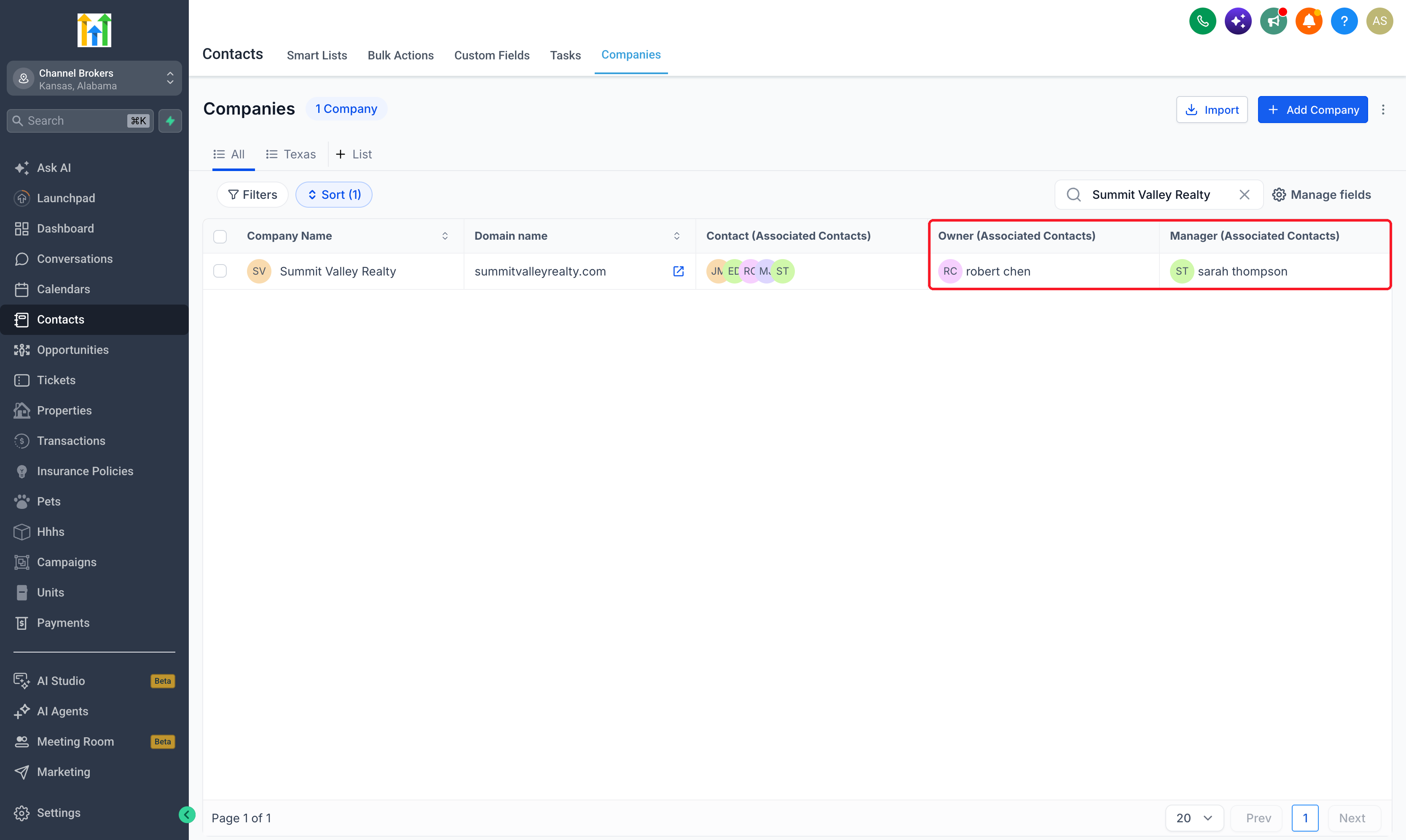
- Labels on record relationships: Choose a role label whenever you link contacts and companies, and edit custom labels on existing links at any time.
- Multiple roles for one person: A single contact and company can now be linked using several labels if they play multiple roles, such as being both an Employee and a Billing contact.
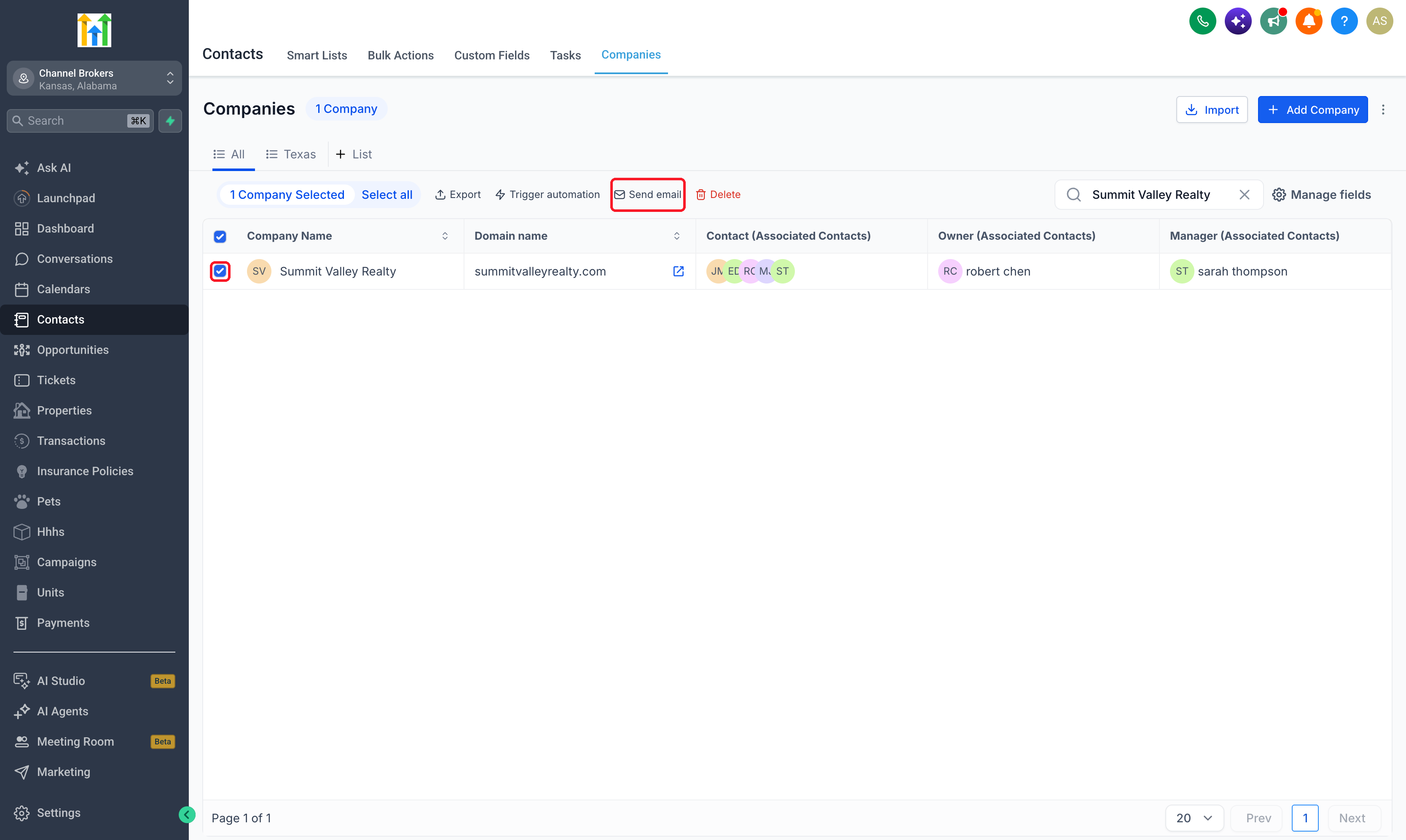
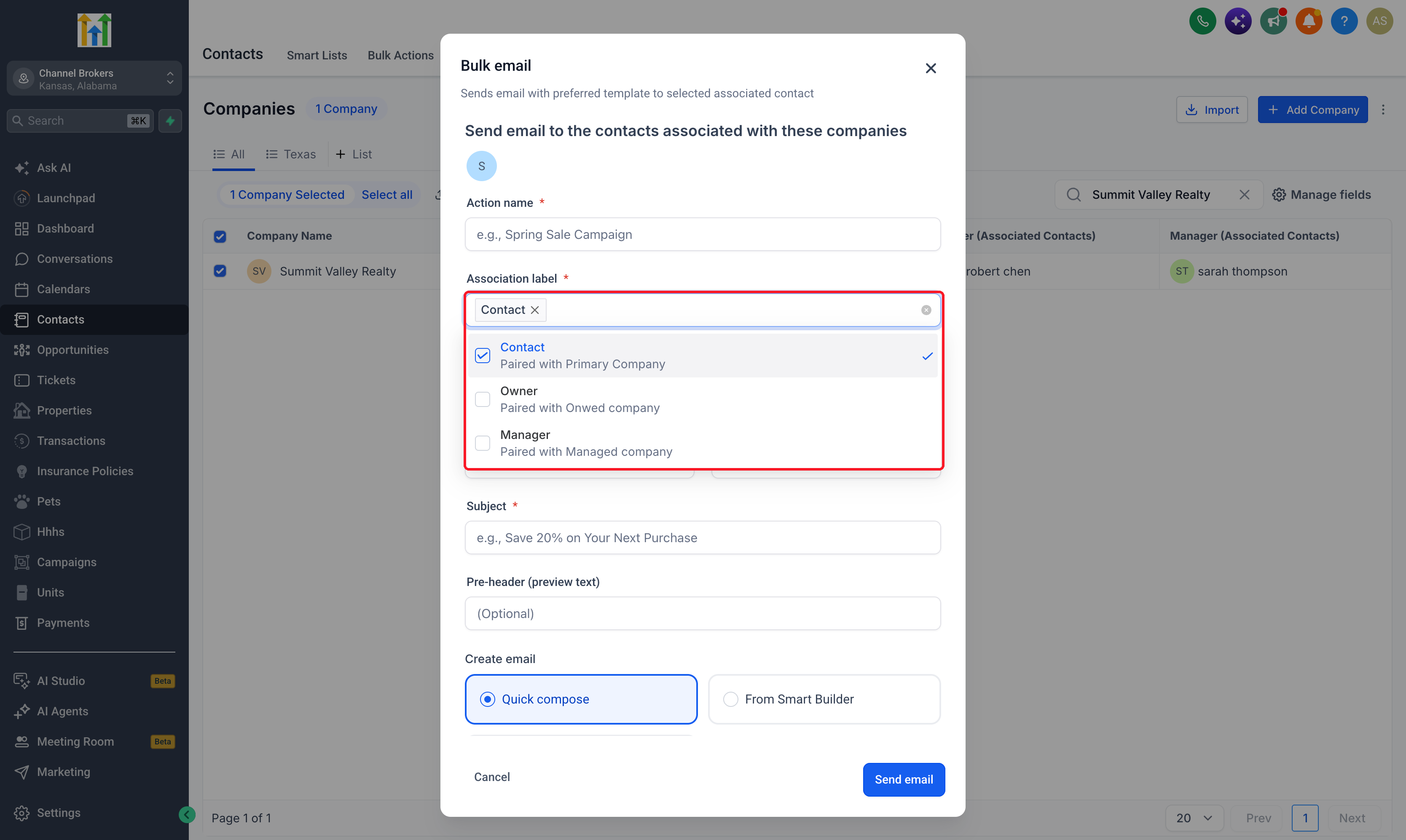
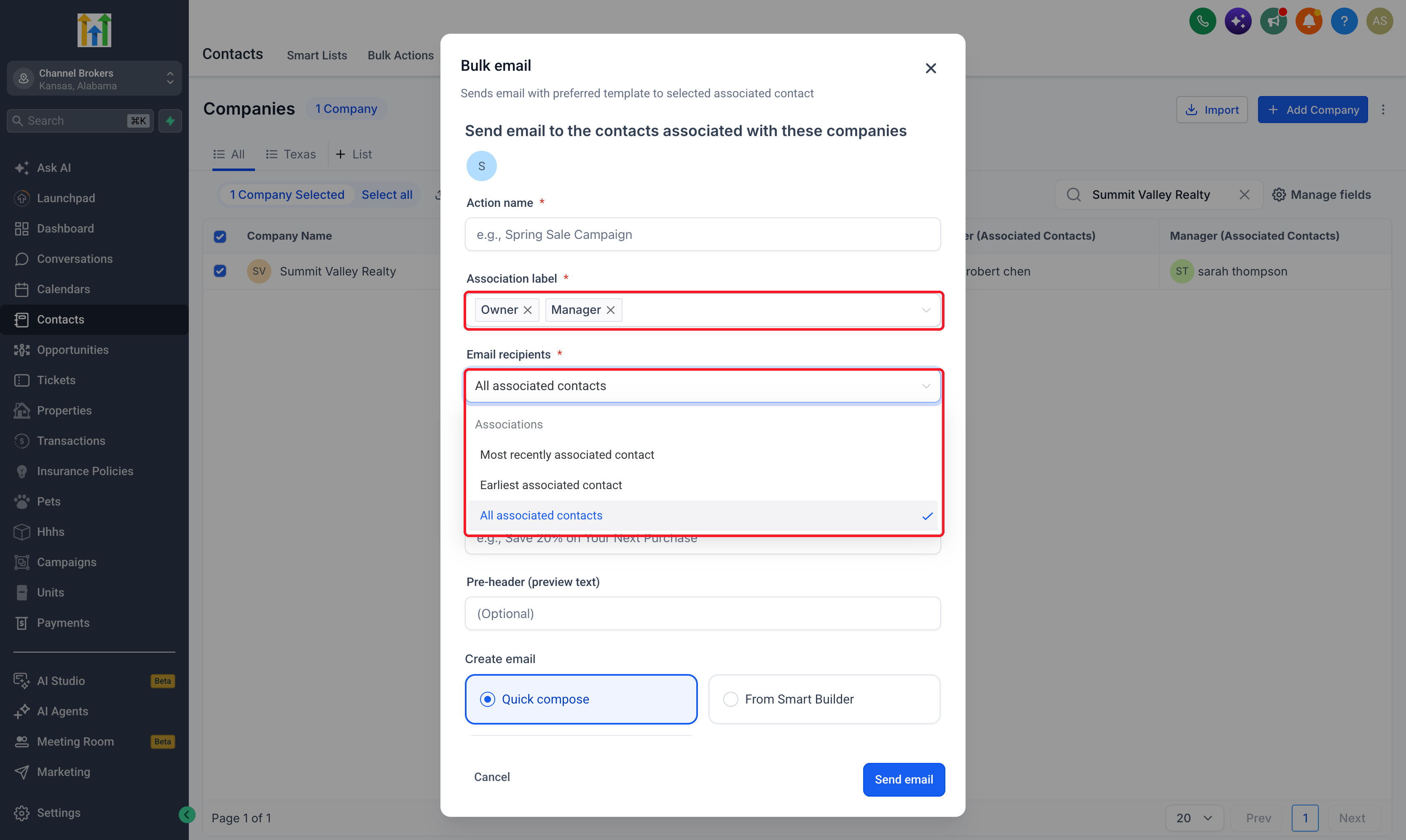
- Email by role: When sending emails from companies, you can now filter recipients by association label. If a contact matches more than one selected label, EveryCatch sends only one email to that contact.
Why this matters
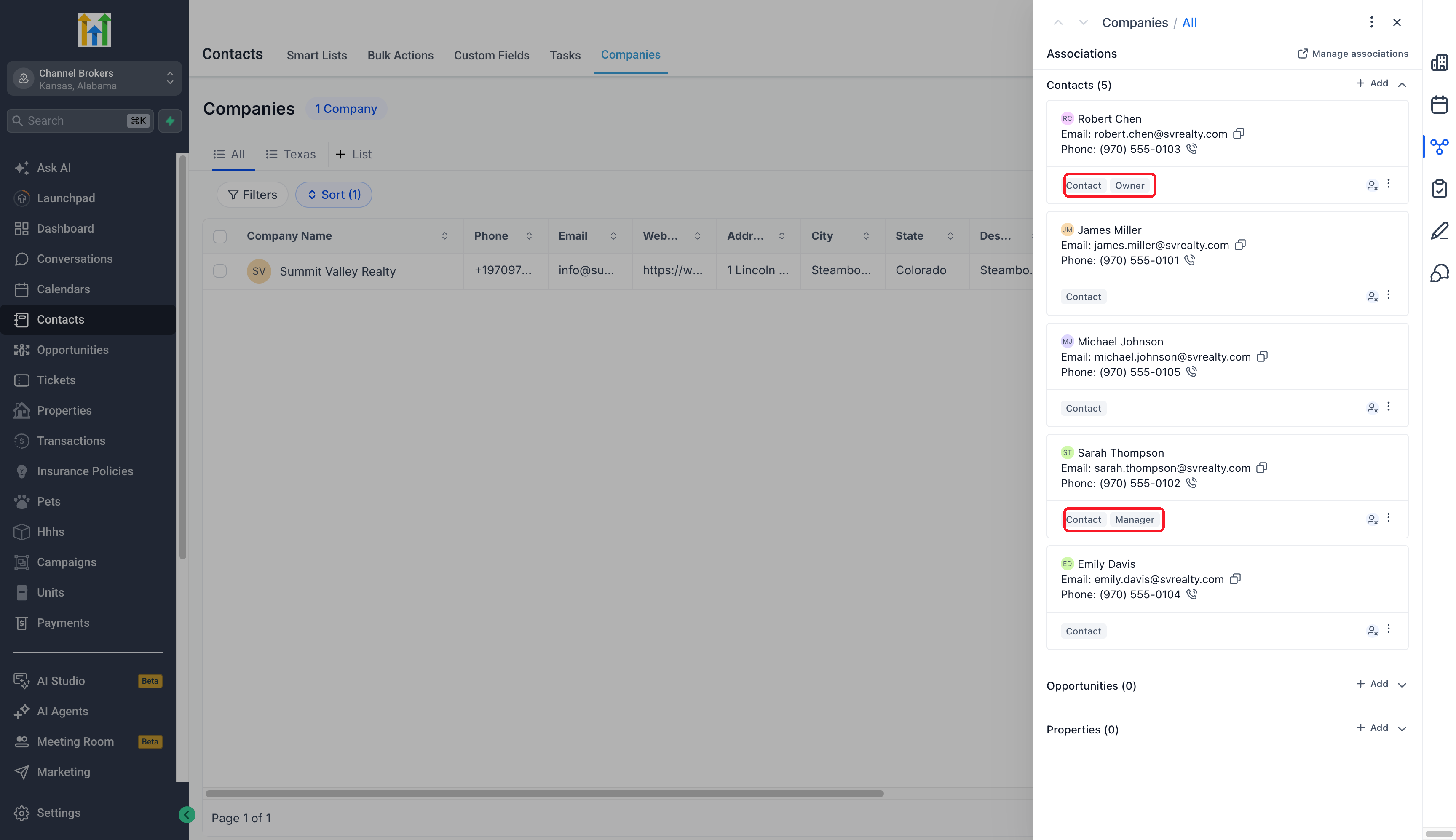
- Find the right stakeholder: Quickly spot billing contacts, decision makers, and other key roles on each company record before you reach out.
- Make communication relevant: Send account updates only to Billing contacts, send review or feedback requests to Decision makers, and keep messages focused for each group.
- Keep responsibilities clear: Update the label on a contact–company relationship when a person’s role changes so your team always sees the current owner for each responsibility.
How to use
- In EveryCatch Labs, turn on Association labels and Multiple companies for contacts so you can define and use custom roles.
- Go to Settings > Objects > Companies or Contacts > Associations to manage how companies and contacts can be linked.
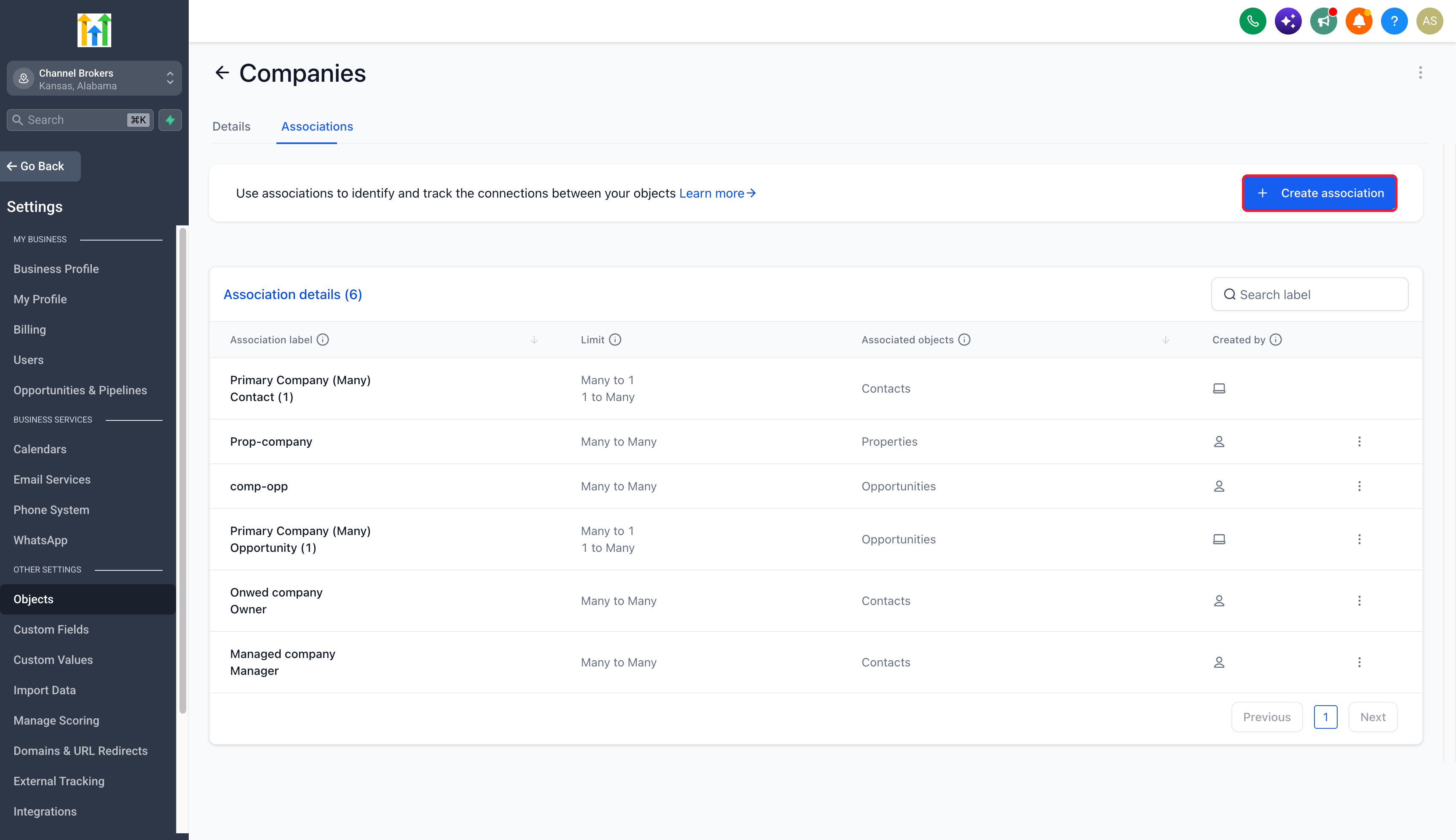
- Create a single or paired relationship label and set its limits in each direction, such as whether a contact can have one or many of that relationship.
- Open a record’s Associations, choose the related records, pick the right role label for that relationship, then save your changes.
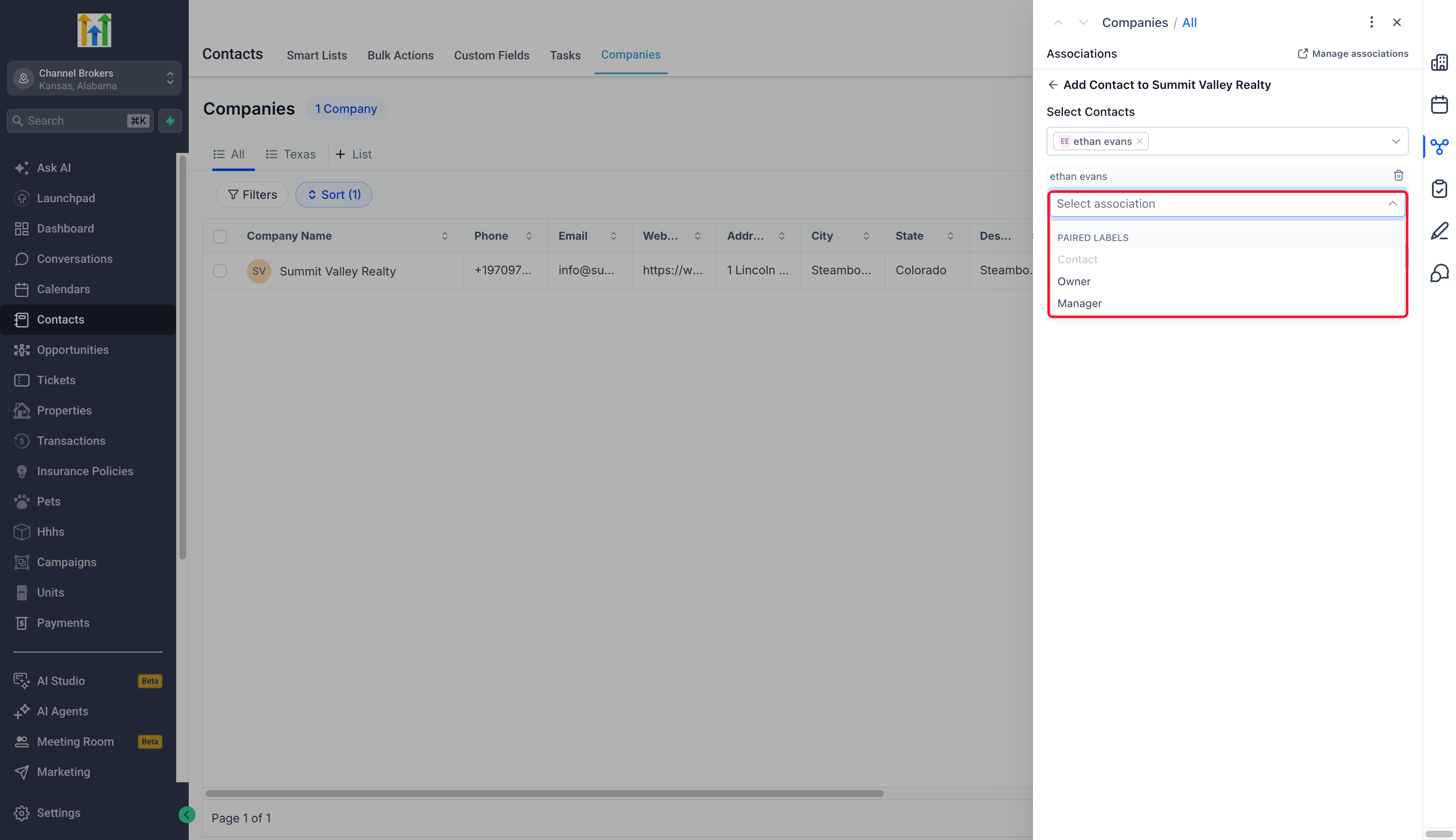
- Apply these labels when viewing company list columns or when choosing which contacts to include as the audience for an email from the companies view.
Pro tips
- Keep the primary company relationship separate: Use custom labels to show extra roles alongside the built-in primary company link so you can distinguish the main relationship from additional ones.
- Name both directions clearly: Using Employer for companies and Employee for contacts makes each side of the relationship easy to read from both records.
- Check email recipient options: When emailing by label, custom labels support sending to all, the most recently associated, or the earliest associated contacts. If you include the Primary company relationship, EveryCatch uses the All contacts option for that company.



