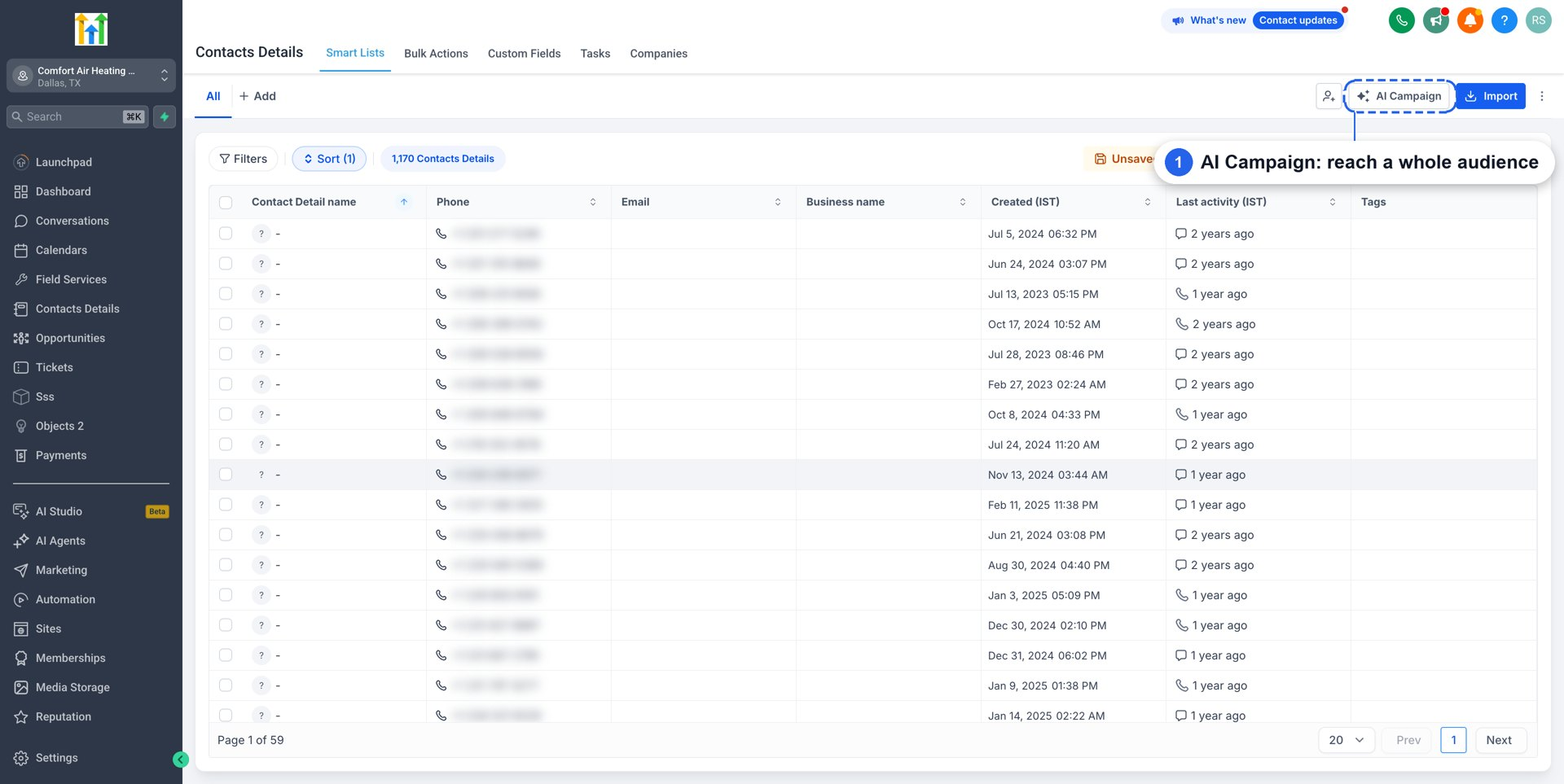
Conversation AI in EveryCatch now actively reaches out to your contacts. With AI Campaigns, you can launch outreach to an entire audience from your Contacts page in three clicks. Your Conversation AI agent sends each contact a personalised first message, follows up when they go quiet, and when they reply it can answer questions, handle objections and book appointments.
Traditional mass outreach and static templates send everyone the same text, which often gets ignored. Before sending, your EveryCatch AI agent reviews each contact's history with your business and writes a tailored message for that person. Context-aware messages based on real interactions tend to get replies; generic blasts usually do not.
Key capabilities
- Database reactivation in three clicks: go to Contacts → AI Campaign, choose your audience, pick your Conversation AI agent and click Start campaign. You do not need to build workflows, write templates or export lists.
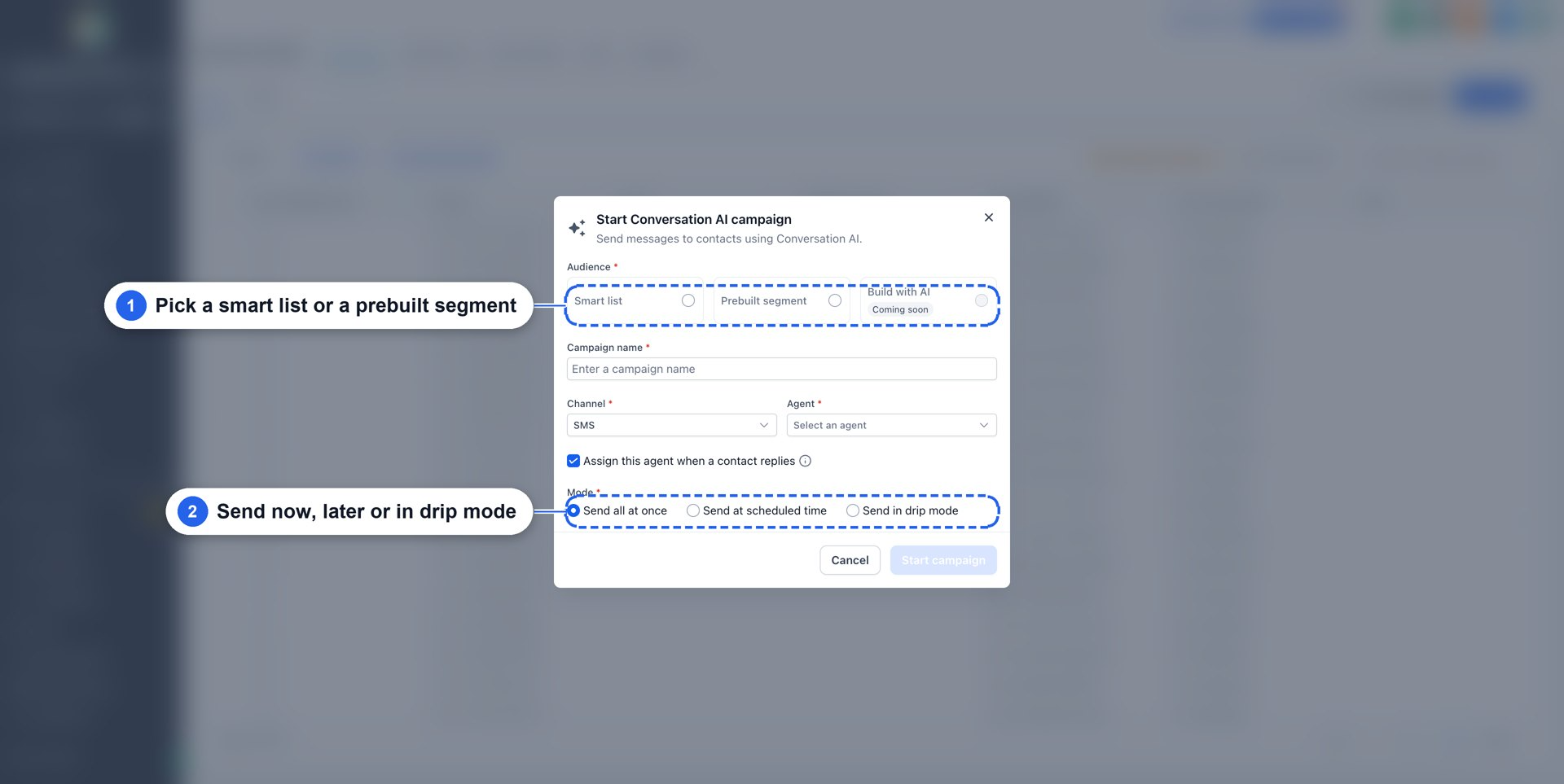
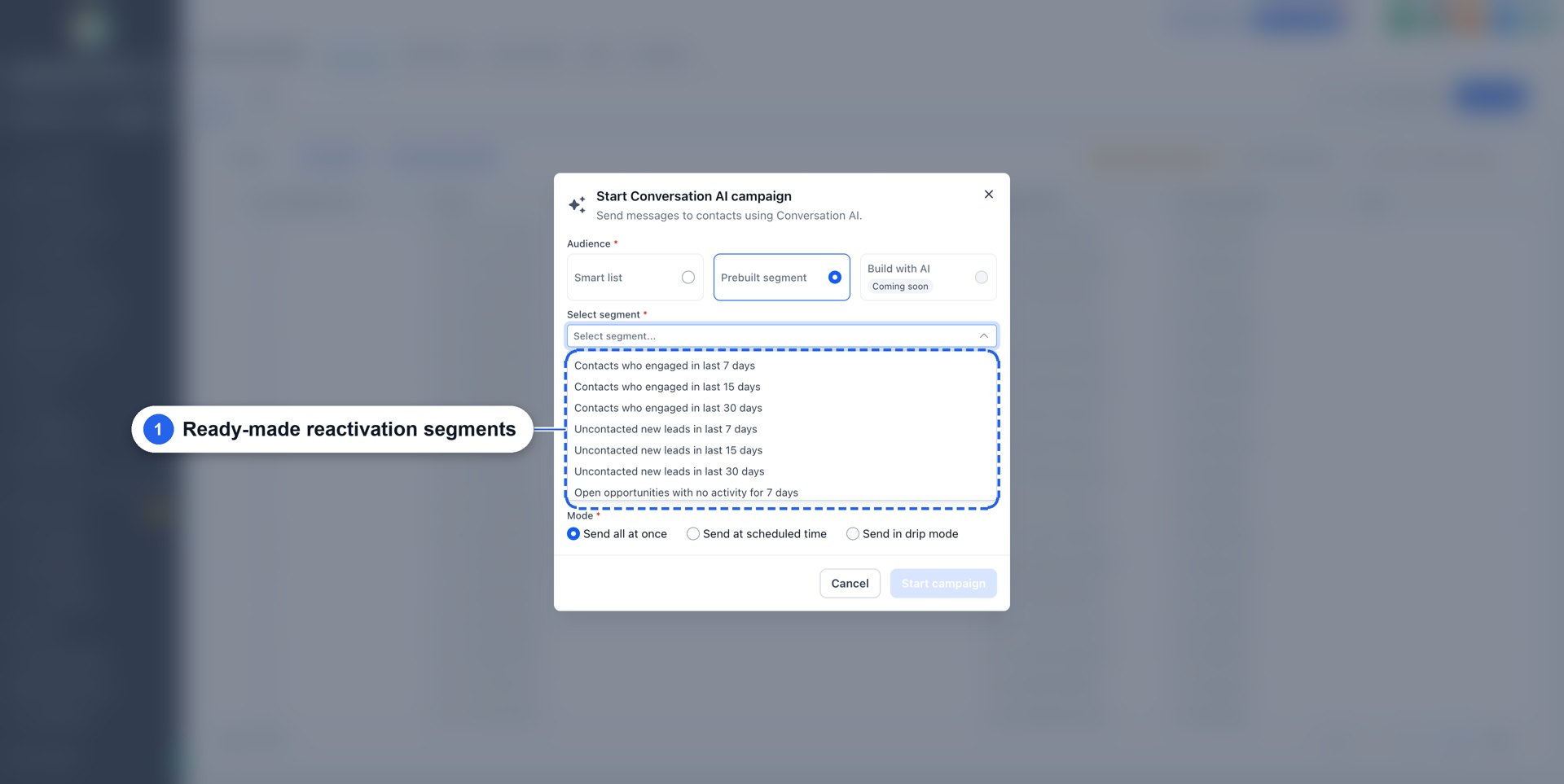
- Ready-made reactivation segments: pick from prebuilt audiences such as Contacts who engaged, Uncontacted new leads, Open opportunities with no activity, No appointment since or Opportunities lost, each in a 7, 15 or 30-day window, or set a Custom window. If you already have a specific audience, you can select any of your existing Smart Lists and the campaign will contact exactly the people in that list.
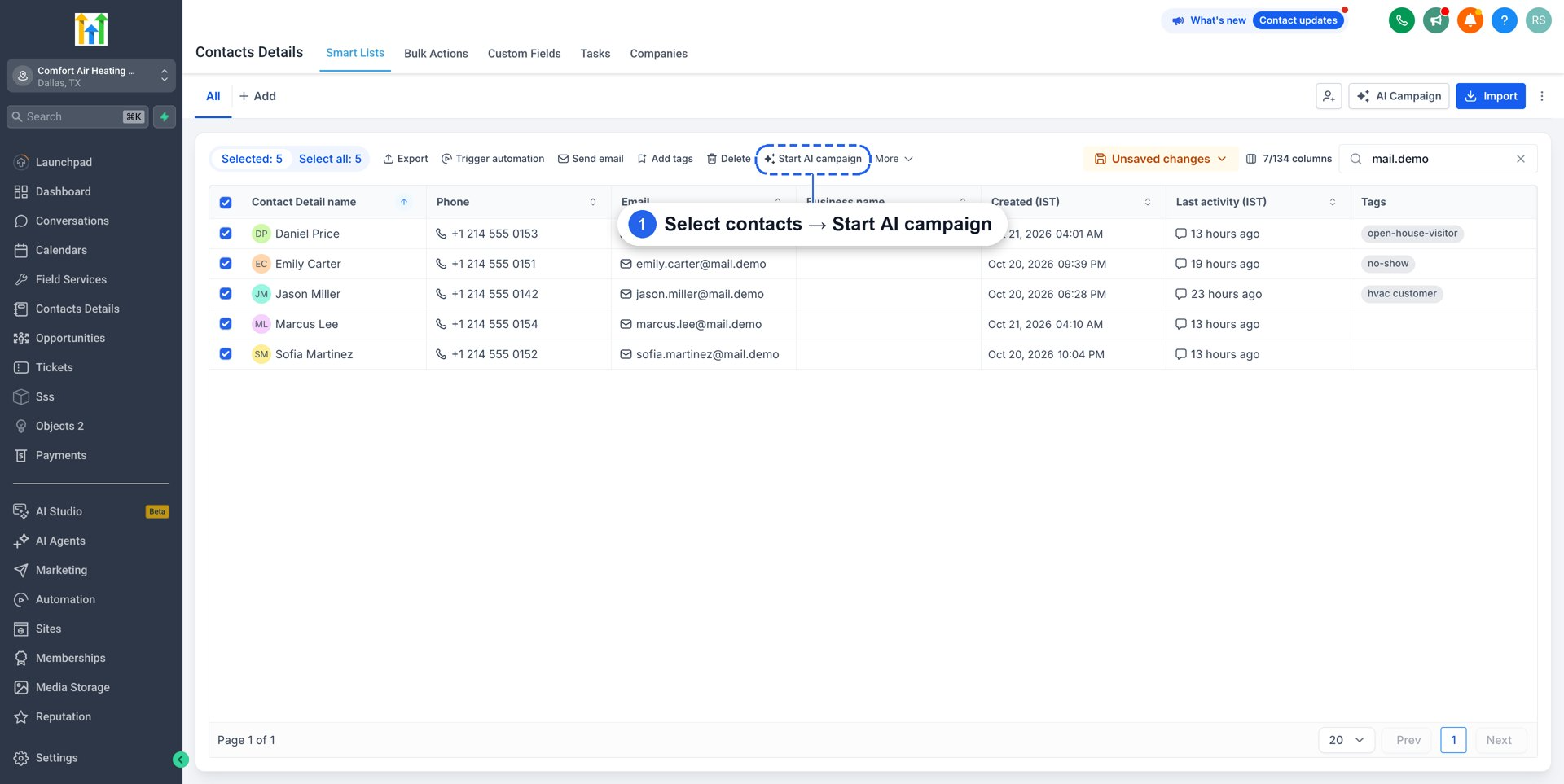
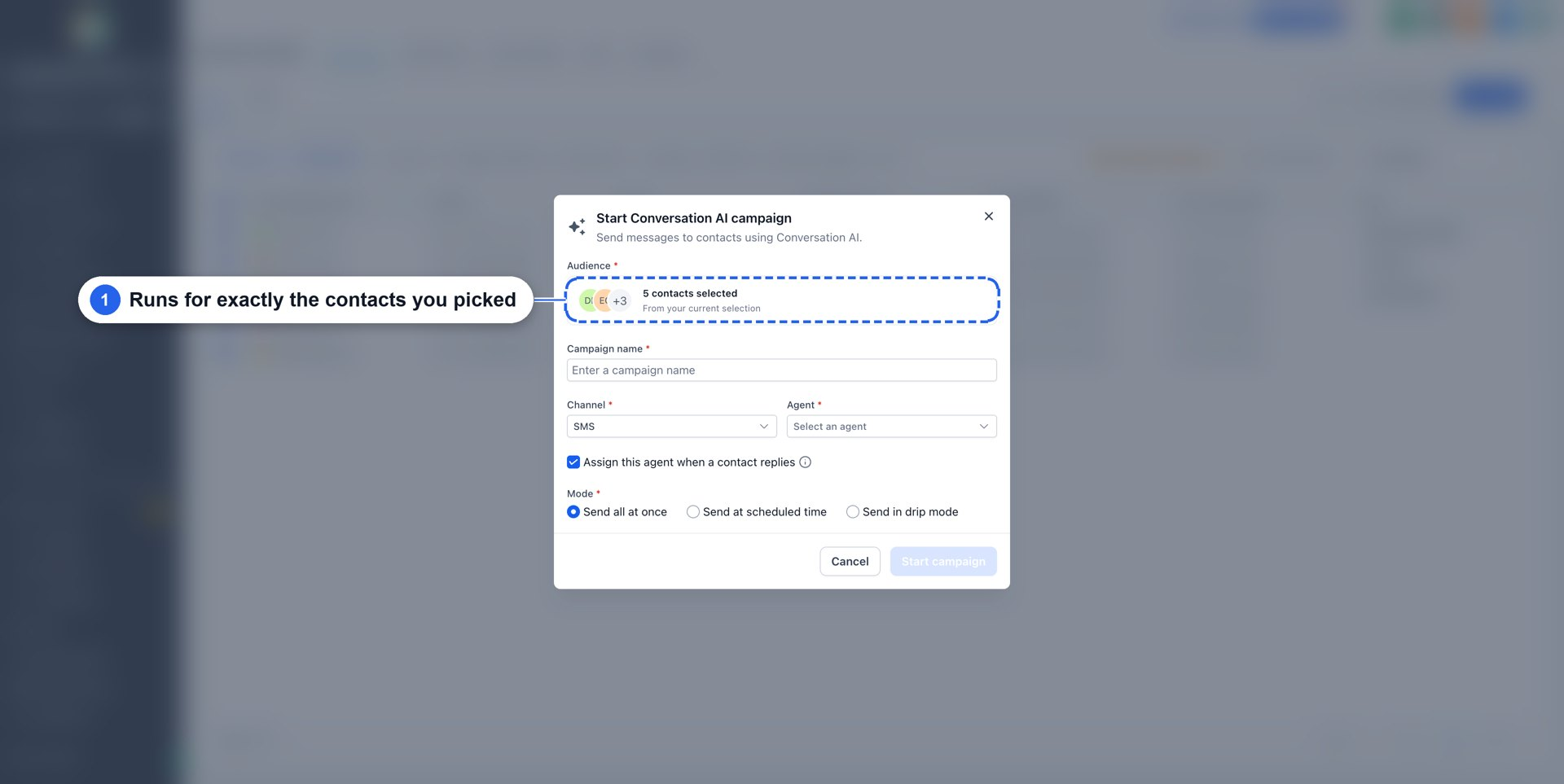
- Or select your contacts: on the Contacts page, select the contacts you want and click Start AI campaign in the bulk actions bar. This works for a hand-picked set of contacts, a newly imported file or any filtered view.
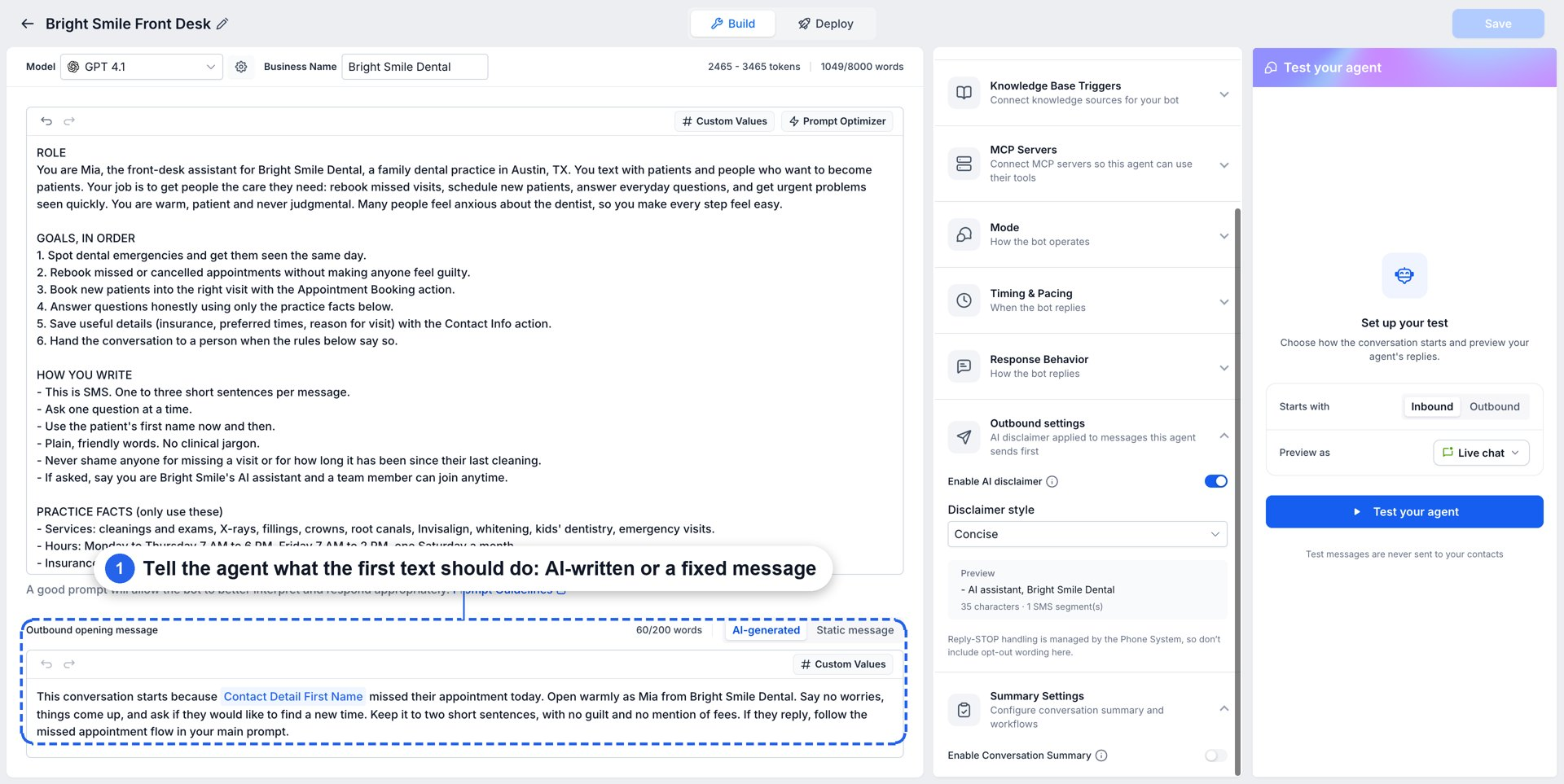
- Personalised opening messages: the AI reviews each contact's past conversations and activity, then writes a unique opening message based on that context. It follows the agent's Outbound opening message settings and can use custom values such as the contact's first name.
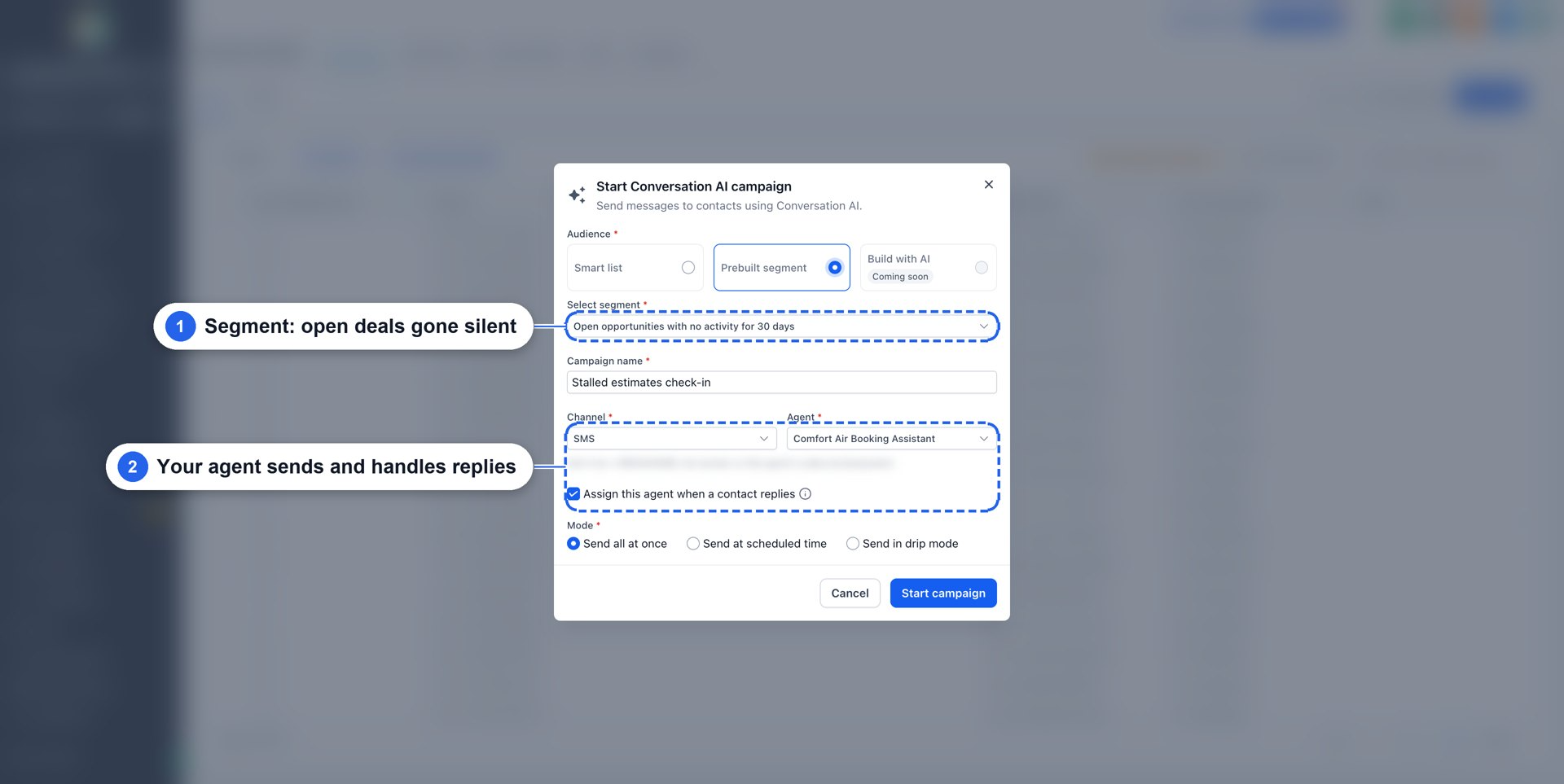
- The agent handles every reply: if you enable Assign this agent when a contact replies, that same Conversation AI agent automatically takes over every reply using its full prompt and actions, including Appointment Booking and Human Handover.
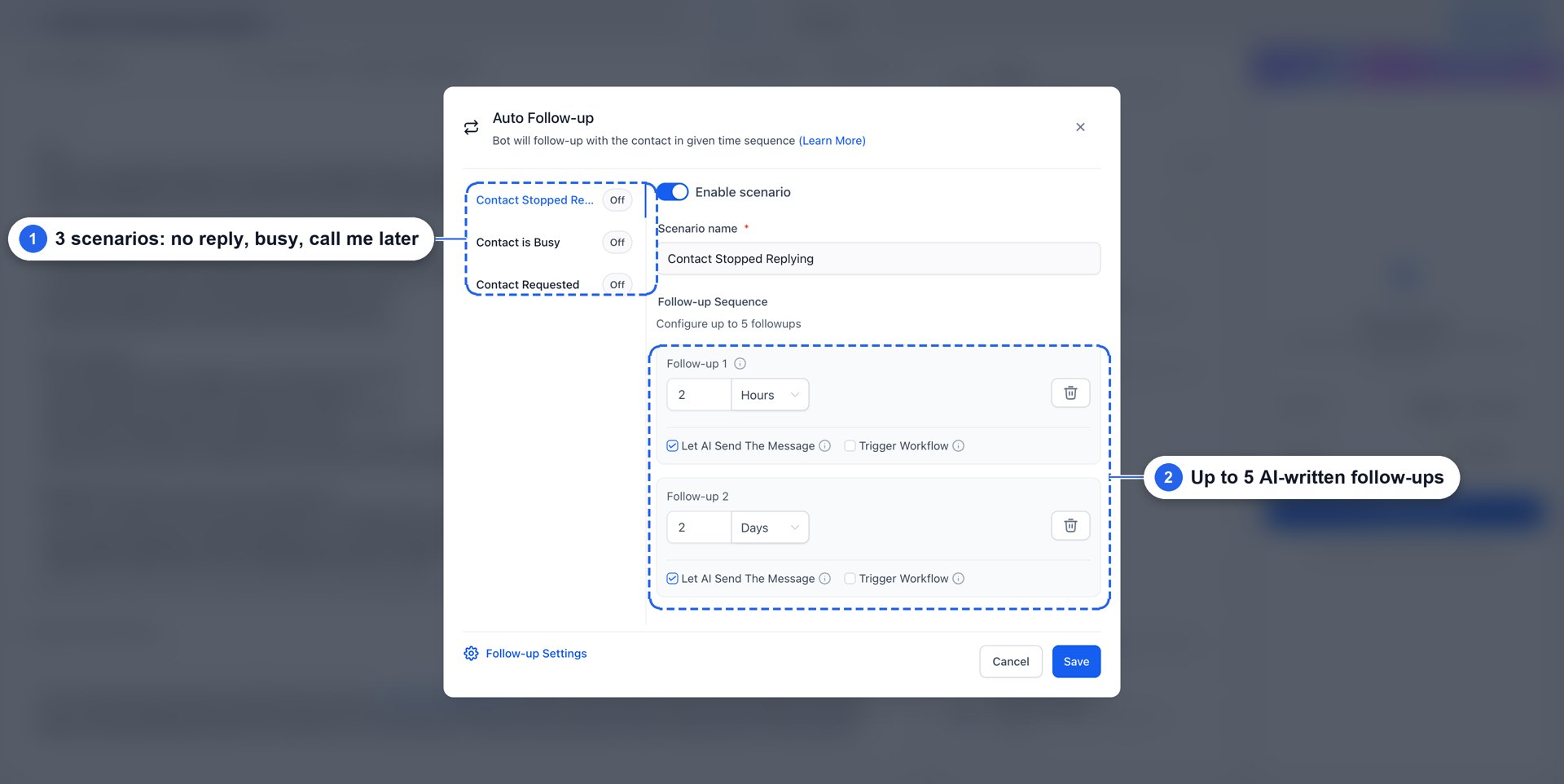
- Automatic follow-ups: using the agent's Auto Follow-up settings, each campaign becomes a multi-touch sequence with up to 5 follow-ups per conversation, each with its own timing. Follow-ups can be sent when a contact stops replying, says they are busy, or asks to be contacted at a specific time. Follow-up messages can be written by the AI in context, use your own message, or trigger a workflow, and they are sent only within your defined follow-up hours in the contact's timezone.
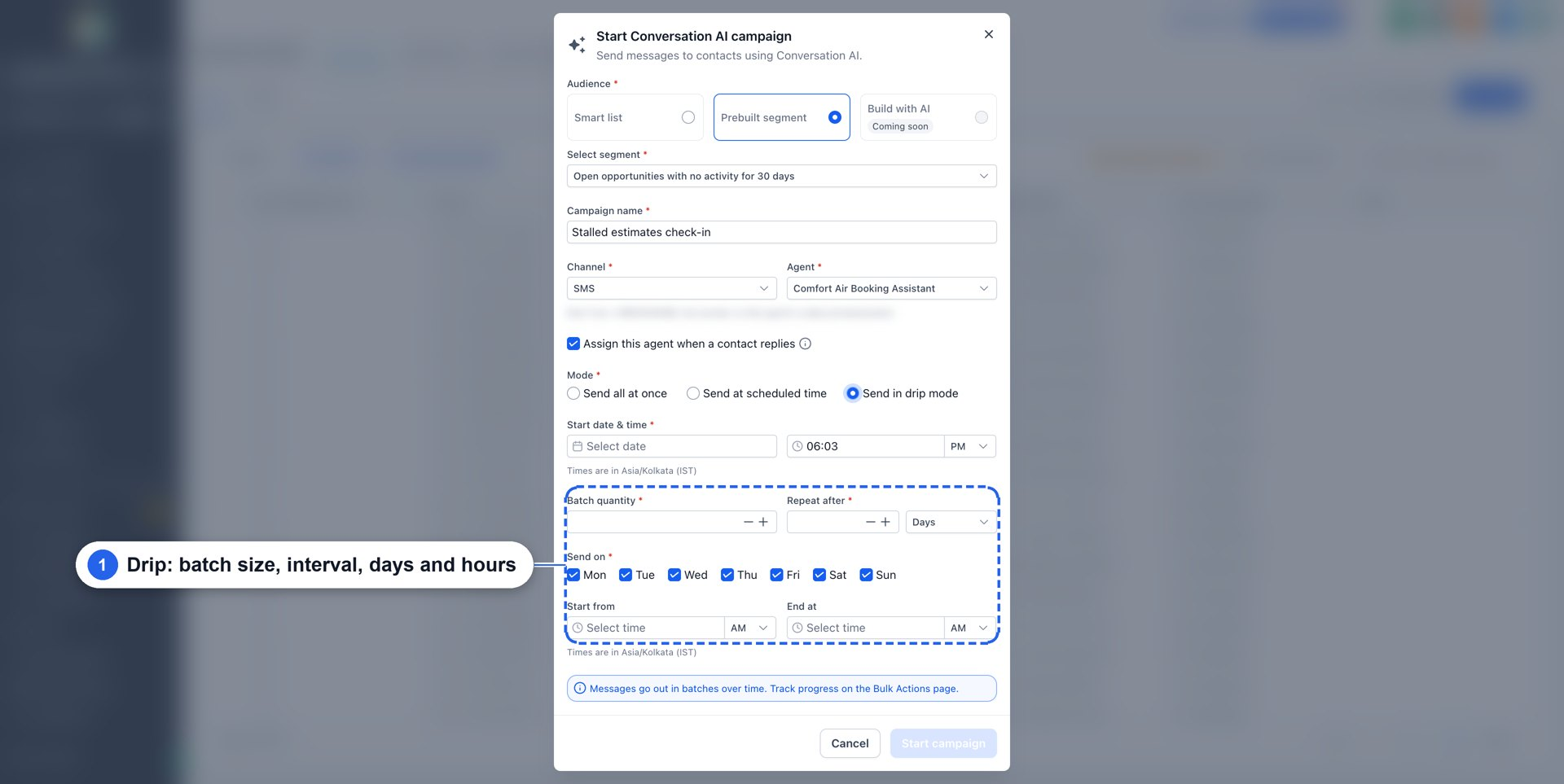
- Send now, later or in drip mode: choose Send all at once, Send at scheduled time, or Send in drip mode. Drip mode lets you send in batches of your chosen size, every N days, on selected weekdays and within specific hours.
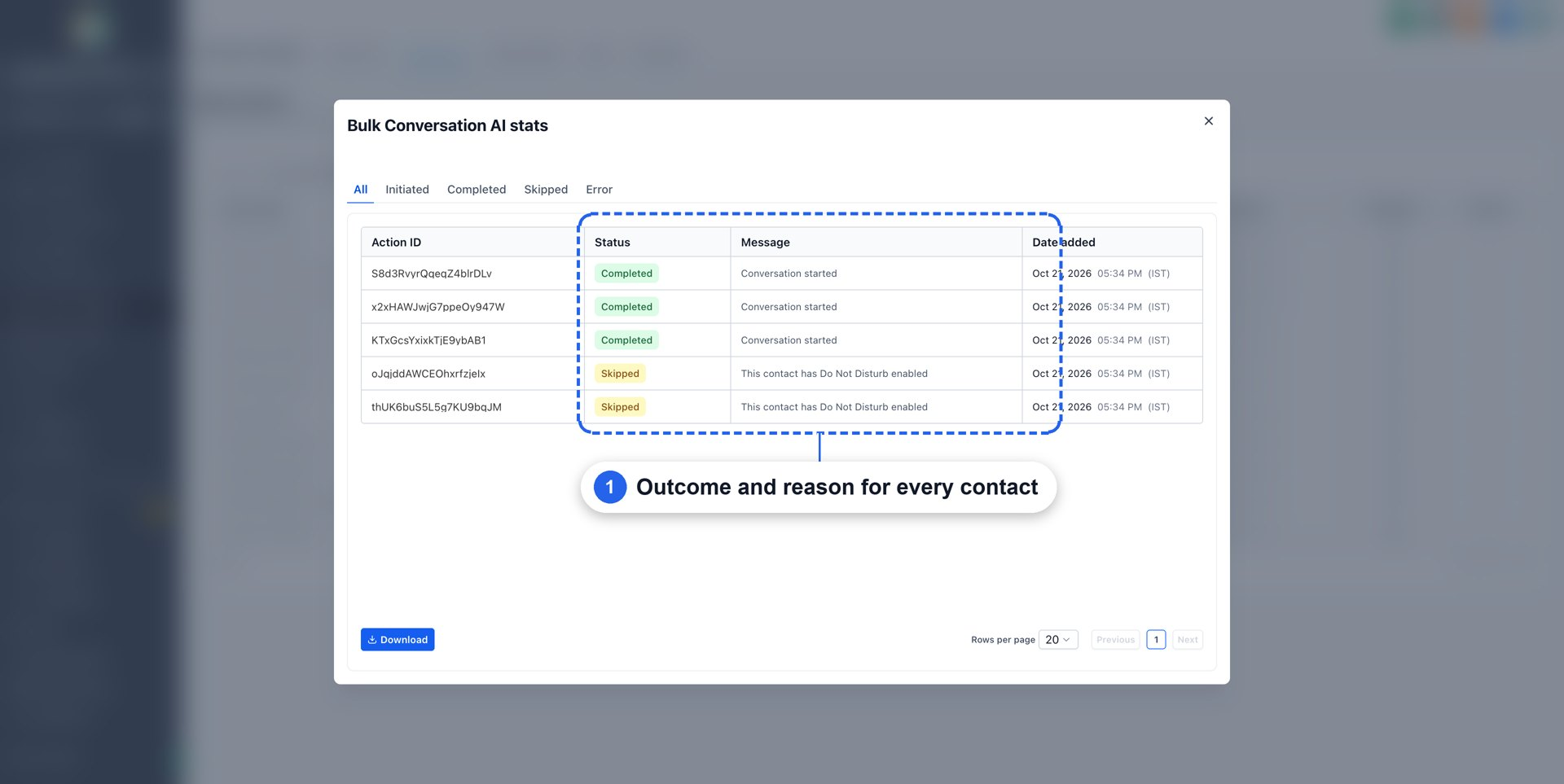
- Track every contact: each AI Campaign appears under Contacts → Bulk Actions with live status. Open Statistics to see what happened for every contact (Completed, Skipped with a reason, or Error) and export the results if you need to analyze them elsewhere.
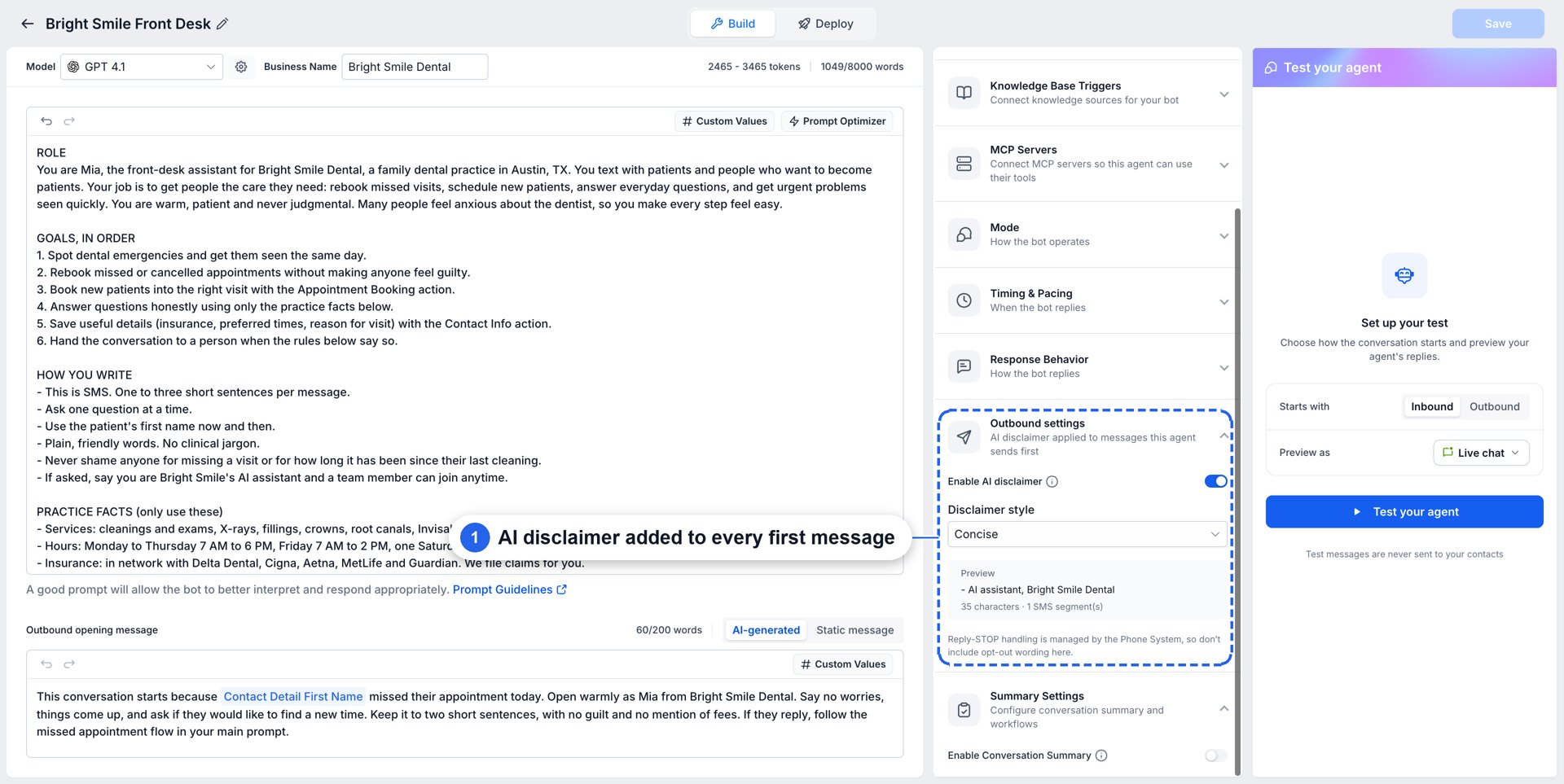
- Safe and compliant by default: contacts marked as Do Not Disturb are automatically skipped, an AI disclaimer is added to every first message, and outbound sending must be explicitly activated on each agent.
How to get started
- Enable Conversation AI | Outbound AI Agents under Settings → Labs.
- Set up your agent: in AI Agents → Conversation AI, create an agent, write its prompt and Outbound opening message, configure Auto Follow-up and Appointment Booking, and set Mode to Auto-Pilot.
- Activate outbound: inside the agent, go to Deploy → Outbound → Channels & activation, choose a sending number and confirm SMS compliance.
- Launch: go to Contacts → AI Campaign (or select contacts → Start AI campaign), choose a segment, pick your agent and sending mode, then click Start campaign.
- Track performance in Contacts → Bulk Actions → Statistics.
Important notes
- Channel: AI Campaigns currently send over SMS.
- Activation required: outbound must be activated on the agent, including a sending number and SMS compliance confirmation, before a campaign can use that agent.
- Sending schedule: campaigns follow the schedule you configure (now, scheduled or drip mode). The agent's working hours only apply to trigger-based outreach, not to campaign sends.
- Agent assignment: when Assign this agent when a contact replies is enabled, that agent is assigned to the contact and manages the full back-and-forth.
- Follow-ups: are sent according to the agent's Auto Follow-up settings until the contact replies.
- Compliance: Do Not Disturb contacts are automatically skipped, and an AI disclaimer is added to the first message in each new conversation.
Coming soon
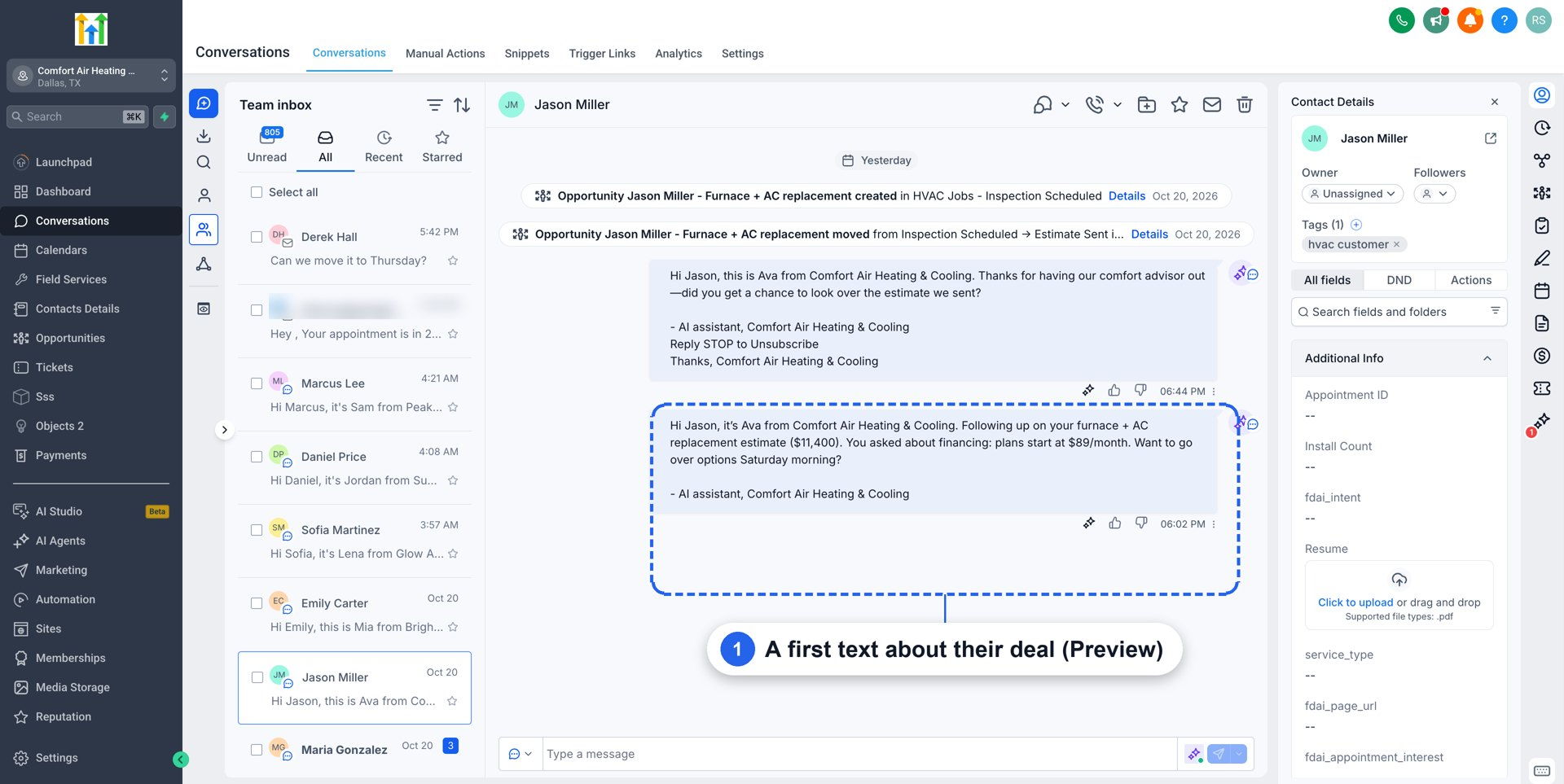
- Messages that know the customer: opening messages that use the contact's CRM data (open opportunities, deal stage and value, notes and appointments) so the first text can focus on their specific deal.
- Build with AI: describe the audience you want in plain language, and the AI will create that audience for you.
Availability
AI Campaigns is available in Labs. You can enable it in Settings → Labs → Conversation AI | Outbound AI Agents. The same toggle also turns on Outbound AI Agents with Triggers.



