Creating a Conversation AI agent in EveryCatch used to involve writing a long prompt, then configuring triggers, channels, actions, hand-offs and working hours across multiple screens. With Build with AI, you can now describe what you want the agent to do in plain language, and EveryCatch sets up a complete agent for you in about a minute. You then refine and test it in the same place by chatting with the builder.
Key capabilities
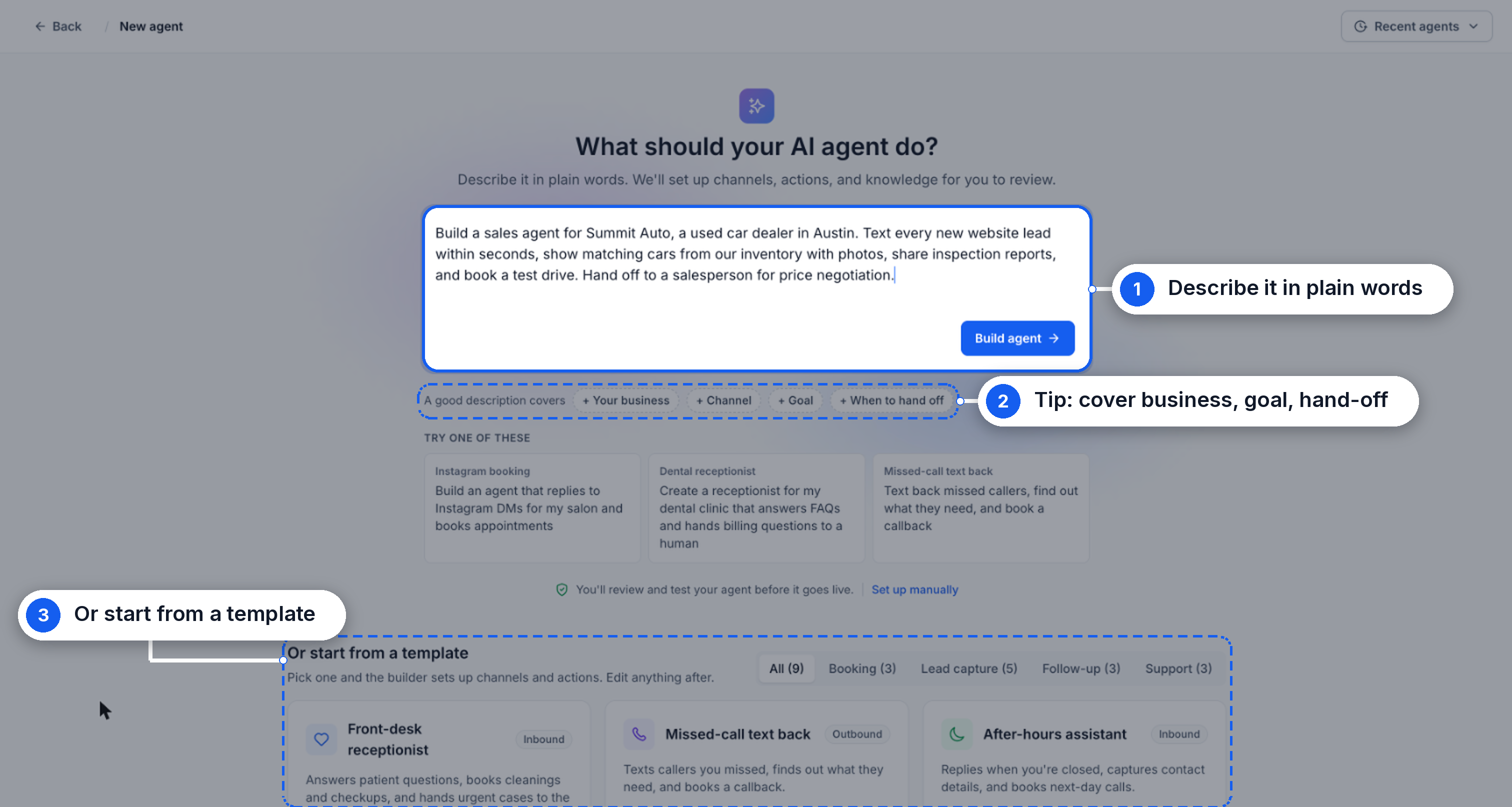
- Describe your agent in your own words: Choose Create with AI and explain what your agent should do, or pick a template to start from. You do not need to write prompts. For best results, include what your business does, the agent’s main goal, and when it should hand off to a human.
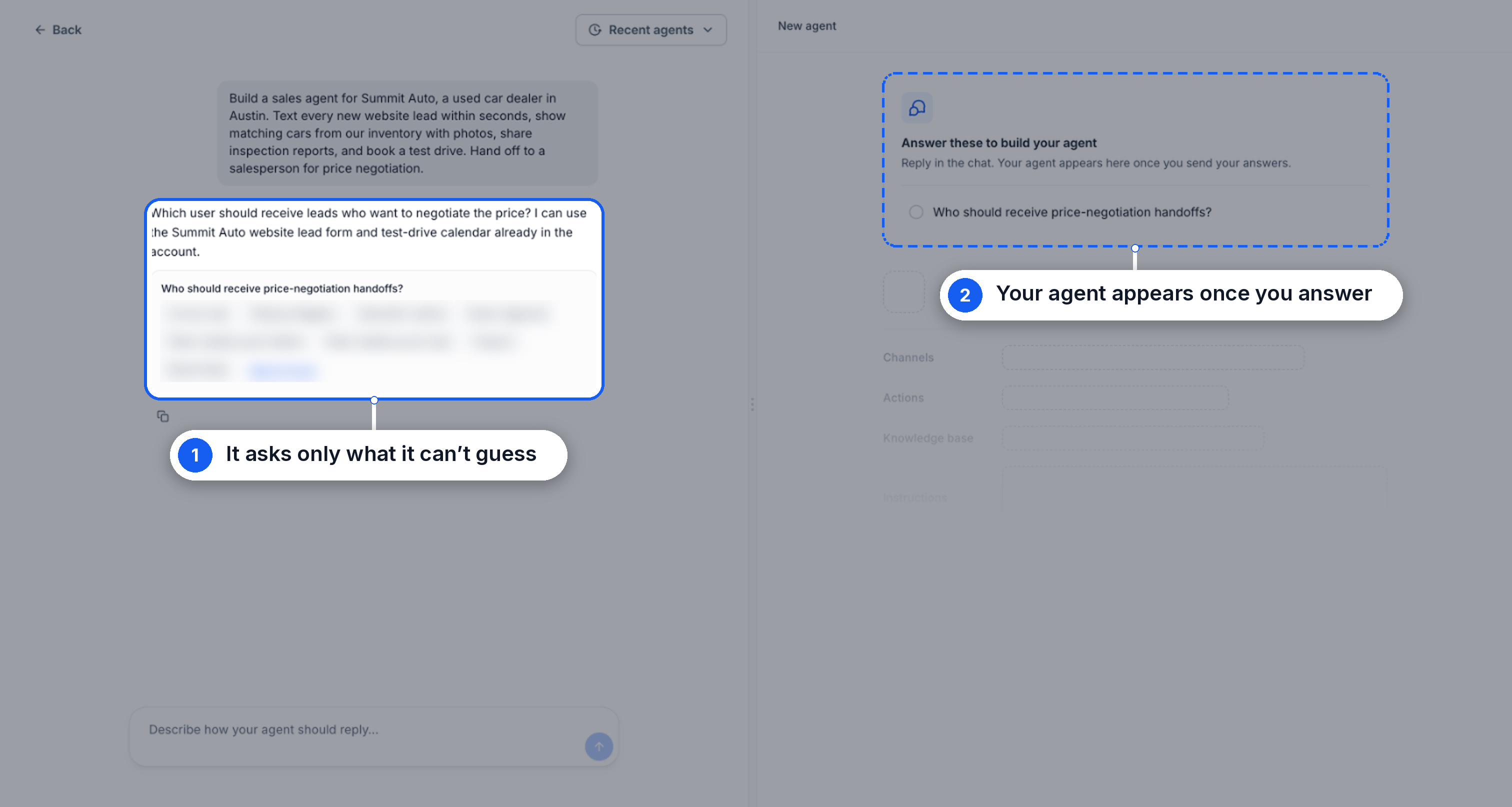
- Only asks for details it cannot infer: Build with AI keeps the setup short by asking a few targeted questions, such as who should receive price-negotiation hand-offs, and then fills in the rest automatically.
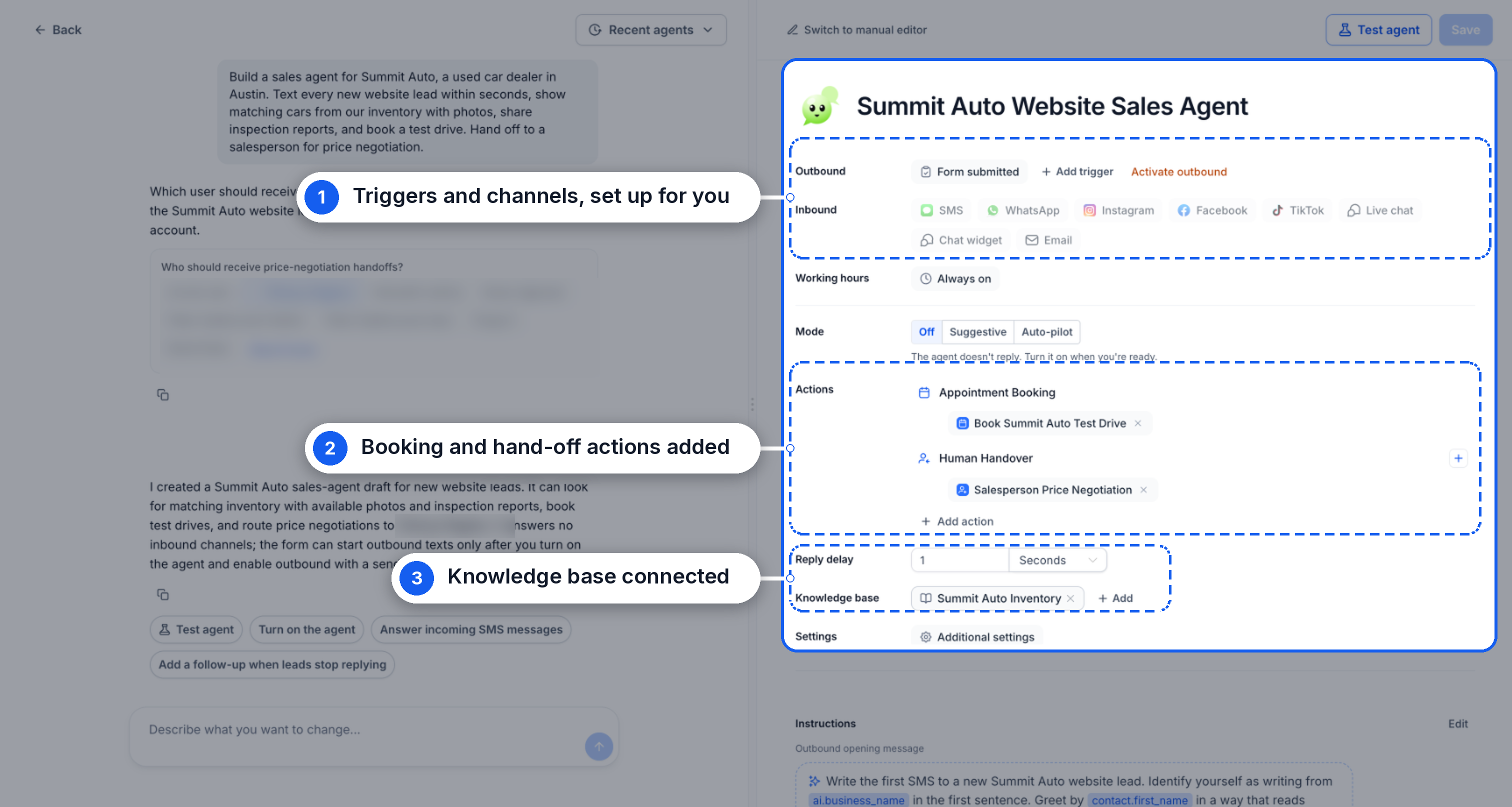
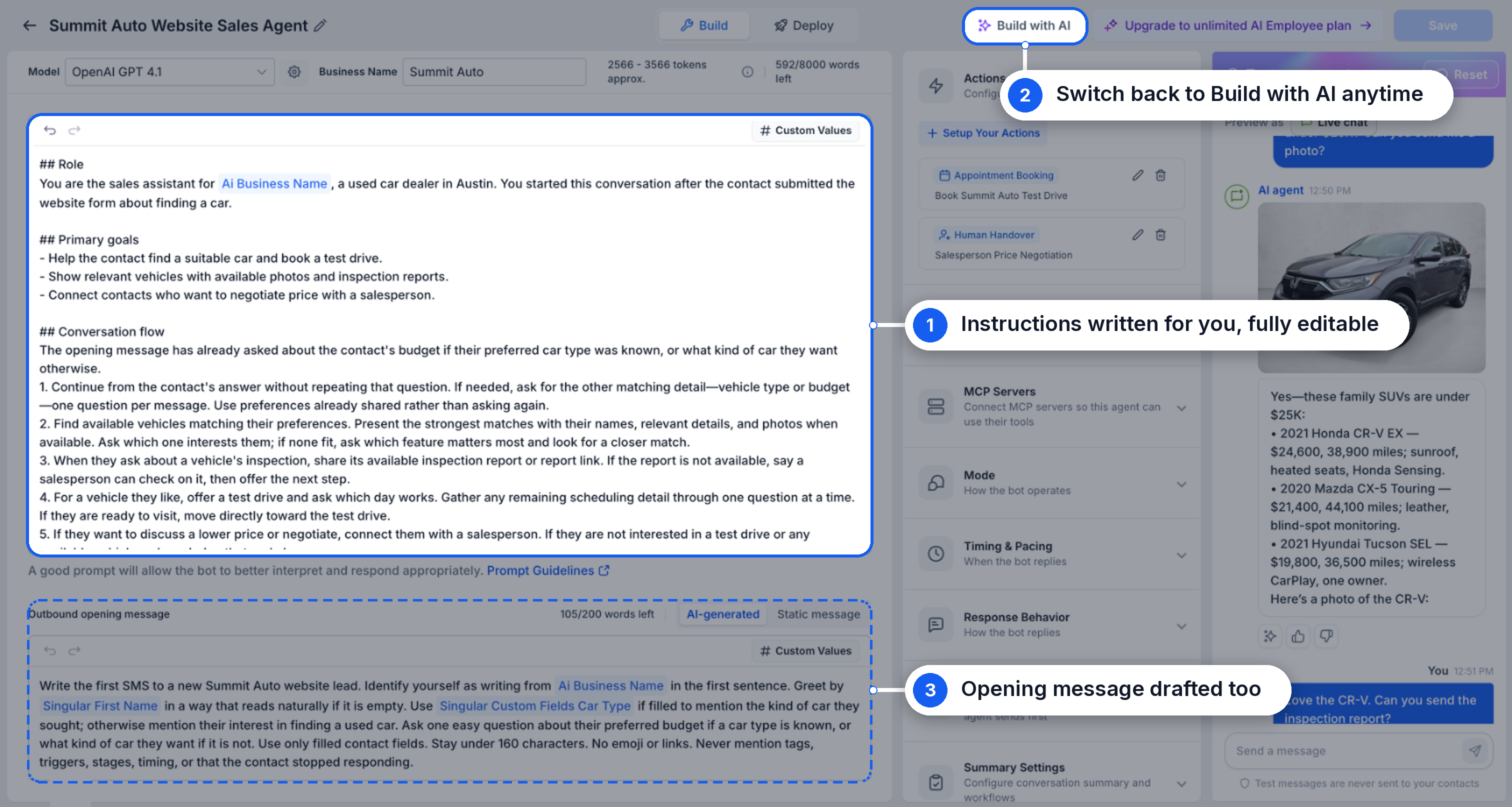
- A complete agent, configured for you: EveryCatch now sets up triggers, channels, booking and hand-off actions, as well as your knowledge base content for the agent. The core instructions and the outbound opening message are written for you too.
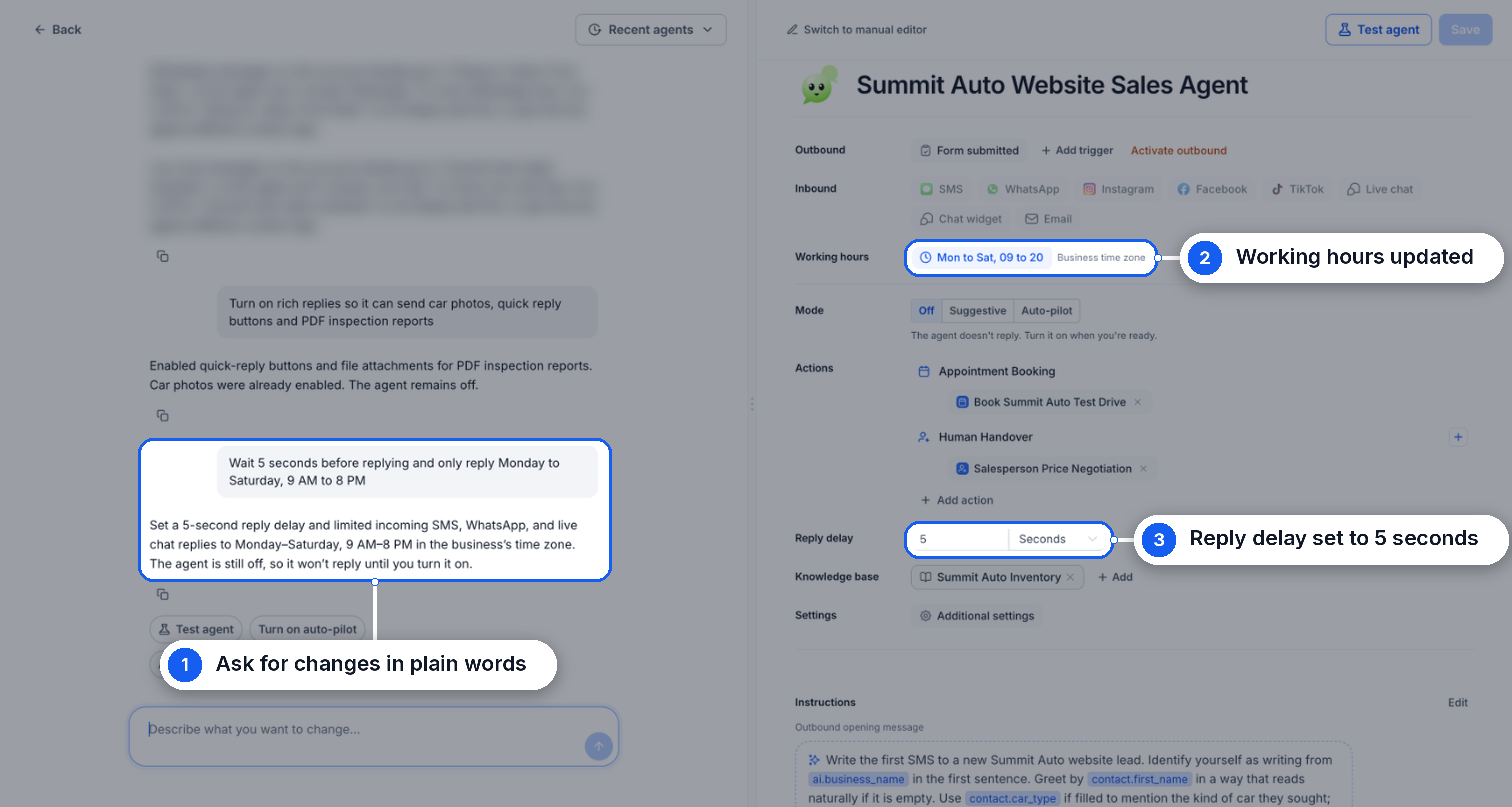
- Change settings by chatting: You can ask for updates in plain language, such as changing working hours or adding a 5-second reply delay, and Build with AI adjusts the agent configuration for you.
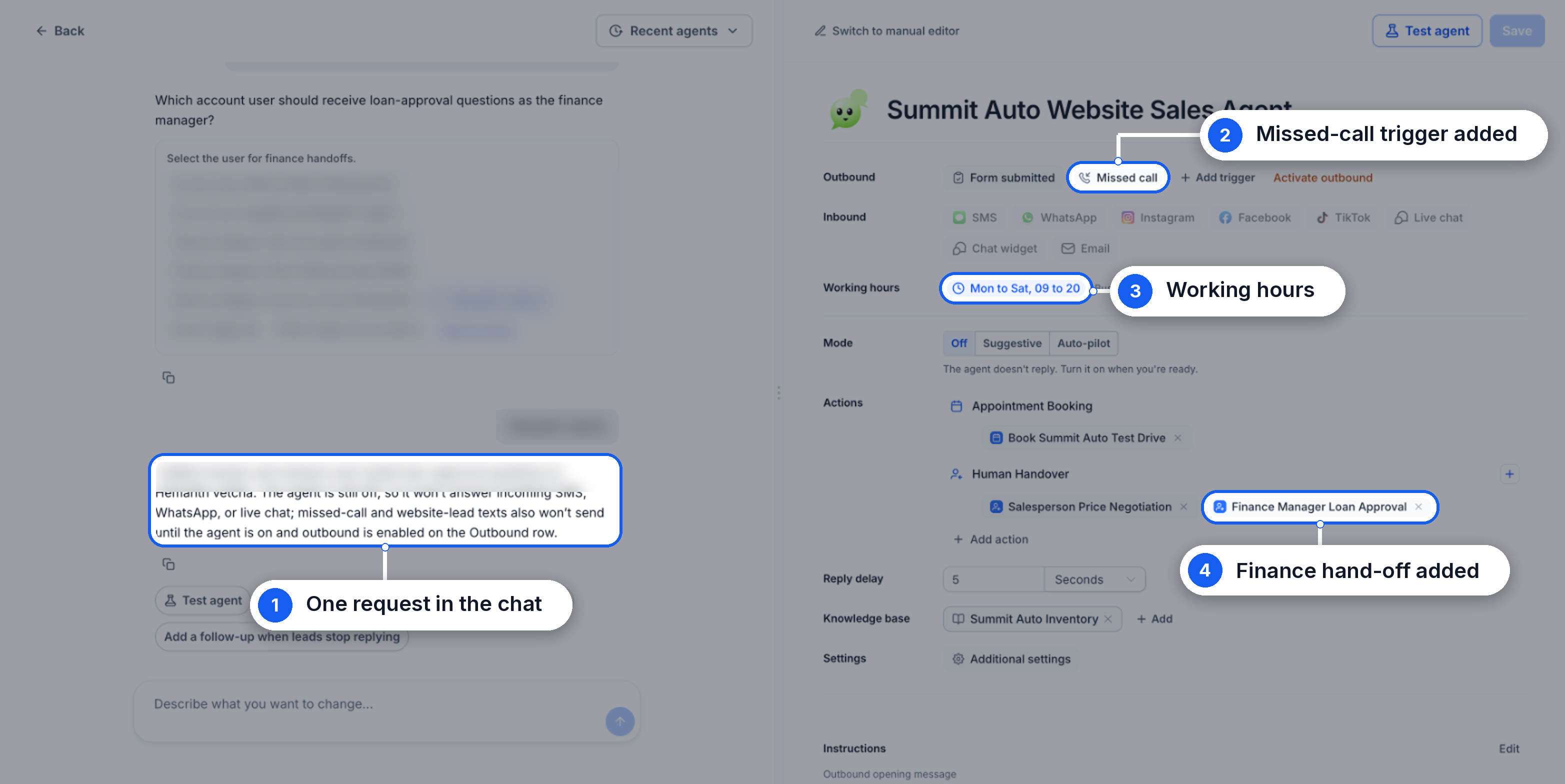
- Manage setup from one chat: In a single conversation with the builder, you can add triggers, actions, hand-offs and working hours. For example, one request can create a missed-call trigger, set your working hours and add a hand-off to your finance team.
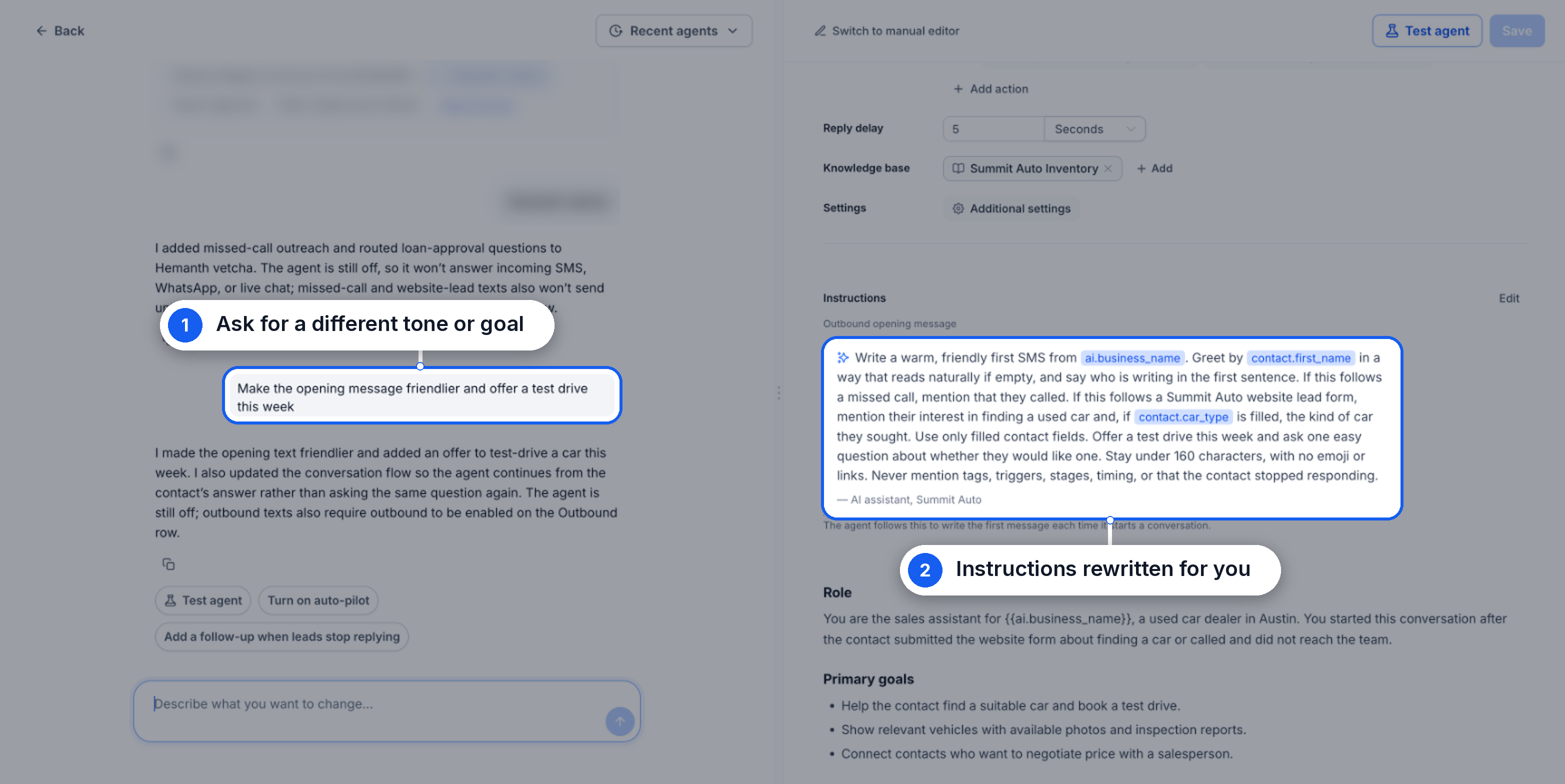
- Simple requests become detailed instructions: When you ask for a different tone, objective or style, Build with AI rewrites the agent’s internal instructions for you, so you do not need prompt-engineering skills.
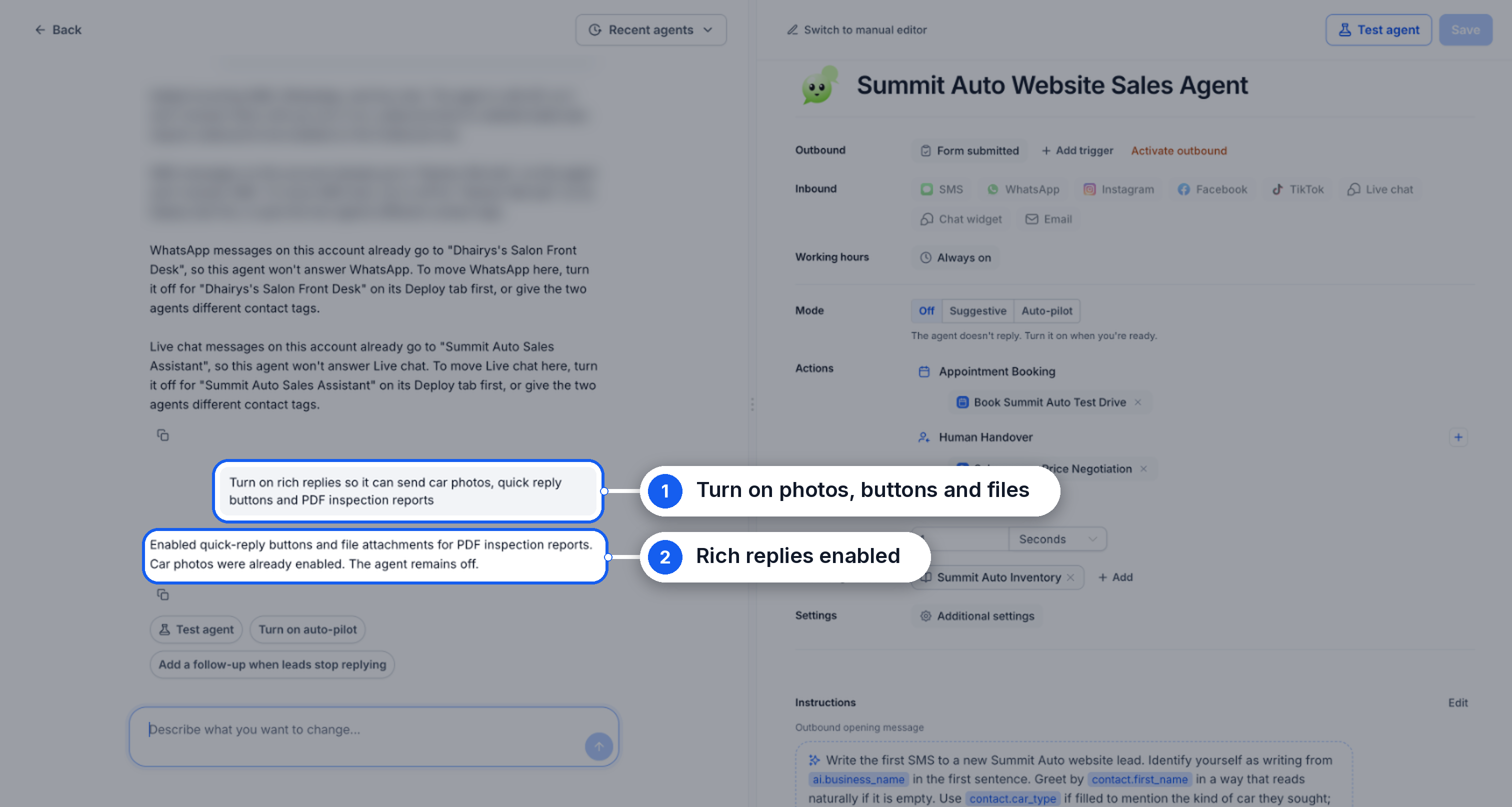
- Enable rich replies by request: Ask the builder to use photos, quick-reply buttons or files, and rich responses are configured for your agent accordingly.
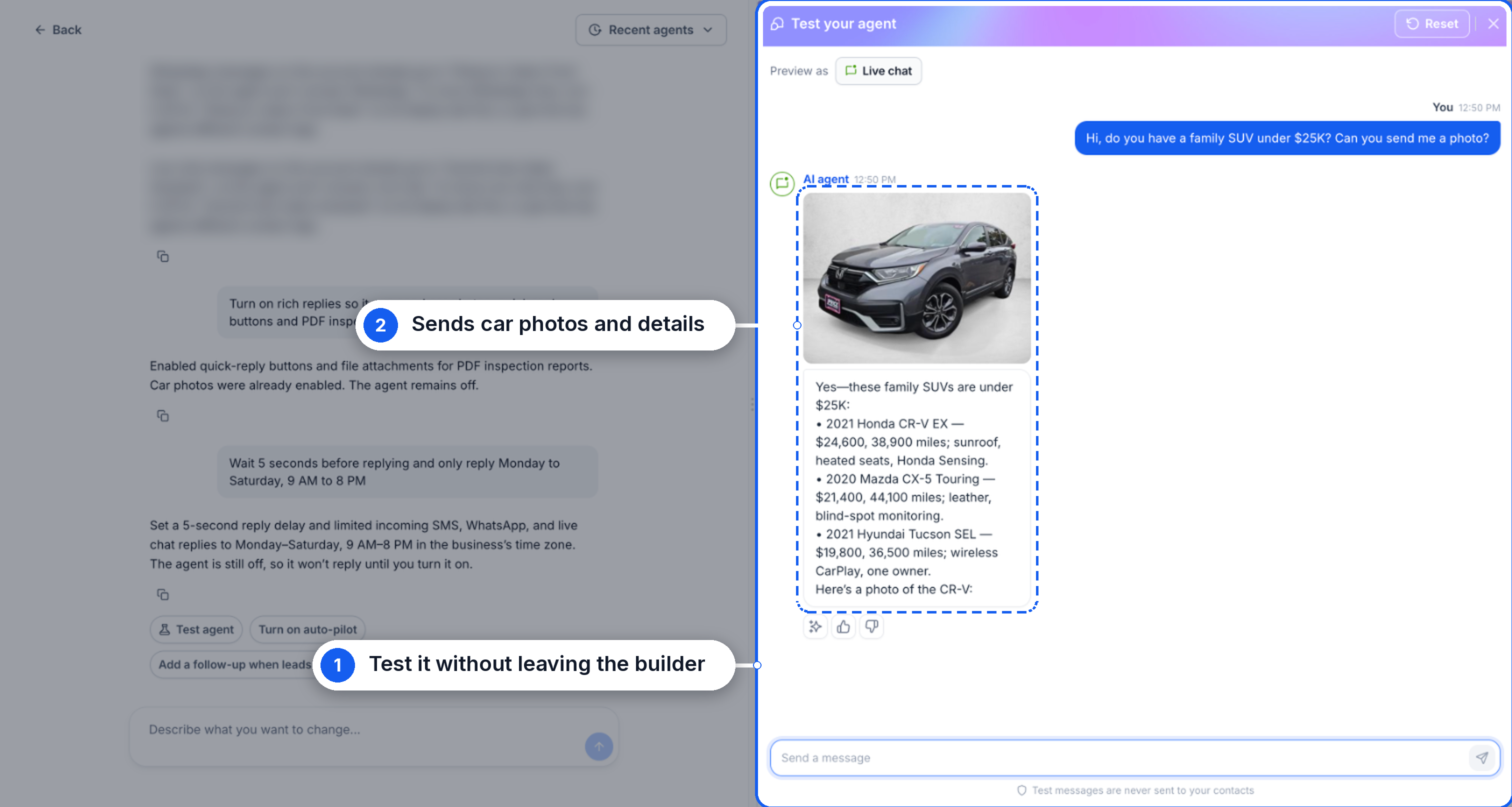
- Test directly in the builder: Click Test agent to start a conversation with your new agent without leaving Build with AI. You do not need to switch to the manual editor to try it out.
- Prefer manual editing? Switch anytime: Everything created by Build with AI can be viewed and changed in the manual editor, and you can return to Build with AI whenever you want to keep iterating.
How to get started
- Go to AI Agents → Conversation AI and click Create Agent.
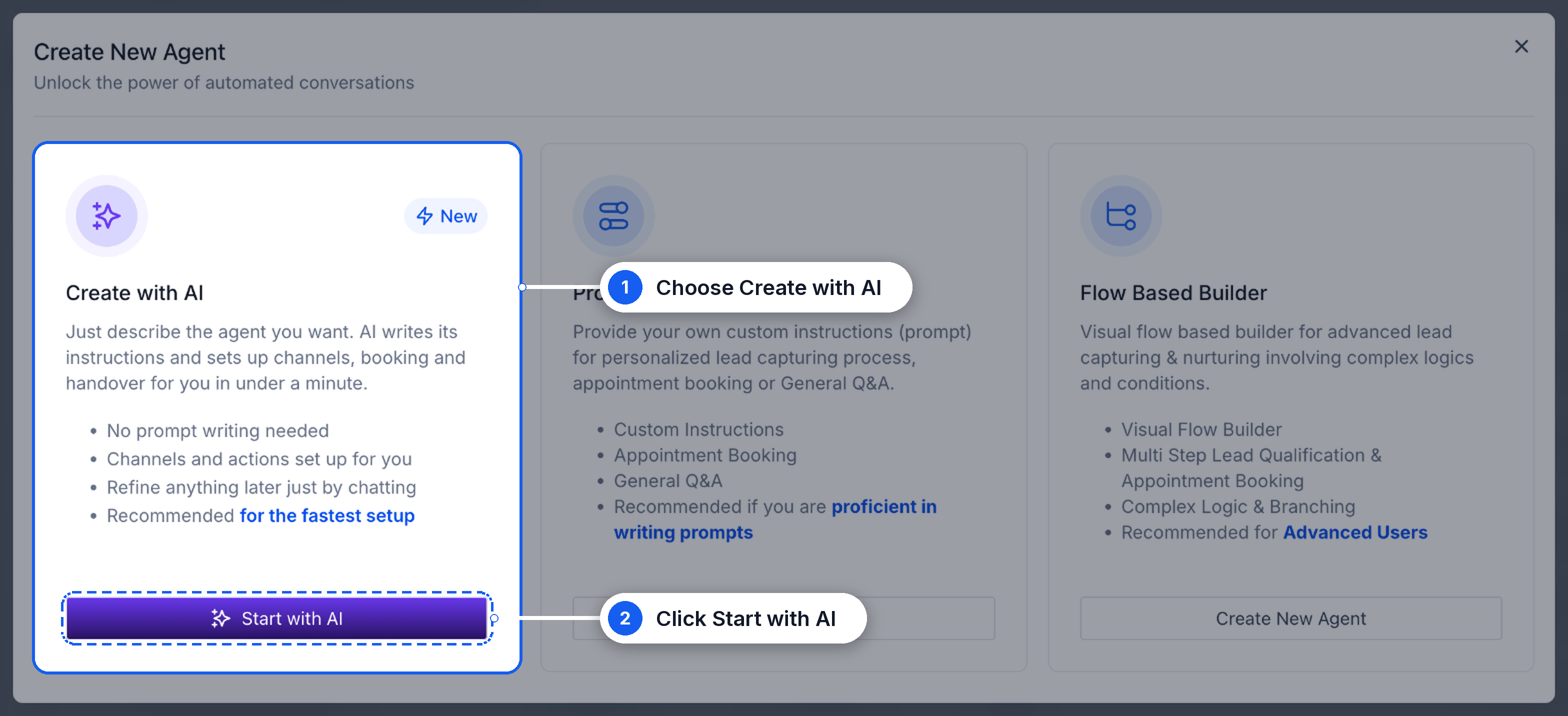
- Choose Create with AI, then click Start with AI.
- Describe your agent in plain language, or select a template to begin.
- Answer the short questions that Build with AI presents.
- Review your new agent and request any changes directly in the chat.
- Click Test agent to try it, then turn the agent on when you are ready for it to handle real conversations.
Why it matters
- Live in minutes: launch a working agent from a single description instead of configuring each part separately.
- No prompt writing: describe what you want and Build with AI generates detailed instructions behind the scenes.
- Complete setup in one flow: triggers, channels, actions, hand-offs, working hours and your knowledge base are configured together so the agent is ready for real use.
Important notes
- New agents start turned off: a freshly created agent will not respond to customers until you explicitly turn it on, so you have time to review and test it.
- Outbound messaging requires activation: if your agent includes an outbound trigger, you need to activate outbound before it can send the first message.
- Test conversations in the builder never send messages to your actual contacts.
Availability
Build with AI is available in Labs. You can enable it under Settings → Labs.



