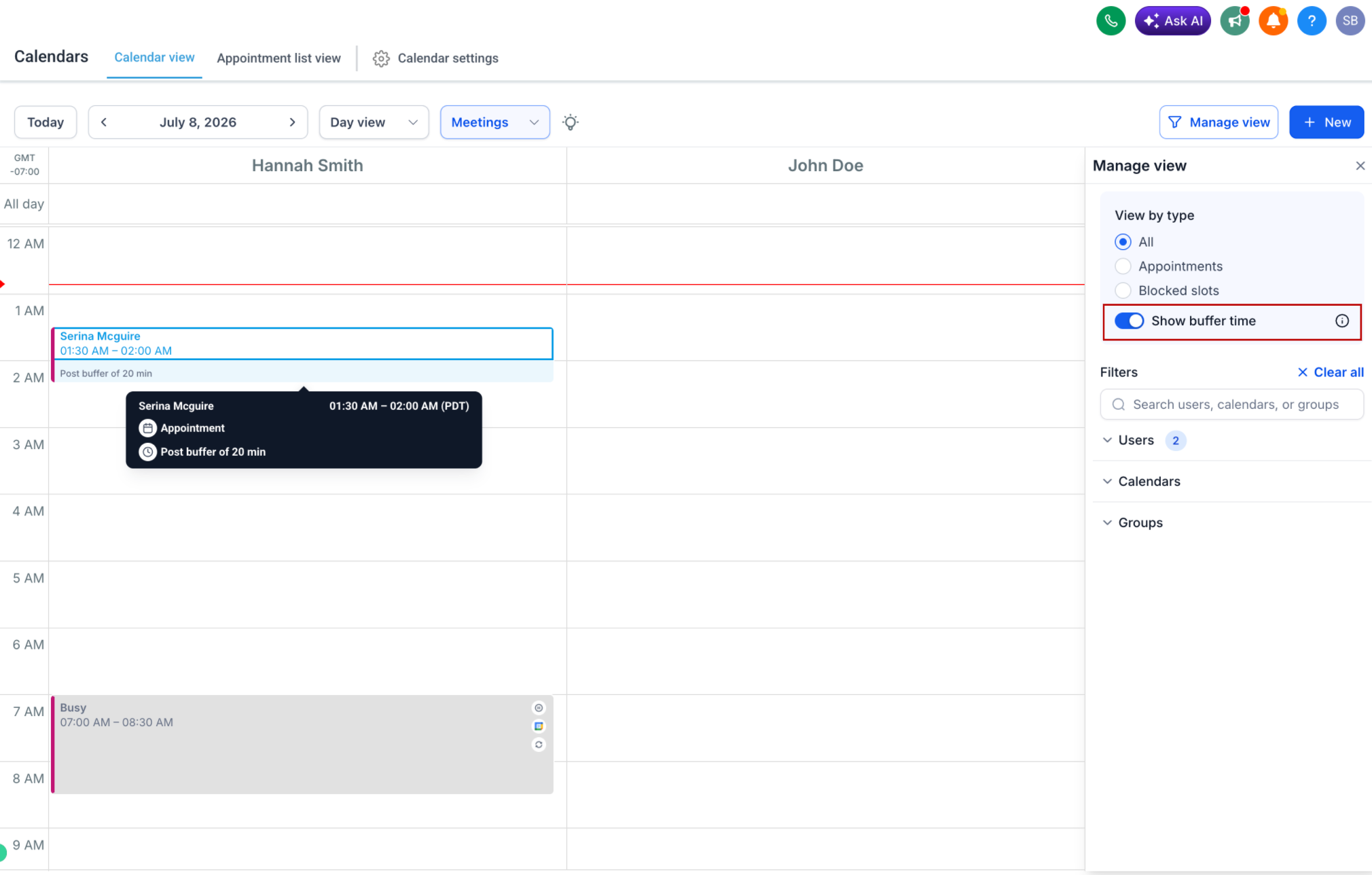
EveryCatch now shows your pre-buffer and post-buffer times directly in the Day and Week calendar views. Buffers appear as informational blocks, so you can quickly see how your appointments are spaced without changing how you schedule.
What changed
Before
- Buffer times were applied automatically in the background but did not appear in the calendar view.
- It was hard to tell which time blocks were actual appointments and which time was set aside around them as buffer.
Now
- Pre-buffer and post-buffer times are clearly shown in both Day and Week views.
- Buffers look different from appointments, so you can read your schedule at a glance.
- Buffer visibility works with all calendar filters, including: Staff/User, Service/Calendar, and Category/Group.
How to use it
- Go to Calendars in your EveryCatch account.
- Switch to the Day or Week view.
- Turn on the "Show buffer time" toggle.
- Review the highlighted buffer periods before and after appointments across all supported filters.
Why this matters
- See your daily schedule more clearly at a glance.
- Quickly spot the transition time you have between appointments.
- Plan your day more confidently while keeping your existing scheduling rules.
- Understand exactly where your buffer time is allocated without changing how appointments are booked.