First impressions matter in your community. EveryCatch now lets admins set up automated welcome DMs and guided onboarding steps so new members are greeted as soon as they join, feel at home quickly, and know exactly how to get started.
What changed
Auto DM to new members
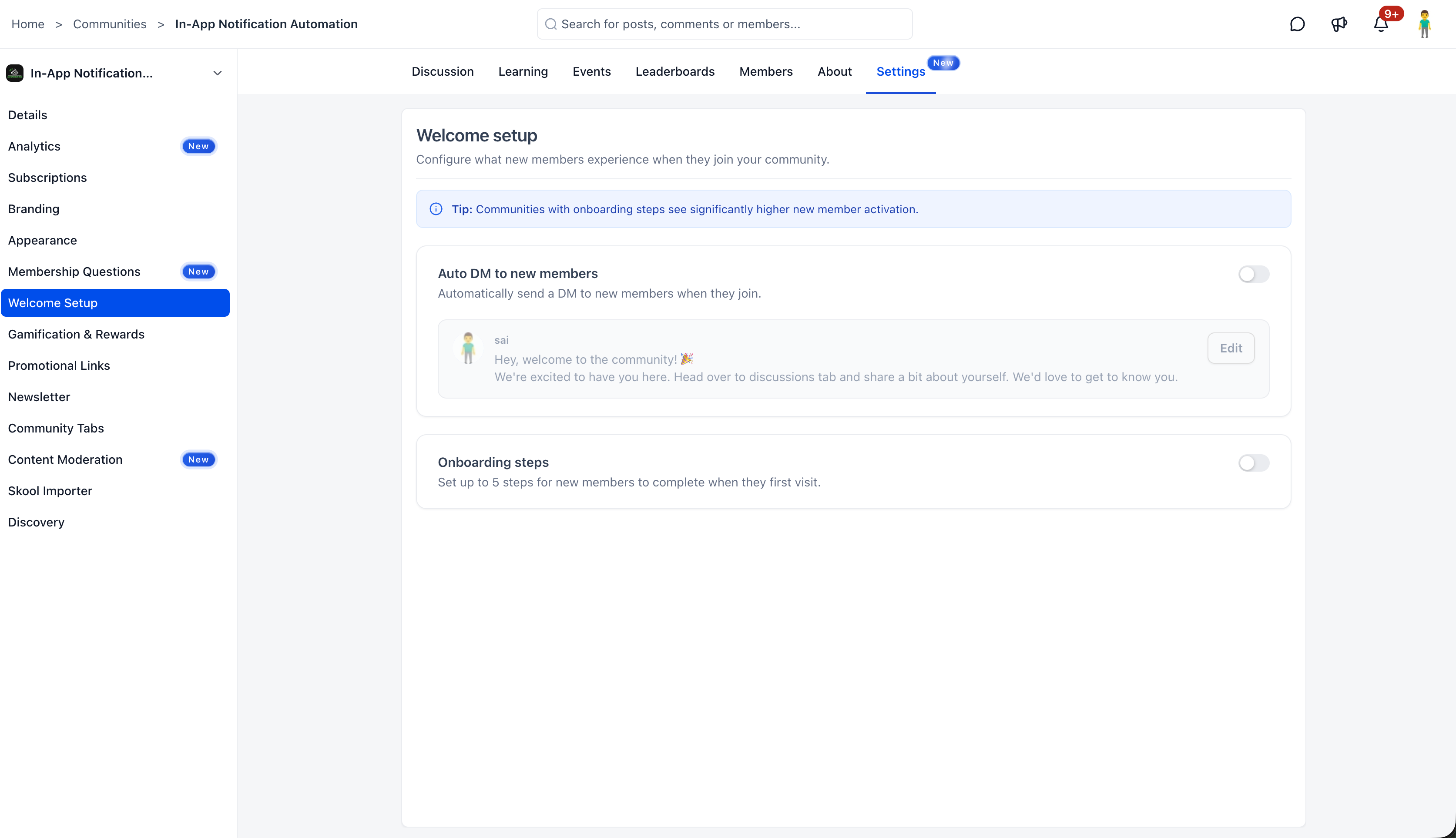
You can now send an automatic welcome message to every new member who joins your EveryCatch community. Set this up from Settings → Welcome setup.
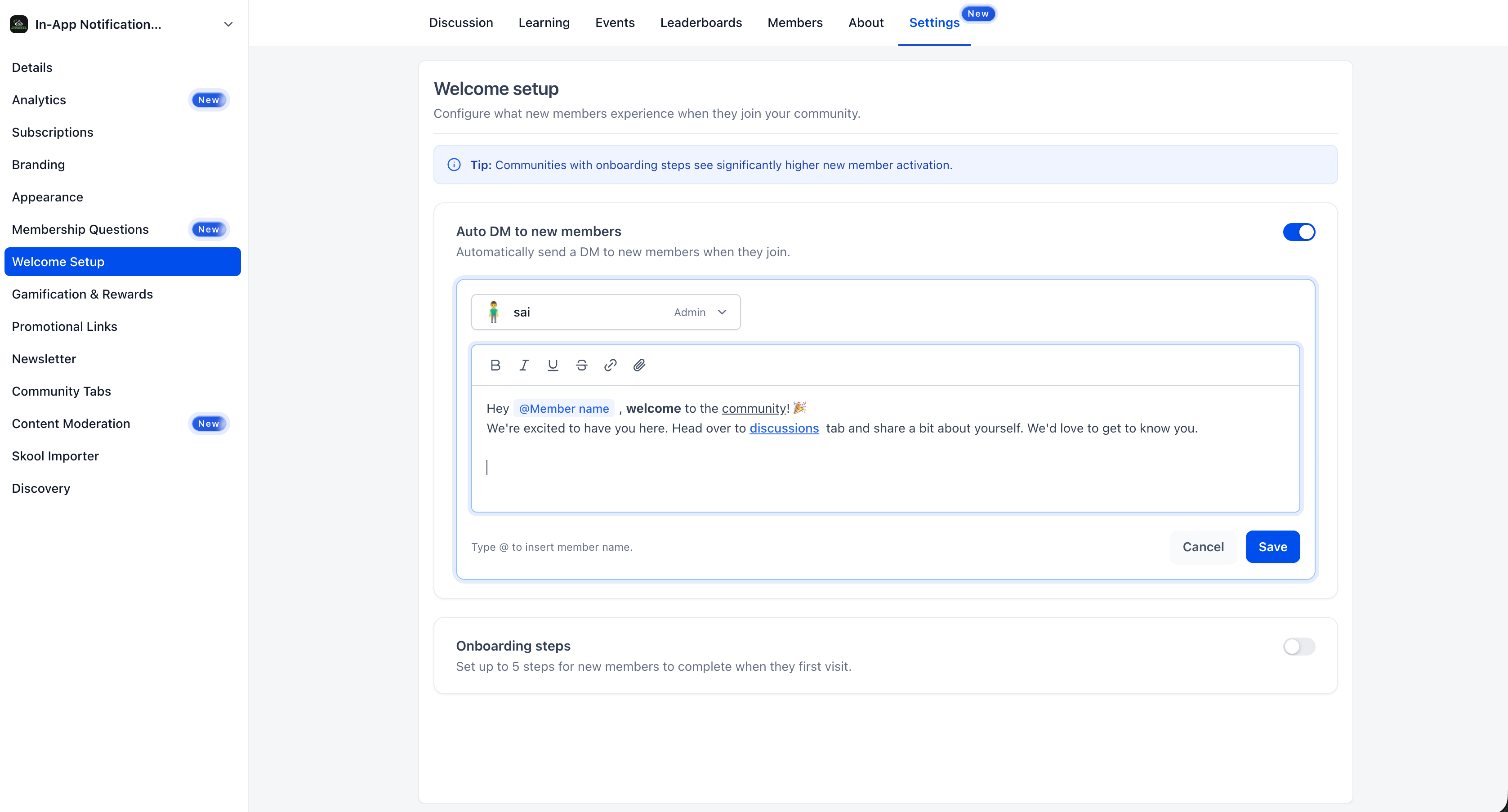
Choose which admin or owner will appear as the sender of the DM so the welcome feels personal and aligned with how your community is run.
Personalize the message using rich text formatting, including bold, italic, underline, strikethrough, links, and attachments to share resources or important information right away.
Use @Member name to automatically insert the new member’s name so each person receives a tailored greeting without extra manual work.
You can turn the Auto DM feature on or off at any time if your onboarding needs change.
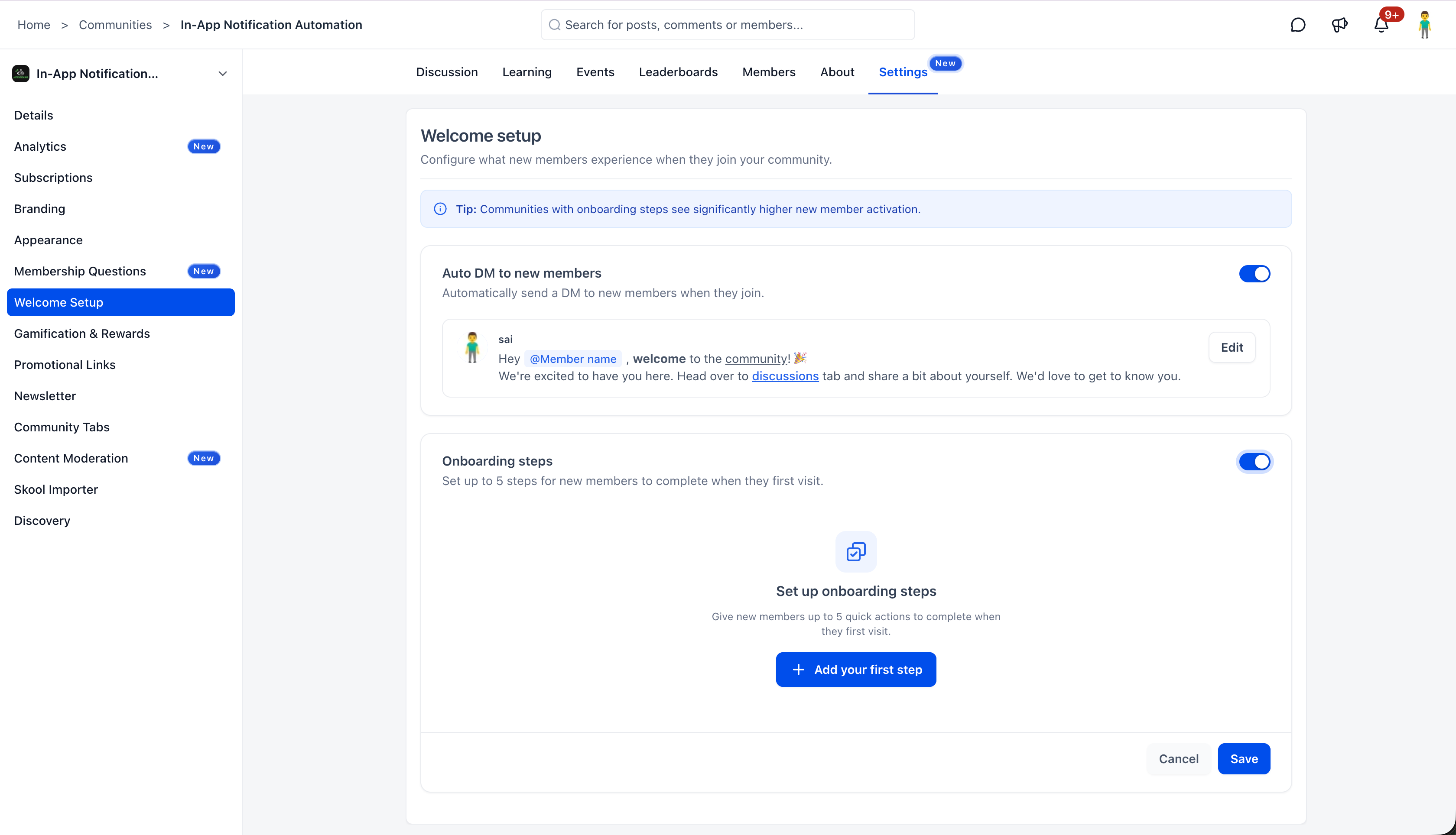
Onboarding steps (up to 5)
You can guide new members through their first actions with up to 5 configurable onboarding steps. When this is enabled, eligible new members see a Get started checklist on the community home/feed.
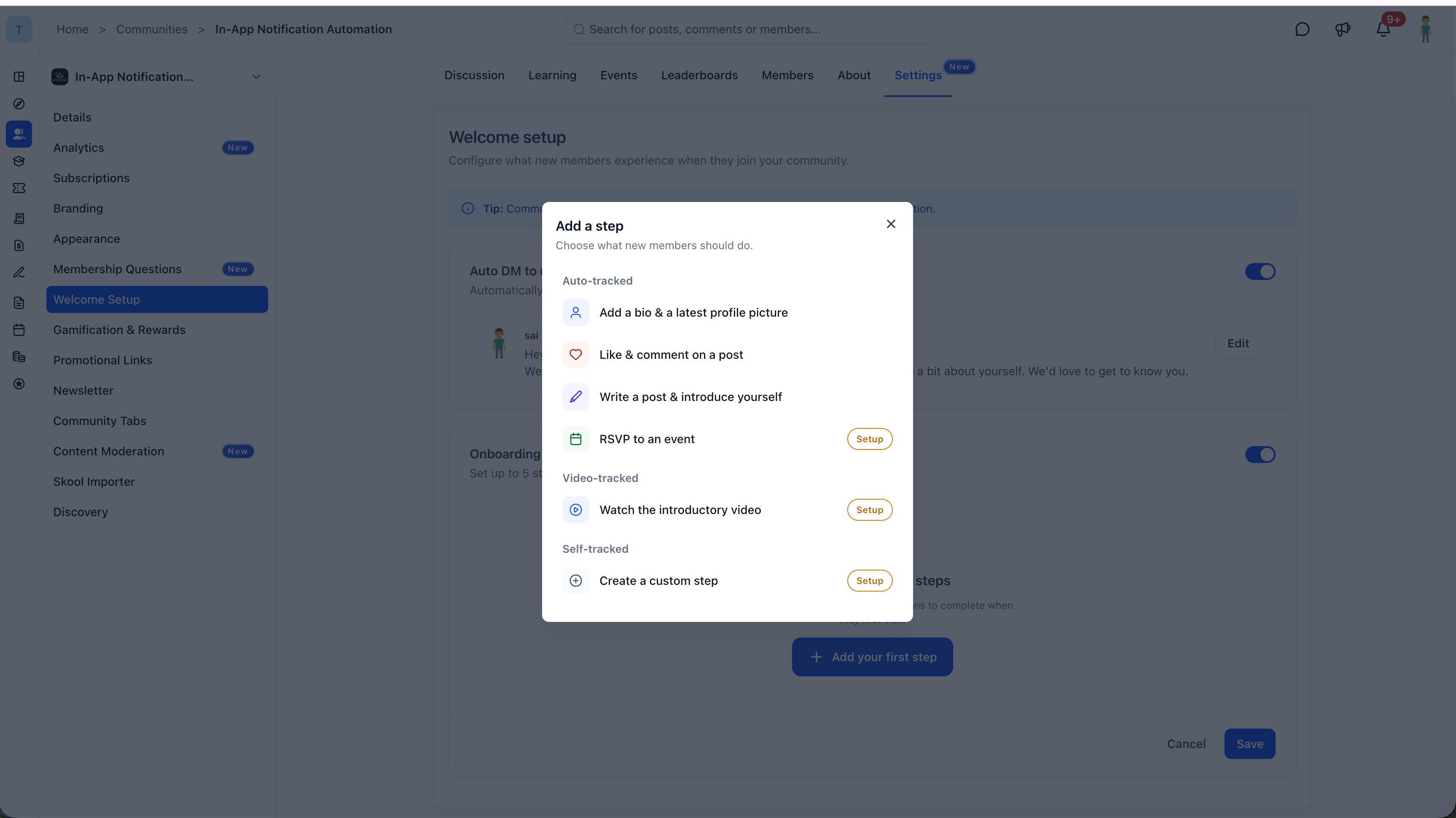
Admins can set up steps such as:
- Profile updates
- Post engagement
- Event RSVPs
- Introductory videos
- Custom steps with optional links
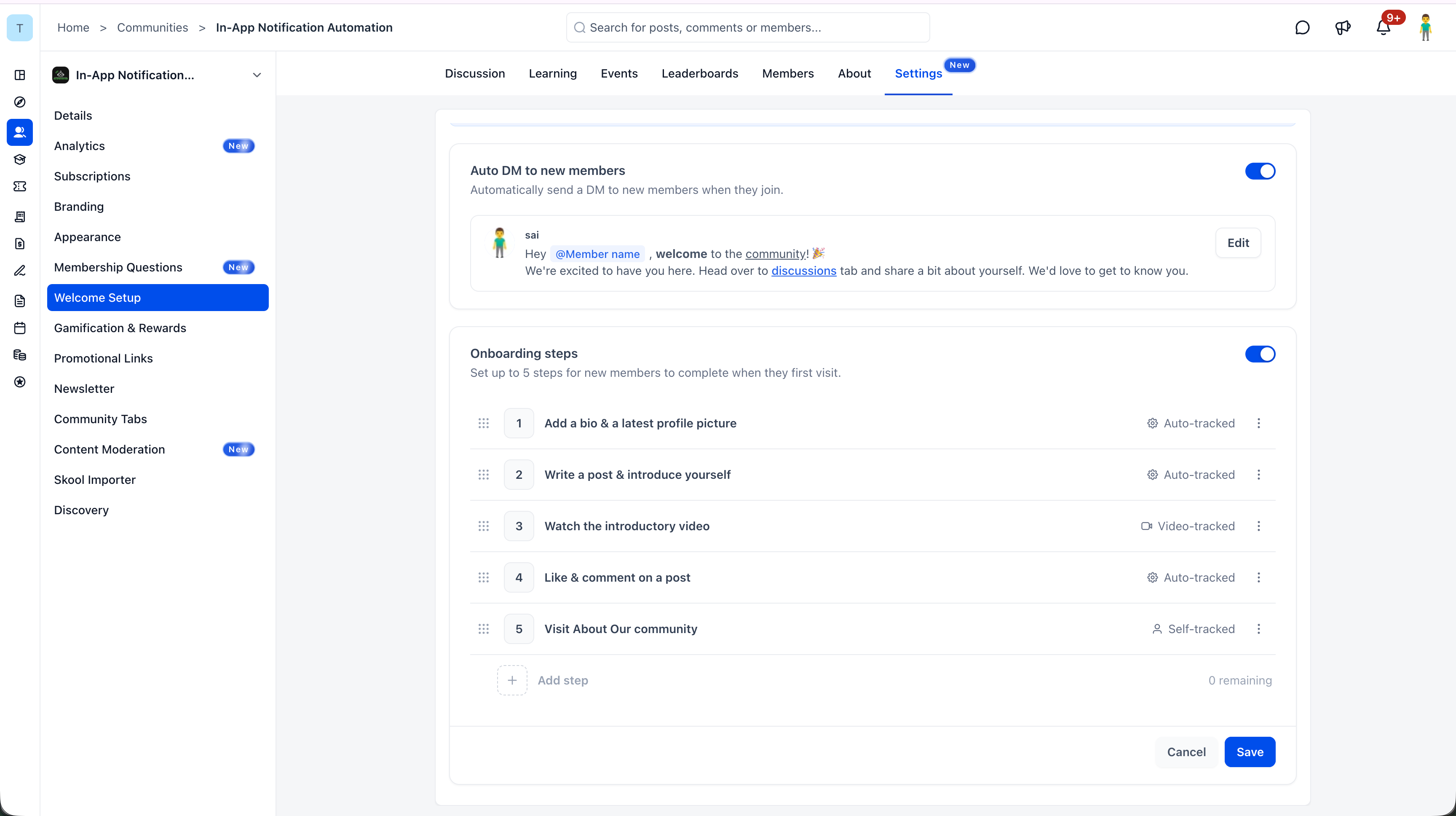
Members can work through the checklist, complete actions directly from it, watch their progress, and dismiss it once they are done. You can reorder and customize the steps to match your onboarding flow.
How to configure
Auto DM
- Go to Settings → Welcome setup.
- Toggle on Auto DM to new members.
- Select which admin or owner will appear as the sender.
- Compose your welcome message using the rich text editor. Type @ to dynamically insert the member’s name.
- Click Save.
Onboarding steps
- On the same Welcome setup page, toggle on Onboarding steps.
- Click + Add your first step.
- Set up up to 5 steps by choosing from profile updates, post engagement, event RSVPs, intro videos, or custom actions.
- Reorder steps as needed so they appear in the sequence you prefer.
- Click Save.
Why this matters
New members who are unsure how to begin often disengage before they participate. Without a clear welcome, they arrive in the community and must guess what to do next.
Welcome setup gives you two connected tools: a warm, personalized DM that greets members immediately, and a guided checklist that walks them through their first key actions. This helps you increase activation, speed up engagement, and create a stronger sense of connection from day one.
Notes
- Auto DM supports rich text formatting, links, mentions, and media attachments.
- The sender can be any admin or owner in the community.
- Onboarding steps support up to 5 configurable actions per community.
- Members see the onboarding checklist on the community home/feed and can dismiss it after completing steps.
- You can enable Auto DM and onboarding steps separately or use them together.