You can now have workflows start the moment two CRM records are linked by a new association. Use the associated object and relationship label so EveryCatch knows exactly which connections should trigger follow-up.
What changed
- All CRM record types: Works with Contacts, Opportunities, Custom Objects, and Companies, so you can automate from any core record type in your CRM.
- Three workflow types: Available in standard workflows, Custom Object workflows, and Company workflows, so your automation can follow the structure of your data.
- Relationship filters: Choose both the associated object and the association label, so workflows only run for the specific type of relationship you care about.
Why this matters
A new link between records often means it is time to act. For example, you can notify your team when a buyer is connected to a property, automatically create a follow-up task as soon as two records are associated, or kick off an onboarding workflow when a company is tied to a new primary contact.
How to use
- Turn on the Association created trigger in Labs so it is available in your account.
- Go to Automation > Workflows and open a workflow that supports this trigger (standard, Custom Object, or Company).
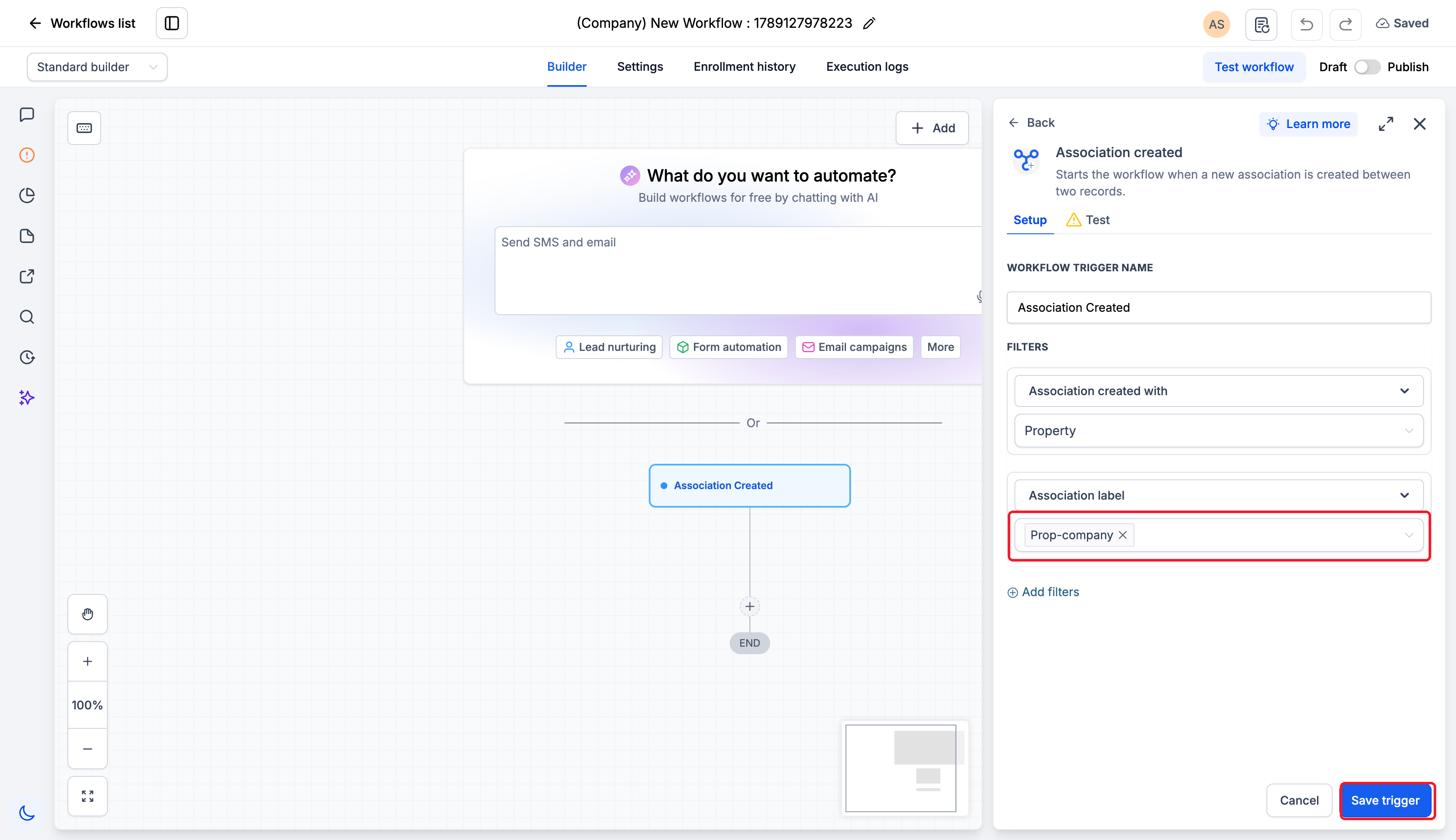
- Add the Association created trigger to the workflow canvas.
- In the Association created with section, choose the associated object. Then click Add filters, add an Association label filter, and select the label that should trigger enrolment.
- Save the trigger, add the actions you want to run after enrolment, and publish the workflow.
Pro tips
- Start with the record that should enrol: Pick the workflow type based on the record you want entering the workflow, then configure which associated object will cause enrolment.
- Use labels for precise follow-up: Filter by relationship label so you can target the specific role or connection that matters in your process, such as "Buyer," "Owner," or "Decision maker."
- Validate with a new association: After publishing, create a test association that matches your trigger filters, then review Enrollment history and Execution logs to confirm everything runs as expected.
Learn more in our support documentation.



