Ask AI now opens right from any contact’s detail screen on mobile, with an instant, data-based snapshot of your relationship already filled in. You can quickly get ready for your next meeting, review recent activity, or speak a note into the record without leaving the contact.
The challenge
When you open a contact in the middle of a call or chat, it often takes time to understand the full picture. You usually end up switching between conversations, appointments, opportunities and tasks, checking one tab after another. Adding notes on a phone can be slow, so details are easy to lose. And before this update, Ask AI could not easily assist in those moments because it did not know which specific contact you were working with.
Our solution
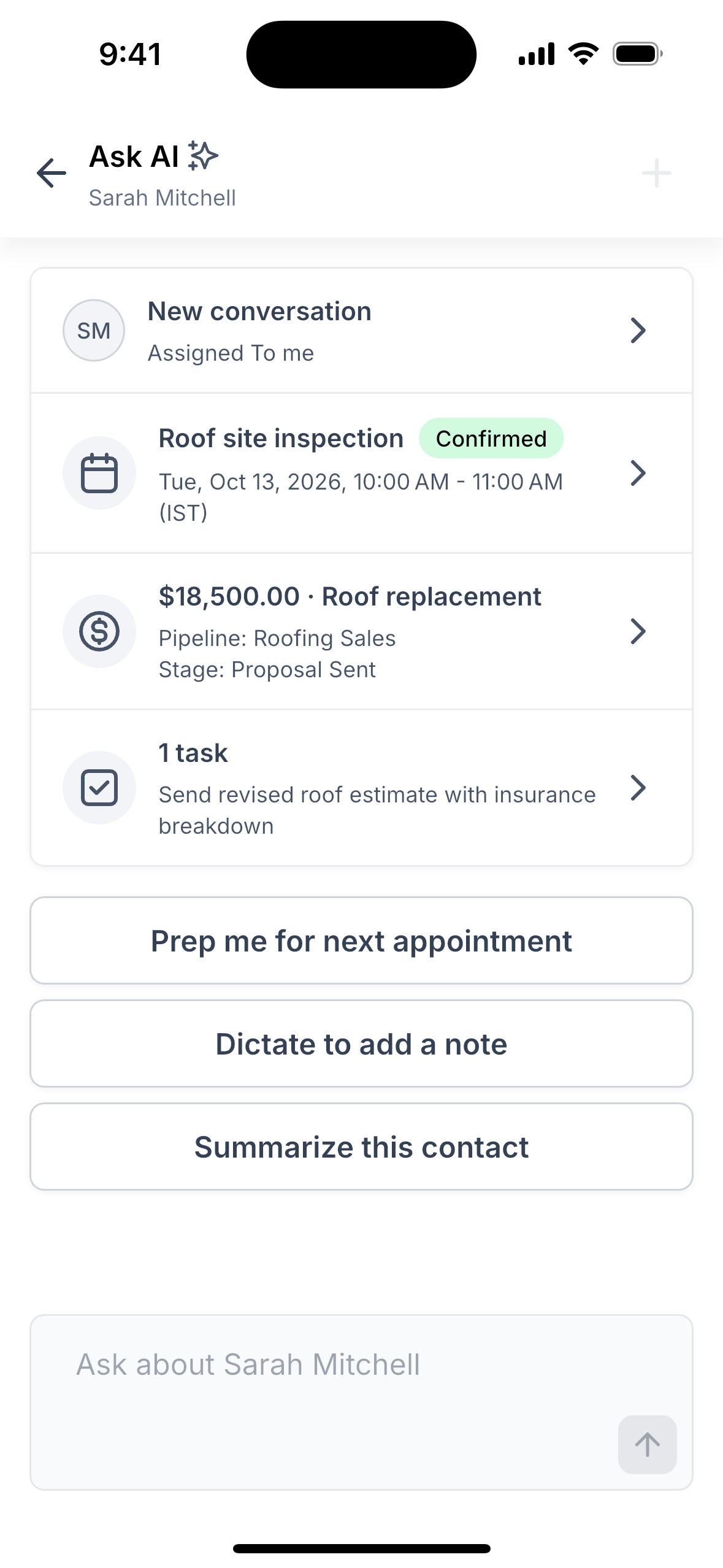
EveryCatch now lets you tap the new Ask AI icon at the top of any contact’s screen. You immediately see a summary card for that contact that is compiled directly from your existing records and activities, using only your stored data instead of generated information.
- Last message: which channel it used and how long ago it was sent
- Next appointment: its status, including your custom statuses, plus "+N more" when other upcoming appointments exist
- Biggest open deal: the pipeline and stage, and how many days have passed since the deal last moved
- Open tasks: with a clear badge for any overdue items
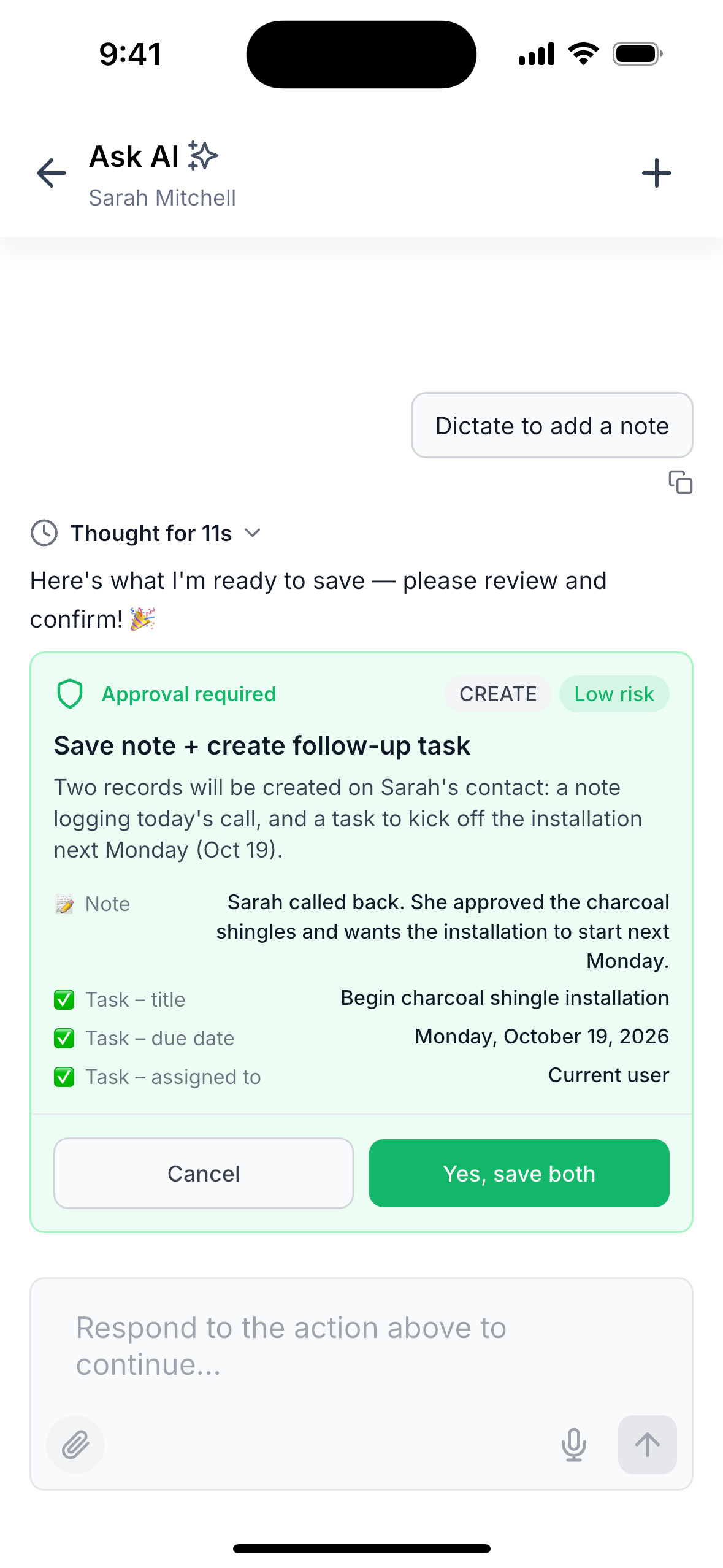
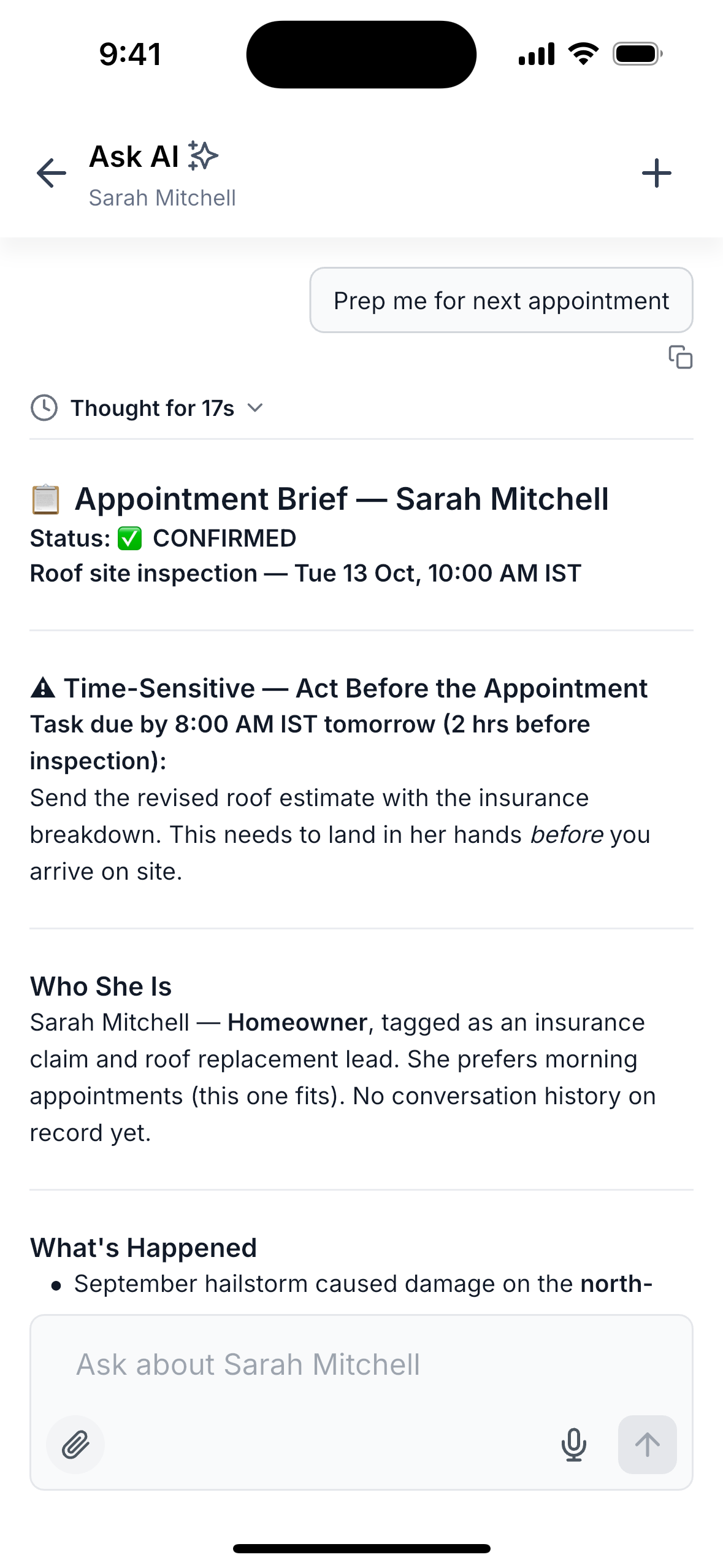
You can tap any row on the summary card to open that item in its regular screen. Under the card, you will see three quick actions: Prep me for next appointment, Summarize this contact and Dictate to add a note. When you use Dictate, Ask AI turns your speech into a suggested note and, when appropriate, a suggested task. You review these suggestions first, and nothing is stored until you approve it.
How this helps your business
- Save time: view key messages, appointments, deals and tasks in one place instead of switching through multiple tabs.
- Walk in prepared: get a short briefing before your next appointment so you go in with clear context.
- Keep your notes: speak a note as you leave a meeting and approve it in one tap so details stay in the record.
- Up-to-date context: Ask AI reads the contact’s latest records each time you open it, so your answers reflect recent changes, even if they occur during the chat.
- Stay in control: AI only runs when you request it, nothing is saved without your confirmation, and Ask AI receives only the contact’s record ID to work from.
How to get started
- Open: Open any contact from Contacts, Conversations or search.
- Tap: Tap the Ask AI icon in the top bar to open the contact’s summary card.
- Use it: Choose a quick action such as Prep me, Summarize or Dictate, or type your own question about that contact.
What's next?
This release adds a new way for any part of the EveryCatch app to open Ask AI for a specific record. Contacts is the first area using this capability, and other screens will begin to offer similar one-tap context over time.
Roll-out & availability
- Release date: October 2026
- Available version: v4.27.0 and later
- Status: Public
- EveryCatch
- EveryCatch
- WL App
Good to know
- Available on iOS and Android for any user who already has Ask AI access. There is no extra permission needed for this feature.
- The summary card only includes conversations, appointments, deals, deal values and tasks that the signed-in user is allowed to see.
- If your account uses a different term for contacts, such as "patient", the app will show that label instead.
- "Prep me" appears when there is an appointment within the next 7 days. "Summarize" is available for every contact.
- When you are offline, the card shows whatever has already been stored on your phone. If nothing is available, you will see "Couldn't load details". Once you are online again, pull down to refresh and try loading the details.
- If a contact has been deleted, or your user no longer has access to it, Ask AI will tell you that directly instead of showing a summary.
- Each time you open Ask AI from a contact, it starts a new chat session. After your first message, you can tap + in the top bar to restart a fresh chat about the same contact.
- Voice mode is not available yet inside the contact chat. To capture spoken updates, use the "Dictate to add a note" option instead.
- Deal amounts in Ask AI answers appear as plain numbers without a currency symbol.
We want to hear from you!
Talk with us: https://speakwith.us/nikhilsatish
Product feedback email: support@everycatch.com