You can now connect your favorite apps to Ask AI directly from your phone, without needing your laptop at hand.
Connectors link Ask AI to the apps your team already uses, and they are now available in the EveryCatch mobile app. Connect an account, choose which tools Ask AI can use, and you are ready to go from your phone.
The challenge
- You want Ask AI to work alongside the other apps you rely on, as well as EveryCatch itself.
- Until now, you had to switch to a computer to connect those apps.
- When you were away from your desk, you could not add a new account, fix an expired login, or turn a tool off.
Our solution
Connectors now live inside Ask AI on the EveryCatch mobile app, so you can manage your app connections wherever you are.
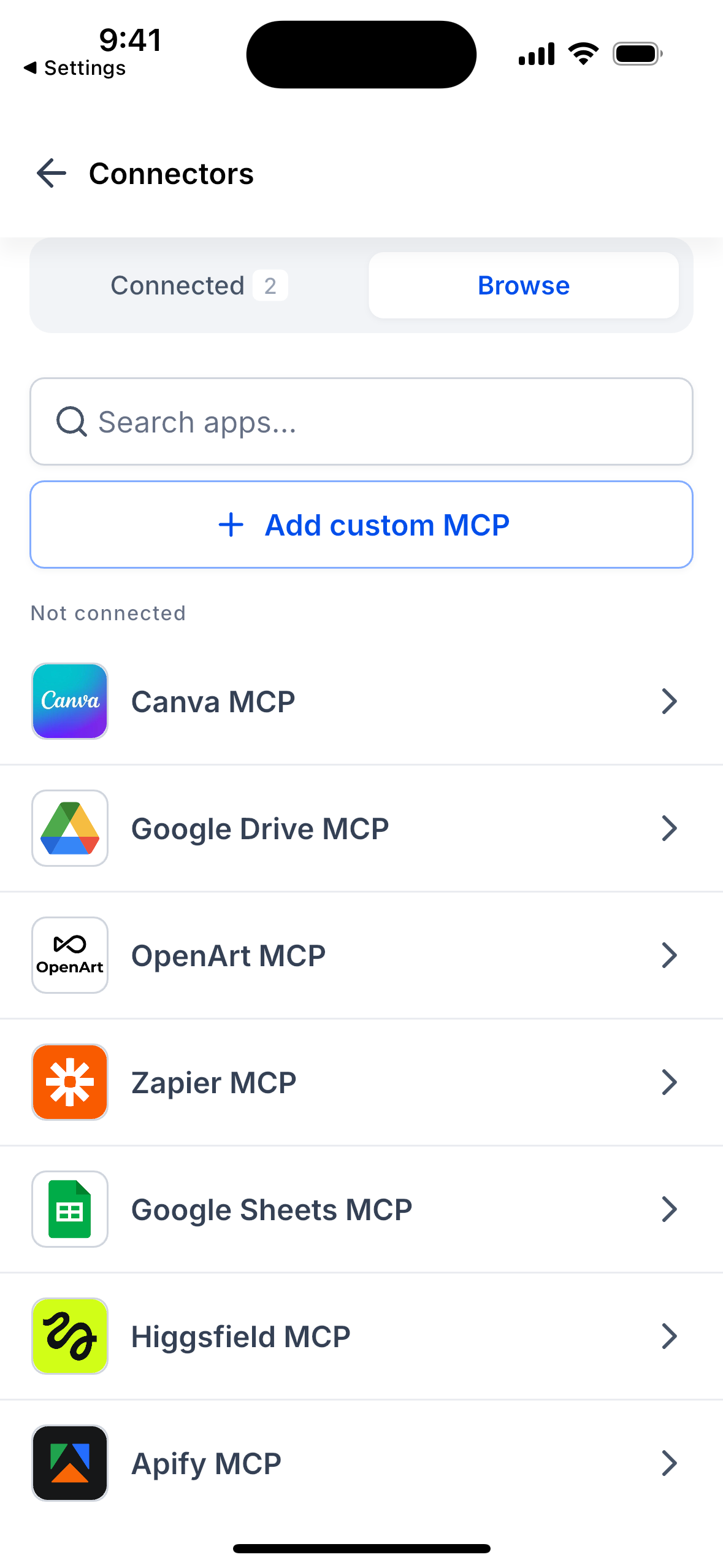
- Connected tab: see each connected app at a glance, how many accounts it has, and how many tools are enabled.
- Browse tab: search the app catalog and connect a new app in a few taps.
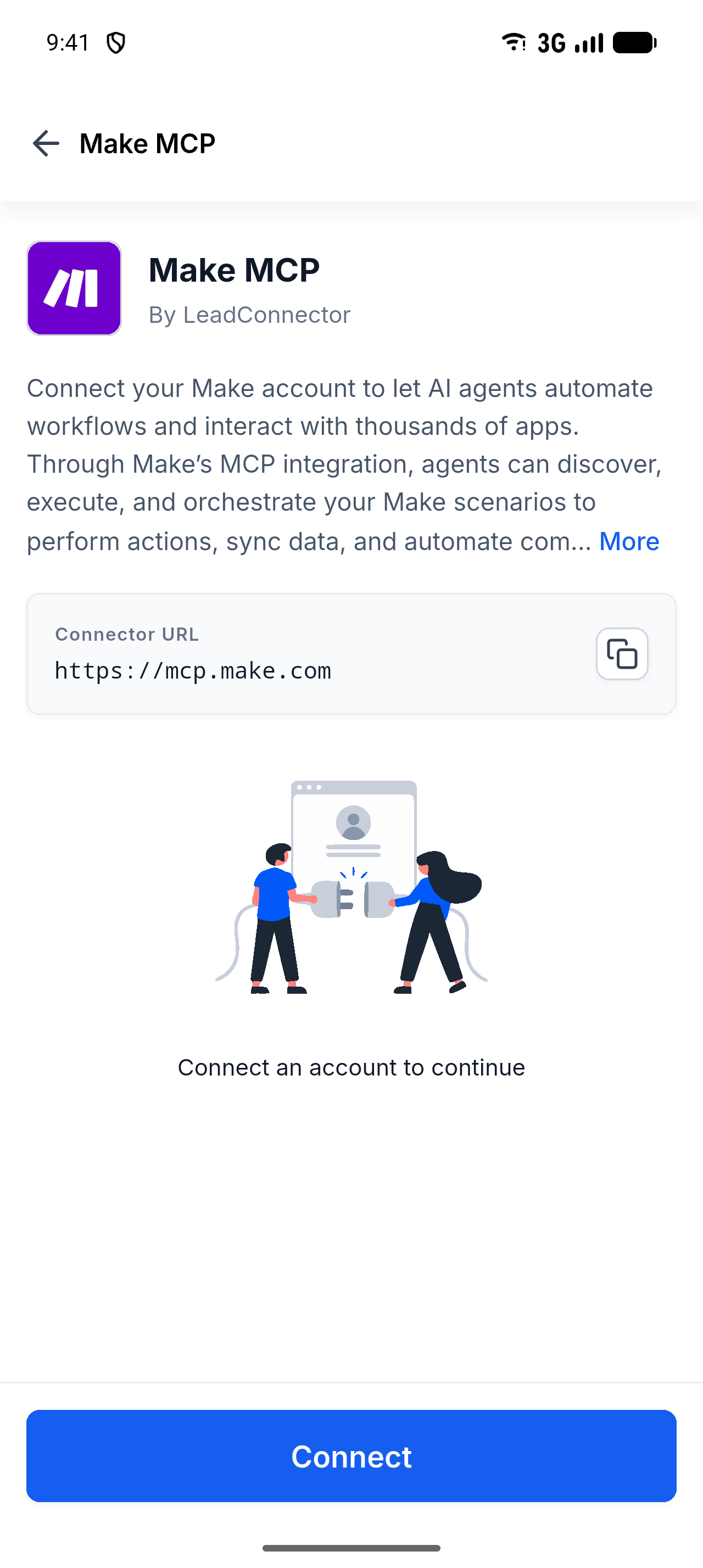
- Sign in safely: for most apps, you sign in on the app's own secure page inside an in-app browser.
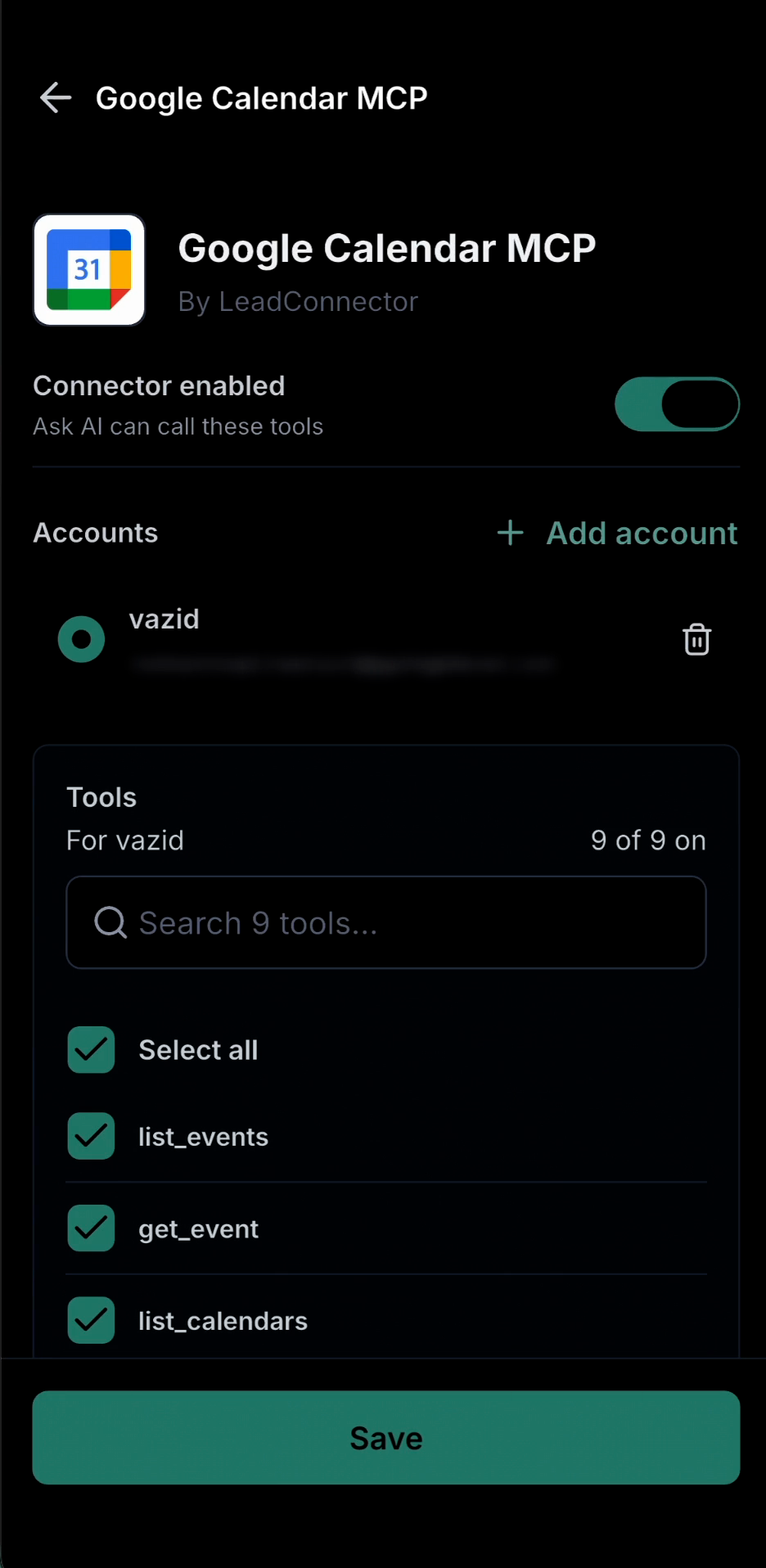
- Control the tools: select the specific tools Ask AI is allowed to use for each app, or tap Select all if you want everything available.
- Bring your own server: add a custom MCP server by giving it a name and URL. MCP (Model Context Protocol) is the standard that lets AI assistants communicate with other apps.
- Stay in sync with web: apps you connect on web appear on mobile, and apps you connect on mobile appear on web.
How this helps your business
- Save time: connect or repair an app connection in seconds from your phone.
- Stay in control: decide exactly which tools Ask AI can use for each app you connect.
- Keep work moving: reconnect expired accounts on the go so Ask AI can keep working without waiting for you to get back to your desk.
- Keep accounts private: the accounts you connect are tied to you. Other users in your EveryCatch account do not see or use them.
How to get started
- Open Ask AI: in the EveryCatch mobile app, open Ask AI and tap the Chat history icon at the top right.
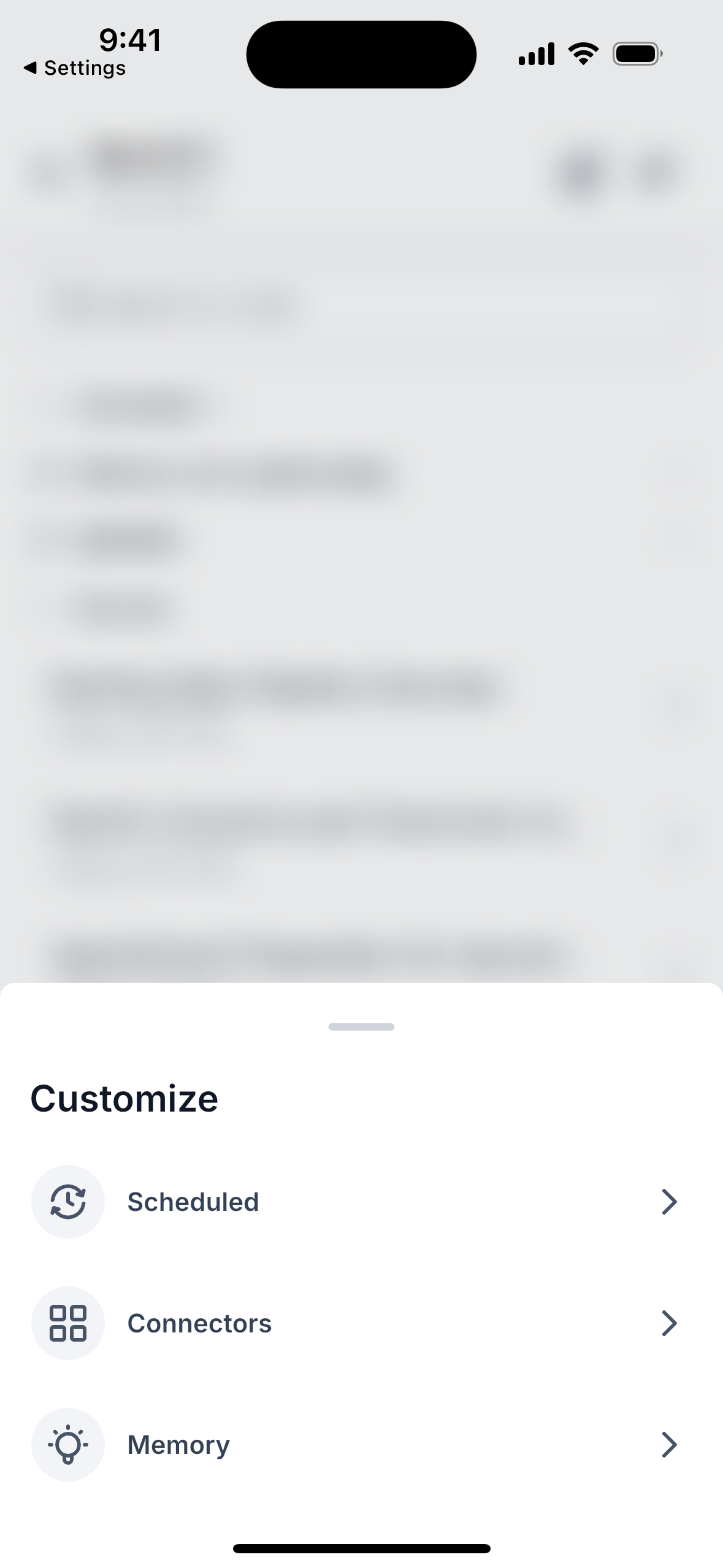
- Open connectors: tap Customize at the top right, then tap Connectors.
- Connect: in the Browse tab, choose an app and tap Connect. Sign in when prompted.
- Choose tools: select the account, check the tools you want to enable, keep Connector enabled switched on, then tap Save.
- Use Ask AI: return to Ask AI and start asking questions that use your newly connected apps.
What's next?
- Full translations: remaining Connectors text is being translated into all 12 supported languages and will be included in an upcoming release.
- More polish: we are improving the Connectors screens based on your feedback and real-world usage.
Roll-out & availability
- Release date: [store release date for v4.27.0, to be confirmed
- Available version: v4.27.0 and later of the EveryCatch mobile app
- Status: publicly available for users who have access to Ask AI
- EveryCatch
- EveryCatch
- WL App
Good to know
- Who can use it: anyone who has access to Ask AI in the EveryCatch mobile app.
- Accounts only: Connectors are managed per account. If you are at the agency level, you will be prompted to switch into a specific account first.
- Ways to connect: most apps open a sign-in page. Some require credentials or a name and email, and a few work without any account at all.
- Custom MCP: the server URL must start with https:// or http://. Client ID, client secret, and a copyable Redirect URL are also provided for your setup.
- Turning a connector on: it needs at least one connected account and at least one tool selected before it becomes active.
- Save before you leave: if you tap Back without tapping Save, your changes are discarded and there is no warning message.
- One tool list per app: your tool selections apply at app level, regardless of which of its accounts is being used at the time.
- Deleting a custom MCP server also deletes all accounts connected to that server. This action cannot be undone.
- Offline: you will see your last loaded connector list along with a "Couldn't refresh your connectors" banner if you lose connection. Tap Try again when you are back online.
- Languages: in v4.27.0, some Connectors text may still appear in English, even when you are using another language.
- Skills: Skills, which are available on web, are not yet included in Customize on mobile.
We want to hear from you
- Speak with us: https://speakwith.us/nikhilsatish
- Email the product manager: nikhil.siddasamudra@gohighlevel.com