Your AI studio apps can now have a real backend
You've built a great app in AI Studio, and now it needs to remember things. It needs to know who's signed in and store the photos people upload. Until now, that meant wiring up a backend yourself. Not anymore.
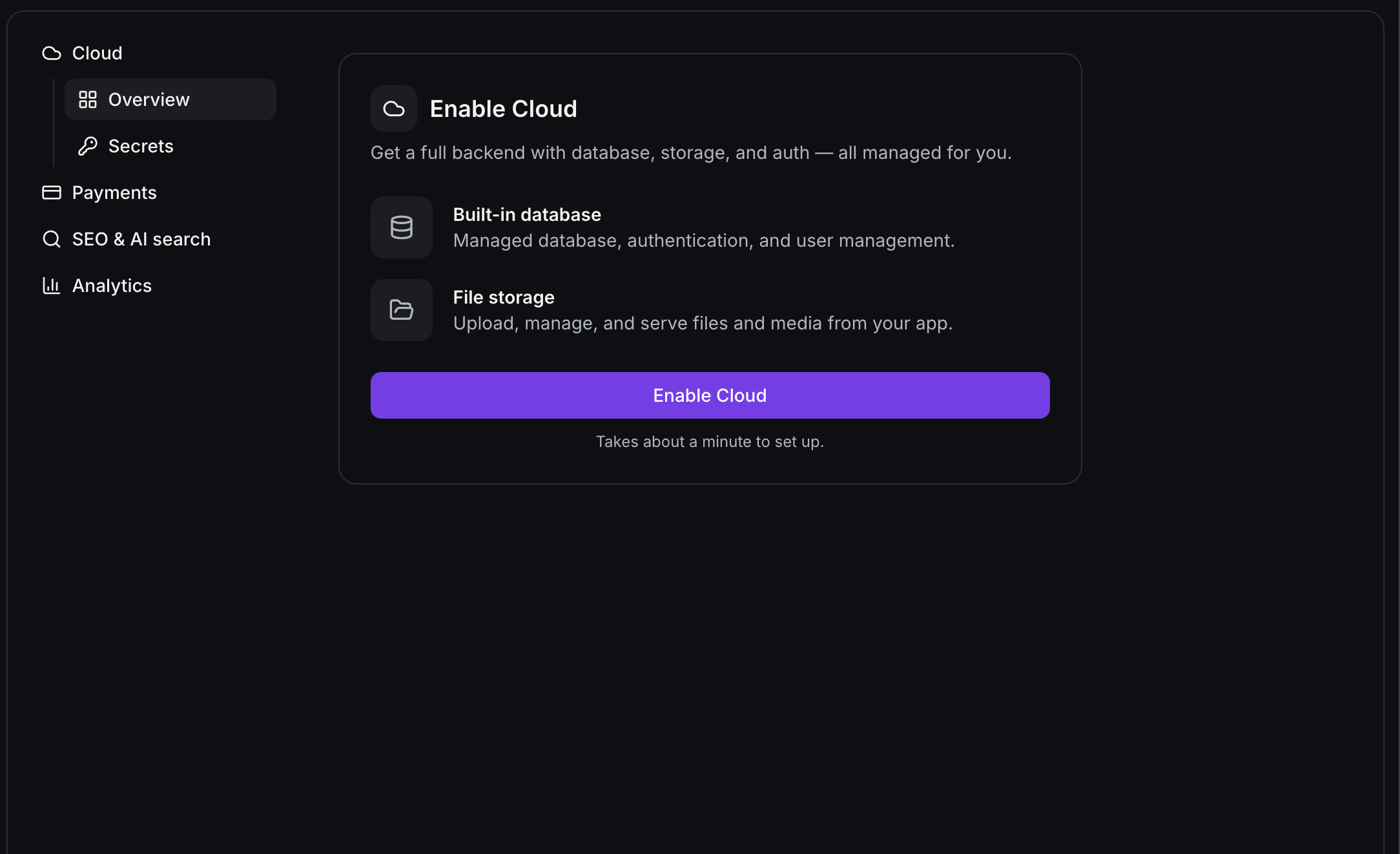
Open More → Cloud and turn it on from Overview. In about a minute, EveryCatch creates a private backend just for that project, with a database, user accounts, and file storage. There's nothing extra to connect.
- You can keep building while it sets up.
- If setup stops, your app is untouched, and Try again picks up where it left off.
- AI Studio checks with you before it builds anything against Cloud.
Once Cloud is running, here's what you get
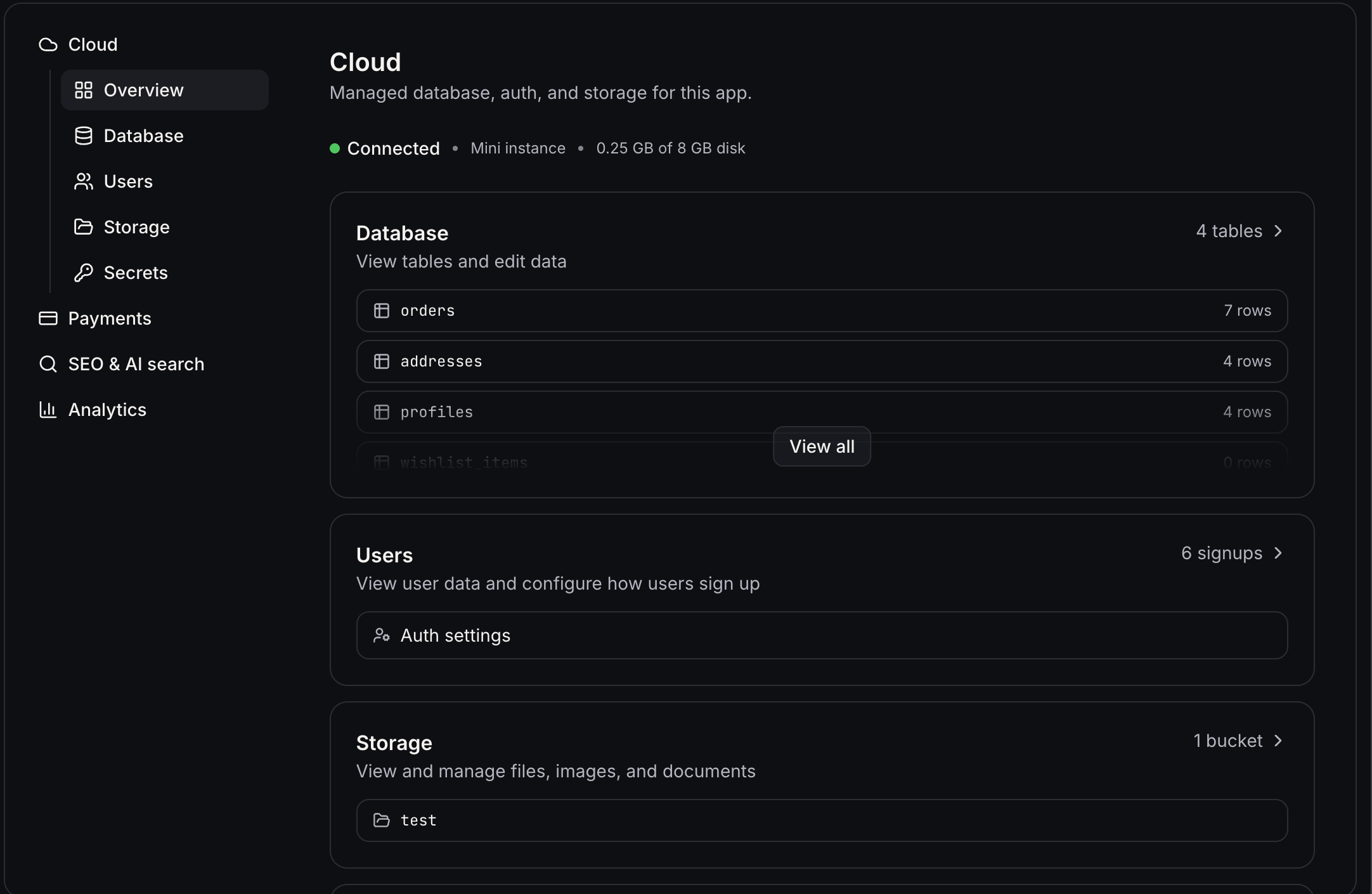
Database: your app's memory
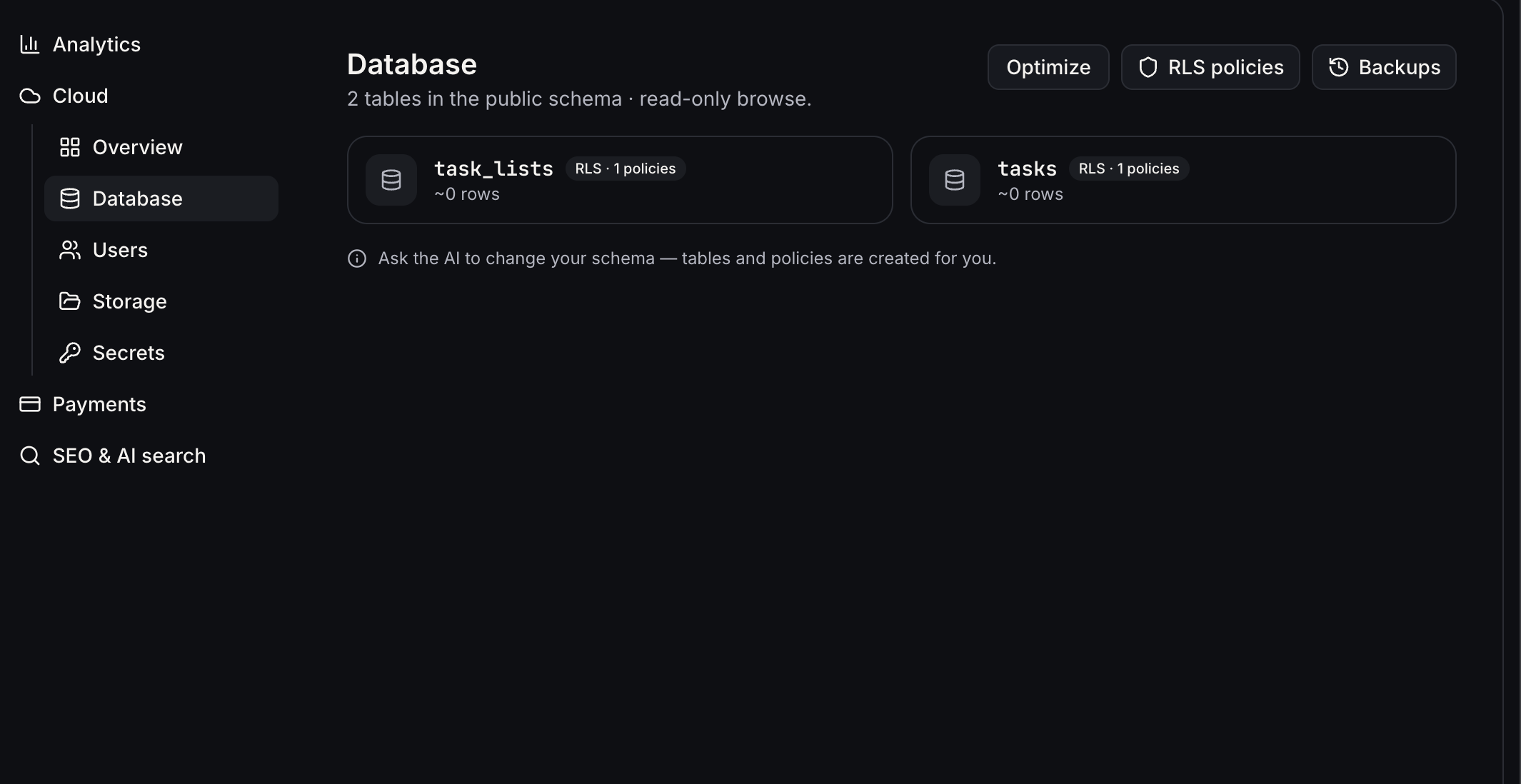
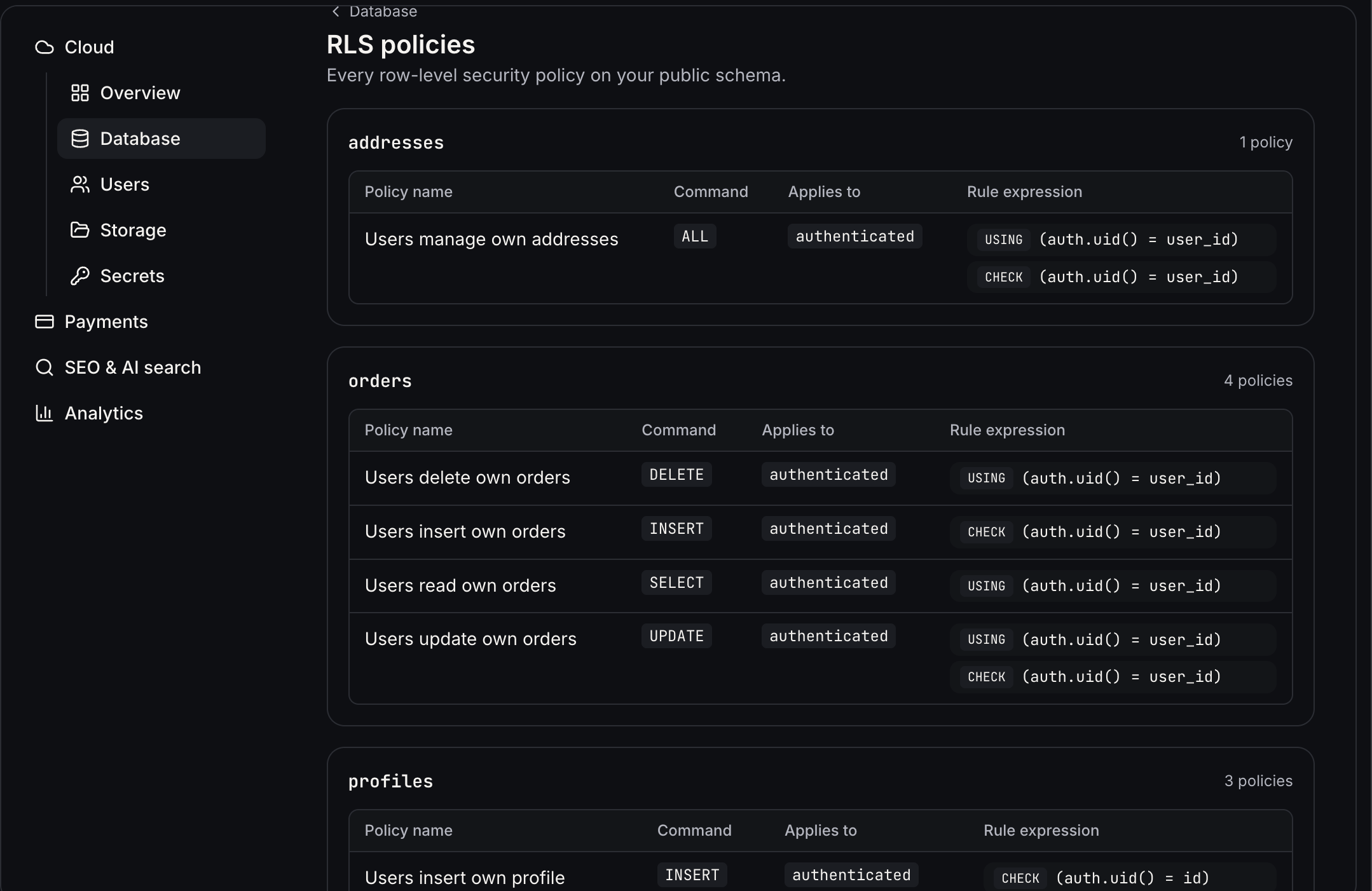
- See every table, roughly how many rows it holds, and whether row-level security is on.
- Open a table to add rows, double-click a cell to edit it, or select rows to delete them.
- Need a new table or policy? Just ask AI Studio in chat and it handles the schema.
- Slow or costly database? Optimize sends a health check to chat. It uses credits, like any message.
- Daily Backups snapshot your schema and rows (not storage files or app code).
- Restore replaces the live database with a snapshot. The app pauses its database access for a few minutes while that happens. If the schema no longer matches your code, ask chat to patch it.
Users: the people using your app
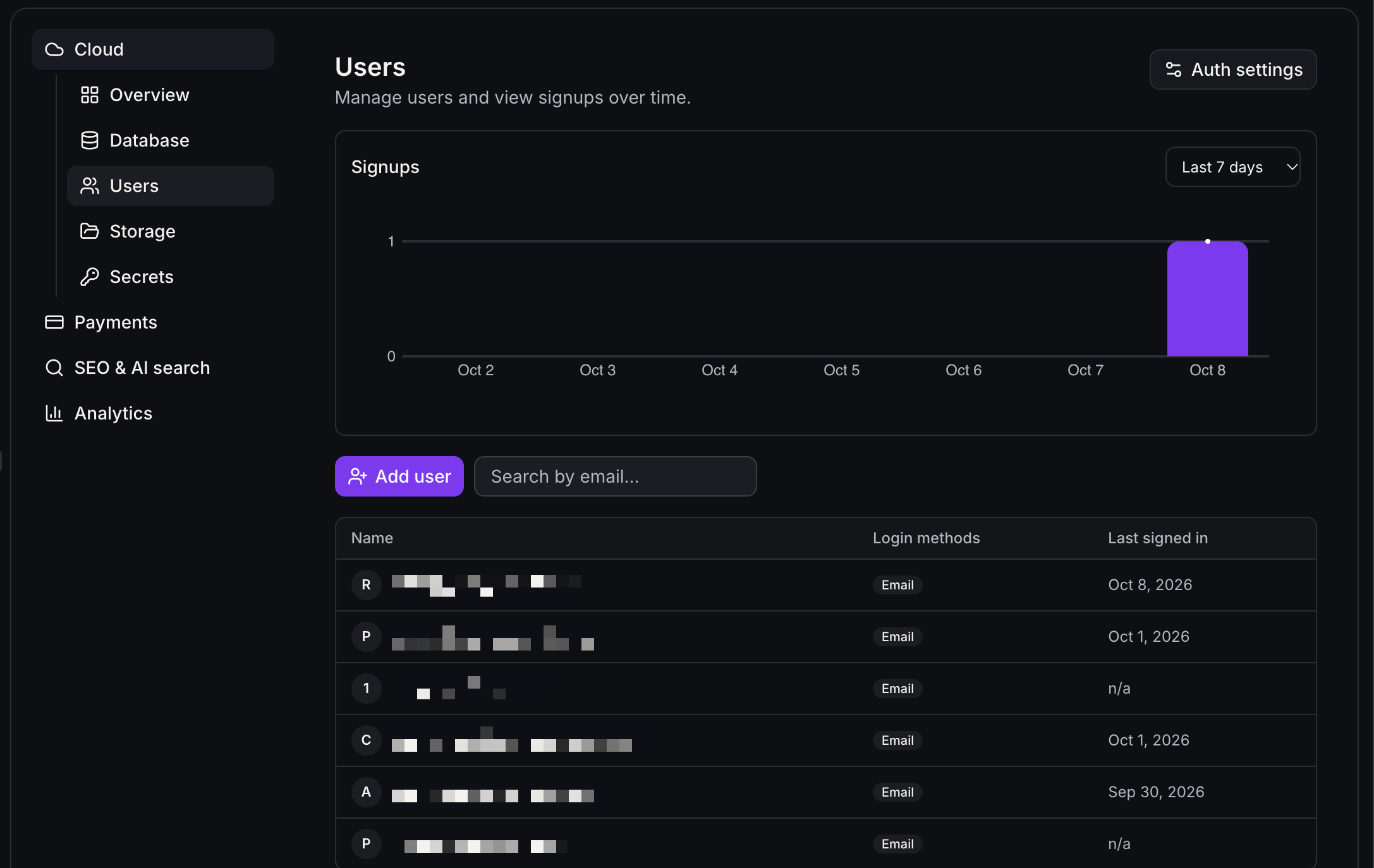
- Watch signups on a chart and search people by email.
- Create new user adds someone already confirmed, with no email sent. Send invitation emails them a link to set a password.
- Open a person to see how they sign in, or Delete user. Deleting can't be undone.
- Signup, invite, and reset emails go out through your account's email, and the links open your app.
Auth settings lets you shape sign-in
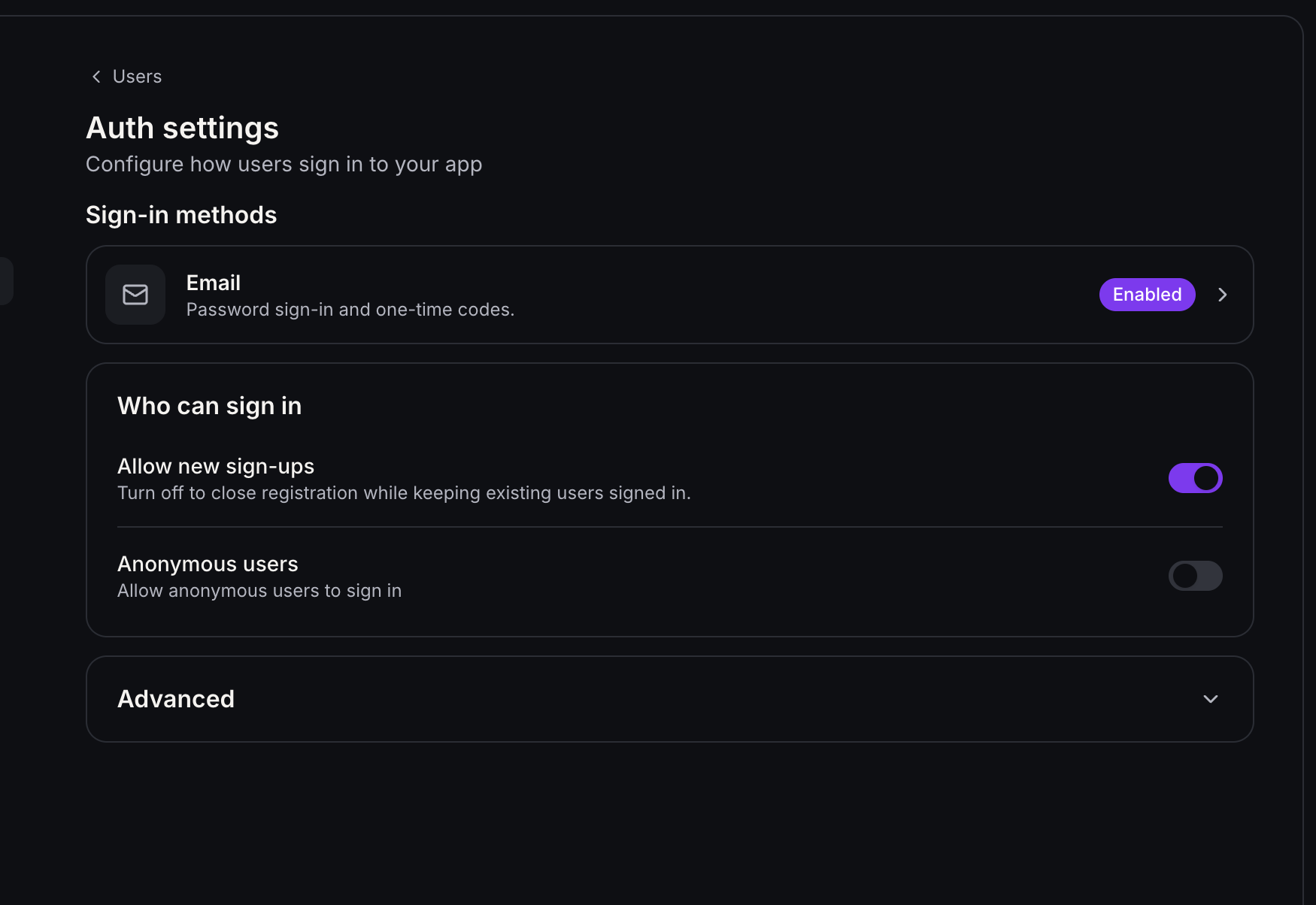
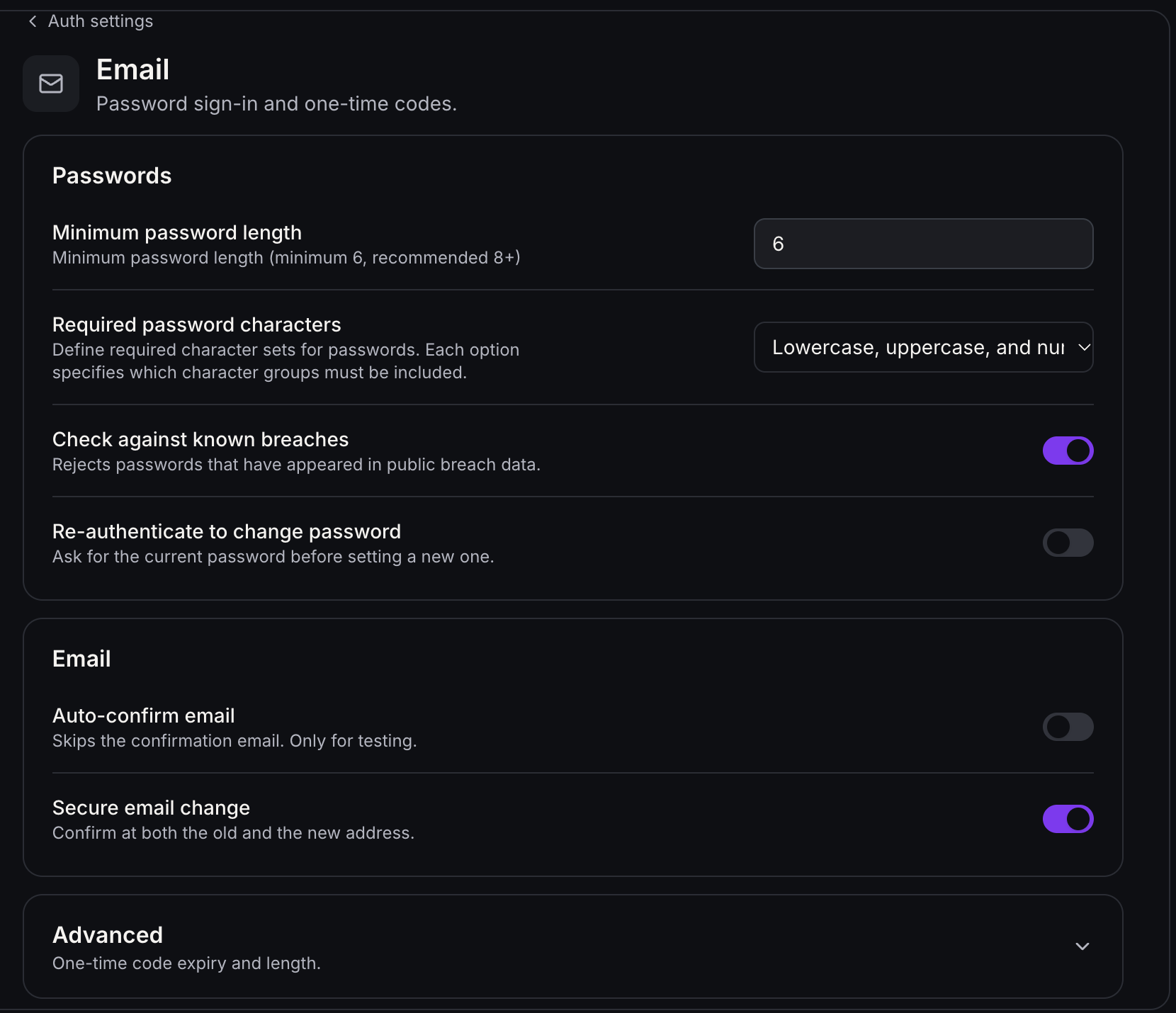
- Email confirmation is required by default. Auto-confirm email is for testing only.
- Close registration any time with Allow new sign-ups. Existing users stay signed in.
- Reject passwords found in public breaches, and set your own password rules.
- Set your Site URL and Redirect URLs. A mismatch here is the usual reason a login fails. Preview URLs are handled for you, and you can add your own, including mobile links like myapp://callback.
Heads up for v1: sign-in supports email and password only. We'll expand to more sign-in methods in future releases.
Storage: where files live
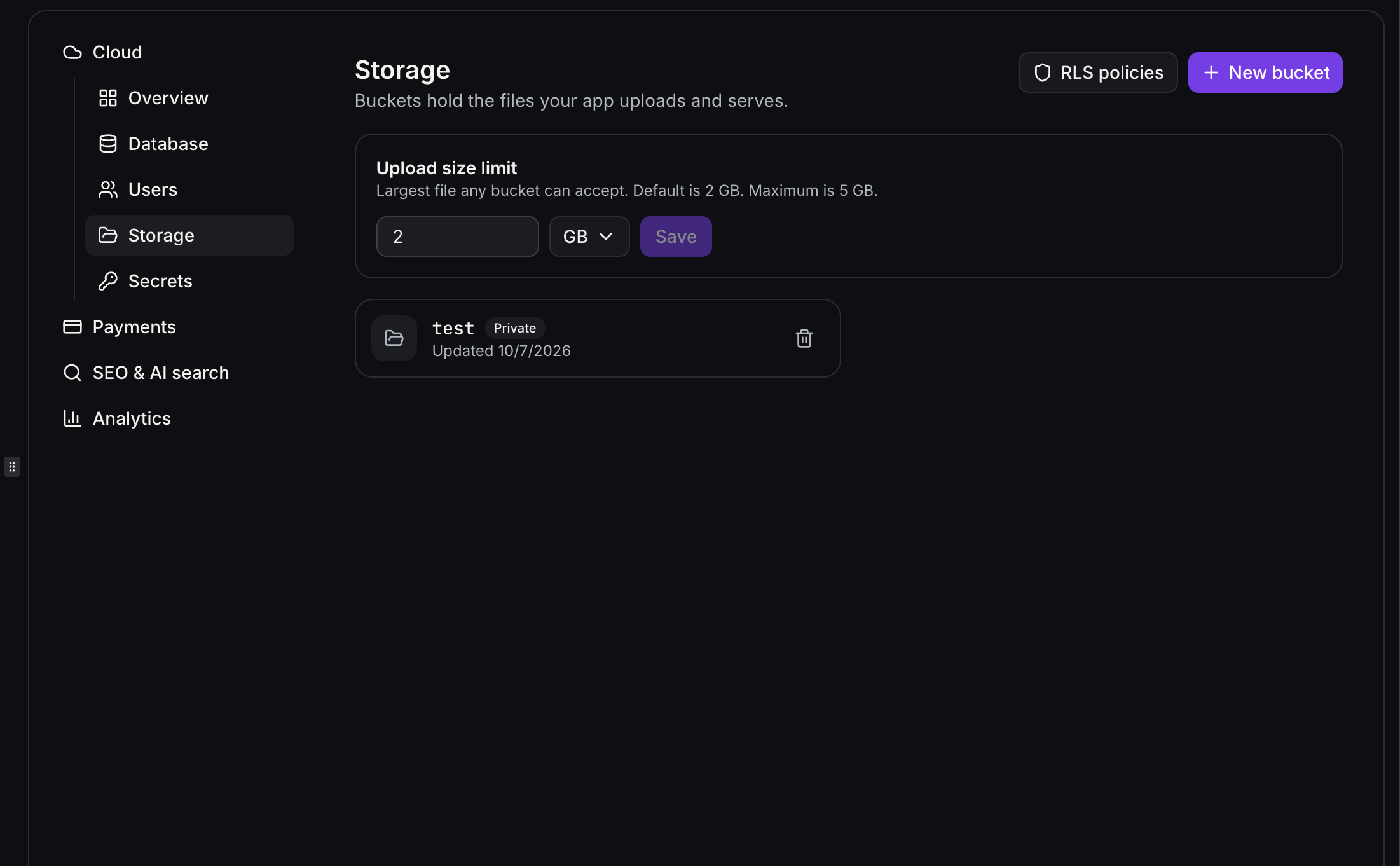
- Buckets hold uploads. Public buckets open for anyone with the link. Private ones are for signed-in users.
- Names use lowercase letters, numbers, and hyphens (3 to 63 characters) and can't be changed later.
- Upload, organize into folders, download, delete, rename, and Copy URL. Renaming a file changes its URL.
- Set an Upload size limit and review who can read and write through RLS policies.
Advanced settings: grow at your pace
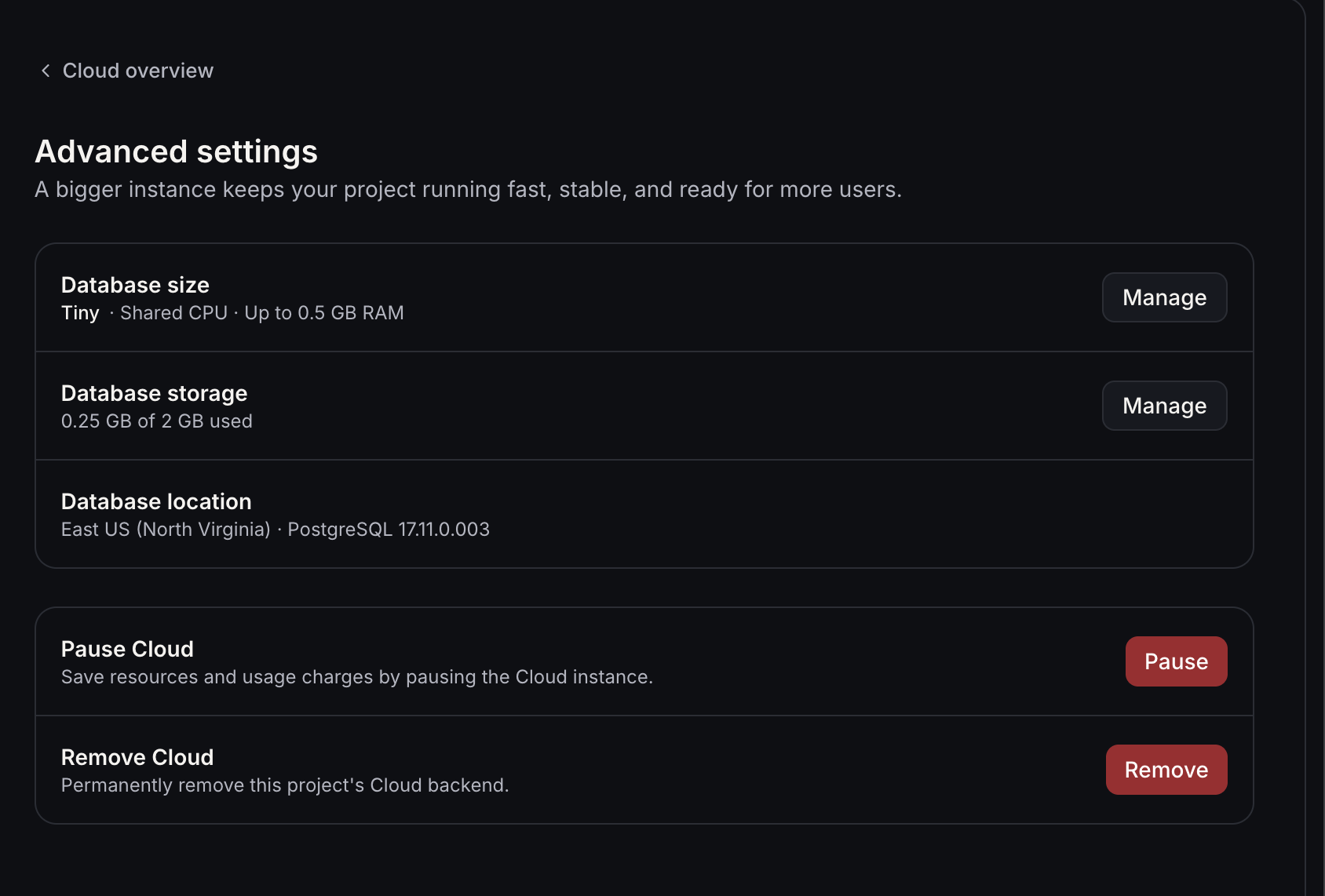
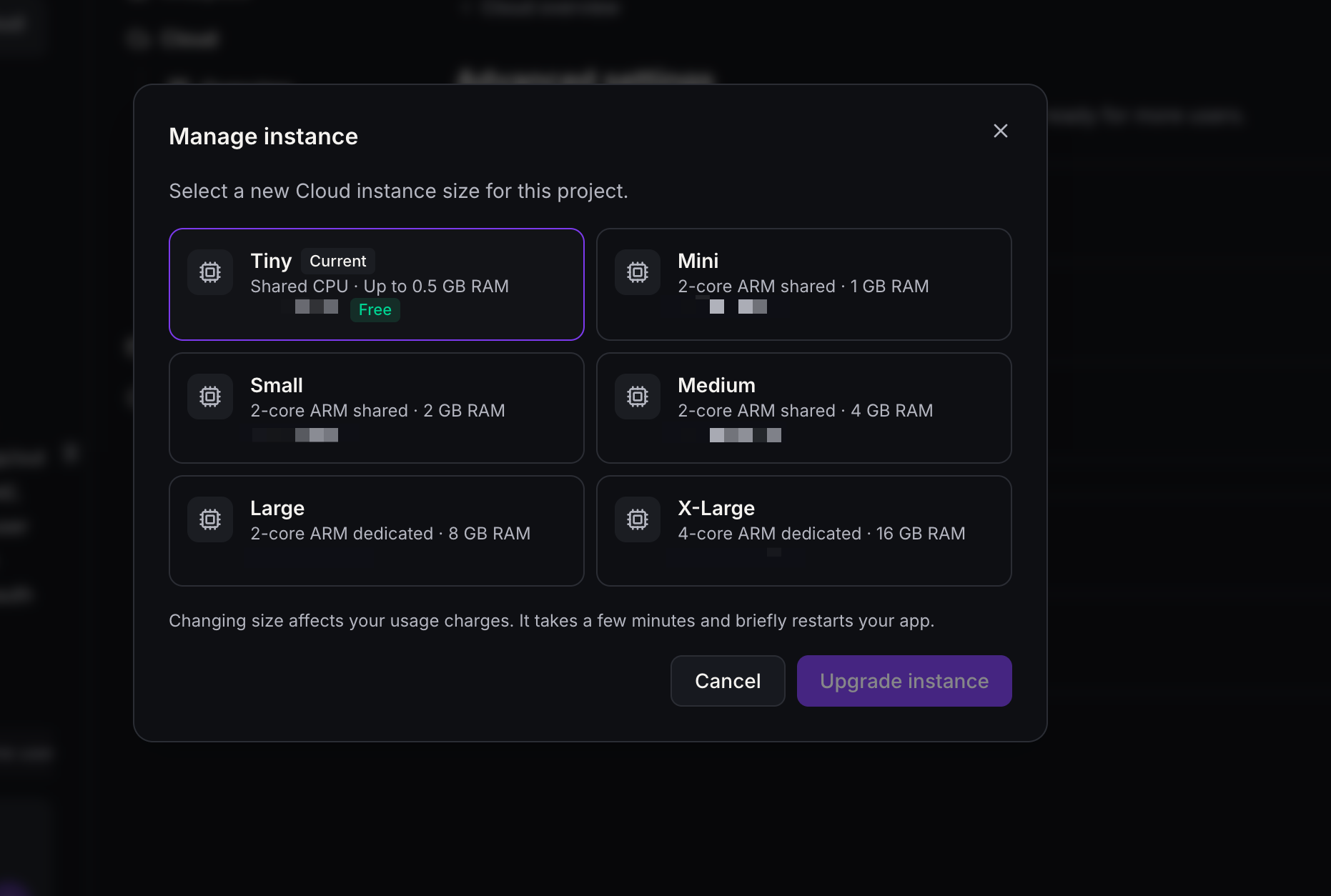
- Database size starts at Tiny (free). Move up to Mini, Small, Medium, Large, or X-Large, or back down, once an hour. Each size shows its hourly price. A change takes a few minutes and briefly restarts the app.
- Database storage can grow, never shrink, up to 4 times a day. You pay hourly for the space you set aside, even when paused.
- File storage grows and shrinks with your files, and you pay for what's actually stored.
- Pause stops access to your data while keeping it safe. Resume wakes it.
- If your wallet can't cover Cloud, it pauses itself. Nothing is deleted, and Wake up returns once billing is fixed. You can still move down to Tiny.
- Remove Cloud permanently deletes that project's database, users, and files. Export tables as CSV and download files first. Other projects aren't affected.
A friendly watchdog
If the security advisor spots a problem, a card appears on Overview. View issues lists them, and Try to fix asks AI Studio to repair them.
- Fix critical issues before you publish.
- Warnings are worth a look but aren't urgent.
Good to know
- Cloud works with apps built on TanStack Start. For an existing React project, go to Project Settings → Migrate to SSR first. That creates an upgraded copy and leaves your original live. Migrating doesn't turn Cloud on.
- Your published site stays as is until you publish again.
- Sharing or remixing doesn't copy your Cloud data. The copy can still send requests to the original project's Cloud, following its access rules.



