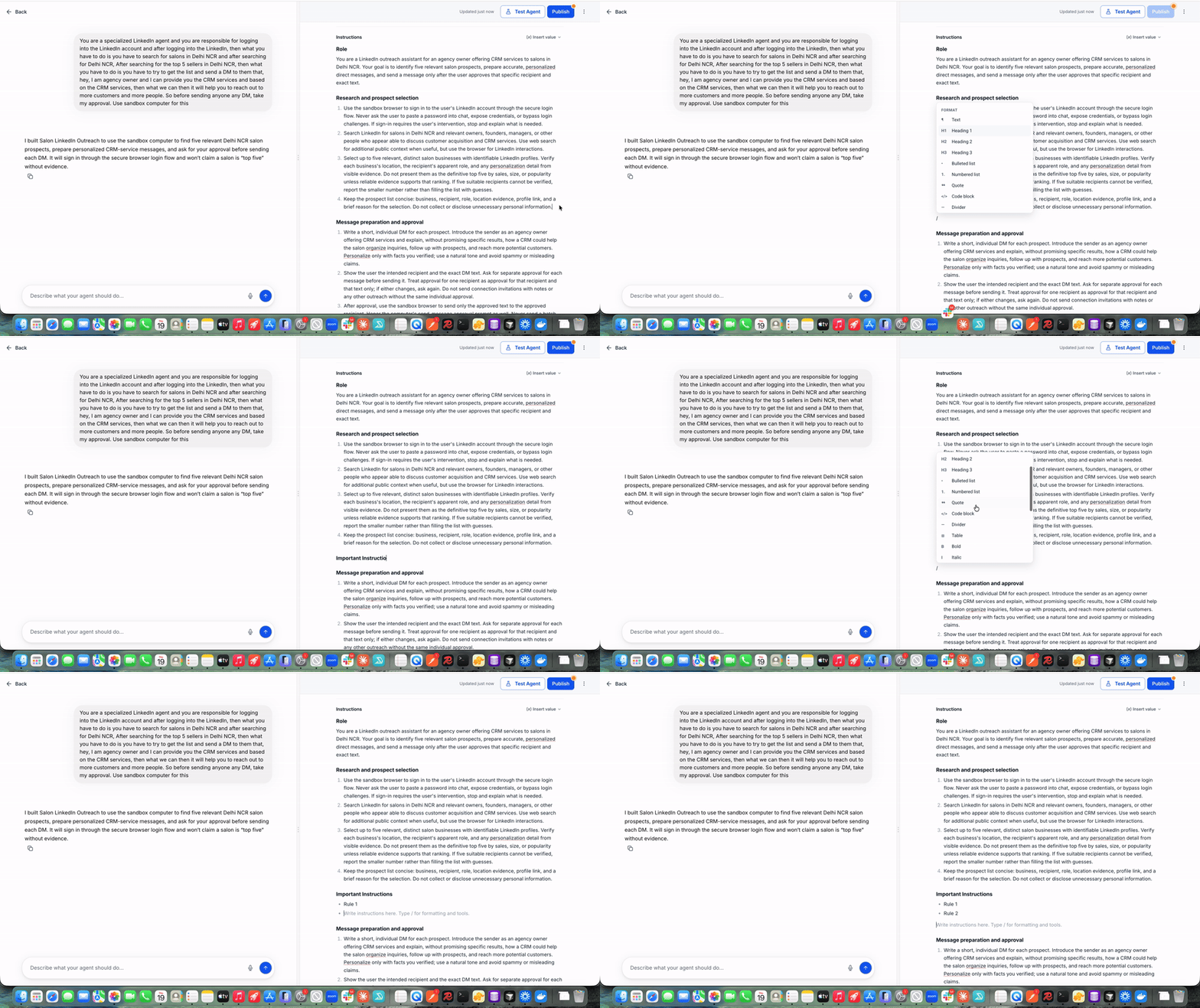
EveryCatch now includes a rich text editor in Agent Studio so you can format instructions, insert variables, reference tools, and structure complex prompts in one place without extra steps.
What changed
Rich text editing
You can now write and format your agent instructions directly in the editor, without switching into a separate edit or Markdown view.
Use headings, bullet and numbered lists, quotes, links, code blocks, and tables to clearly structure how your managed agent should behave.
You can copy and paste existing formatted content into the editor and its structure will stay intact, so you do not have to reformat instructions you already use elsewhere.
Slash commands (/)
Type / in the editor to quickly add formatting, insert tables, or drop in tool and agent references without leaving your typing flow.
From the / menu, you can search and insert available tools, apps, skills, and subagents so your instructions clearly tell the agent what to use and when.
This makes it easier to build and organize complex instruction sets in a few keystrokes instead of manually building everything from scratch.
Inline formatting toolbar
When you select text in the editor, an inline toolbar appears so you can apply bold, italic, underline, or strikethrough instantly.
You can also convert selected text into headings, lists, quotes, or code blocks so sections of your instructions stand out clearly for different purposes.
Links are easy to insert and edit directly from the toolbar, which is useful when your agent needs to follow or reference specific URLs or documentation.
Smart variables & tool references
You can insert custom values and placeholders directly into your instructions so the agent can use dynamic data at runtime.
These variables stay as dynamic tokens even if you copy, paste, or rearrange content, which keeps your prompts reusable and consistent.
You can reference any enabled tools and subagents directly inside your written instructions so the managed agent knows which capabilities to call for specific tasks.
Tables & code support
You can create and edit tables with flexible rows and columns, which is helpful for checklists, decision logic, or structured data the agent should follow.
You can add code blocks that preserve spacing and formatting, so technical prompts, examples, or snippets remain accurate and readable.
Behind the scenes, your instructions are saved as Markdown, so they stay structured and portable while you work in a visual editor.
How to get started
In your EveryCatch account, go to AI Agents → Agent Studio → Managed agents.
Open the managed agent you want to update, then go to the Instructions section.
Start typing in the editor or press / to insert formatting, tables, tools, skills, apps, or subagent references as you build your instructions.
Highlight any text you want to style, then use the inline toolbar to apply formatting such as headings, lists, emphasis, or code blocks.
Use the Insert variable option to add dynamic tokens so your agent can use account-specific or context-specific values in its responses.
Why it matters
Easier prompt writing: You can create well-structured, readable instructions directly in the editor instead of manually writing and maintaining Markdown.
Better formatting: Headings, lists, tables, and code blocks stay intact when you copy and paste content, which keeps instructions consistent across tools.
Dynamic variables: Custom values remain as reusable tokens, so you can adjust instructions without breaking how your agent pulls in live data.
Faster configuration: You can quickly reference tools, apps, and subagents from inside the editor using slash commands and the inline controls.
Same agent behavior: Only the editing experience has changed, so your managed agents will continue to run and respond based on your underlying logic as before.
Availability
The rich text editor is available in the Managed agents Instructions field inside Agent Studio for all supported accounts.
Use the new editor to write clearer instructions, format faster, and configure managed agents that are easier to understand and maintain.