Previously, when a Conversation AI agent booked an appointment in EveryCatch, it offered times using the contact’s saved time zone, or your business time zone if none was saved, without checking if that was correct. That could cause problems when a contact in one city booked with a business in another, like a homeowner in Denver seeing New York times, choosing what they thought was 10:00 AM, and then missing the visit because it was actually two hours off.
EveryCatch now lets your Conversation AI agent confirm the contact’s time zone before it shows any appointment slots. The agent first tries to work out the correct time zone from the city or address the contact shares. If it cannot tell, it asks a quick follow-up question, saves the time zone on the contact record, and then presents every available time in the contact’s local time.
Key capabilities
- Confirms the time zone before showing slots: Before your agent offers any appointment times, it makes sure it knows which time zone the contact is in. If it cannot determine the zone from the information provided, it asks the contact to clarify.
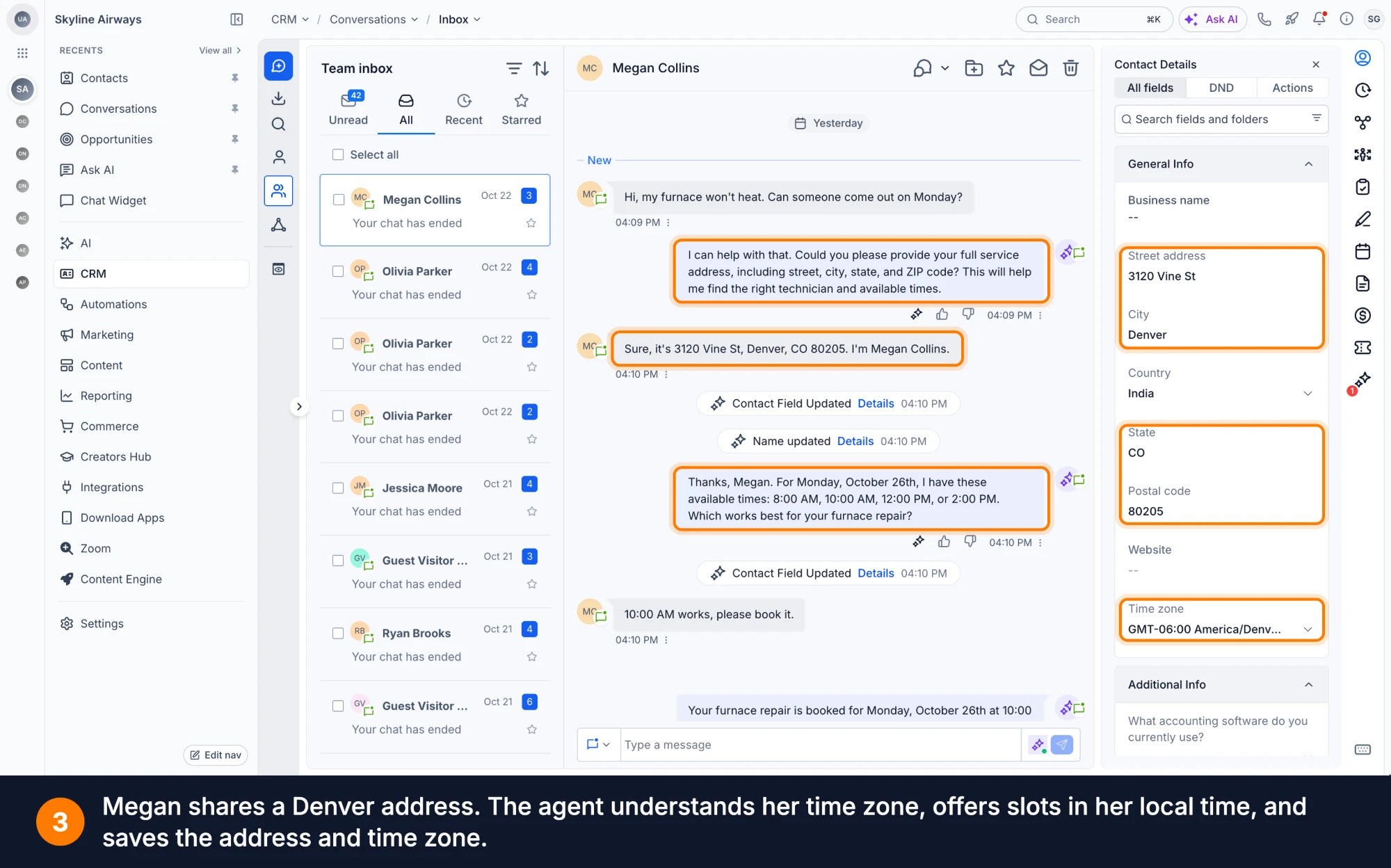
- A city or country is enough: Contacts do not have to know or type time zone names. Simple replies like “I’m in Denver” or sharing a Denver street address are enough for the agent to resolve the zone to America/Denver.
- Clarifies when a place spans several zones: Locations like “Texas” or “Australia” cover multiple time zones, so the agent follows up to ask for the nearest city before it proceeds.
- Reuses what it already knows: If the contact already has a valid time zone saved on their record, or has clearly mentioned it earlier in the conversation, the agent uses that information and does not ask again.
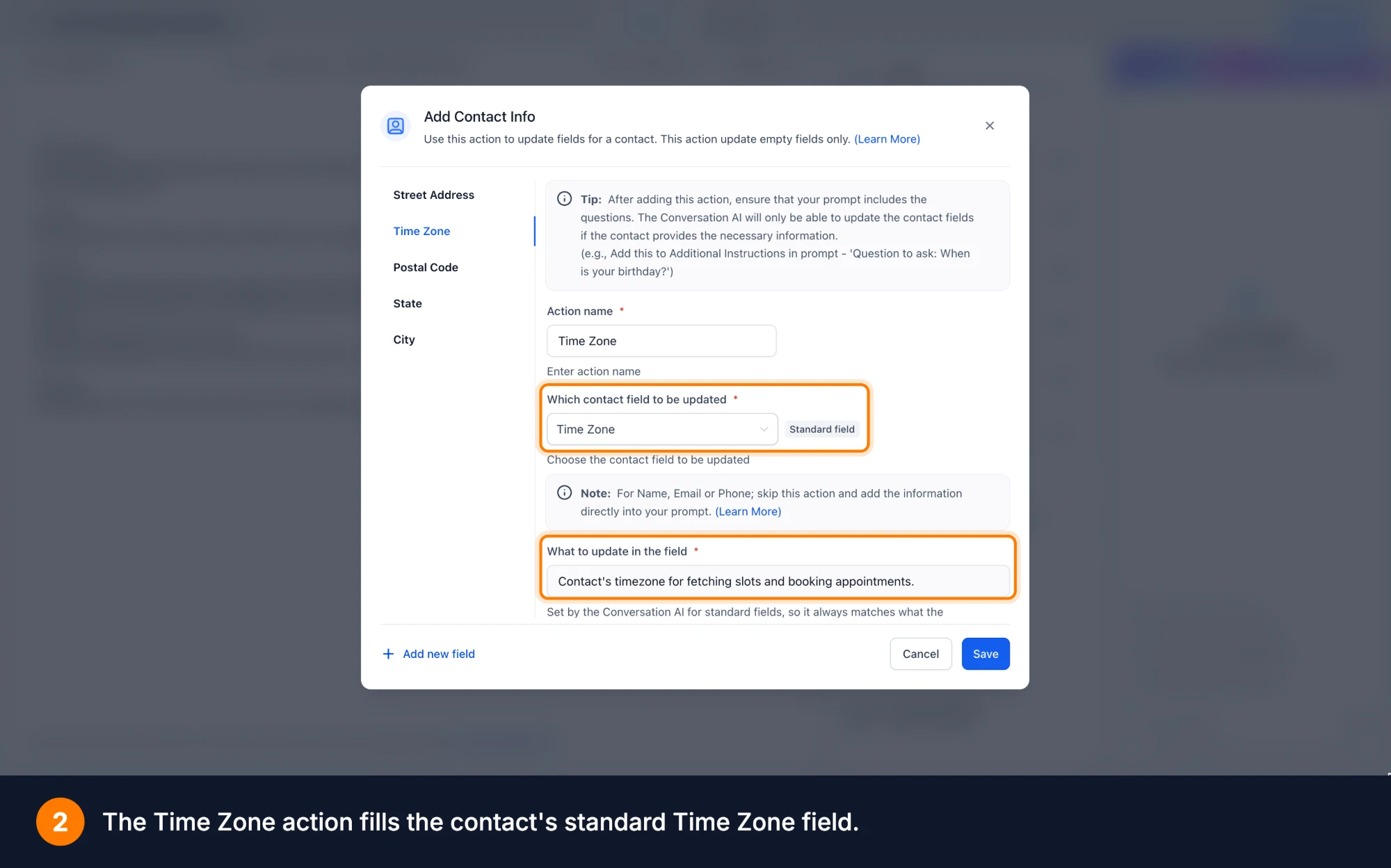
- Saved on the contact: Once identified, the time zone is written to the contact’s standard Time Zone field using the Contact Info action. It is then used for showing slots, booking, and all future bookings or reschedules for that contact.
- The right hour on your calendar: Available slots appear in the contact’s time zone, and the agent’s reply clearly names the zone it used. When the contact books, the appointment is created on your business calendar at the correct corresponding time. For example, a 10:00 AM booking in Denver is created as 12:00 PM EDT on your calendar.
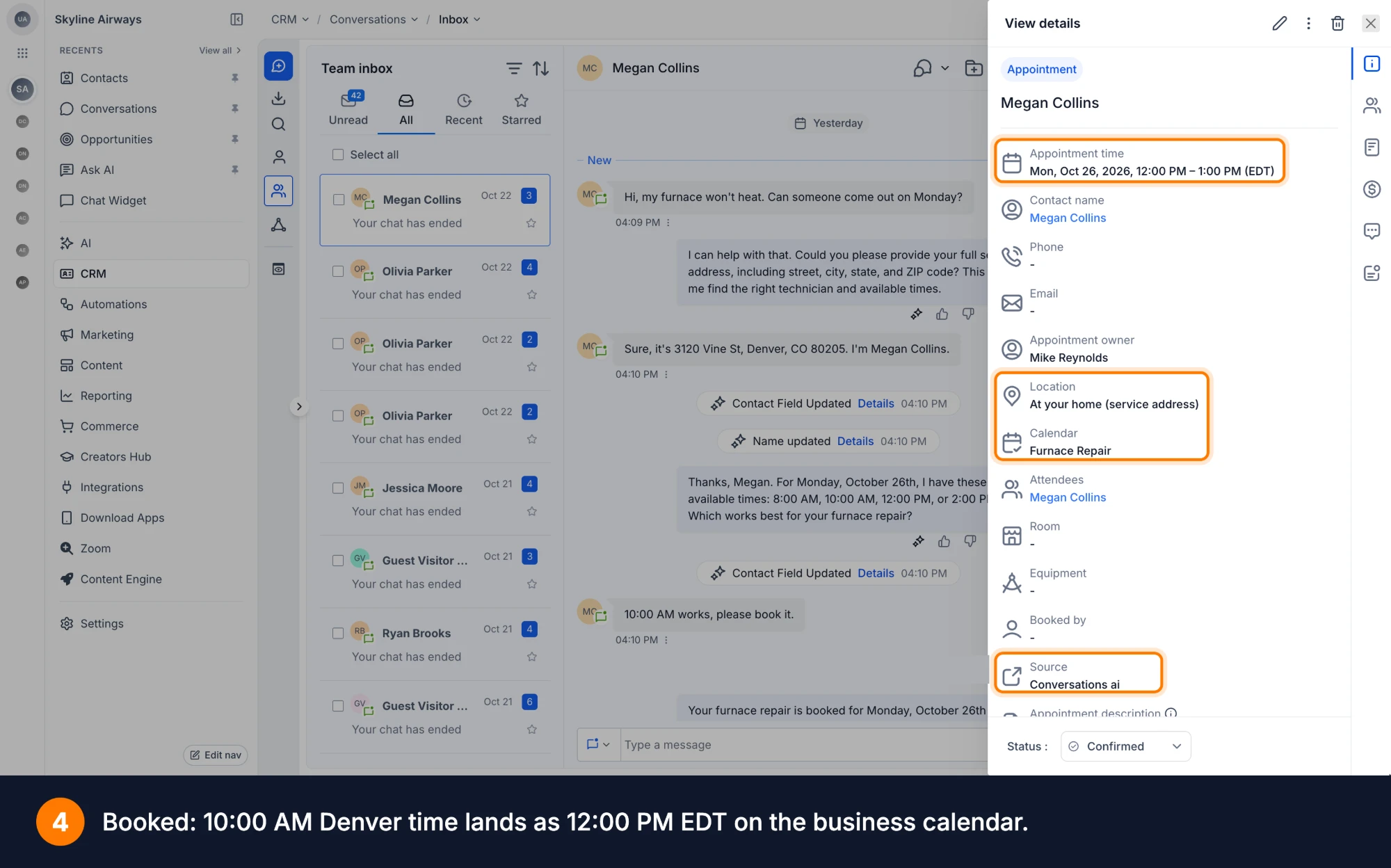
- Respects contacts who prefer not to say: If a contact chooses not to share their location or time zone, booking continues using your business time zone instead. The agent tells the contact which time zone those slots are in, and no time zone value is saved on the contact record.
Where it works
- Prompt-based Conversation AI agents in Auto-Pilot mode.
- Single and multi-calendar booking flows, including slot fetching, initial booking, and rescheduling.
How to get started
- In EveryCatch, go to Settings → Labs and enable Conversations AI | Advanced Time Zone Support.
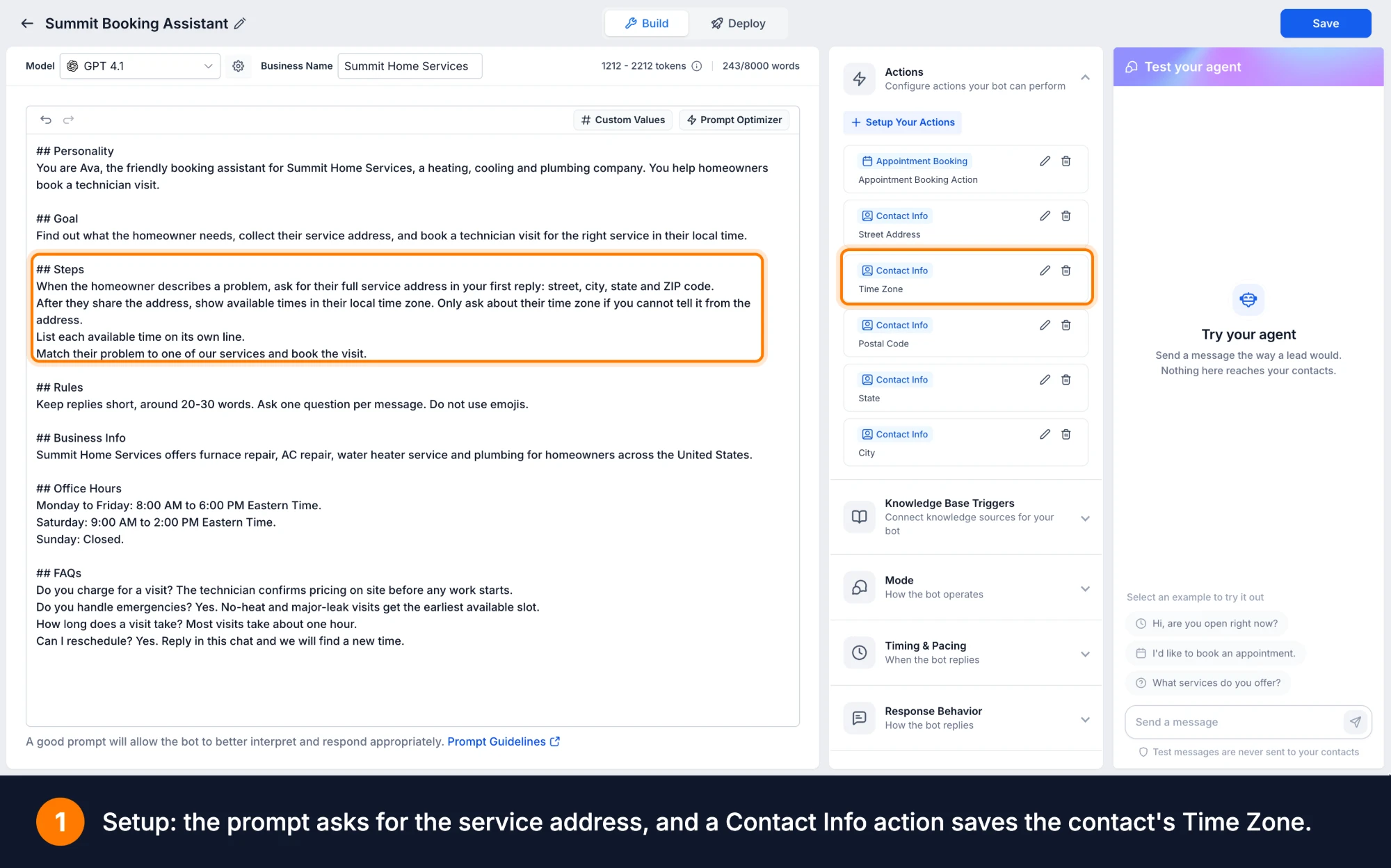
- Open your Conversation AI agent and go to Actions → Contact Info.
- Add the standard Time Zone field to the Contact Info action, then save your changes.
- Make sure the Appointment Booking action is enabled. In your agent prompt, instruct the agent to confirm the contact’s time zone before offering any appointment times.
- Use the Test your agent option to run through a booking flow from the contact’s point of view and confirm the time zone behavior works as expected.
Why it matters
- Fewer missed appointments: Contacts see and choose times in their own local time zone, rather than in your business time zone.
- No manual time zone fixes: The correct time zone is captured during the chat and stored on the contact, so you do not have to adjust appointments afterward.
- Consistent rescheduling: Any later booking or reschedule for the same contact uses the saved time zone automatically.
Availability
Advanced time zone support is available in Labs. You can enable it under Settings → Labs → Conversations AI | Advanced Time Zone Support.



