What changed
The Wait action in EveryCatch workflows now includes **User replied** as a wait condition. This means you can pause a workflow until someone on your team responds to a contact’s message, instead of only waiting for the contact to reply. Combined with the timeout option, you can create clear response-time workflows that automatically escalate conversations if a team member has not replied within your target SLA window.
How it works
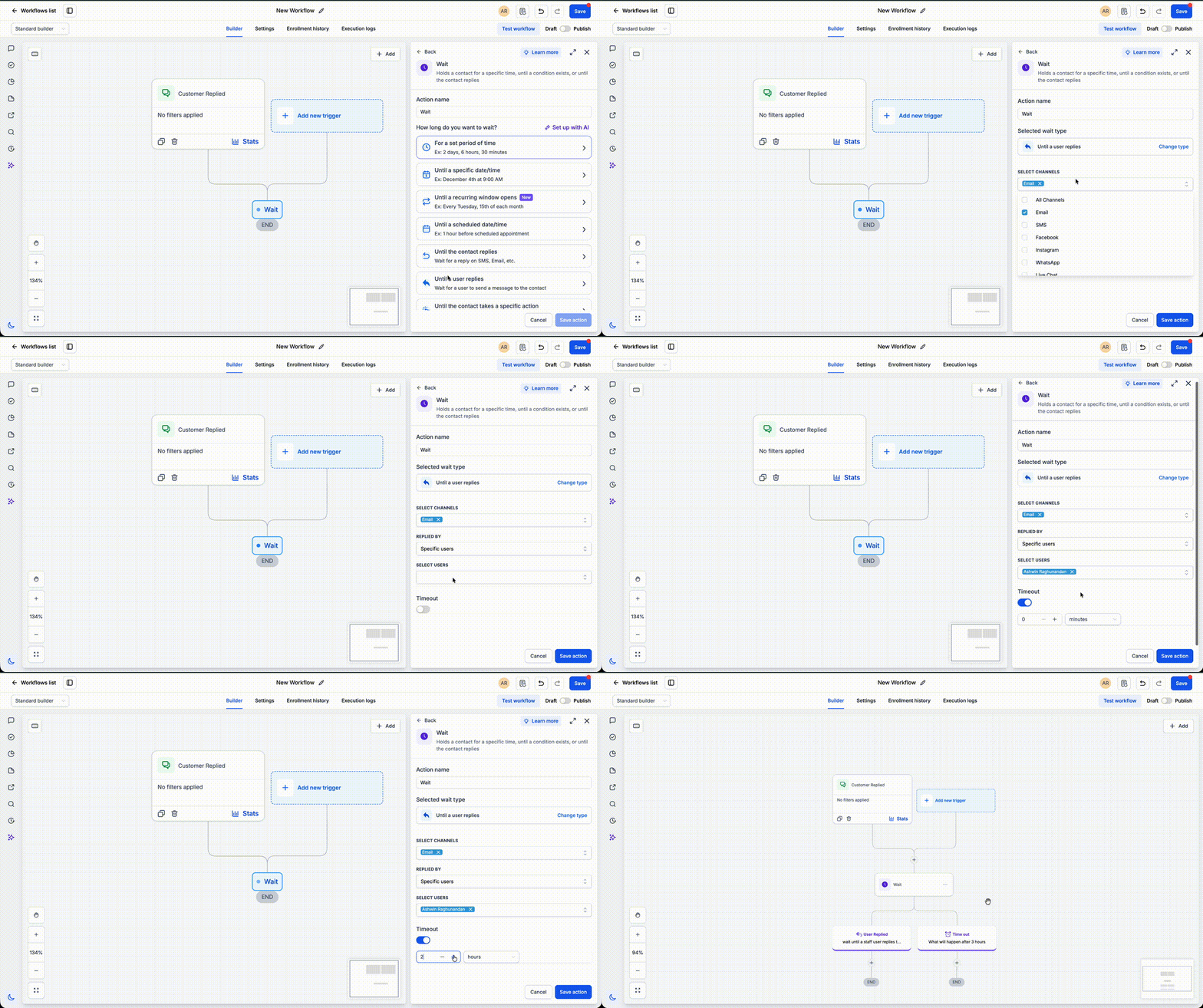
When you configure a Wait action, you can select **User replied** as the condition and set an optional timeout. The workflow will then pause until either a user sends a reply in the conversation or the timeout period ends, whichever happens first. If a user reply is detected, the contact moves forward to the next step right away. If the timeout is reached first, you can route the contact into escalation actions such as notifications to managers, reassigning the conversation, or creating reminders and tasks.
How to use it
- Add a Wait action to your workflow where you want to monitor for a team reply.
- Select **User replied** as the wait condition and configure an optional timeout that matches your SLA target.
- Set the next steps for both paths: what should happen when a user replies in time, and what should happen when the timeout is reached without a reply (for example, alerts, reassignment, or tasks).
Why we built it
Consistent response times are important for sales and support teams that work with SLAs. This update helps you automatically track first responses, reduce the need for manual inbox checks, and route overdue conversations to the right people. You can enforce your response targets and trigger escalations using straightforward workflow steps instead of custom logic.
Simple examples
- A support workflow waits up to 30 minutes for **User replied**. If an agent responds within the SLA, the workflow continues to the standard follow-up steps. If the timeout is reached first, the workflow sends an alert to a supervisor and reassigns the conversation to another agent.
- A sales workflow waits 15 minutes for a representative to reply to a new inbound lead. If no reply is sent before the timeout, the workflow creates an urgent task for the assigned rep and notifies the sales manager so leads are handled quickly.
Additional notes
- The contact progresses in the workflow as soon as a user sends a reply or when the configured timeout period ends, whichever comes first.
- If you do not configure a timeout, the workflow will wait indefinitely until a user reply is received in the conversation.
- This is especially useful for first-response SLAs, escalation flows for overdue conversations, and internal automations that track how quickly your team responds.
Preview