QR codes just got smarter - and much easier to manage.
With usage limits on QR Codes, you can now control how many times a QR link can be scanned and when it’s valid. This gives you direct control over how long a QR code stays valid and how many times it can be scanned - all on a code that's already been printed, with no need to reissue or reprint it. The QR builder has also been fully redesigned, and the QR codes list now badges every code that carries usage limits - so codes with active rules are easy to spot at a glance.
1. 🔐 dynamic QR codes - scan limits & expiry
- Set scan limits - Control how many times each link can be scanned. Set the limit to 1 for a true one-time-use code, or choose a higher number to allow a fixed number of scans.
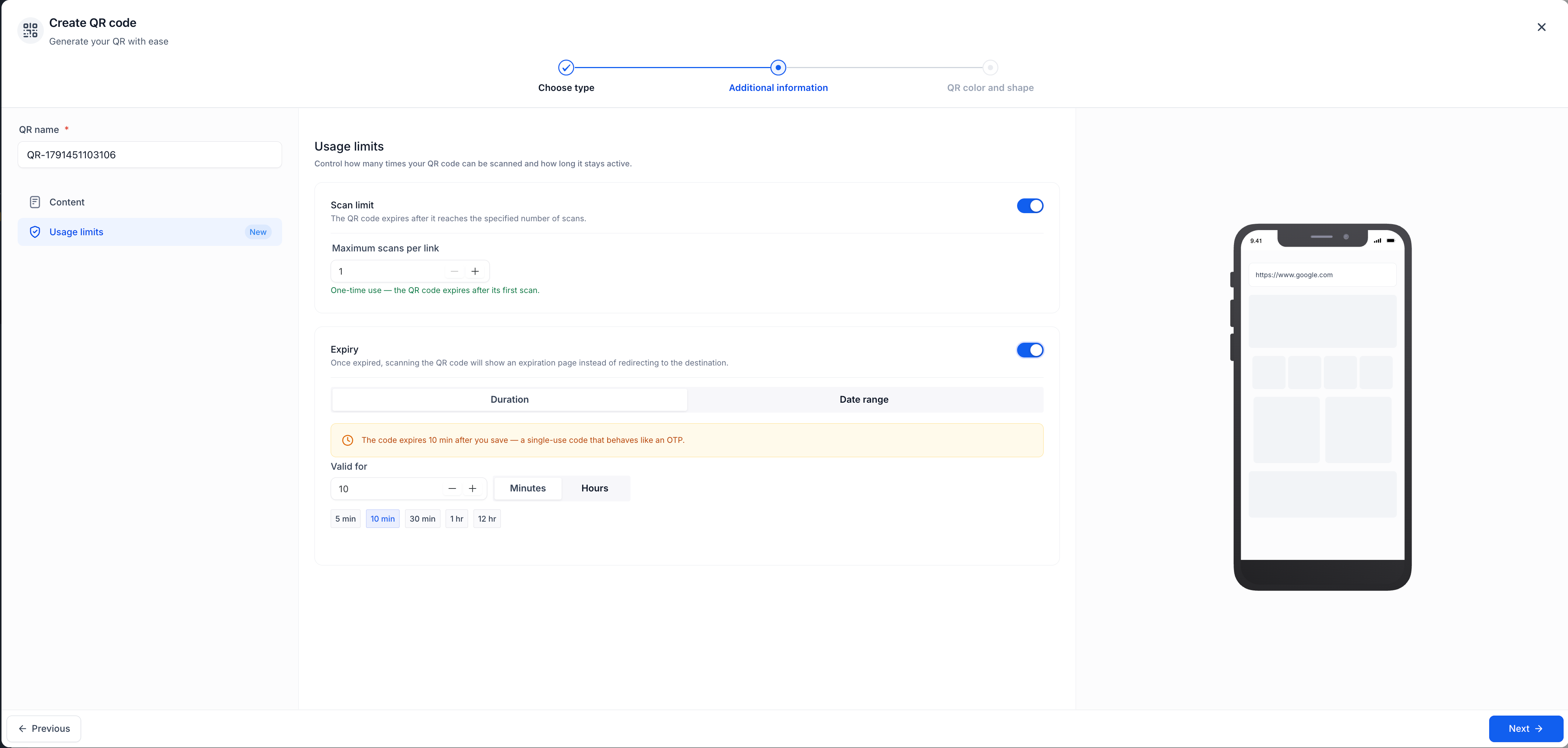
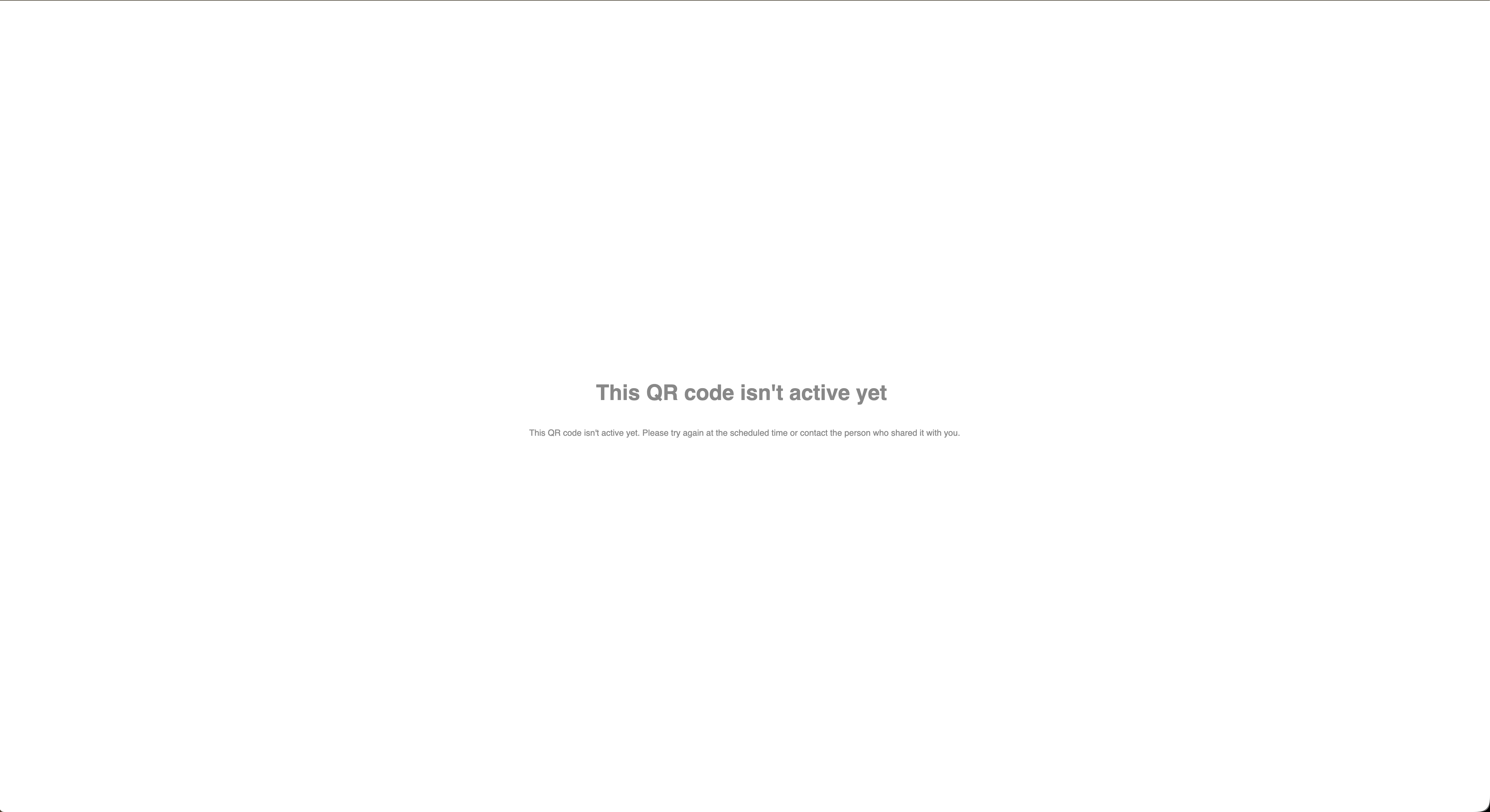
- Choose how your QR code expires - Pick a Duration, which counts down from the moment you create the code (for example, valid for 30 minutes), or a Date Range with a specific start and end time. A code with a future start stays inactive until its window opens.
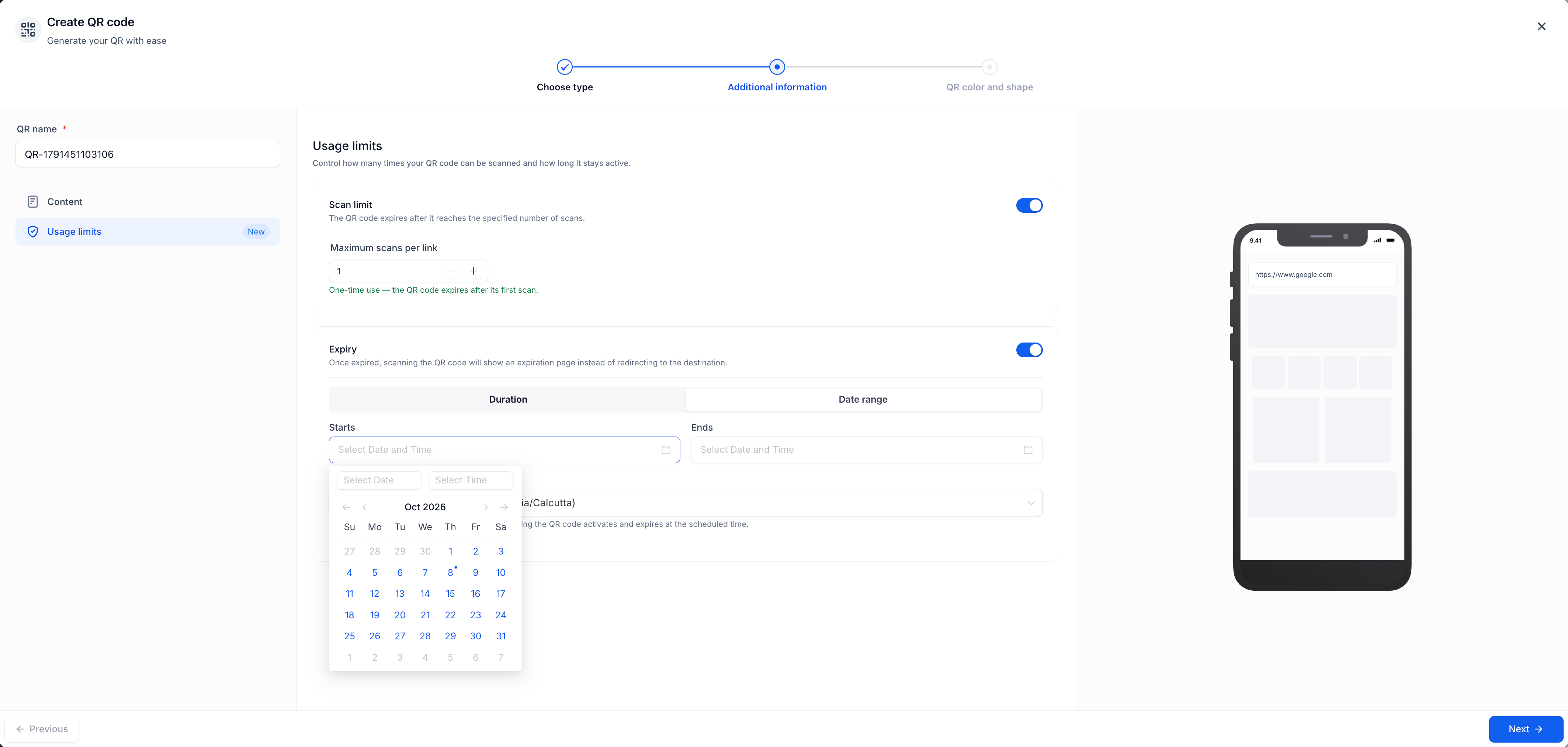
- Timezone-aware scheduling - Date ranges follow the timezone you select, regardless of where the QR code is scanned. Daylight-saving changes are handled automatically.
- Clear messages when a code isn’t available - If a code has expired, reached its scan limit, or isn’t active yet, scanners see a clear explanation instead of a broken link or confusing error.
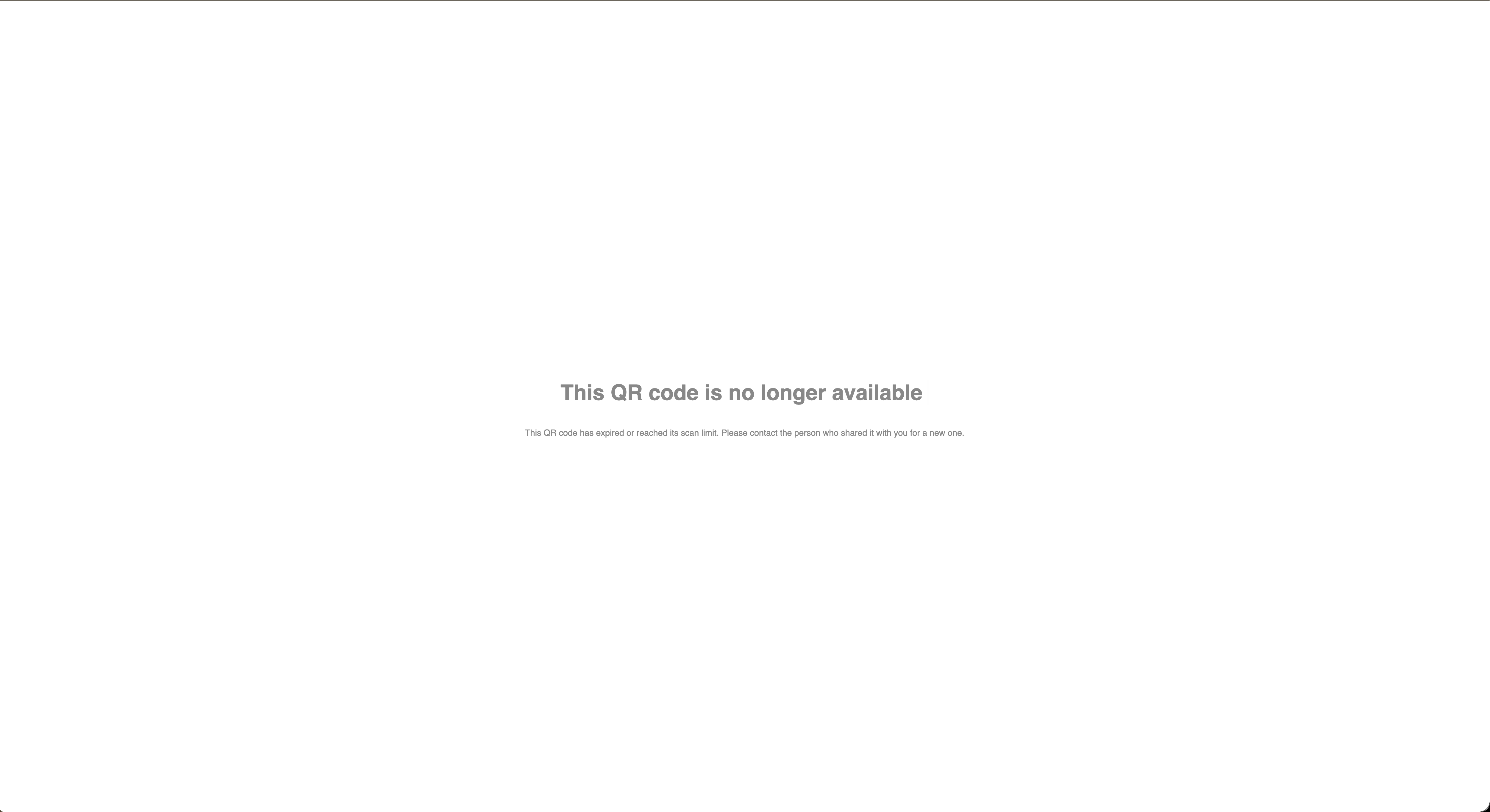
- Rules are enforced at scan time - Limits and expiry rules are applied when someone scans the code, rather than being embedded in the QR image. That means the same printed QR code can continue to be used without reprinting it.
2. ✨ a faster, clearer QR builder
- A redesigned builder - The QR builder now uses a side navigation rail to organise settings into clear sections instead of one long form. Use the side rail to jump between sections, and Next will take you straight to anything that still needs attention.
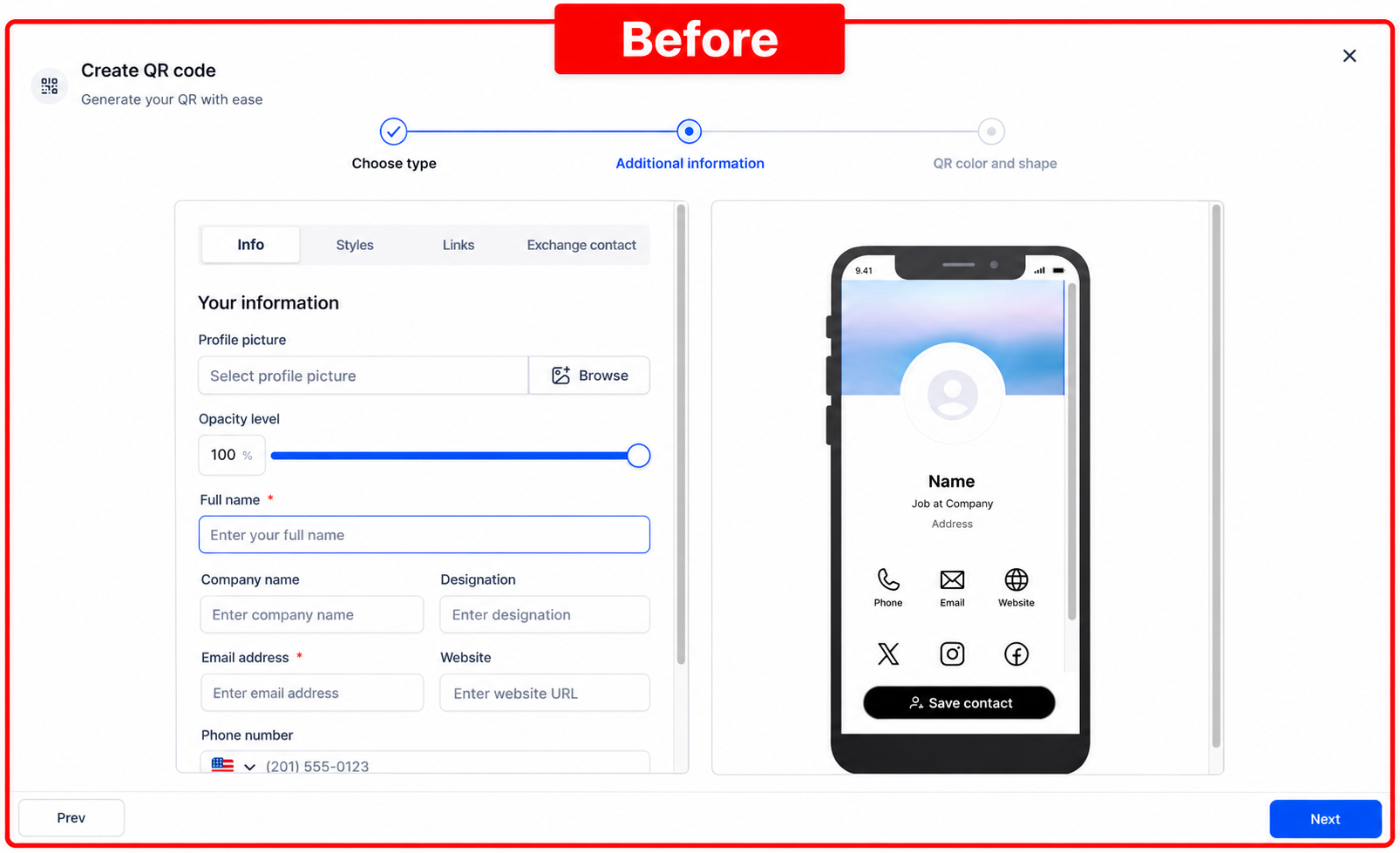
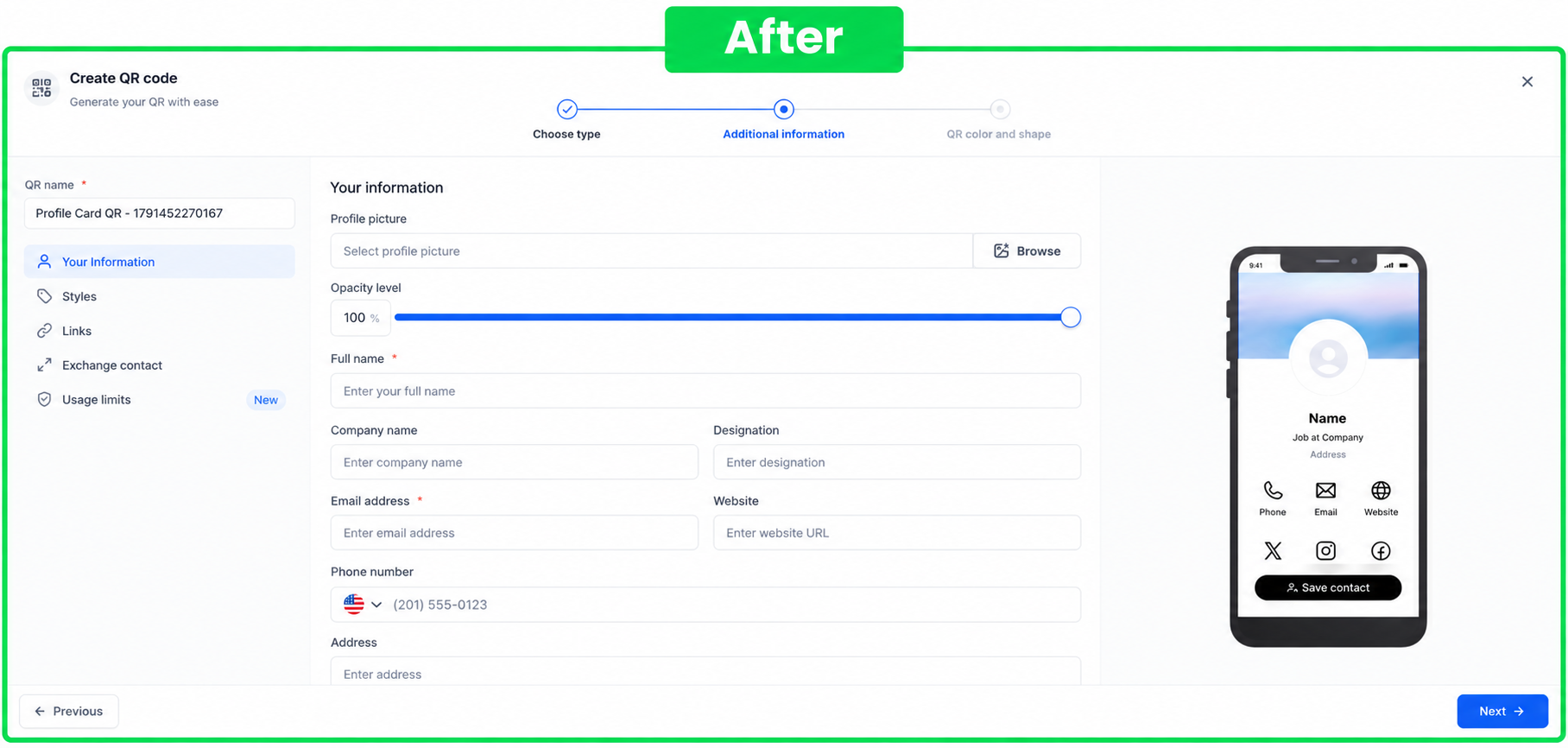
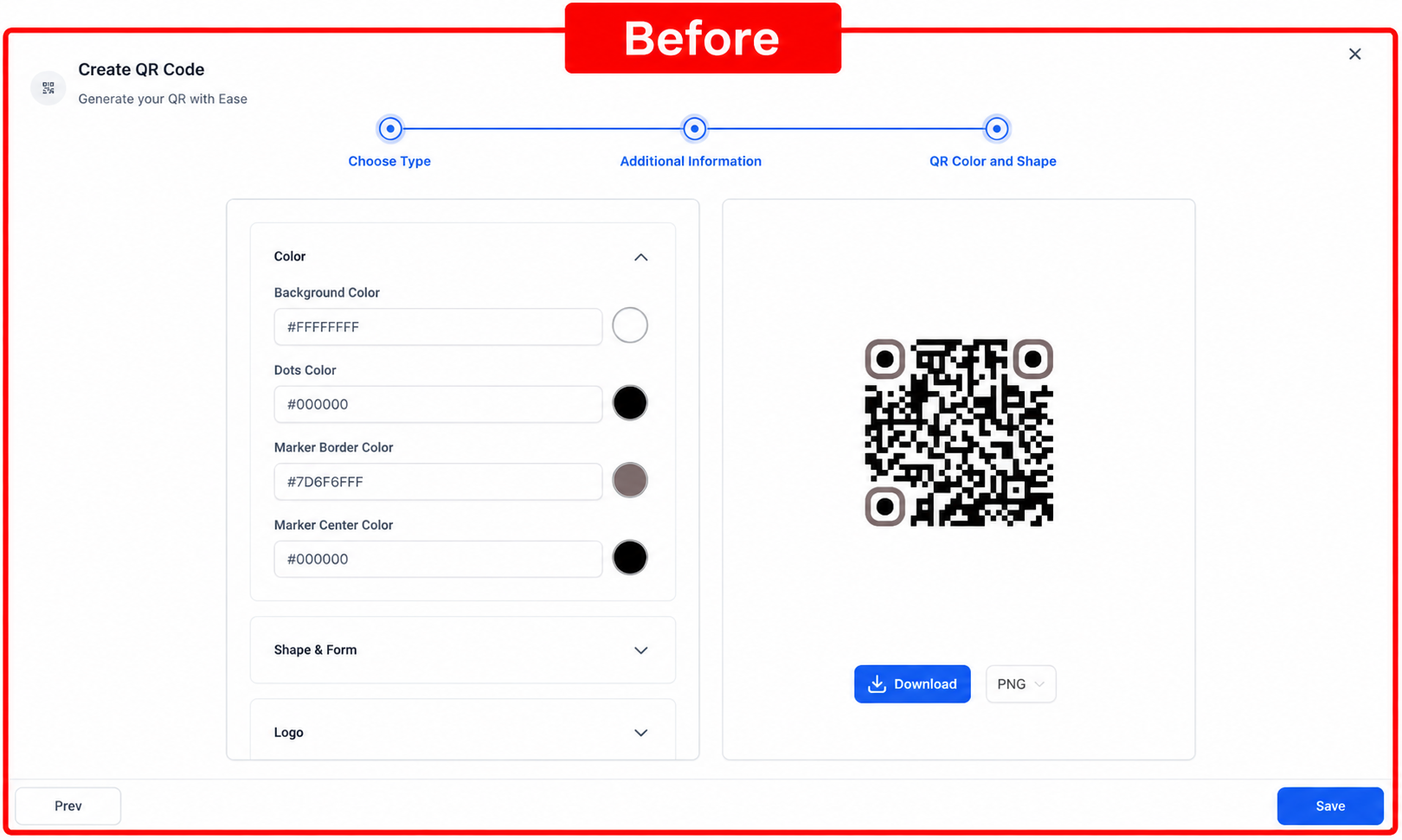
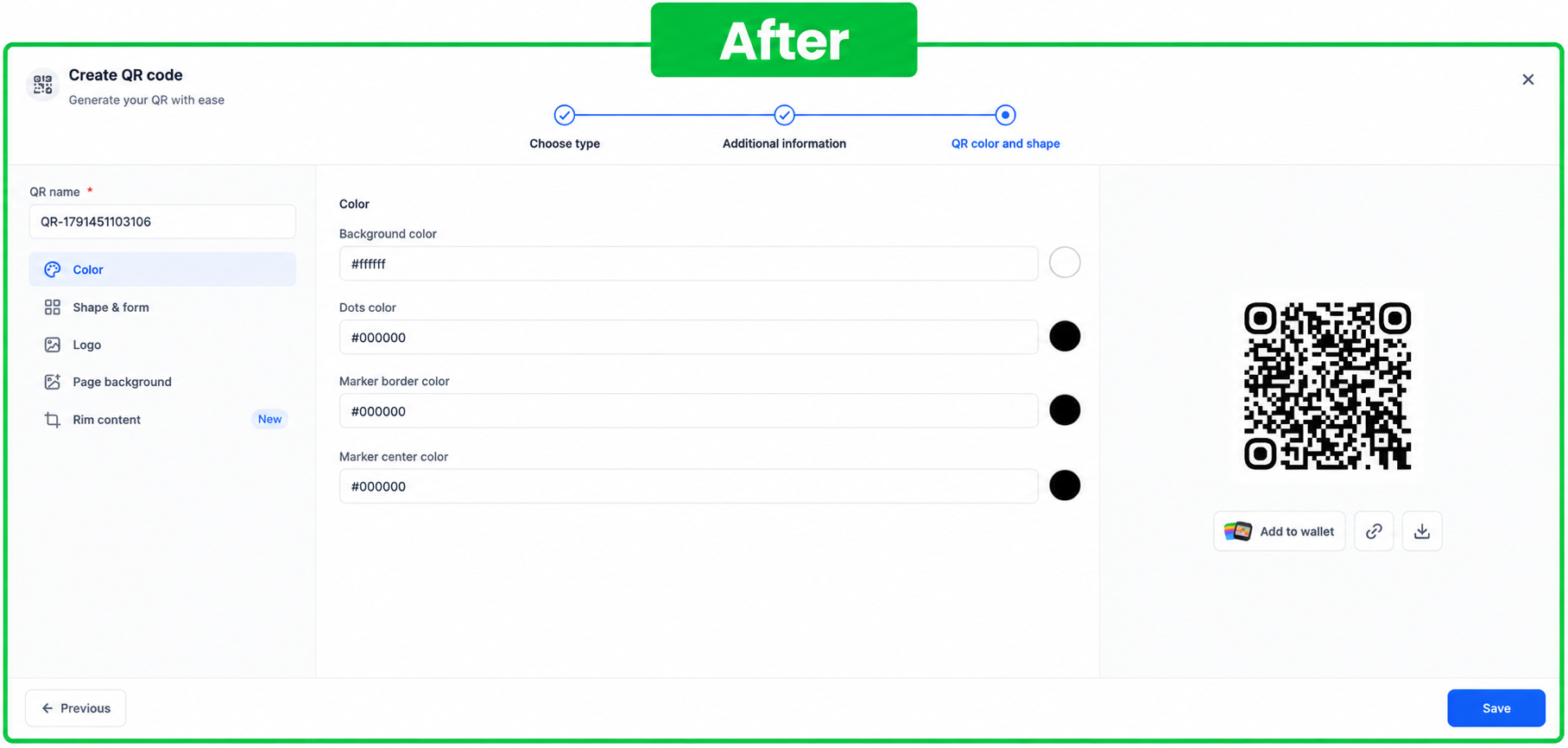
- Clearer language throughout - Labels, helper text, and section names have been rewritten to make each setting easier to understand and its impact clearer before you save.
- Available in every supported language - All new labels, status tags, and tooltips are fully translated across all 13 supported languages.
3. 📇 a redesigned QR codes list
- See status at a glance - QR codes with usage rules are clearly tagged. Limited means restrictions are active, while Inactive means the code currently isn’t accepting scans. Inactive codes are also greyed out for easier identification.
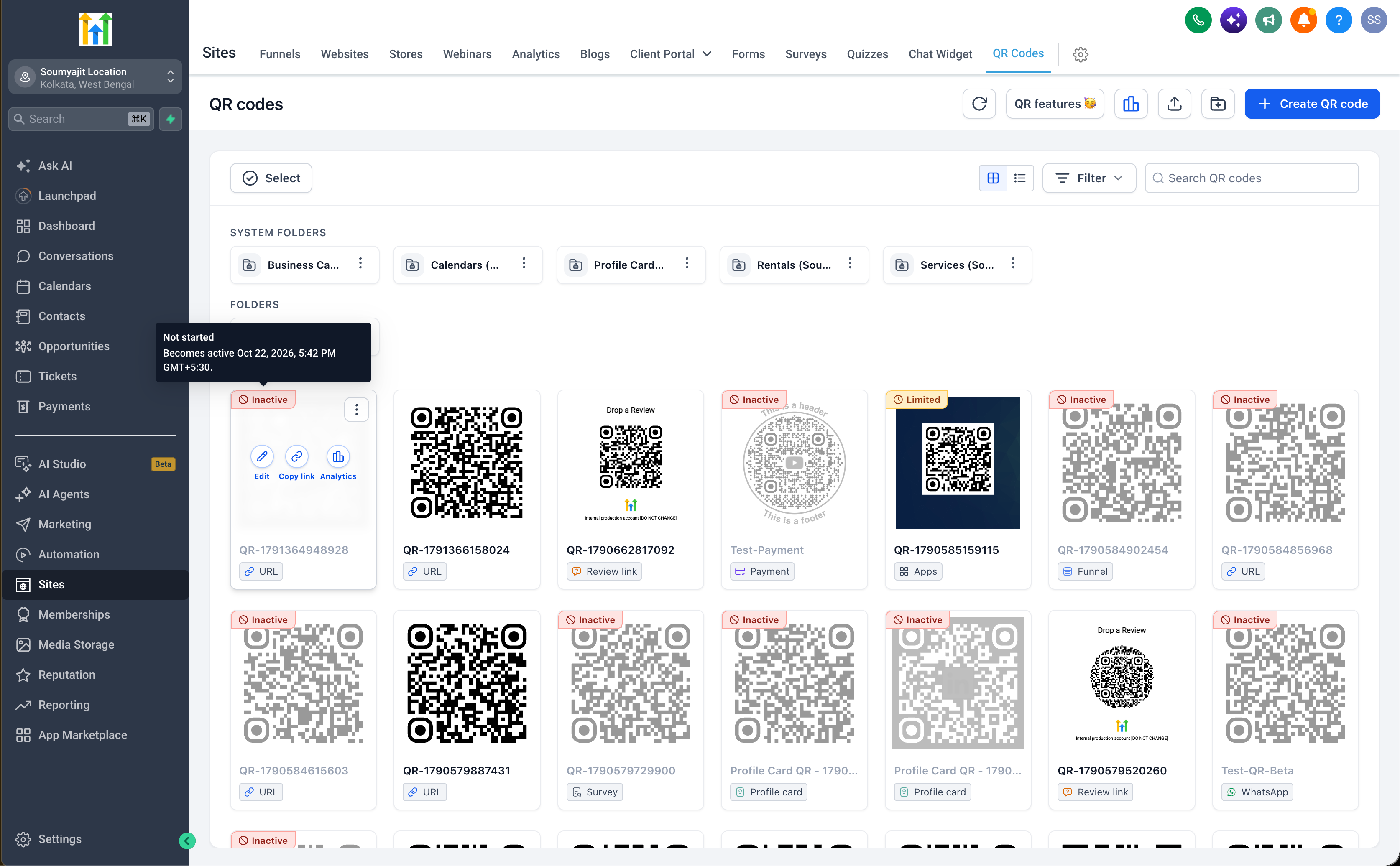
- Hover for the details - Hover over a status tag to see exactly which rule is in effect - such as a scan limit, expiry date, or an already-ended validity window - without opening the QR code.
Why it matters
- Dynamic QR codes let you put a time window and a scan budget on a code that's already printed. A code can be set to work only between a start and end time, or to stop after a set number of scans - and because the rules are checked at the moment someone scans, the printed code itself never changes. That makes it practical to hand out event tickets that only work during the event, class check-in codes that expire when the class ends, and single-redemption codes that can be claimed once and not again.
- At the same time, the redesigned builder makes QR codes easier to configure, while the new listing experience makes it immediately clear which codes carry usage limits and which are no longer accepting scans.
Smarter controls for teams. Less manual work. No unnecessary reprinting.



