EveryCatch AI builder now lets you build and test a workflow in the same chat. Describe what you want, let AI builder create or update the workflow, then click Test workflow right there. The test runs against your real automations, each step reports back on the canvas, and AI builder explains in clear language what worked and what did not.
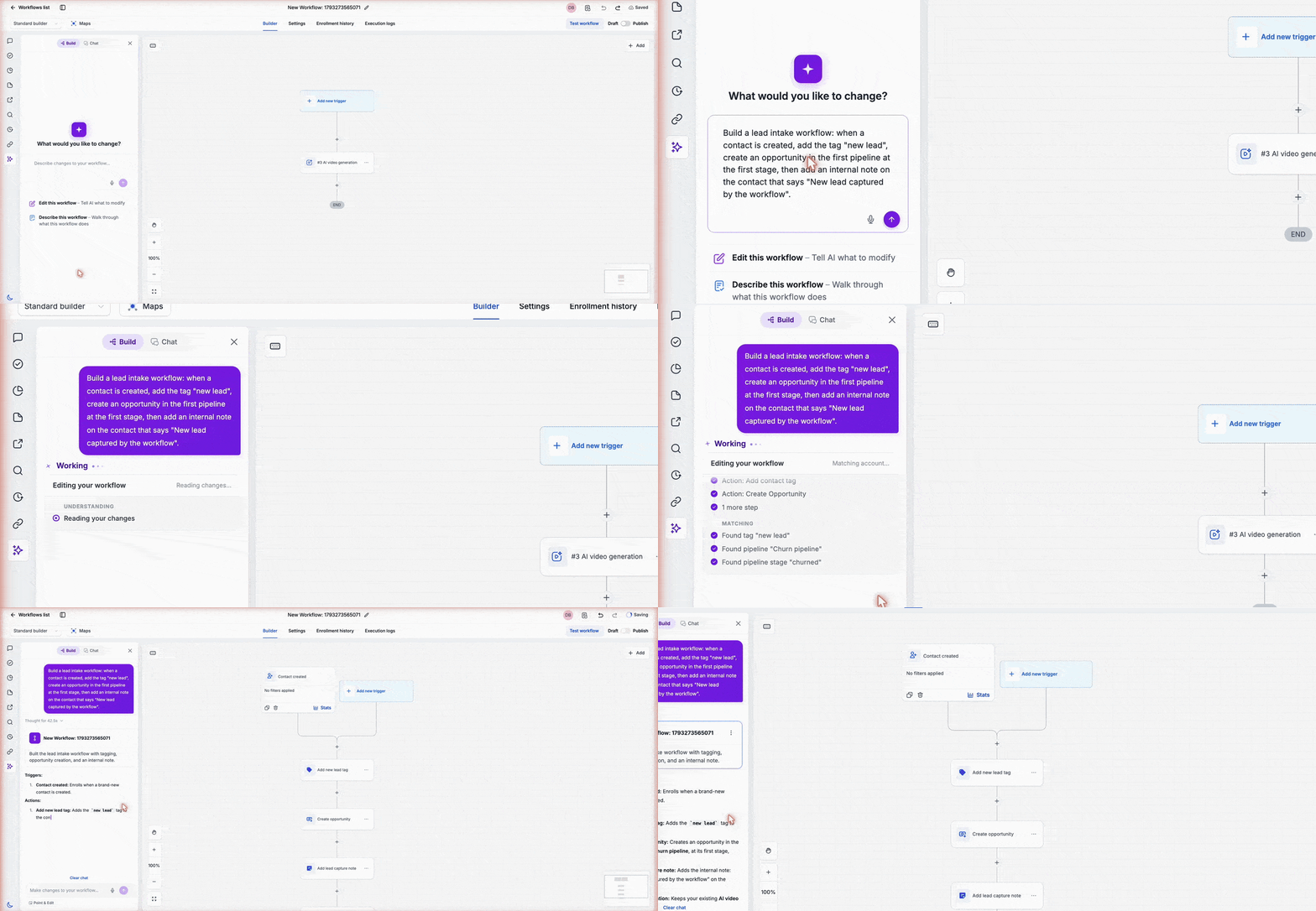
What changed
Test workflow, right in the chat
- Every time AI builder creates or edits your workflow, its reply now includes a Test workflow button at the end.
- Click this button and the test panel opens inside the same chat. Choose Enroll a contact or Test using events, select the contact, and confirm the contact data before you start the run.
Watch the run live
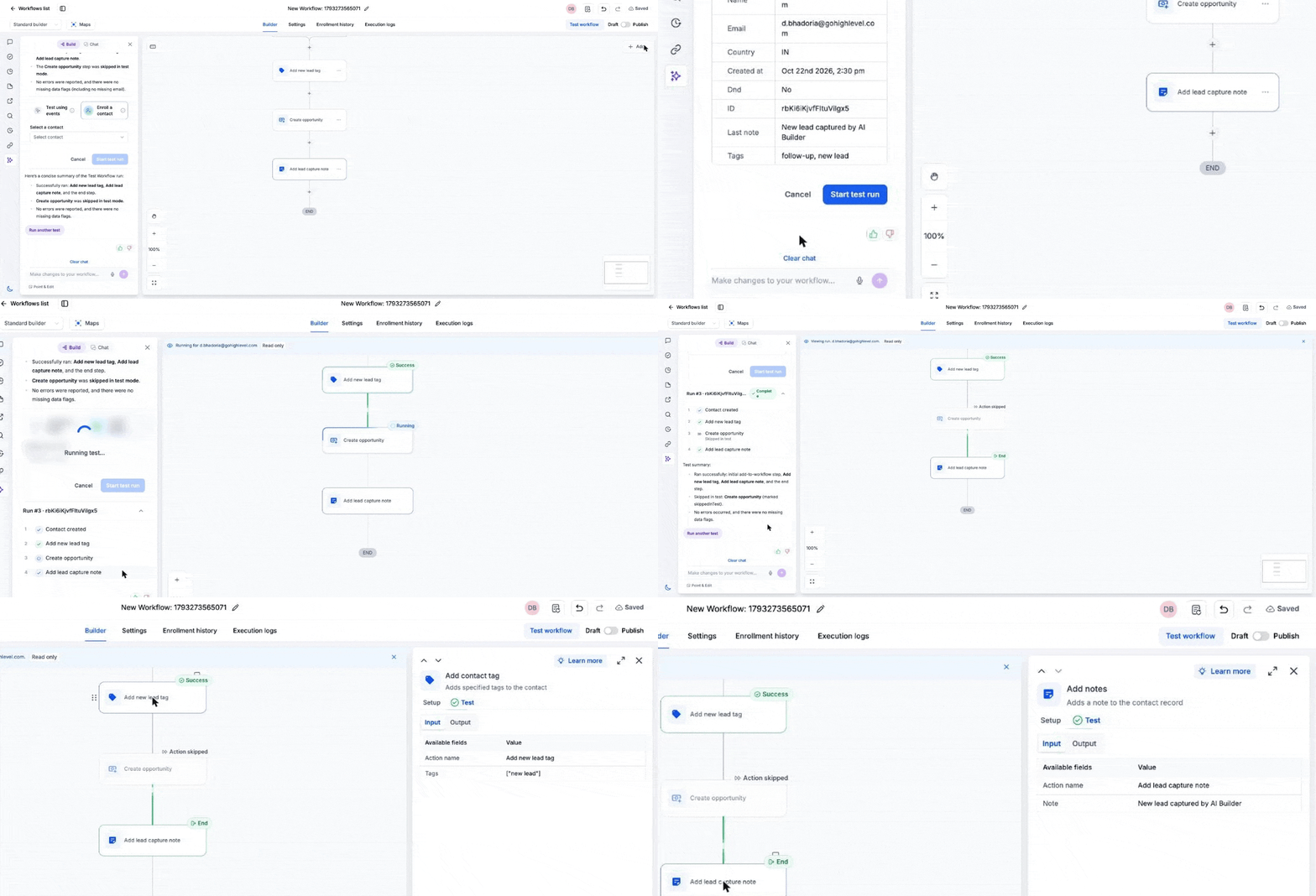
- Click Start test run. On the canvas, each step updates in real time with a status of Running, Success, Action skipped, or End so you can see exactly how the workflow behaves.
- In the chat, you also see the run listed step by step, with a checkmark beside every step that actually ran during the test.
A summary you can read
- When the test run finishes, AI builder writes a short summary of the test. It shows which steps ran, which ones were skipped, and whether any errors or missing data affected the run.
- You can click any step on the canvas to open its details from that test, including the exact Input and Output used for the run.
Run another test
- If you adjust the workflow or fix an issue, you can click Run another test to trigger a fresh test run with a single click.
How to use
- Open EveryCatch Labs and turn on The New Test Workflow feature.
- Go to Automation > Workflows and open the workflow you want to work on.
- Open AI builder and describe the workflow you want created, or the change you want made to the current workflow.
- When AI builder finishes its reply, click Test workflow in that same response.
- Choose Enroll a contact and select a contact, or choose Test using events, depending on how you prefer to test.
- Click Start test run to begin the test.
- Review the test summary. Click any step on the canvas to inspect its Input and Output from the test run.
- When you are satisfied with the behavior, save and publish your workflow.
Important: A test run executes the real actions in your workflow. Tags are applied, notes are created, and messages are actually sent. Use your own contact record for testing when you do not want to involve a customer.
Why this matters
AI-assisted building makes it quick to create automations. Confirming that everything worked correctly used to take extra time, because you had to leave the chat, locate the test run, and read through logs to understand what happened.
Now you can build and test from a single place. Describe the workflow, let AI builder set it up, run a test immediately, and read a clear result. You can avoid digging through Execution Logs and can see how the workflow behaves before it affects live customers.
Good to know
- Some workflow actions are skipped during a test run. Both the summary and the canvas will show you exactly which actions were skipped.
- Testing is optional. You can still choose to save and publish a workflow without running a test first.



