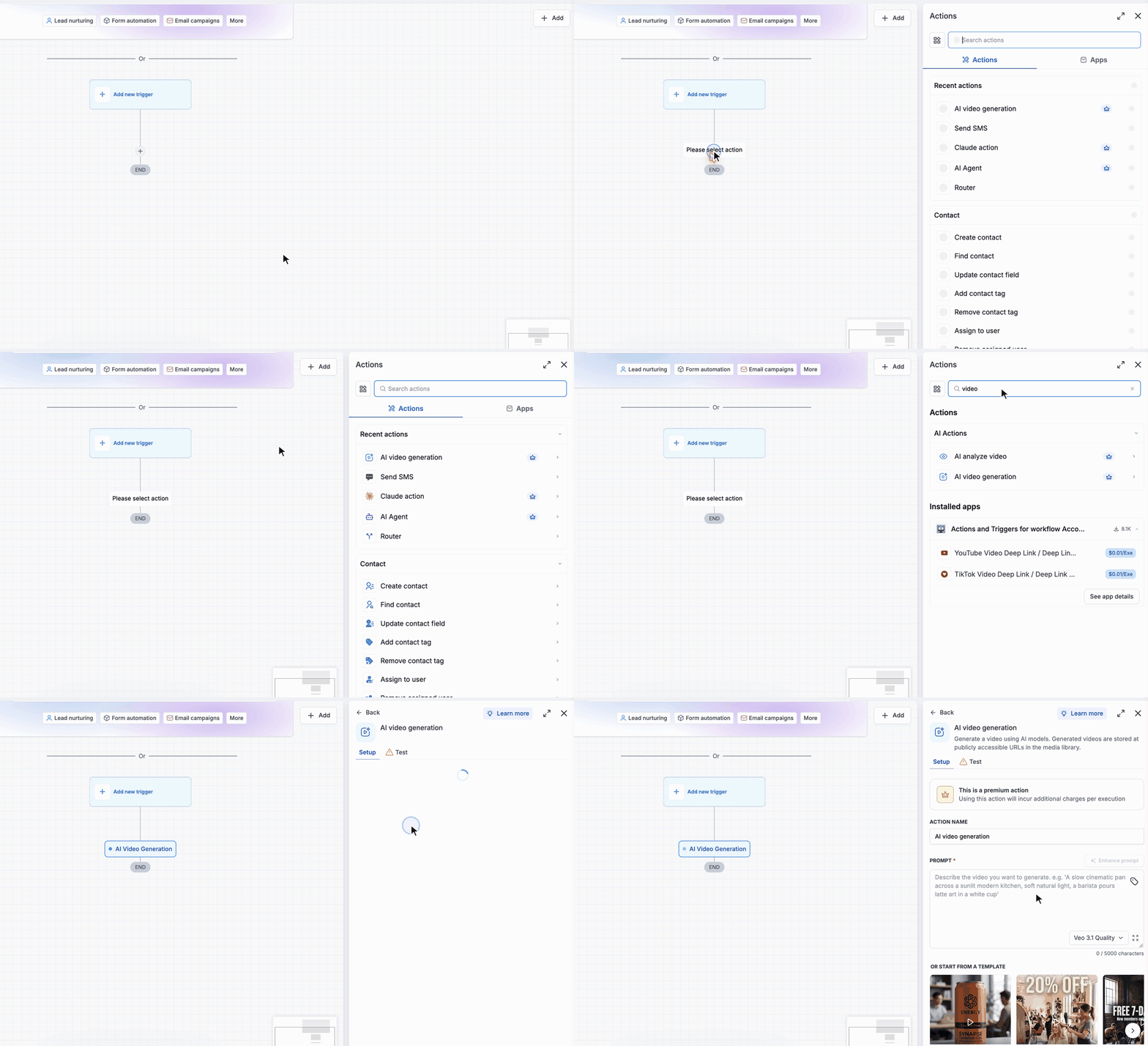
Your EveryCatch workflows can now automatically create short videos for you. The new AI Video Generation action appears under AI actions in the workflow builder. Add it to a workflow, give it a prompt, and Google's Veo 3.1 model will generate a short video, save it at a public URL, and return that URL so later workflow actions can use it.
This is a premium workflow action, and each time it runs there is an additional usage charge.
What changed
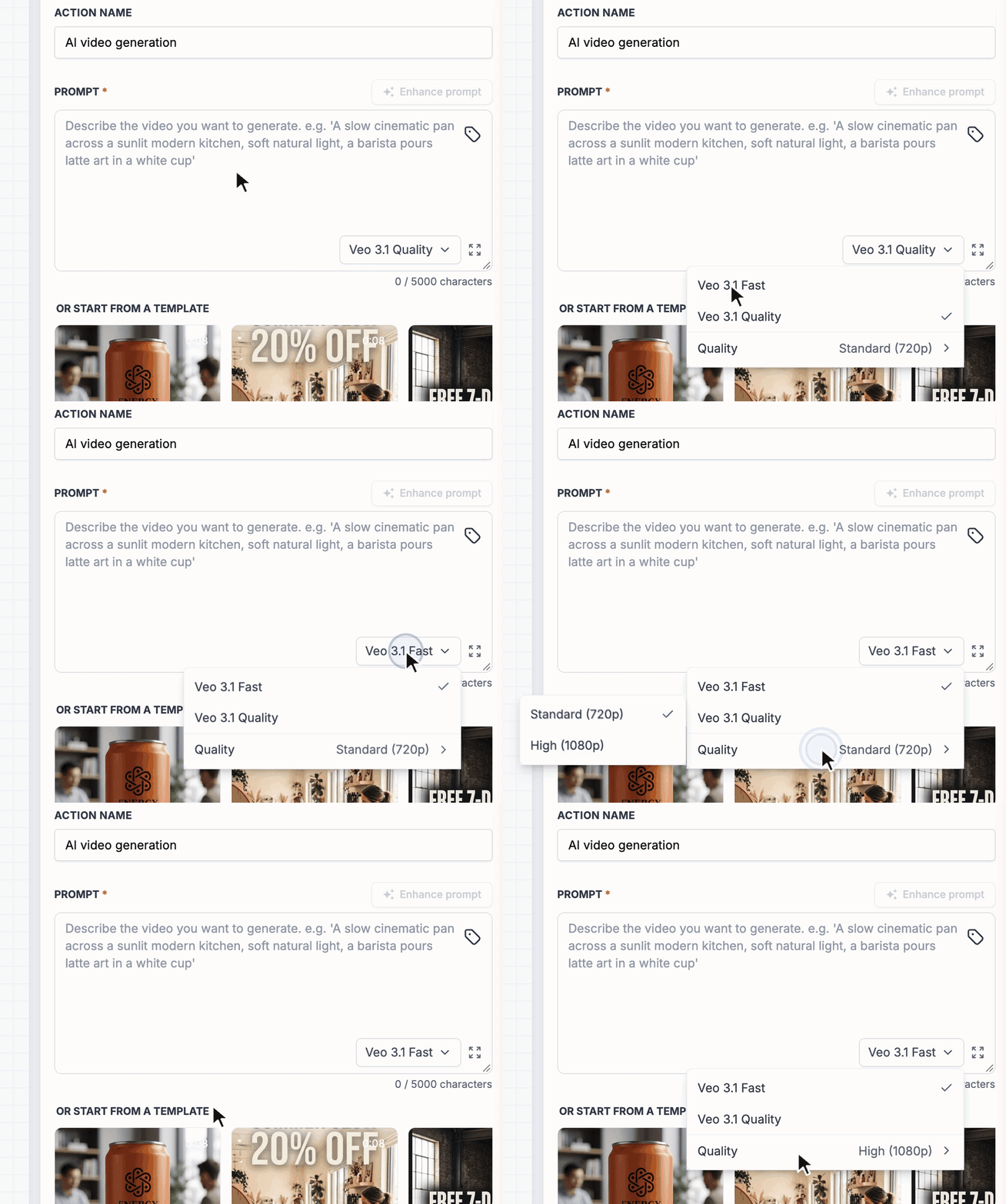
- Two models: Choose Veo 3.1 Quality for the most polished results, or Veo 3.1 Fast when you want quicker generation.
- HD quality options: Generate videos in Standard (720p) or High (1080p) resolution.
- Flexible prompts: Write your own prompt or insert a custom value. The prompt can come from a contact field, a webhook payload, or any earlier workflow action.
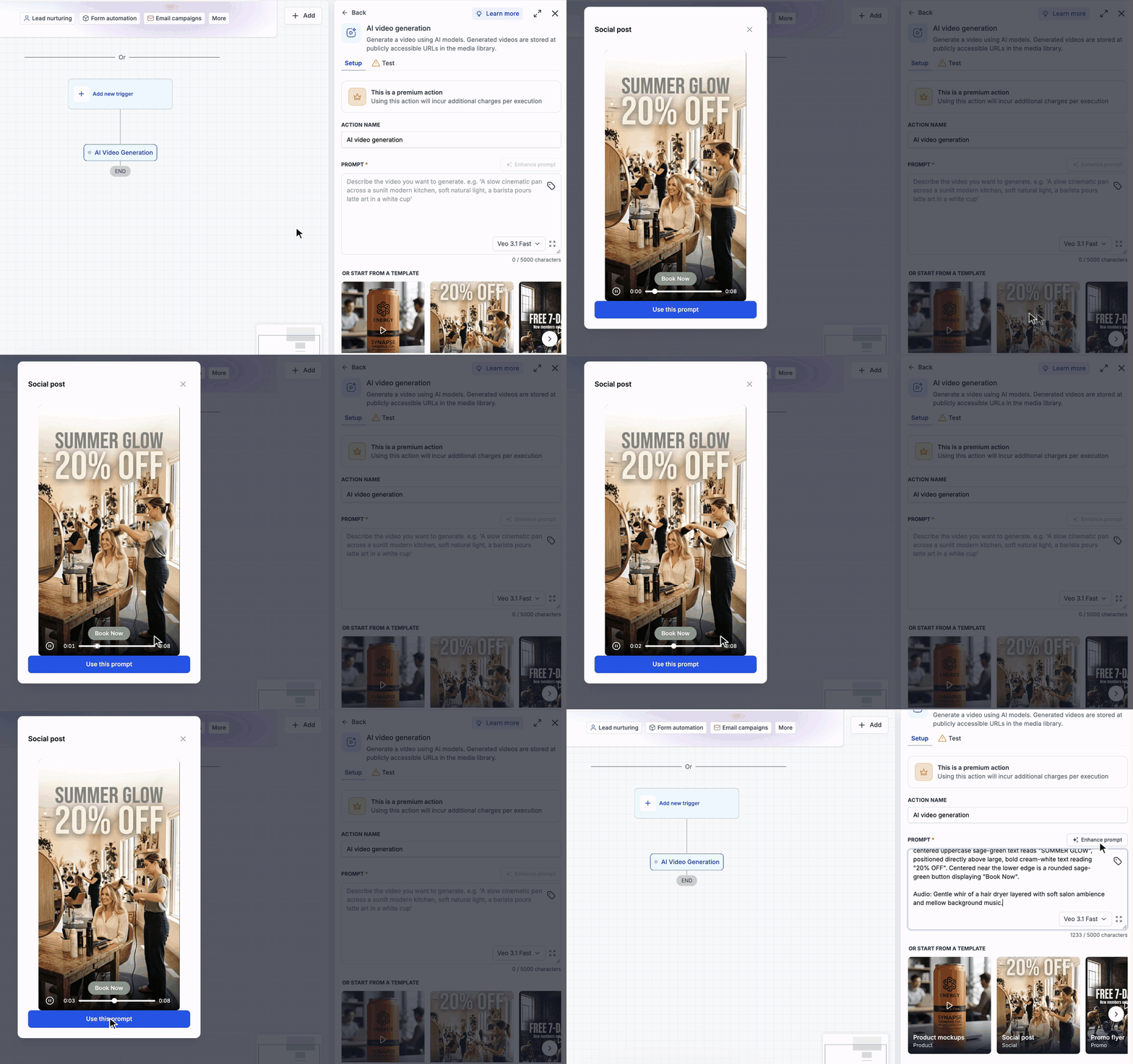
- Enhance prompt: With one click, EveryCatch can expand a short prompt into a more detailed version to guide the model.
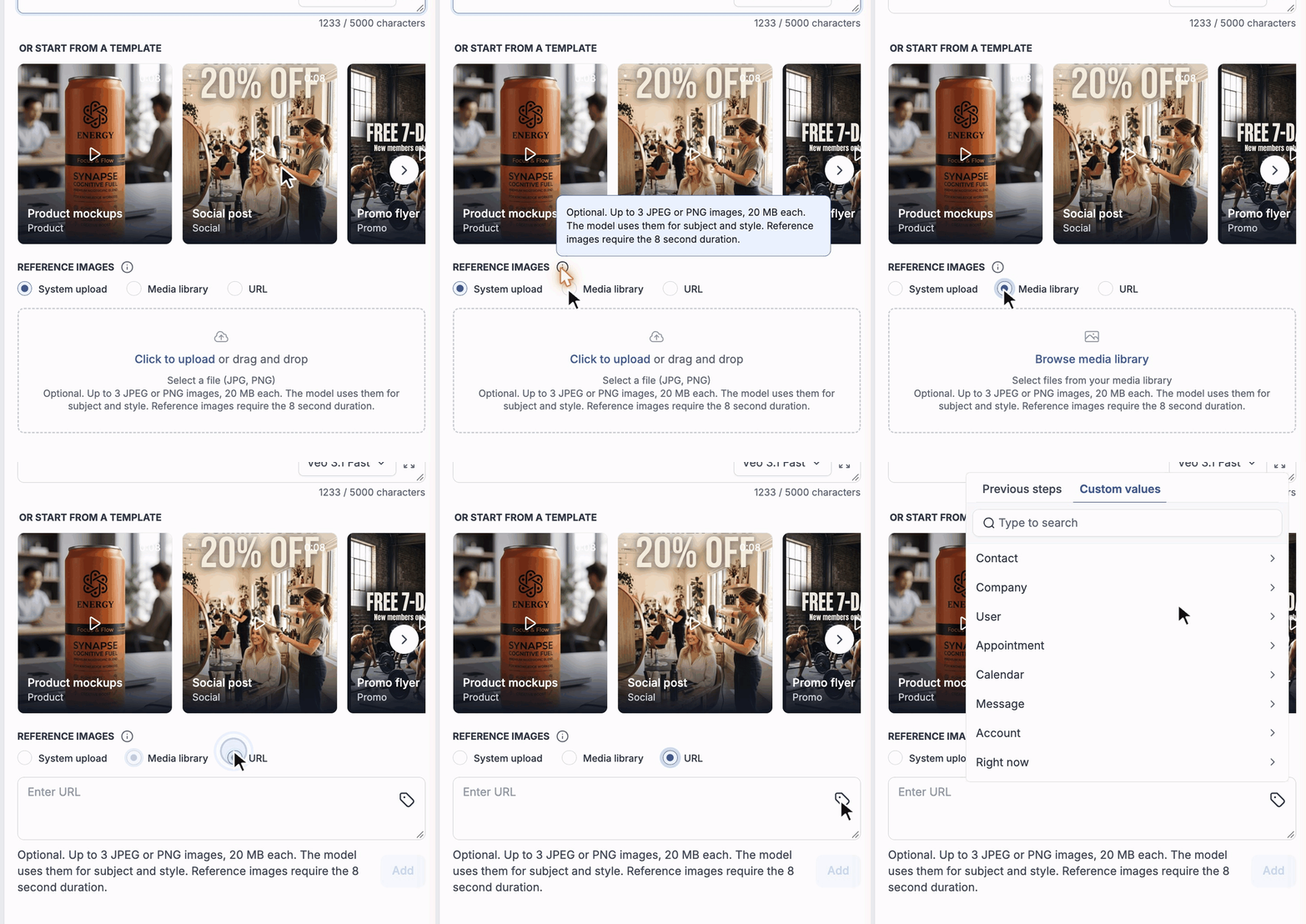
- Templates: Start from templates like Product mockups, Social post, Promo flyer, or Lifestyle. Each template shows a sample video first so you can see what its prompt produces before using it.
- Reference images: Add up to 3 JPEG or PNG images from your computer, from the Media Library, or from a URL. The model uses these images to guide the subject and style of the video.
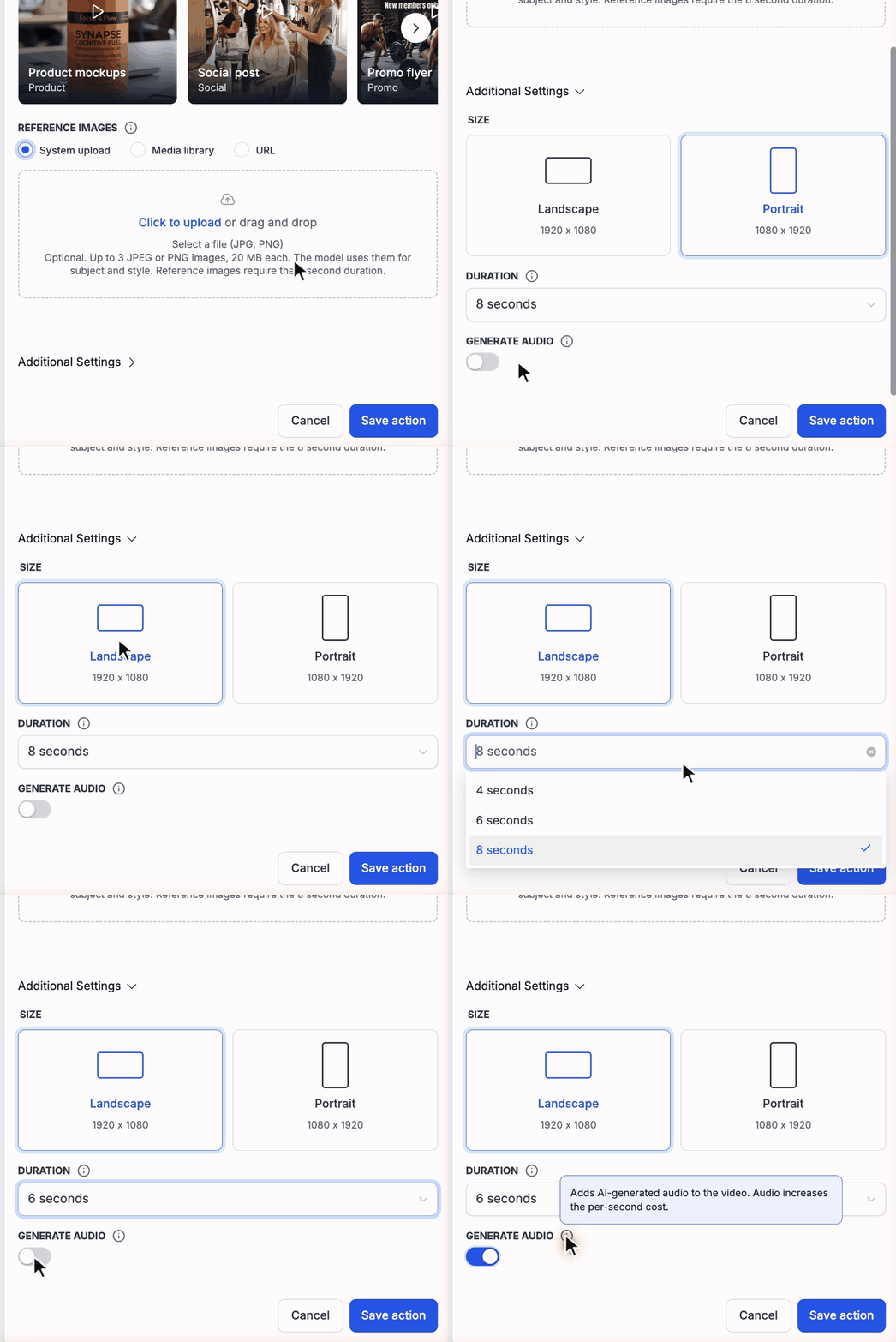
- Size and length: Choose Landscape (1920 x 1080) or Portrait (1080 x 1920), and set the duration to 4, 6, or 8 seconds.
- Generate audio: Turn on a single toggle to add AI generated sound, from ambience to simple background music.
- Automatic storage: Every generated video is saved to the Media Library and its URL is returned so the following workflow actions can use it immediately.
Pricing
Video generation is billed per execution, and pricing depends on the length of the video and the settings you choose for that run.
Note: Treat any cost figures you see in your billing area as planning estimates, not fixed rates. They can change over time.
Your actual cost per video depends on how you configure the action. The main factors are:
- Model: Which Veo 3.1 model you select.
- Quality: Whether you pick Standard (720p) or High (1080p).
- Duration: Whether the clip is 4, 6, or 8 seconds long.
- Audio: Turning on Generate audio increases the per second cost.
How to use
- Go to Automation > Workflows.
- Open an existing workflow or create a new one, then add the AI Video Generation action from the AI actions section.
- Select the model and quality. The defaults are Veo 3.1 Quality and Standard (720p).
- Write your prompt. You can type it directly or insert a custom value so the prompt is filled from your data at run time.
- Optionally click Enhance prompt or choose a template to start from. Both steps are optional.
- Optionally add reference images to guide the look of the video.
- Open Additional settings to set the size, duration, and whether to enable Generate audio. This step is optional.
- Save the action.
Important: The generated video is stored at a public URL. Anyone who has the link can open it without logging in. Be careful when your prompt includes customer data or other sensitive information that could appear in the video.
Why this matters
Previously, your workflows could only send videos that you had already uploaded. With AI Video Generation, EveryCatch lets a workflow create the clip for you, so you can add video without recording, editing, or booking a studio.
Use the returned video URL in the actions that follow. You can include it in an email or SMS, store it in a custom field, or send it through a webhook. Because the prompt can be built from your contact data, a single workflow can generate a different video for each person who passes through it.
Good to know
- Videos can be 4, 6, or 8 seconds long.
- Reference images require the 8 second duration. If you add a reference image, the duration will automatically switch to 8 seconds.
- Generate audio is turned off by default.



