What changed
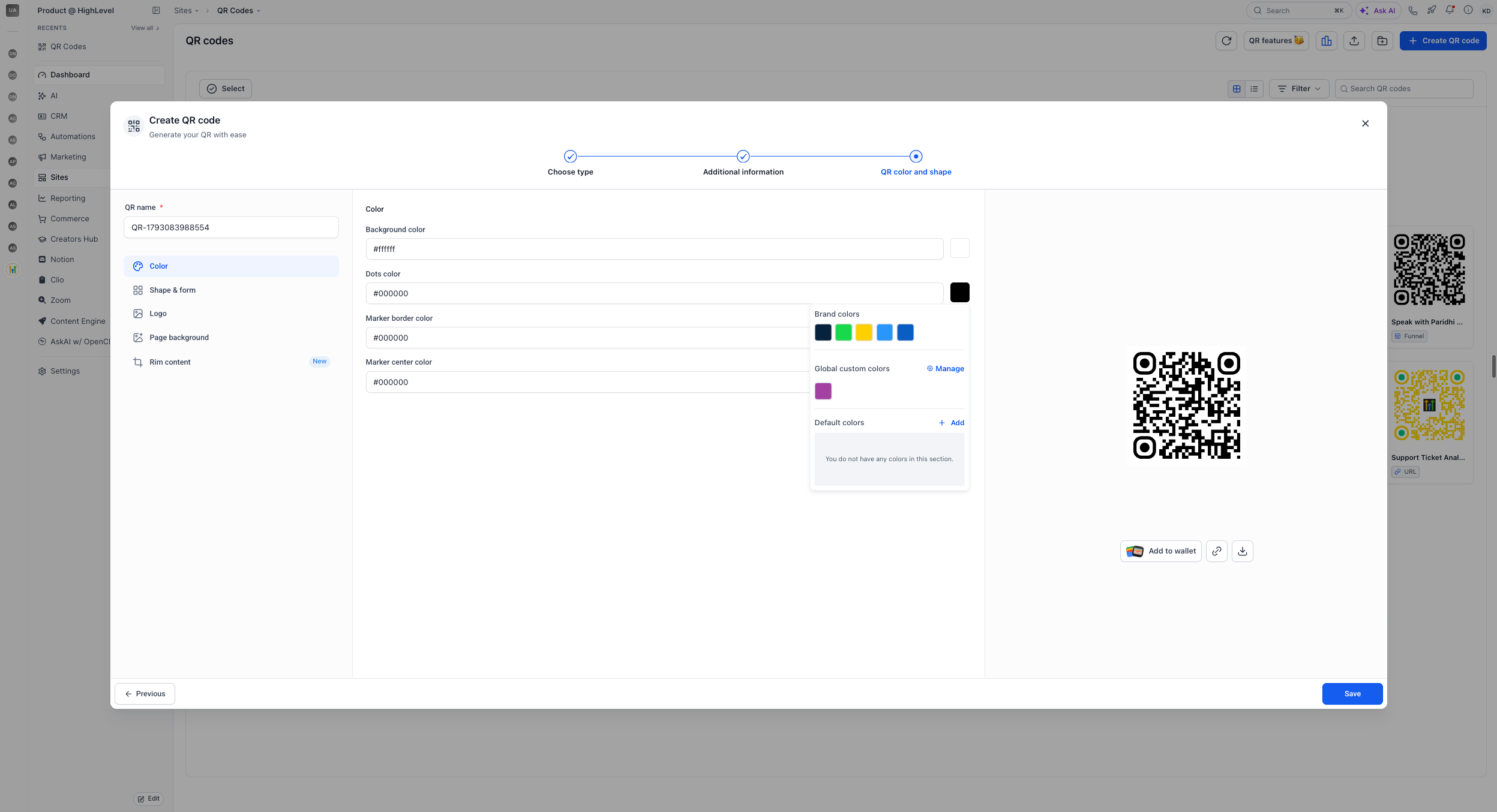
- Brand color swatches: The QR code editor in EveryCatch now shows your Brand Board colors as clickable swatches, so you can match a QR code to your brand without typing hex codes.
- Global custom colors: Your saved custom colors now appear next to your brand colors, so you have the same full color set in the QR code editor that you use elsewhere in the builder.
Why this matters
QR codes often sit on printed pieces, signs, and other marketing materials where consistent branding is important. With this update, you can apply your brand or custom colors directly from the swatches you already use, instead of guessing color codes or keeping QR codes in plain black and white when you would prefer them to match your design.
How to use
- Open the QR codes section in EveryCatch.
- Select a QR code to edit, or create a new one.
- In the color picker, choose a color from your Brand Board swatches or from your saved custom colors to style the QR code.