QR codes are now built into EveryCatch websites, just like funnels.
Now you can make a QR code for any website page in one click
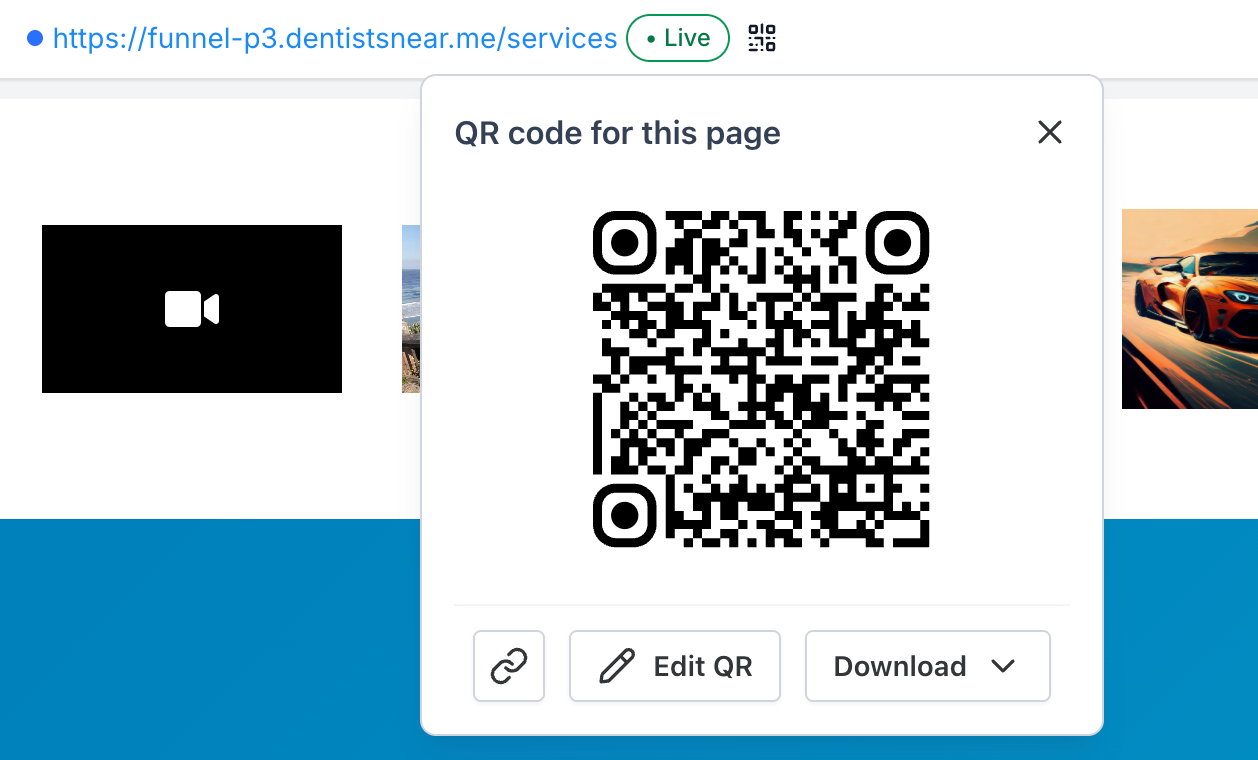
You will now see a QR code icon next to your page URL in the EveryCatch website builder. Click it to instantly create a QR code for the page you are editing, then download it or open it for more customisation.
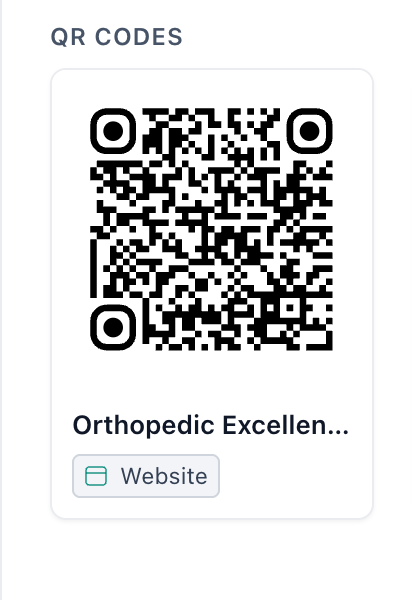
EveryCatch also includes a new Website type in the QR code builder. Select a website, choose a page, and the QR is ready. You do not need to copy and paste URLs manually.
- One-click QR codes from the website builder
- New "Website" QR type in the QR code builder
- Always opens the right page, even after a slug or domain change
- Bridge the gap between offline and online experiences

Key features & benefits
- QR codes inside the website builder: Create a QR code directly in the website builder while you are working on a page. You do not need to open the QR code builder separately or select the page by hand.
- New "Website" type in the QR code builder: When you are in the QR code builder, choose Website as the type, then select the website and page from the dropdowns. EveryCatch automatically links the QR code to that page.
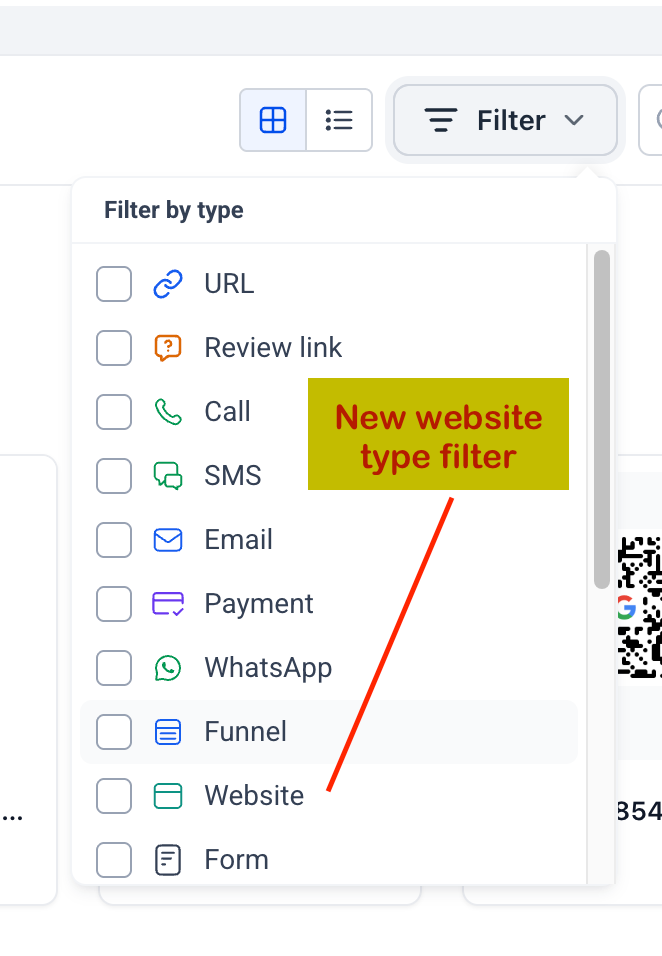
- Scans follow your page: The QR code is tied to the website page itself instead of a fixed URL. If you later change the page slug or move the site to a new domain, the printed QR code still opens the correct page.
- Download in multiple formats: Download your QR codes as PNG, SVG, or PDF so you can use them in print materials, signage, menus, packaging, or any digital asset.
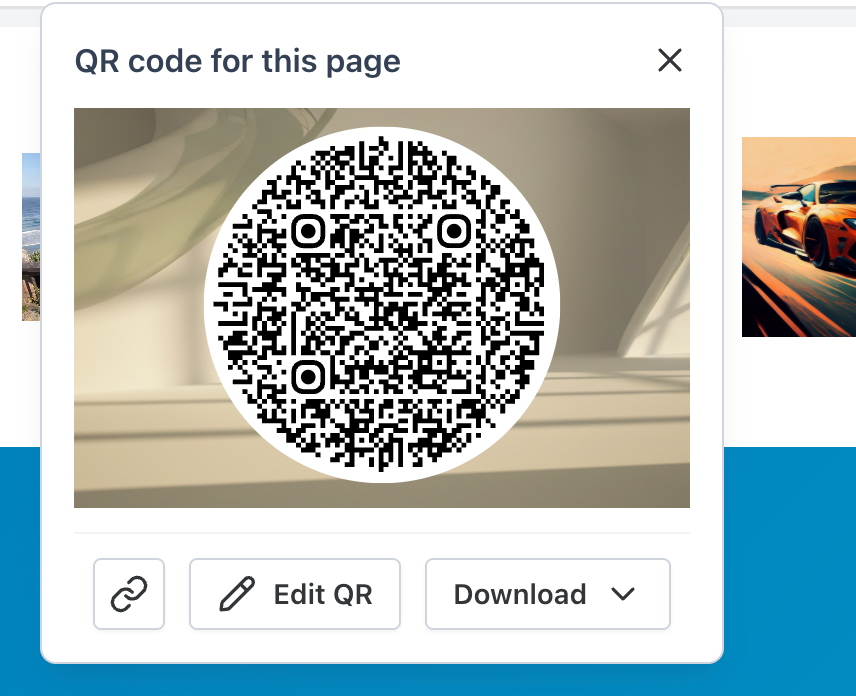
- Full customisation with Edit QR: The Edit QR option opens Step 3 of the QR code builder, where you can adjust colours, shapes, and branding so the QR fits your visual style.
- Add to Wallet and list filters: Website QR codes support Add to Wallet. The wallet pass shows the website and page names, so your team and customers can recognise where it points. You can also filter the QR codes list by the new Website type for easier management.
Heads up: The previous QR type labelled "Website" (a plain link) now appears as URL. Only the label has changed. All existing QR codes continue to work exactly as before.
How to use
From the website builder
- Open a website that has a connected domain.
- Open any page in the EveryCatch website builder.
- Click the QR code icon next to the page URL.
- Download the QR as PNG, SVG, or PDF, or click Edit QR to customise it.
- Scan the QR code to confirm that it opens the correct page.
From the QR code builder
- Go to Sites → QR Codes → Create QR.
- Choose the Website type.
- Select your website and then the specific page.
- Style your QR code, then save and download it.
Why this feature?
Websites are often what a business prints on menus, flyers, store windows, and business cards. Before this update, creating a QR code for a website page meant pasting the page URL into a basic URL QR. If the page slug or domain changed later, that QR code could stop sending people to the right place.
With this release
- Website QR codes take one click to create.
- They connect to the correct page without any manual URL setup.
- They continue to work after slug or domain changes.
- Websites now share the same QR experience that funnels already had.



