EveryCatch now includes a dedicated Layers panel in the certificate and badge builder, so you can easily see how elements are stacked, keep important pieces fixed in place, and spot broken custom-field placeholders before you publish.
Key highlights
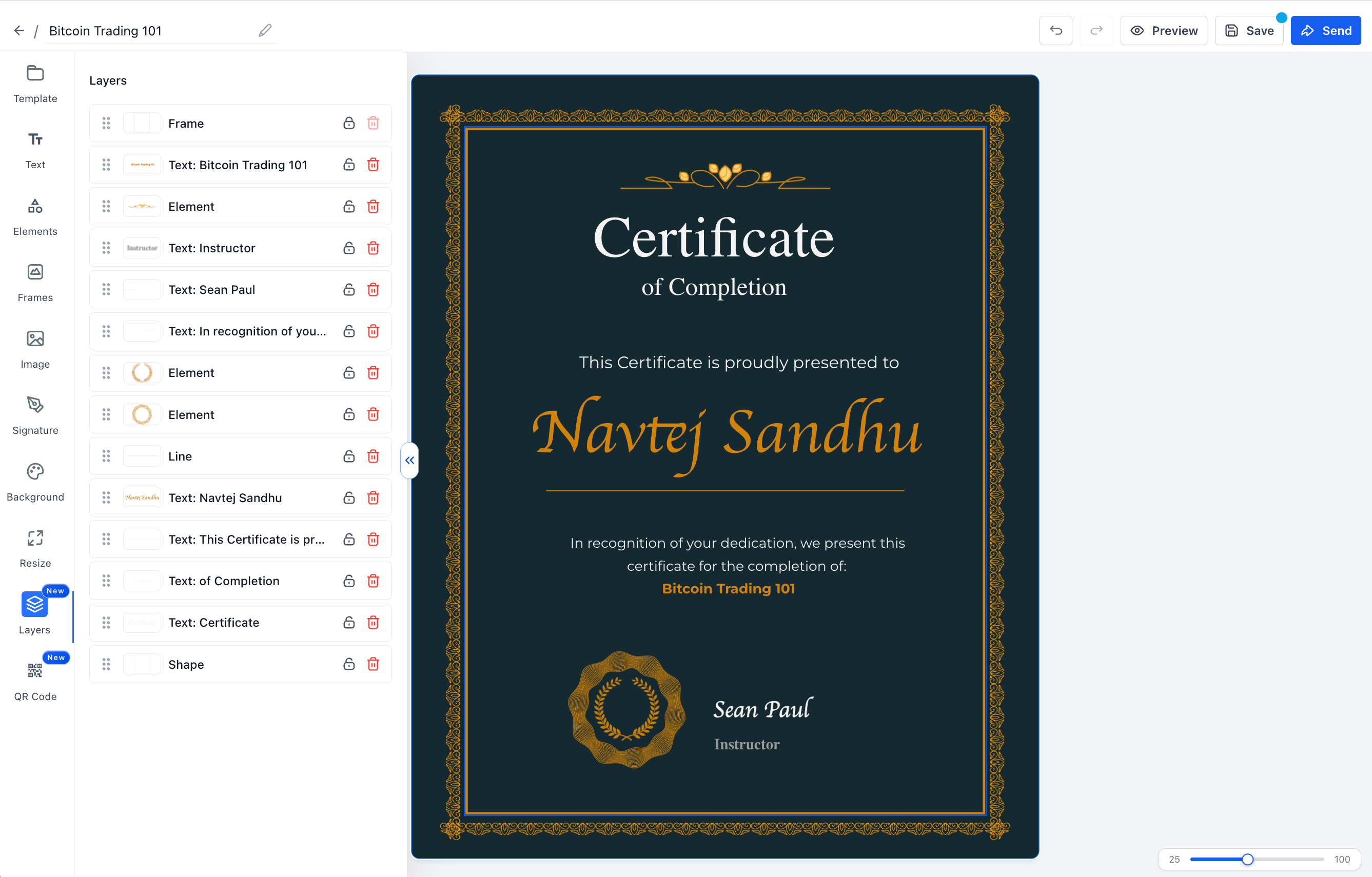
- New Layers tab in the builder sidebar that shows every element on your canvas in stacking order
- Click any layer to select that element on the canvas, and drag layers up or down to change which elements sit in front or behind
- Per-layer lock controls, so locked layers cannot be moved, resized, deleted, or edited using shortcuts
- Delete any layer that is not locked directly from the Layers panel, without searching for it on the canvas
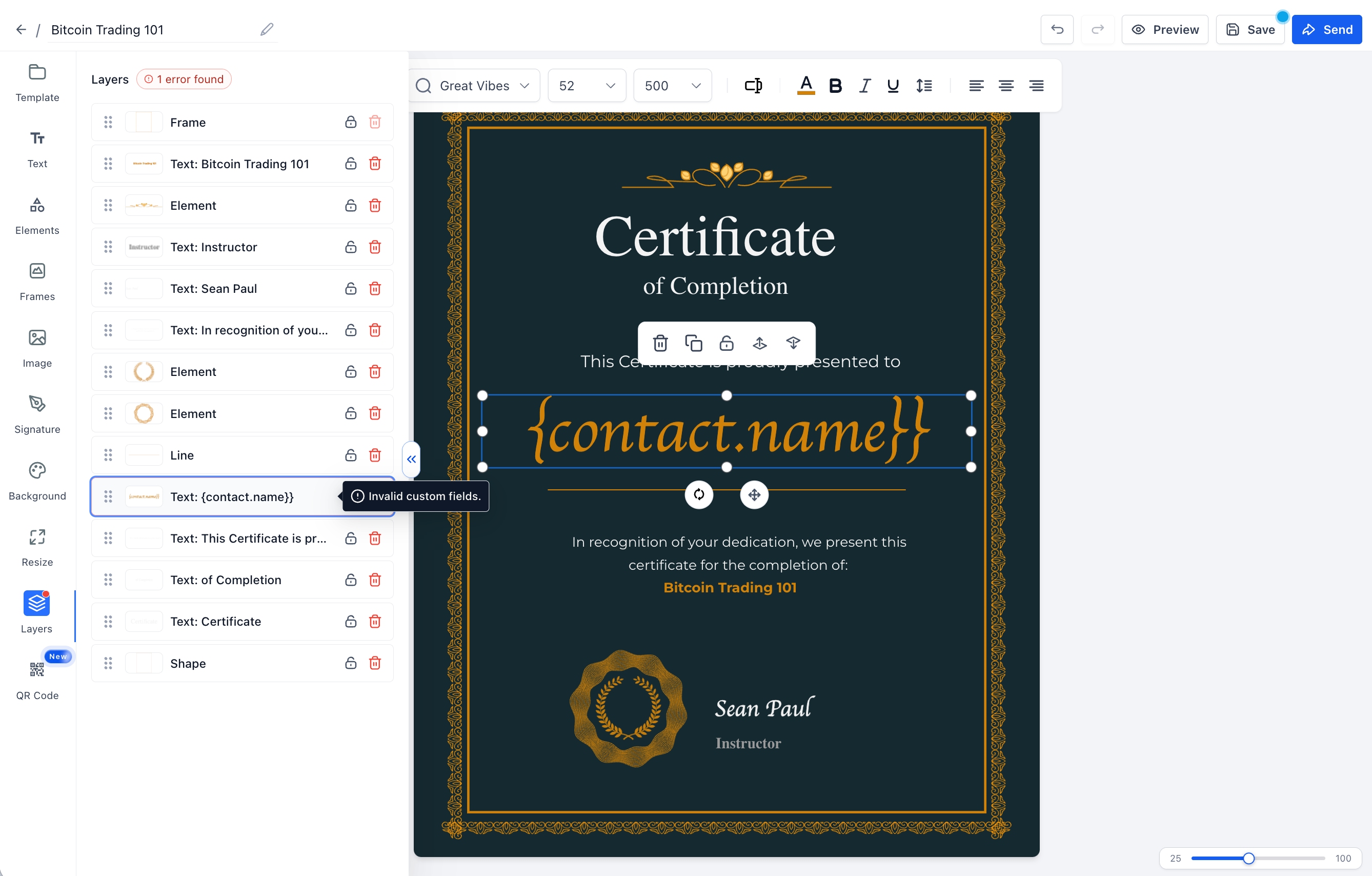
- Invalid custom-field placeholders are clearly flagged with an error pill on the affected layer
- When you click manual save, EveryCatch alerts you if any invalid placeholders are still present (auto-save continues as usual)
Why this matters
- More precise control over how certificate and badge elements overlap on the page
- Fewer accidental changes to key elements because you can lock important layers
- A better opportunity to catch and fix broken custom fields before certificates are generated and sent
- A familiar design workflow that makes it faster and more comfortable to build and adjust templates
Getting started
- Open the certificate or badge builder for the template you want to edit
- Select the Layers tab in the left sidebar to see all elements on your canvas in order
- Click a row to select that element, drag rows to reorder the stack, use the lock icon to protect important layers, and use delete to remove any you no longer need
- Check any layers with an error pill, then fix or replace the invalid custom fields before you publish or manually save your template