Integrating and sharing your EveryCatch forms, surveys, and quizzes is now much easier.
EveryCatch now offers a fully updated Integrate experience that brings all your embedding, sharing, email, and connection options into one dedicated tab inside the form, survey, and quiz builder.
From live embed previews and ready-to-use QR codes to workflow connections and clearer next steps after saving, you can now get your forms, surveys, and quizzes in front of your audience with far less effort.
What changed
1. A dedicated integrate tab - everything in one place
Previously, you opened integration options using the Integrate button inside the builder.
This experience now lives in its own Integrate tab, so you can find, use, and manage all the ways your forms, surveys, and quizzes connect to the rest of EveryCatch in a single place.
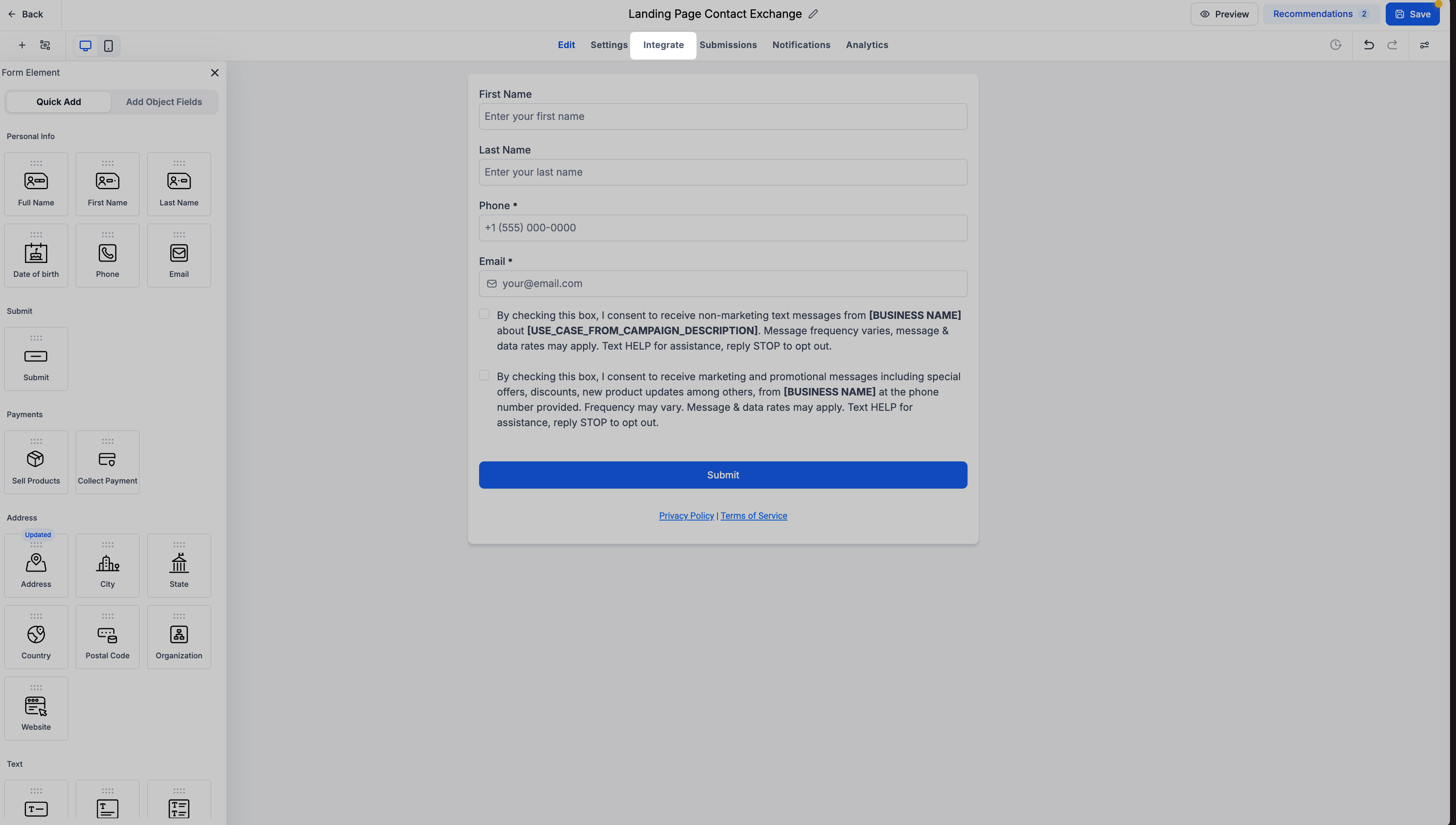
The new Integrate tab is organized into four main sections:
- Embed: Embed your forms with live previews and configurable options.
- Share: Share your forms using links, social platforms, and QR codes.
- Email: Add your forms to email templates.
- Connection: See related workflows and create new ones.
2. Embed - live previews are here
If you have ever guessed how a form would look on a page after embedding it, you can now see it clearly before you publish.
Live previews are now available across all existing embed options, so you can view your forms, surveys, and quizzes in context before you copy any code or add them to a site.
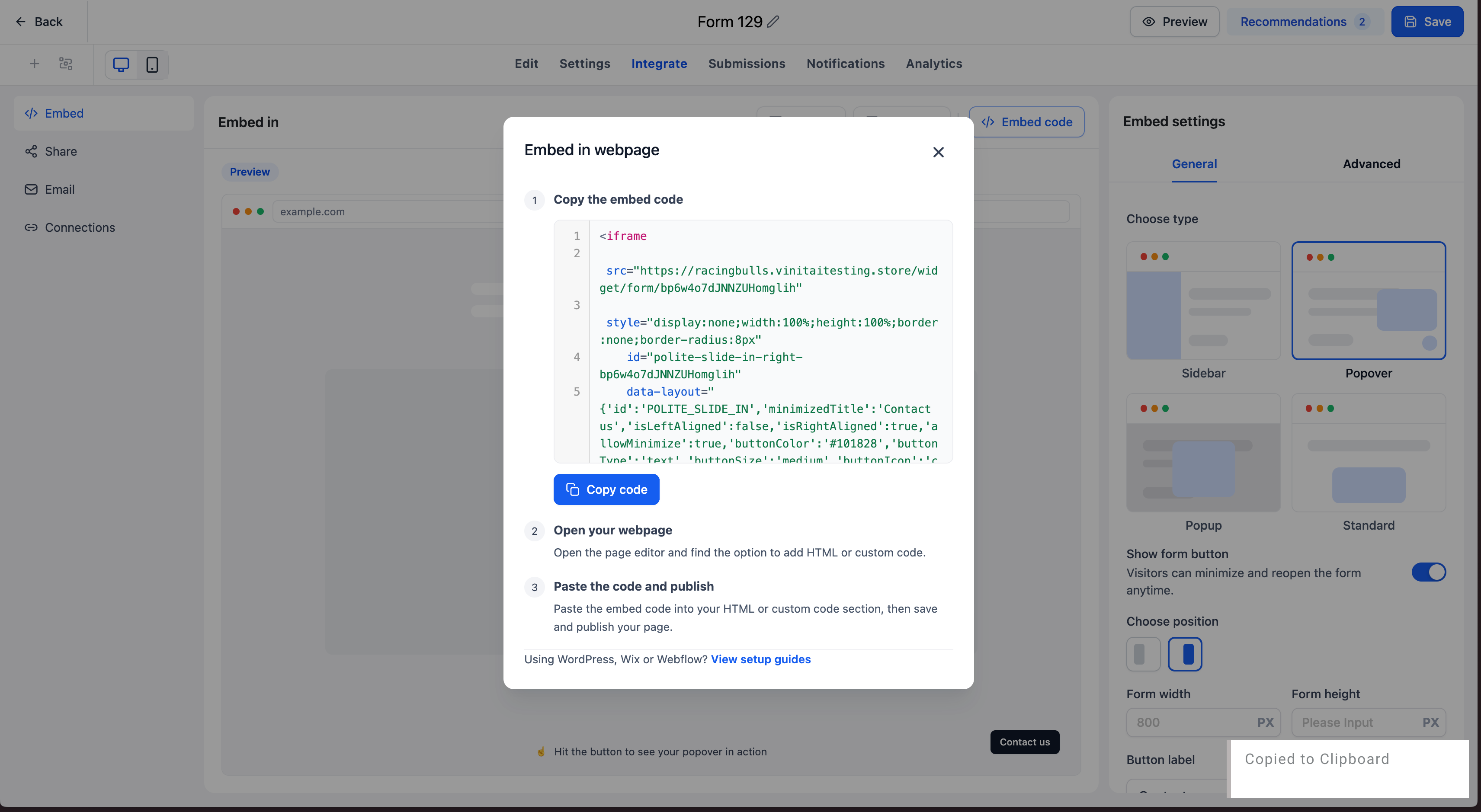
Here is what is new in Embed:
- Live embed previews: Instantly see how your form, survey, or quiz will appear across different embed options.
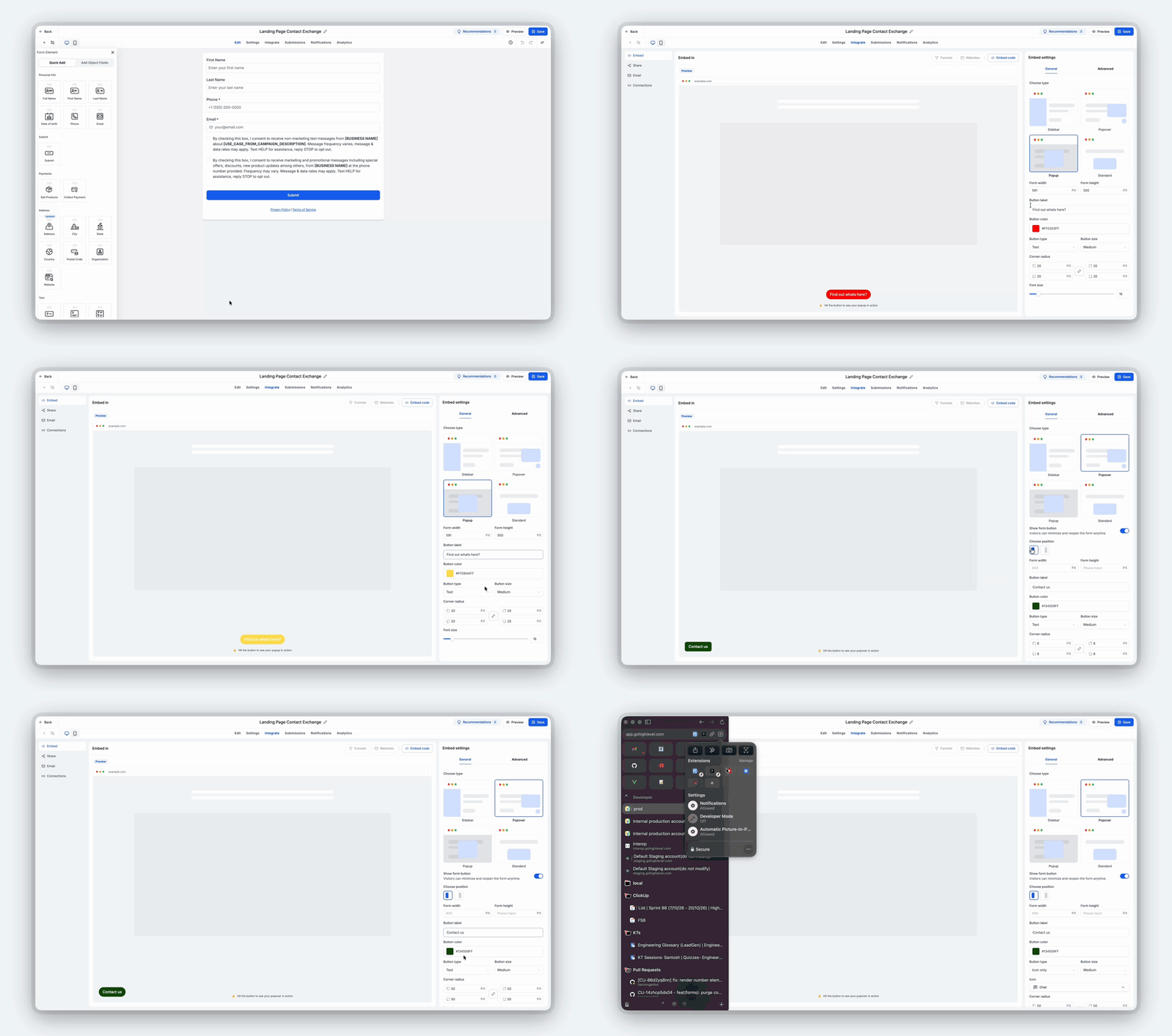
- Real-time updates: Adjust your embed configuration and watch those changes update immediately in the preview.
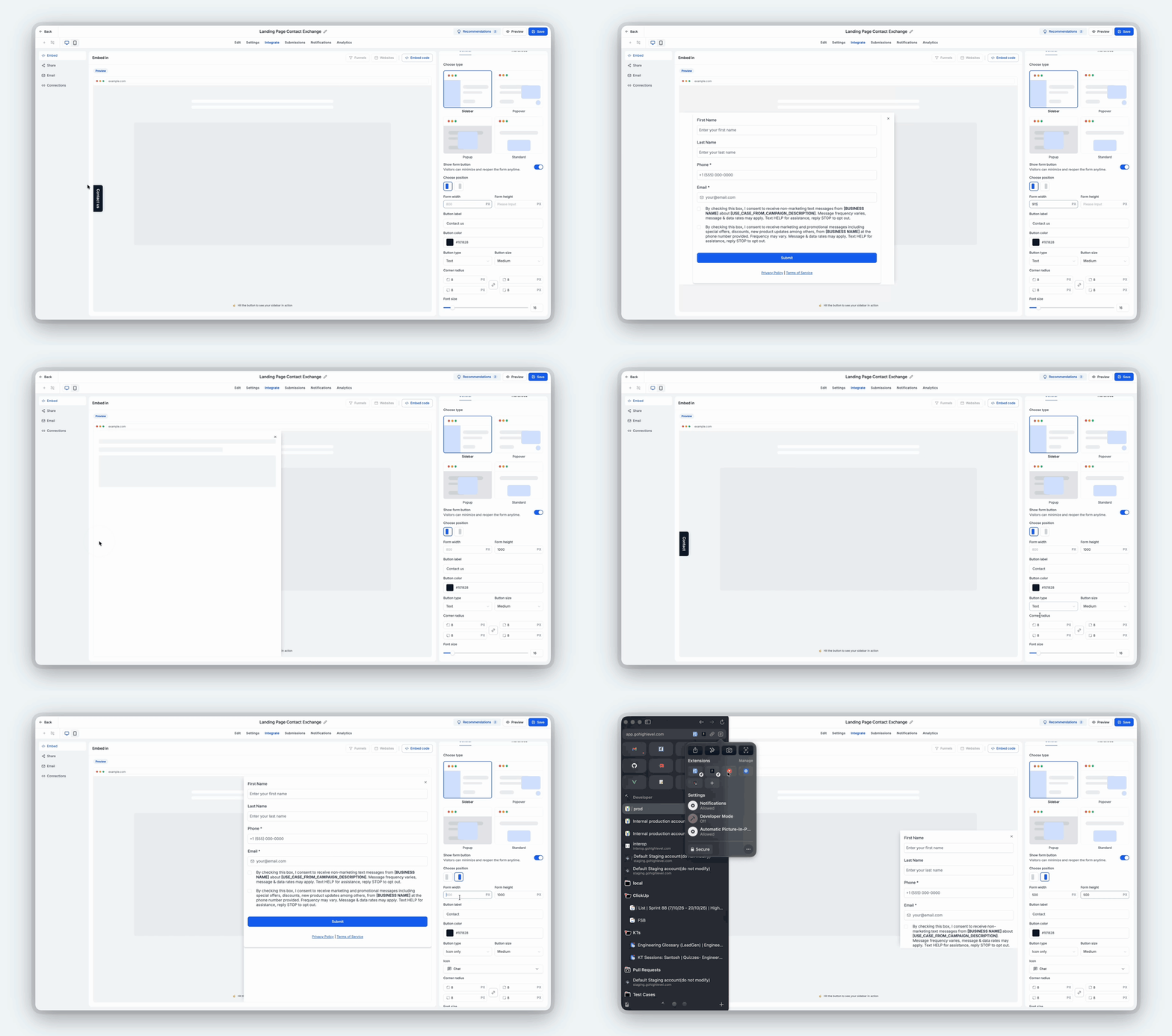
- Confident selection: Compare different embed experiences and choose the option that best fits your specific use case.
You no longer need to keep switching between the builder and your website just to confirm how an embedded form looks.
Coming soon: direct funnel & website embedding
The Embed tab will soon support a highly requested option. You will be able to place your forms, surveys, and quizzes directly into funnel steps and website pages straight from the form builder.
You will choose a funnel step or website page from inside the builder and embed your form there directly, without opening separate builders.
This will create a clear, faster workflow for teams building funnels and websites in EveryCatch.
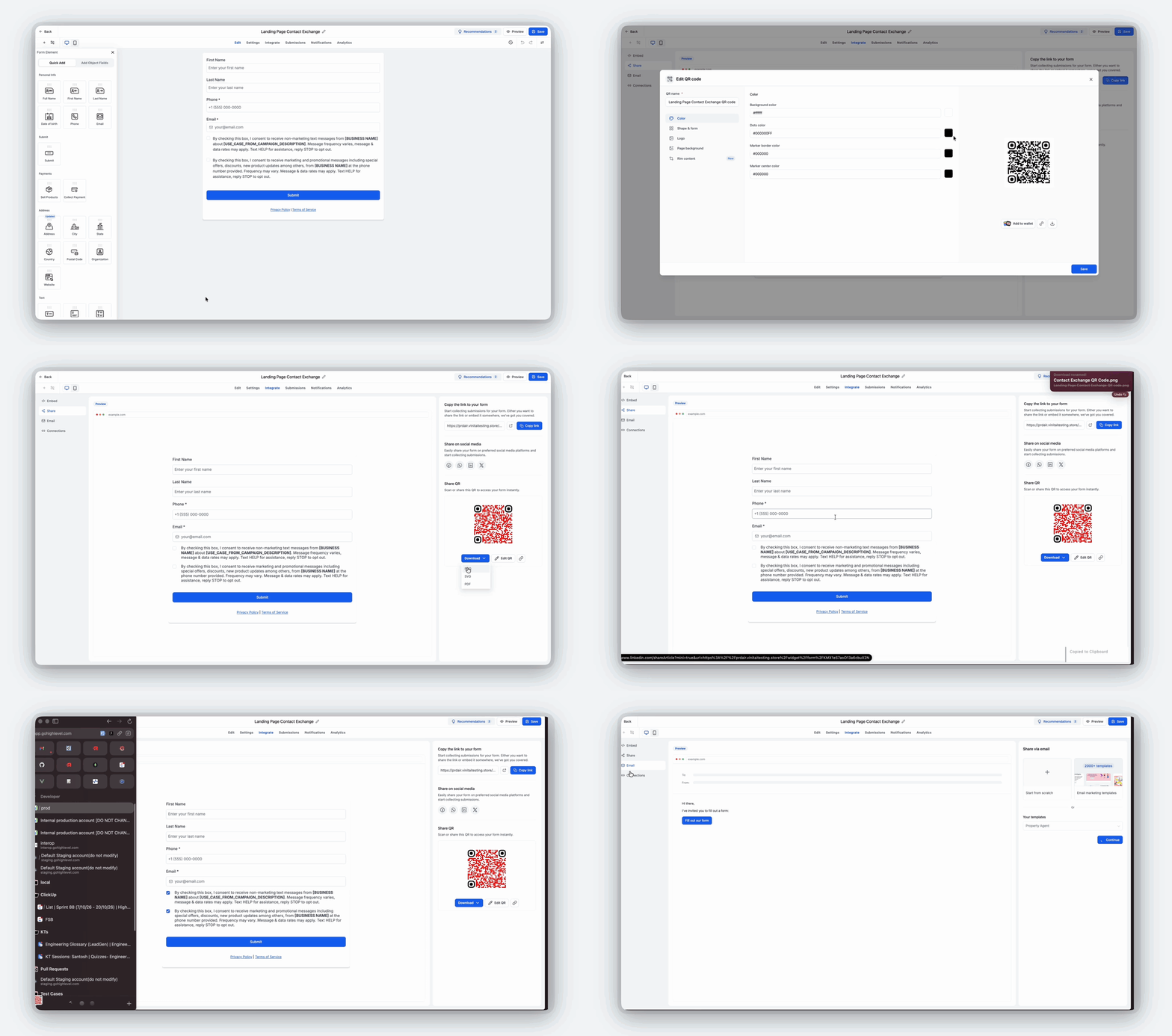
3. Share - more ways to share, including ready-to-use QR codes
All sharing options now sit in one Share section, so it is simpler to distribute your forms, surveys, and quizzes wherever your audience is active.
In the Share section, you can:
- Direct links: Quickly view and copy your form, survey, or quiz link.
- Social sharing: Share your form across multiple social media platforms.
- Prebuilt QR codes: Every form, survey, and quiz now includes a ready-to-use QR code that is already linked to it.
- Customize your QR code: Adjust the design of your QR code without leaving the builder.
- Download & share: Download your QR code and place it on print materials, screens, or anywhere else you need.
Previously, you had to go to the QR Code section and manually create a separate QR code for each form, survey, or quiz.
Now, the QR code is created for you automatically. You simply open Share, customize it if you like, download it, and start using it, all within the same builder experience.
4. Email - add your forms to emails
The email integration workflow stays the same and now lives inside the dedicated Integrate tab for easier access alongside Embed, Share, and Connection.
Inside the Email section, you can:
- Use existing templates: Add your form into any compatible email template you already use.
- Start from scratch: Create a new email and embed your form directly while you build it.
This gives you everything you need to bring your forms into your email communication flows, alongside the other integration options you now manage from the same tab.
5. Connection - know exactly where your forms are connected
A frequent challenge was understanding where a form, survey, or quiz was connected inside EveryCatch.
For example, finding which workflow used a form or locating where a form was embedded could take a lot of manual searching across different sections.
The new Connection tab is designed to solve that visibility gap.
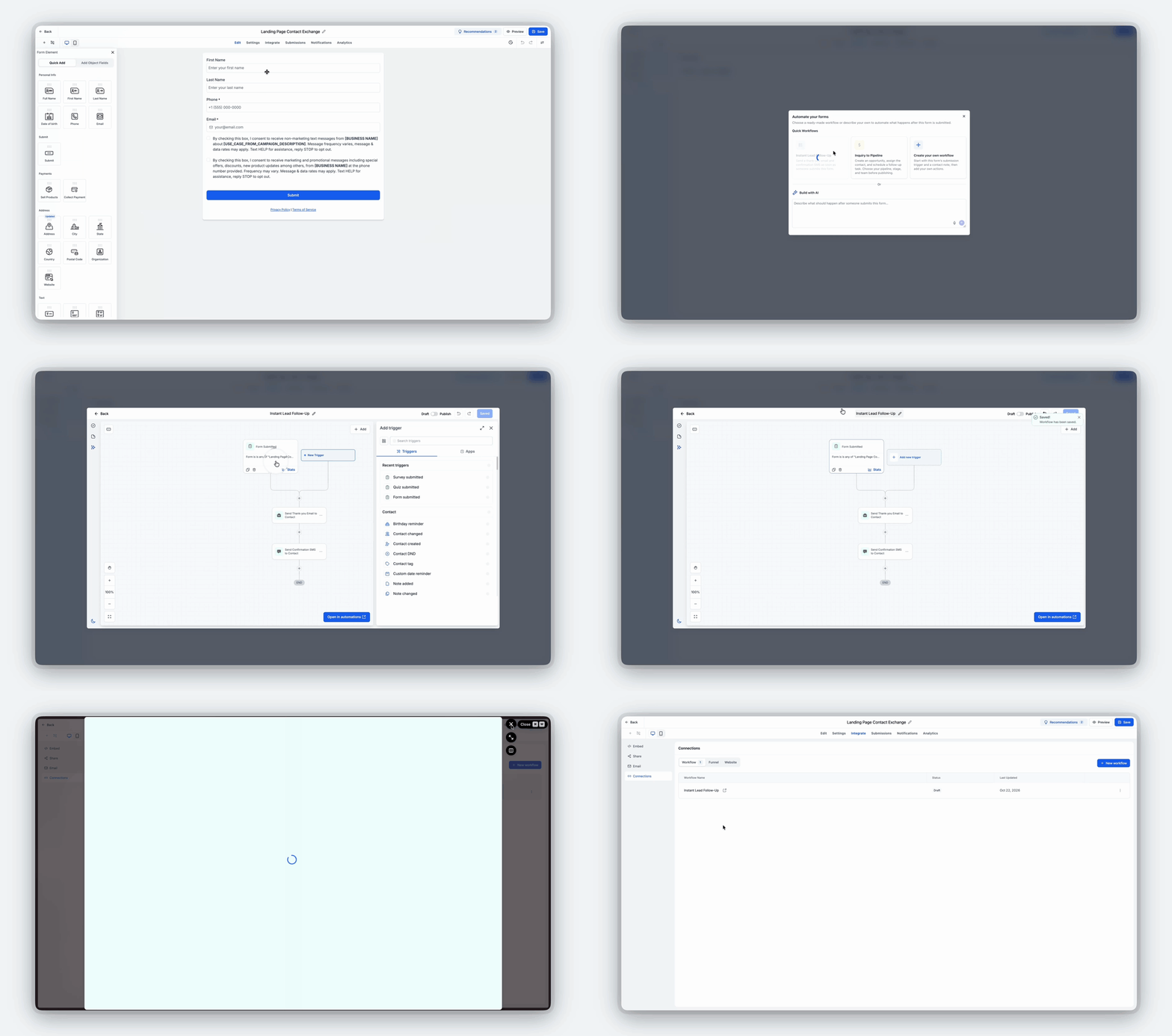
In this first release, Connection gives you:
- Connected workflows: View all workflows associated with your form, survey, or quiz in one place.
- Create a new workflow: Start building a new workflow for your form directly from the Connection tab.
- Improved visibility: Understand your automation setup without manually searching through EveryCatch.
Coming soon: funnel & website connections
The Connection tab will soon expand to also show:
- Connected funnel steps: See which funnel steps include your embedded form.
- Connected website pages: Identify the website pages where your form currently appears.
The goal is to give you complete visibility into where your forms, surveys, and quizzes are connected across EveryCatch, so you avoid spending time hunting down those connections.
6. A smarter save experience - what happens after saving
The Save experience now helps you move straight from building into using your form.
Previously, saving a form, survey, or quiz often felt like the final step, and you then had to decide what to do next on your own. Now, when you click Save, EveryCatch shows a modal that surfaces your integration options and invites you to pick your next action.
From this modal, you are guided toward actions such as:
- Share your form: Get your form in front of your audience quickly.
- Embed your form: Review and choose options to add your form to a website or another destination.
- Create a workflow: Set up automation that runs when someone submits your form.
This creates a more guided experience so you can move smoothly from building your form to actually putting it live and connecting it to your processes.
How it works
- Open your builder: Go to any form, survey, or quiz in EveryCatch.
- Explore Integrate: Click the Integrate tab to open all integration options.
- Choose your action: Pick Embed, Share, Email, or Connection based on what you want to do.
- Preview & customize: Use live embed previews or customize your prebuilt QR code as needed.
- Manage connections: See existing workflows that use your form or start a new one from Connection.
- Save & take action: After saving, use the new modal to choose how you want to share, embed, or automate your form.
Key highlights
- Centralized integrations: A dedicated Integrate tab brings embed, share, email, and connection options together.
- Live embed previews: Check how your form will display in each embed type before adding it anywhere.
- Ready-to-use QR codes: Automatically generated QR codes you can customize and download directly from the builder.
- Simplified sharing: Access form links and social sharing tools in one place.
- Workflow visibility: Quickly see which workflows are connected to each form, survey, or quiz.
- Faster workflow creation: Create new workflows from within the Connection tab.
- Smarter save experience: Get clear prompts to share, embed, or automate your forms immediately after saving.
- Connected workflows: Reduce navigation steps and manage integrations more efficiently from one flow.
Notes
- Availability: The new Integrate experience is available in the forms, surveys, and quizzes builders in EveryCatch.
- Integrate tab: Replaces the previous Integrate button with a tab that includes Embed, Share, Email, and Connection.
- Embed previews: Live previews are supported for the existing embed options.
- QR codes: Each form, survey, and quiz now has a prebuilt QR code that you can customize and download from the builder.
- Email: Existing email integration behavior is unchanged, now accessed through the Integrate tab.
- Connection: The initial release lets you view connected workflows and start creating new ones from the Connection tab.
- Save modal: When you click Save, a modal appears to highlight your integration options and suggested next steps.
Upcoming enhancements
- Direct embedding of forms, surveys, and quizzes into funnel steps and website pages via the Embed tab.
- Visibility into which funnel steps and website pages are using your forms inside the Connection tab.
Why this matters
Creating a form, survey, or quiz is only part of the process. The real impact comes when you share it, embed it, connect it to automation, and clearly see where it is active. Until now, those actions lived in different areas of EveryCatch, which added extra clicks and made integrations harder to manage.
With the new Integrate experience, these capabilities come together in one workflow. You can preview embeds, share forms with ready-made QR codes, see connected workflows, and pick your next action right after saving. With direct funnel and website embedding and expanded connection visibility on the way, the path from building to launching and managing your forms will continue to become smoother.
Less searching. Less switching. More sharing. Smarter integrations.



