EveryCatch AI Studio’s chat composer is now more powerful. You can point the AI at specific files with simple shortcuts and run common setup tasks directly from the chat.
The challenge
If you wanted the AI to work on a specific file or help with a common integration, you had to describe everything in plain text and hope the AI understood which file or feature you meant. Streaming replies could also look jumpy while they rendered, which made longer answers harder to follow.
What changed
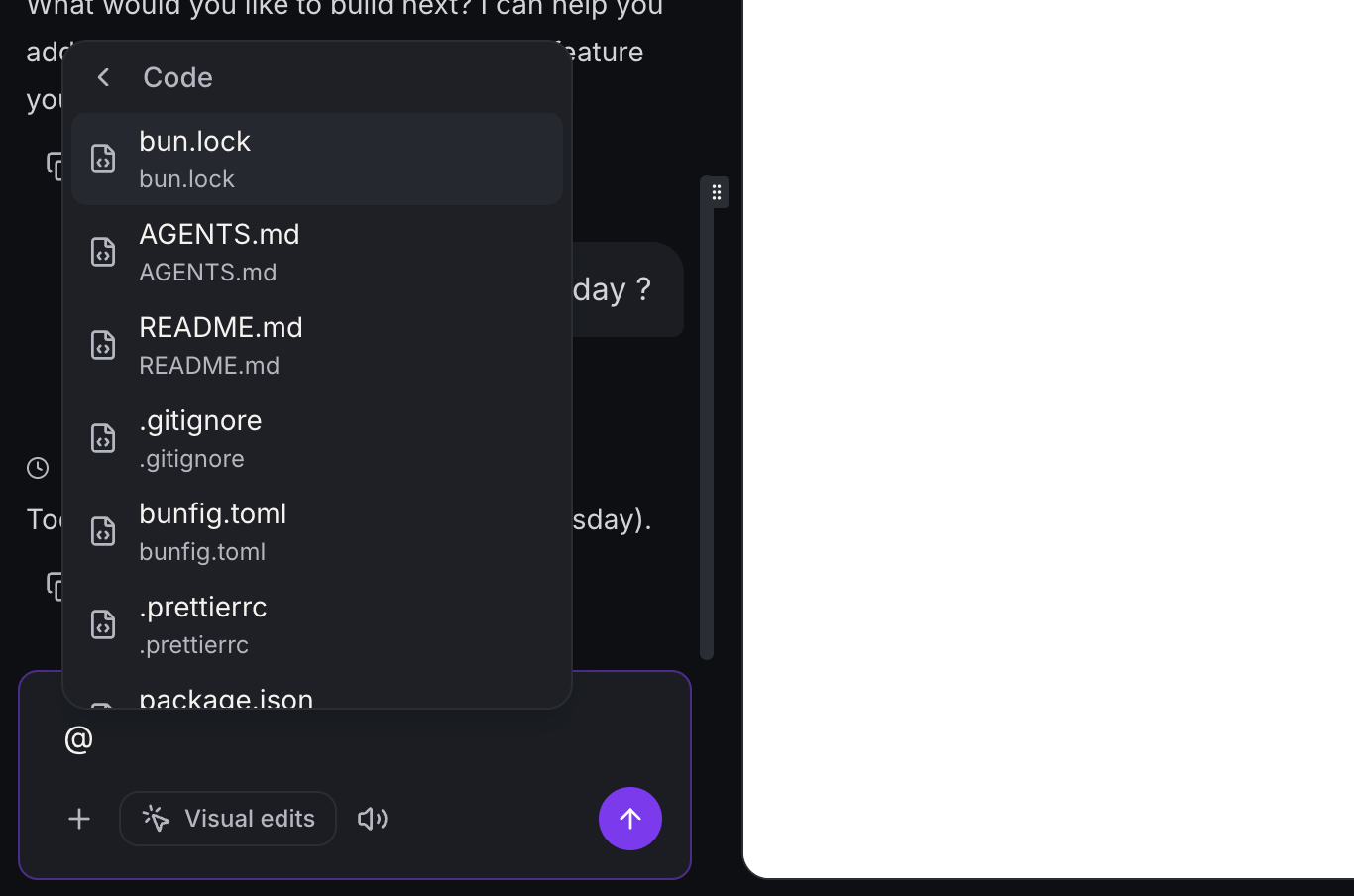
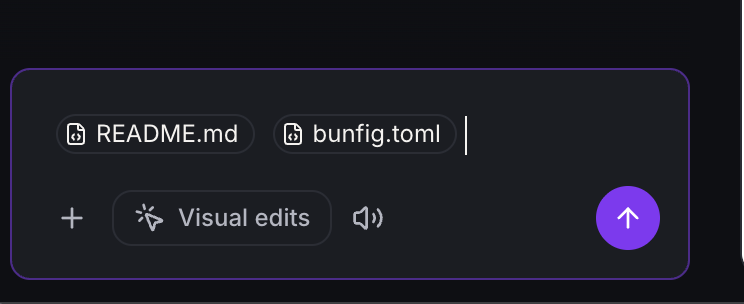
- File references in Code view: Type @ to choose a project file, and optionally narrow it to a specific line or range. The reference appears as a pill in the composer and in your sent messages so you and the AI both know exactly which file you are talking about.
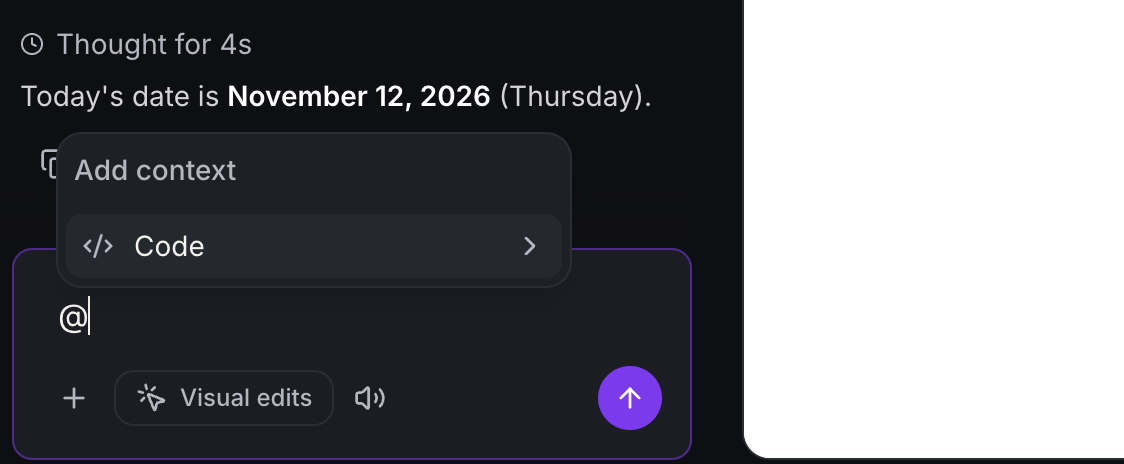
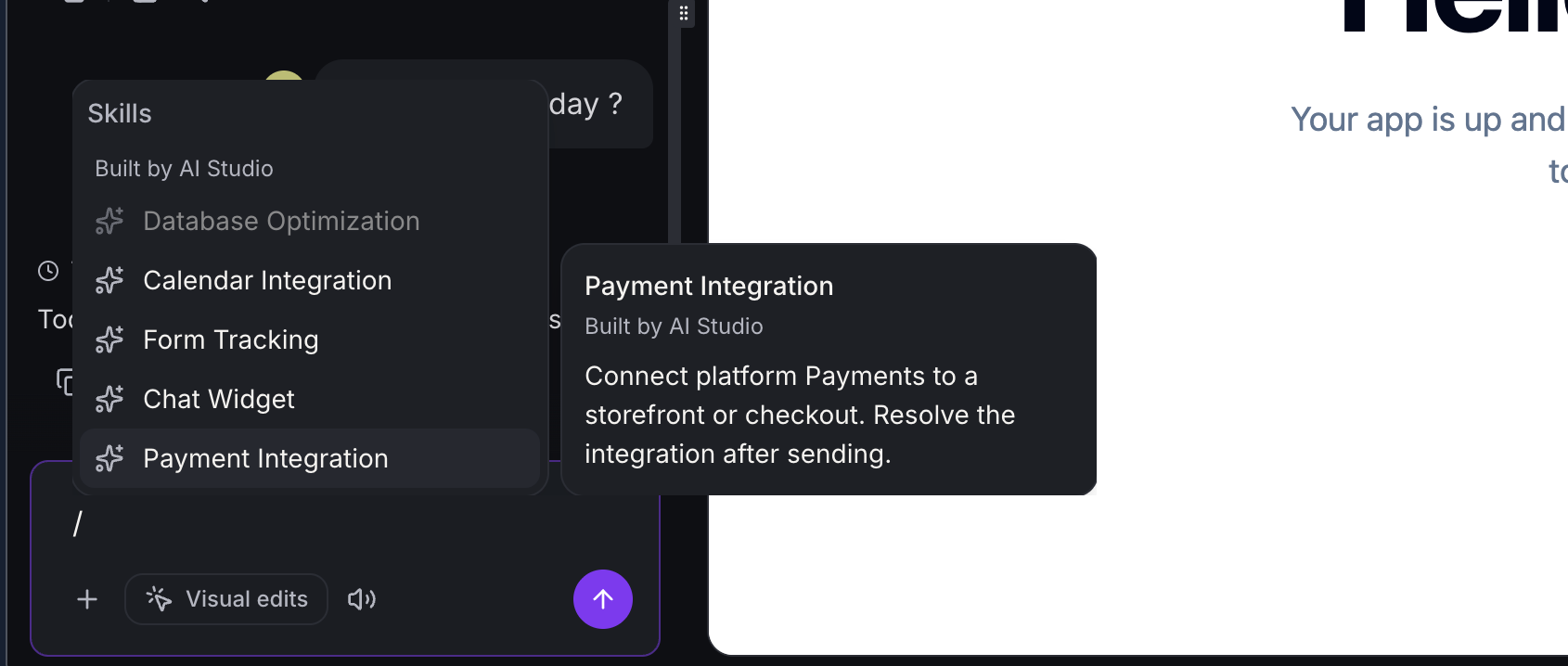
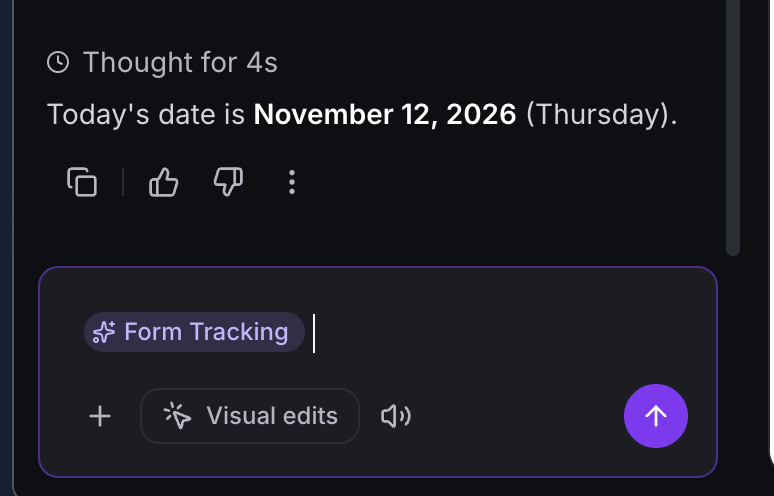
- Skills in Builder: Type / to select a built-in skill such as Database Optimization, Form Tracking, Calendar Integration, Payment Integration, or Chat Widget. You can add one skill per message. For integration skills, EveryCatch asks you to pick the specific integration before the skill runs, so the AI can set up or adjust exactly what you choose.
- Smoother streaming: Replies now appear more smoothly as they stream. Markdown, such as headings and bullet lists, renders without stuttering, and your reduced-motion system settings are respected so animations stay comfortable.
- Richer composer: You still have image attachments, selected-element context, and international keyboard (IME) input, now working alongside the new @ and / shortcuts.
How this helps your business
- More precise edits: You can tell the AI exactly which file or lines to review or change, which reduces back-and-forth and avoids confusion between similar files.
- Faster integrations: Start configuring forms, calendars, payments, and chat widgets in a single step from the chat composer using skills.
- Cleaner experience: Streaming responses are easier to read as they appear, so you can start acting on answers sooner.
- More accessible: File and skill pickers are usable with keyboards and screen readers, and reduced-motion preferences are honored for users who prefer less animation.
How to get started
- Go to EveryCatch AI Studio, open a project, then switch to the Chat tab.
- In Code view, type @ to reference a file. In Builder, type / to open the list of skills and choose one.
- Try it out: for example, type / in Builder, select Payment Integration, pick the payment integration you want to work with, then send your message to let the AI help configure it.
Good to know
- File references work only in Code view. / skills work only in Builder.
- A file reference tells the AI which file you mean. It does not pin or upload that file’s full contents into the AI’s context window.
- You can still type / or @ as plain text. If there is no matching file or skill, pressing Enter sends your message normally, for example “fix the /pricing page”.
- Database Optimization is unavailable while there is a Cloud status error. Other skills continue to work as usual in that situation.
- You do not need any data migration. Your existing chats and any follow-up steps that rely on skills will continue to function as before.