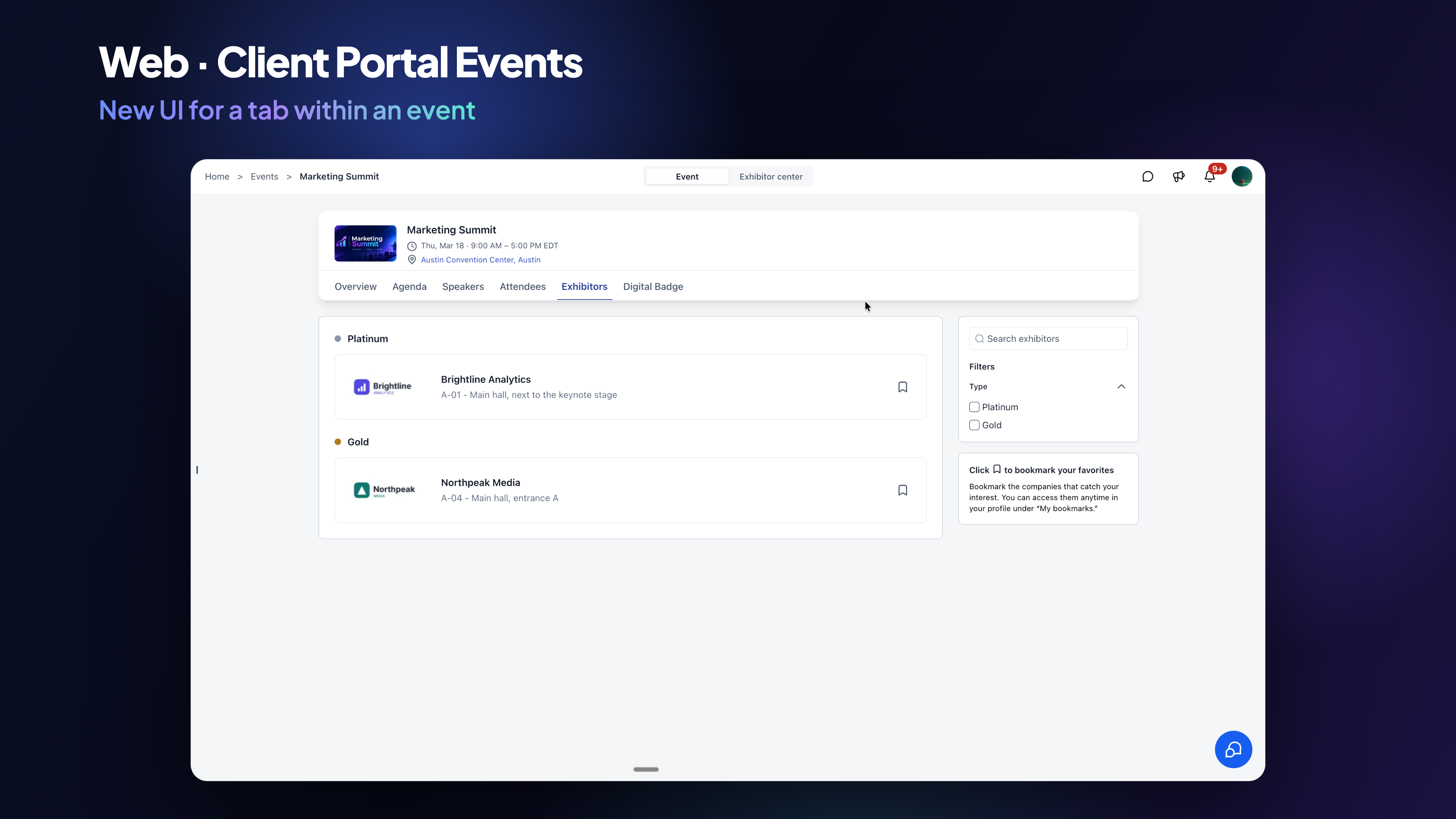
Overview
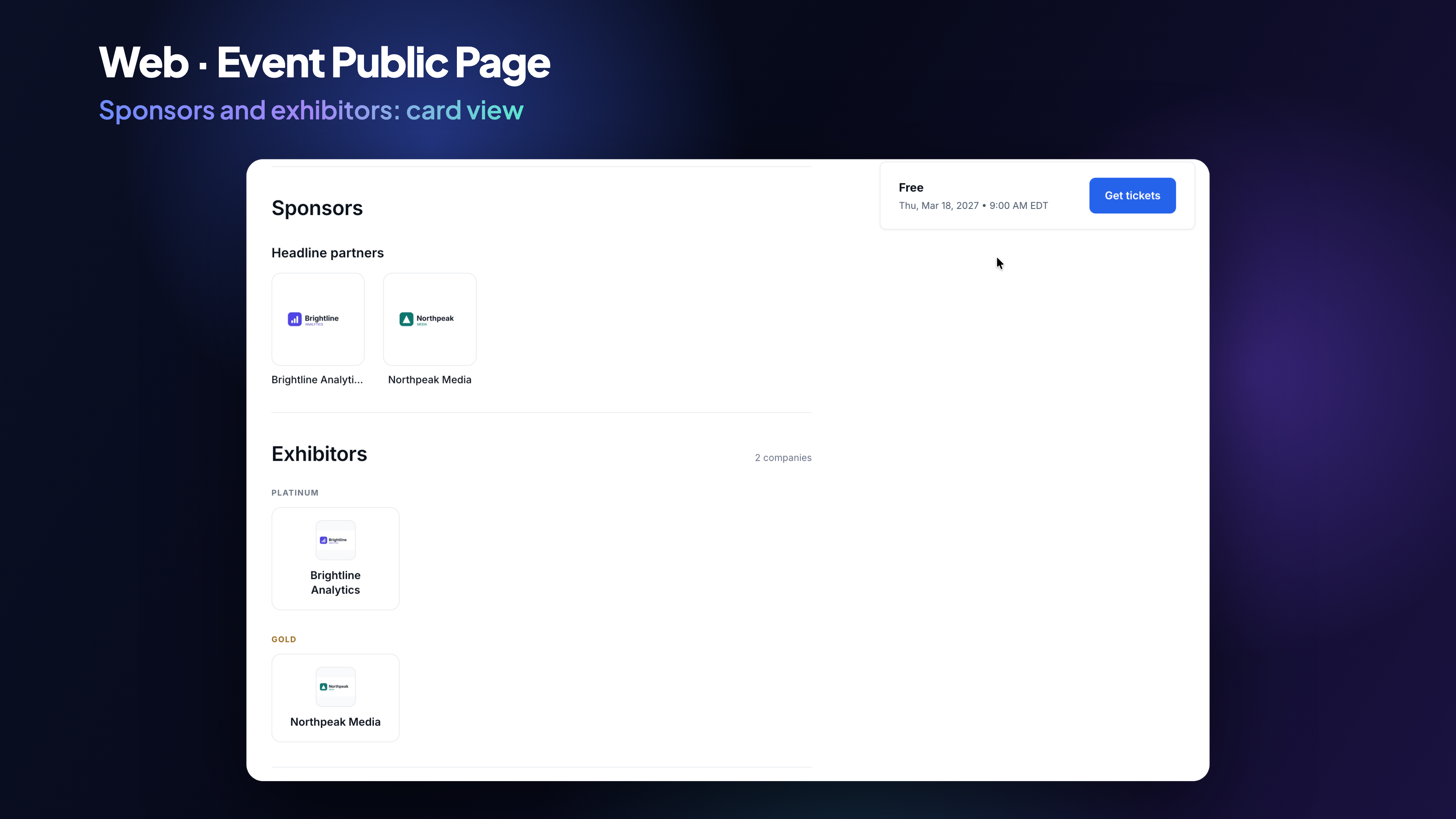
Exhibitors and sponsors are now available on every event you run in EveryCatch, whether or not you use the Client Portal. You can feature them on the public event page, and they will also appear inside the Client Portal when you have it turned on.
What’s new
Exhibitors
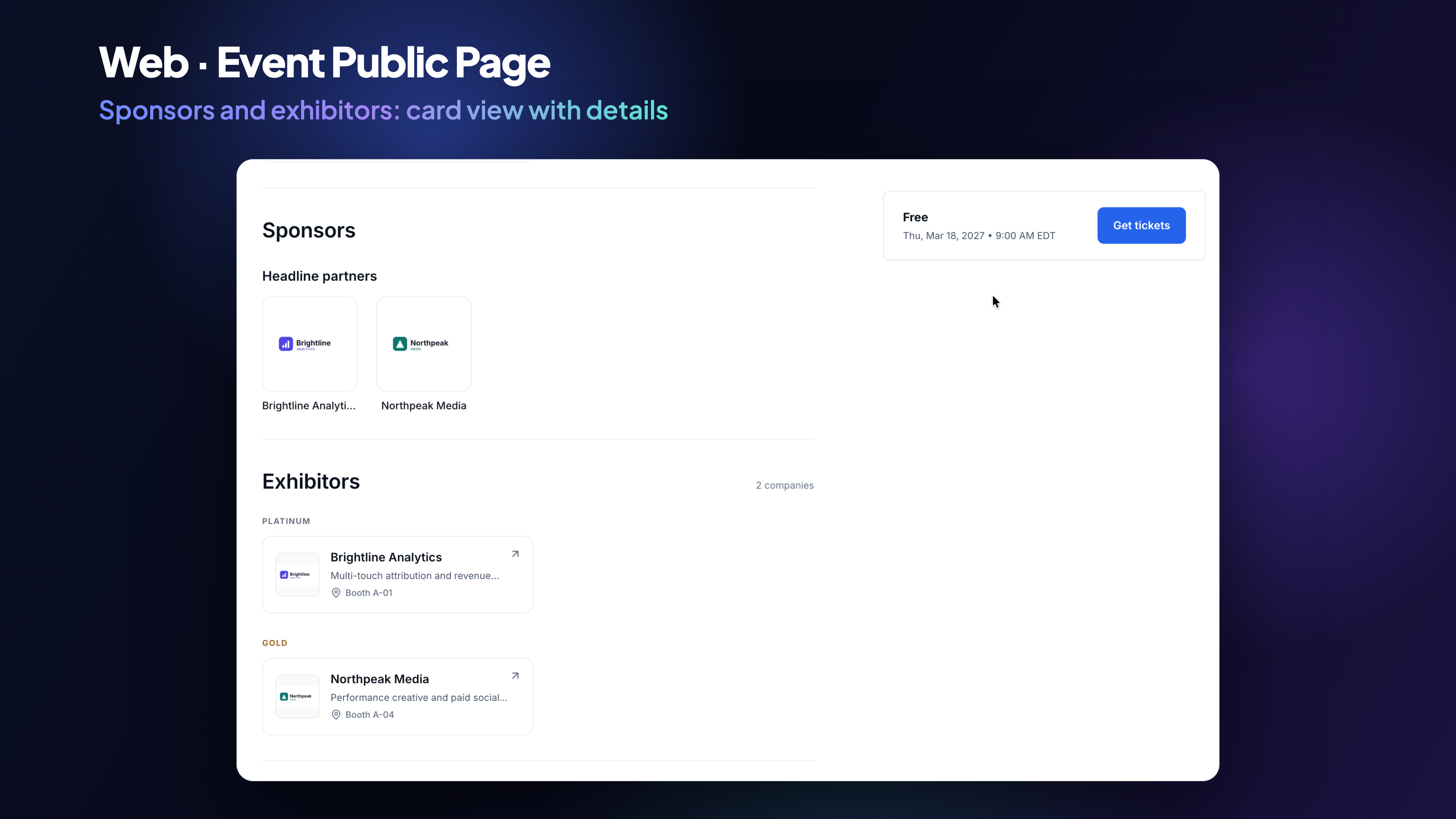
- Rich profiles for each exhibitor: Add company name, tier, booth number, booth note, description, logo, and header image so attendees can quickly see who they are visiting.
- Contact details and links: Include email, phone, website, address, and social links so visitors can follow up directly from the event page or Client Portal.
- Tiers and visibility: Optionally group exhibitors into tiers, and control whether each exhibitor is visible on the public event page. Visitors can click an exhibitor to open their full profile.
Lock the exhibitor description (client portal only)
If you want to keep tight control over how an exhibitor is described, you can lock their description. On the exhibitor’s Details tab, clear the checkbox for “Allow booth admins to edit the description.” This prevents booth admins from changing the description in the Client Portal Exhibitor Center. They can still update all other fields, and you as the organizer can always edit the description in the EveryCatch CRM.
Sponsors
- Organize sponsor logos into reorderable sections, such as Platinum or Community partners, to match your event’s sponsorship levels.
- Choose what happens when someone clicks a sponsor logo: link it to one of your exhibitors (which opens the exhibitor profile) or to any external URL you choose.
Full control in pages & design
- Exhibitors and sponsors sections work like any other page section in EveryCatch.
- You can add, rename, reorder, or hide both sections, and preview how they look in the live preview and on the Details tab preview.
- When you use Copy from event or Duplicate, your exhibitors and sponsors sections come across with the event.
Where they show up
Public event page: exhibitors and sponsors appear on every event’s public page, regardless of whether the Client Portal is enabled.
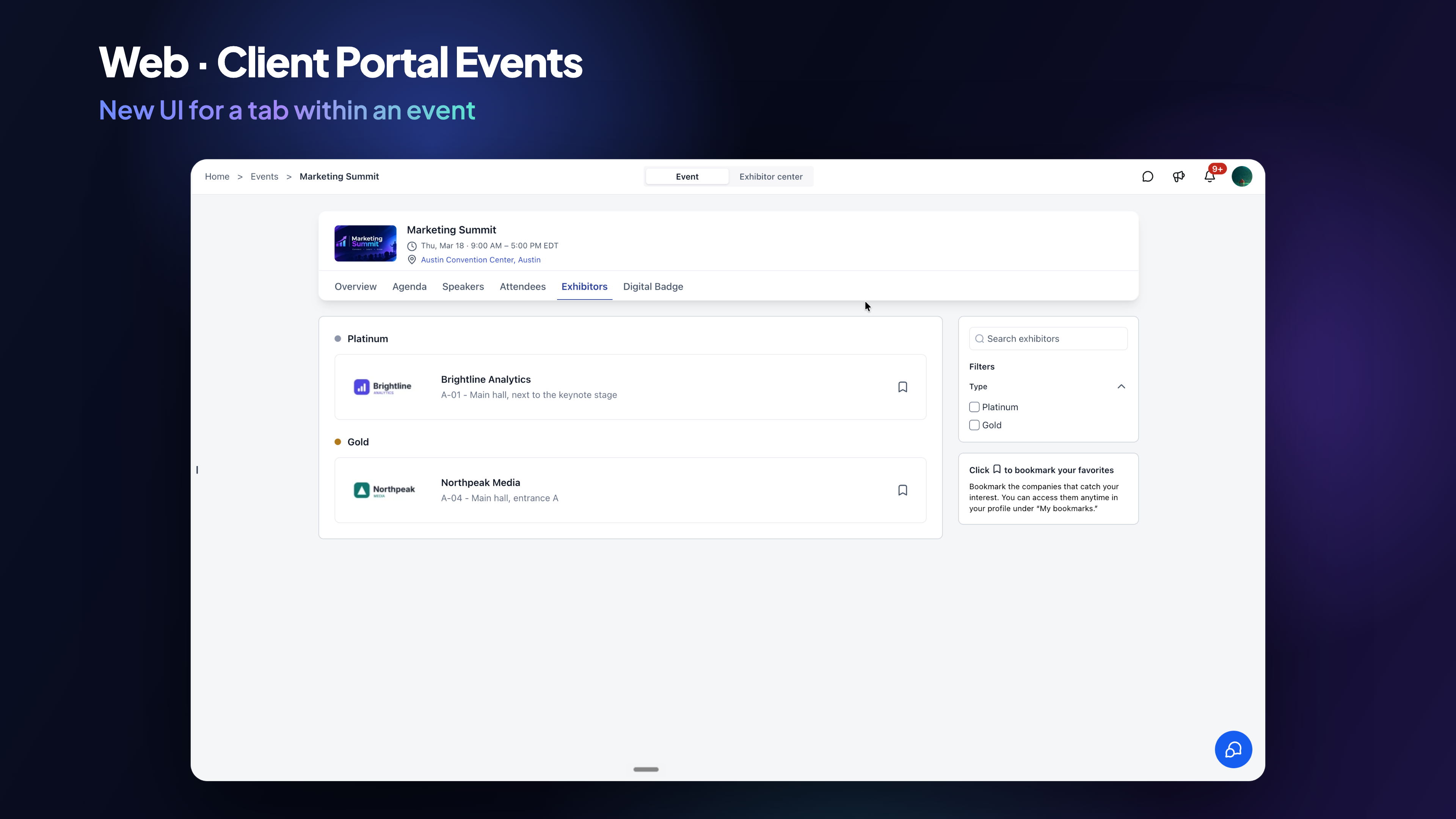
Client Portal: when the Client Portal is turned on for an event, exhibitors and sponsors are also available for attendees inside the portal.
Refreshed client portal event details
The event details page in the Client Portal now has a cleaner layout that is easier for attendees to scan and browse, so your exhibitors and sponsors are more discoverable.
How to get started
To set this up, go to Events → your event → Content → Exhibitors / Sponsors to add your exhibitors and sponsors. Then open Pages & design to arrange where these sections appear on your public event page and, if enabled, in the Client Portal.