
Overview
You can now search for any word or phrase across your EveryCatch Conversations inbox, or within a single conversation. Before this, finding a specific message often meant scrolling through long threads or trying to remember which contact said what, which became slow and unreliable as accounts grew. With keyword search, you can quickly open the right conversation and jump straight to the exact message you need in a few seconds.
What changed
EveryCatch now lets you search by keyword in Conversations at two levels.
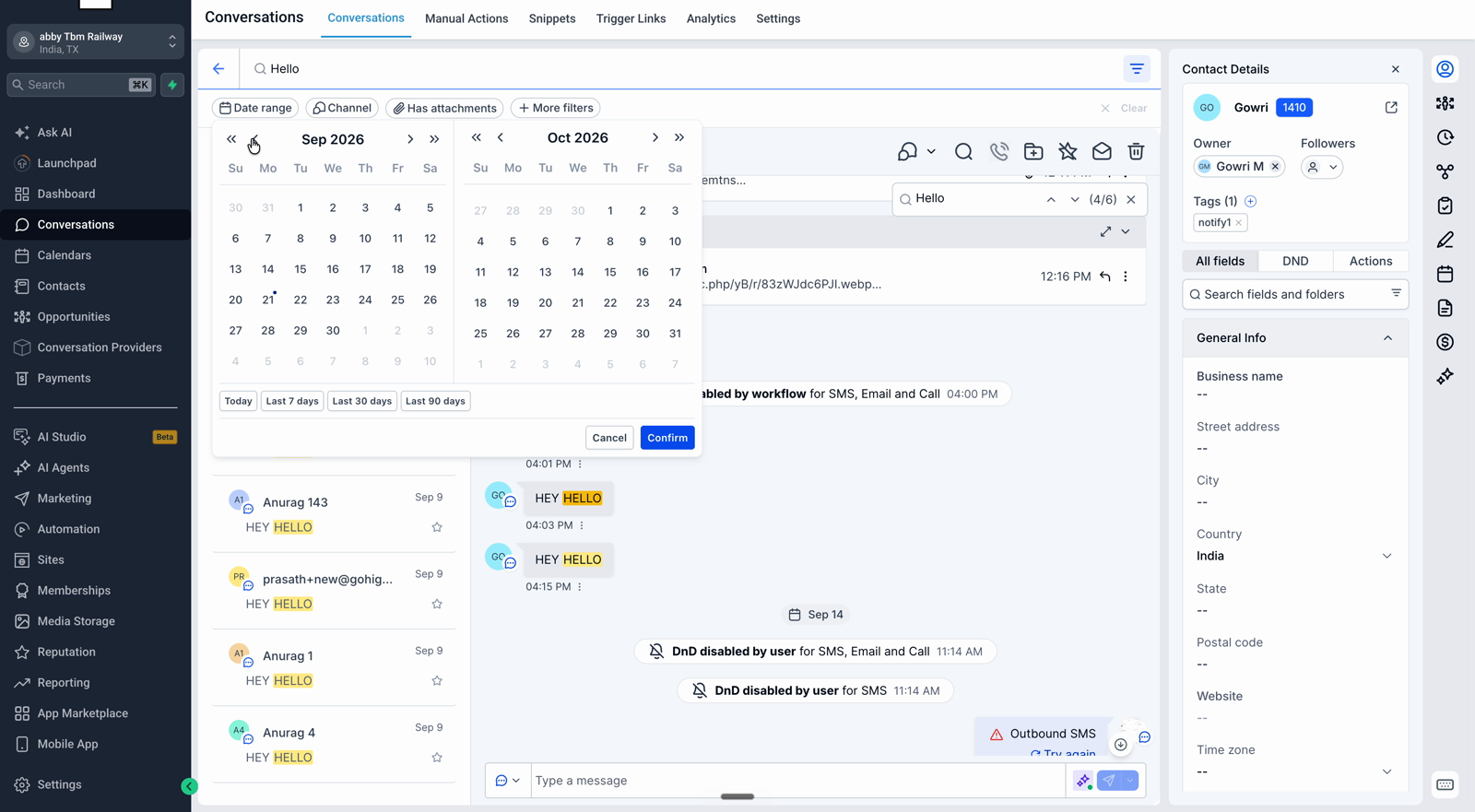
- Cross-conversation search helps you find every conversation where a word or phrase appears. Type a keyword into the search box and you will see results update as you type, including a total match count and a preview of the matching message for each contact, with your keyword highlighted. Click any result to open that conversation directly at the matching message. You can also use this same search box to look up a contact by name, email address, or phone number.
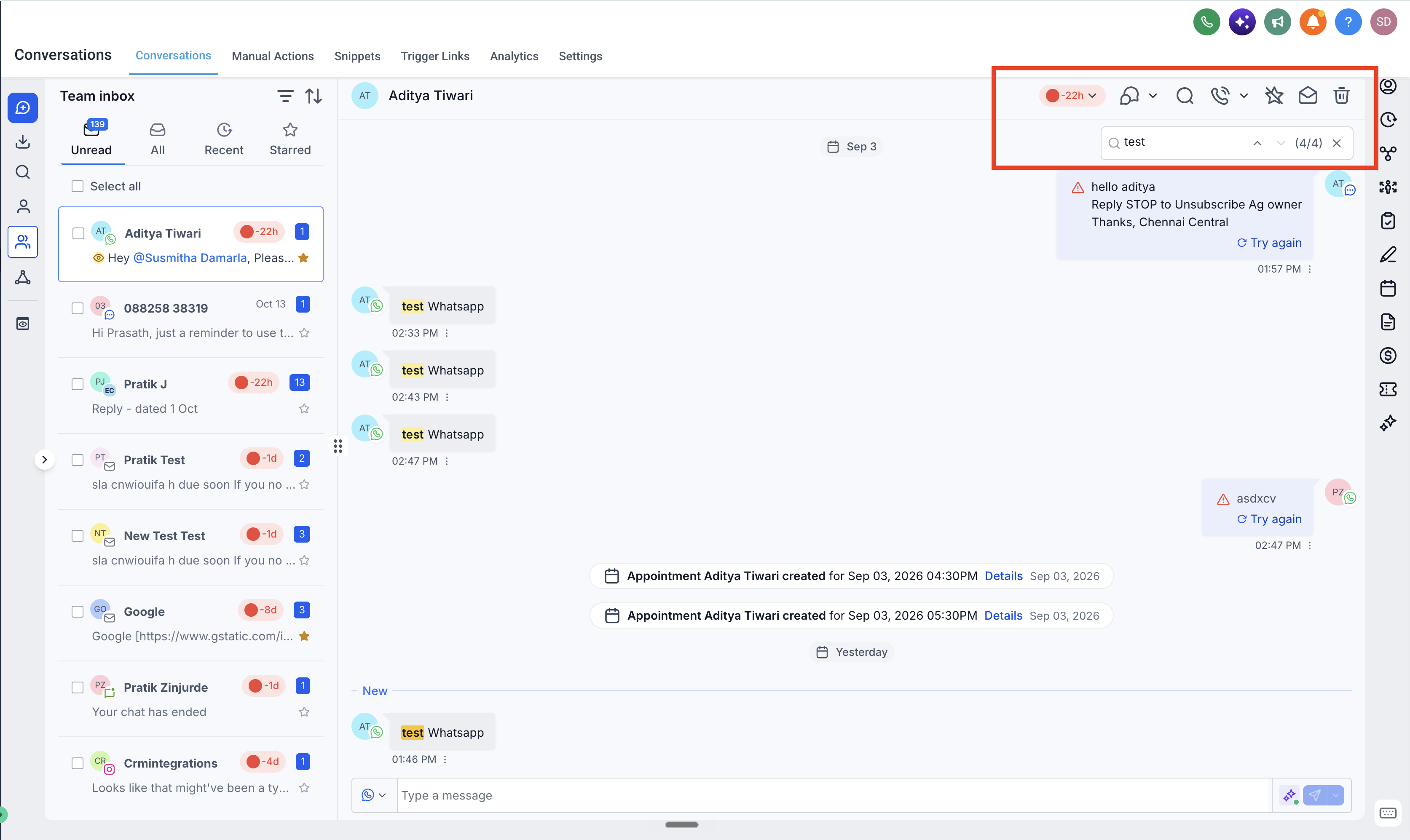
- In-conversation search helps you locate a specific message in a single contact’s thread. Every match is highlighted, a counter shows your position (for example 6/6), and up / down arrows let you move between matches. If you open a thread from a cross-conversation search, the keyword you used is already filled in for you.
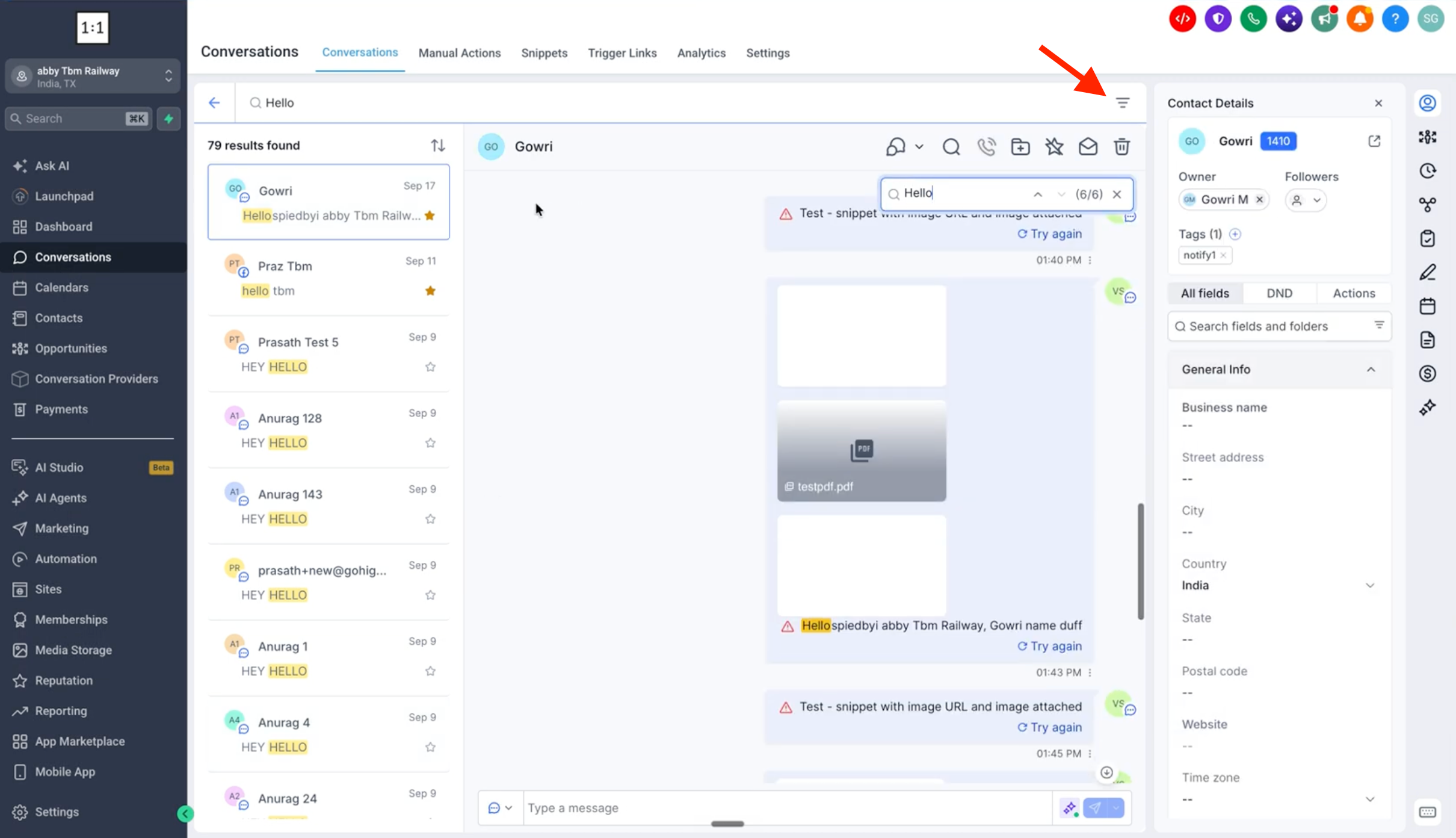
You can narrow your results using filters for date range, channel (Email, SMS, Facebook, WhatsApp, Instagram), direction, owner, has attachments, and followers. For example, if a customer mentioned a competitor’s name last week but you cannot recall who it was, you can search that name across the inbox and open the right thread immediately. Or if you are inside a long conversation and need to confirm a price you shared, you can search the amount and go straight to that message.
How to use
- Go to Conversations. Click the search icon at the top of the conversation list in the left navigation bar.
- Type a keyword, name, email, or phone number. Results appear as you type.
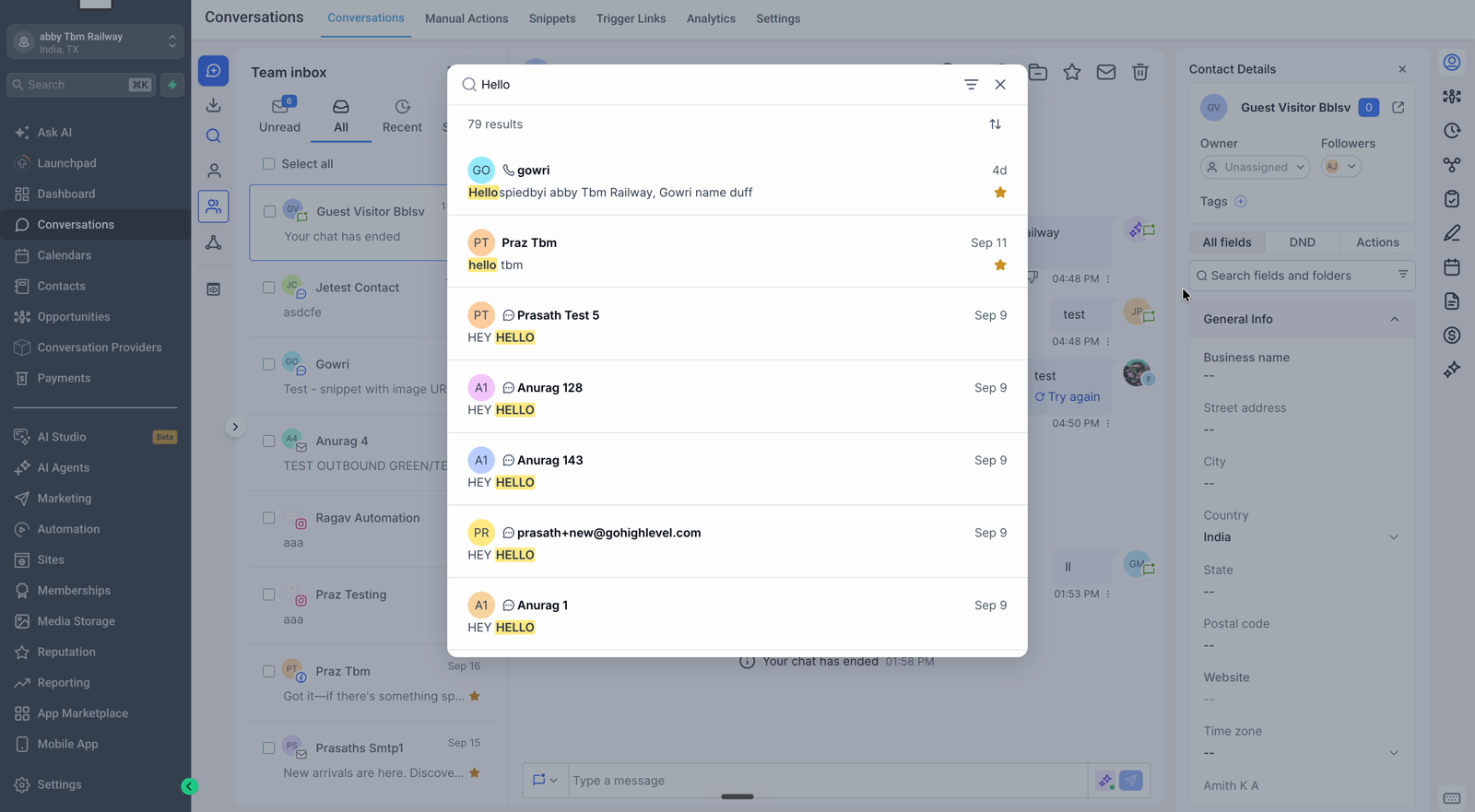
- Click a result to open the conversation at the matching message.
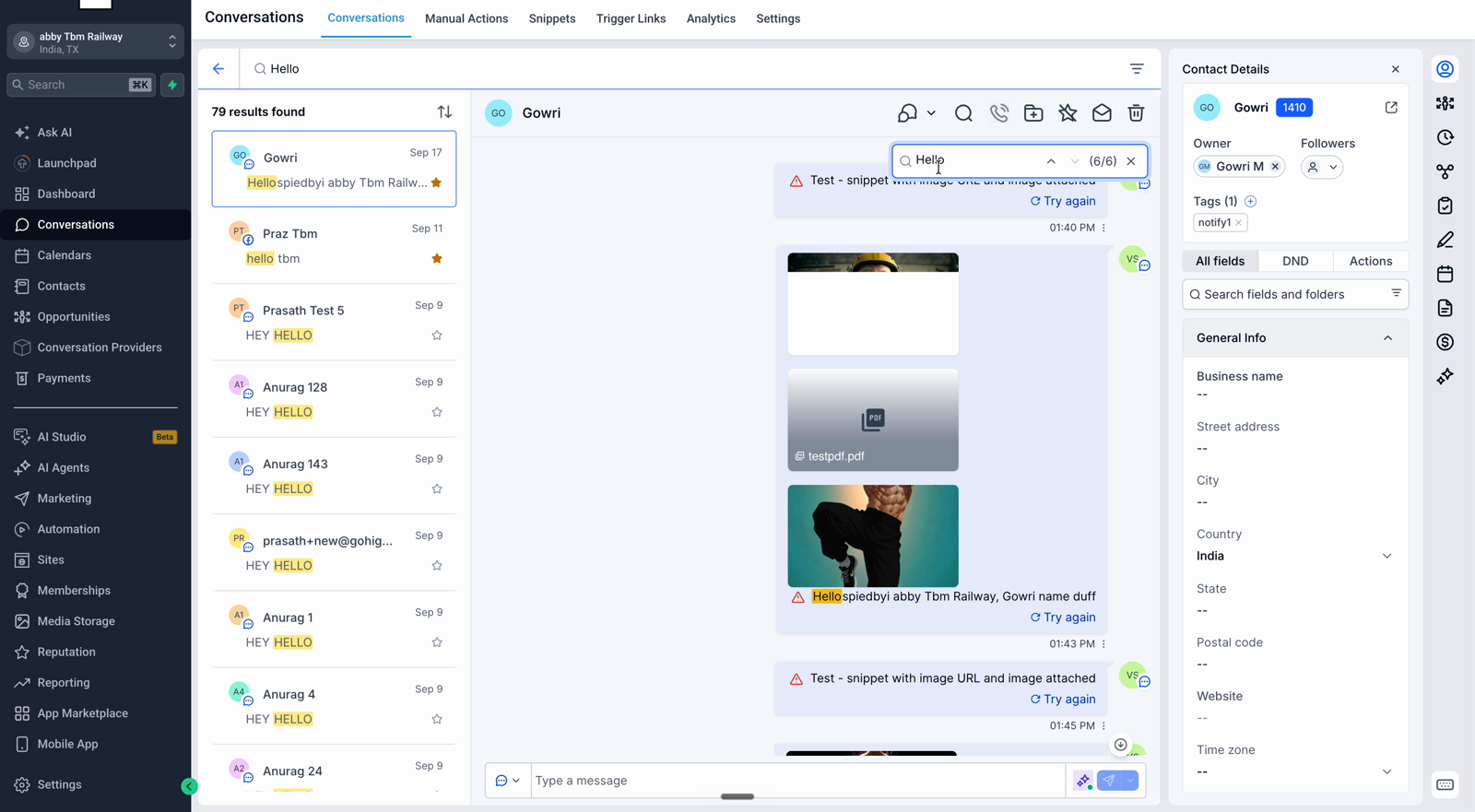
- Inside a conversation, click the search icon in the header to search within that thread, and use the up / down arrows to move between matches.
- Use the filter icon on the results list to narrow by date, channel, attachments, direction, owner, or followers.
Why it matters
This update helps you and your team recover past context quickly, whether you need to confirm a quoted price, revisit a promised date, review a complaint, or locate a specific product mention, without scrolling or relying on memory. Keyword search has been a frequent request from customers and aligns Conversations with what you would expect from a modern messaging inbox, so it is easier to stay on top of details and respond with confidence.



