Overview
You can now attach forms to service and rental bookings you create yourself inside EveryCatch, as well as bookings that come in from your online booking pages. While you are creating a new booking in the appointment modal, you can open the booking form, fill it in on the customer’s behalf, and save everything together so your intake details stay consistent no matter how the booking was made.
What changed
Attach a form in the appointment modal
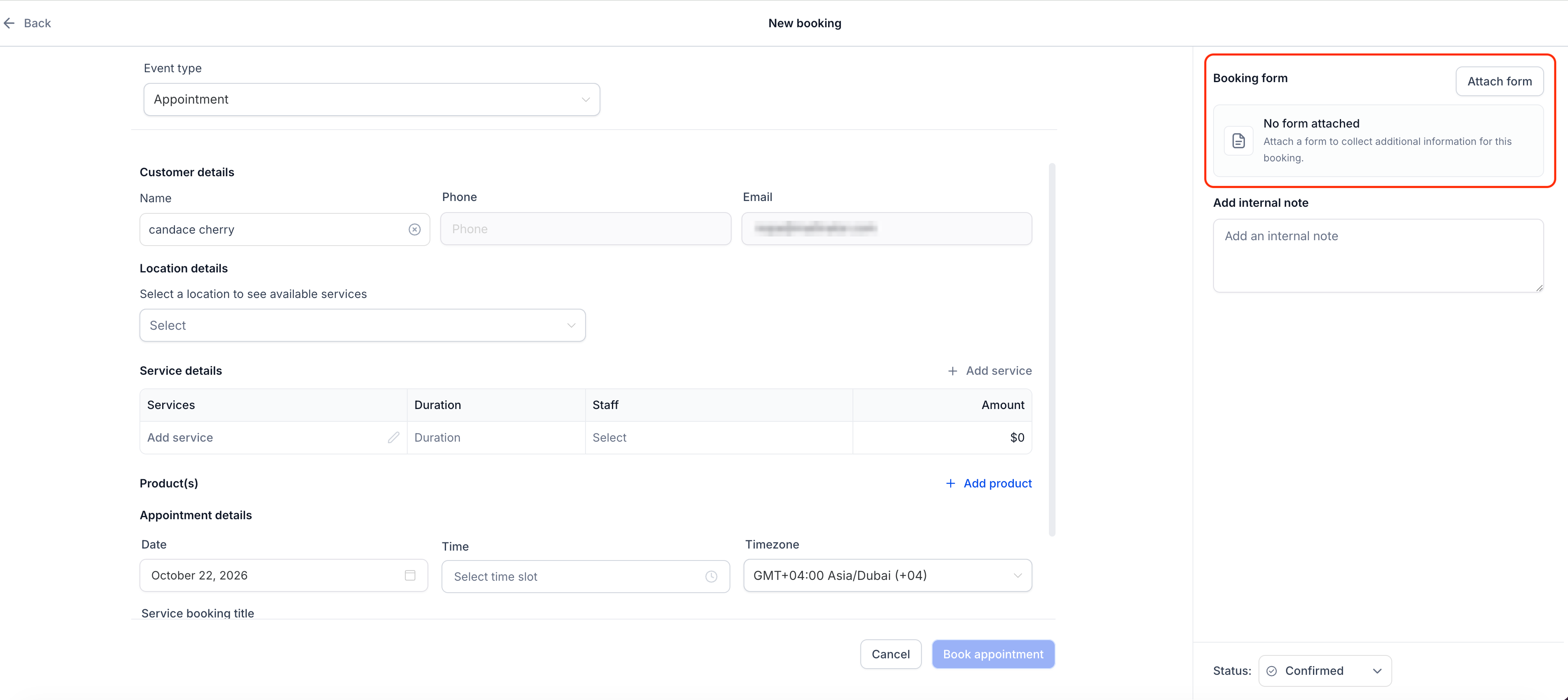
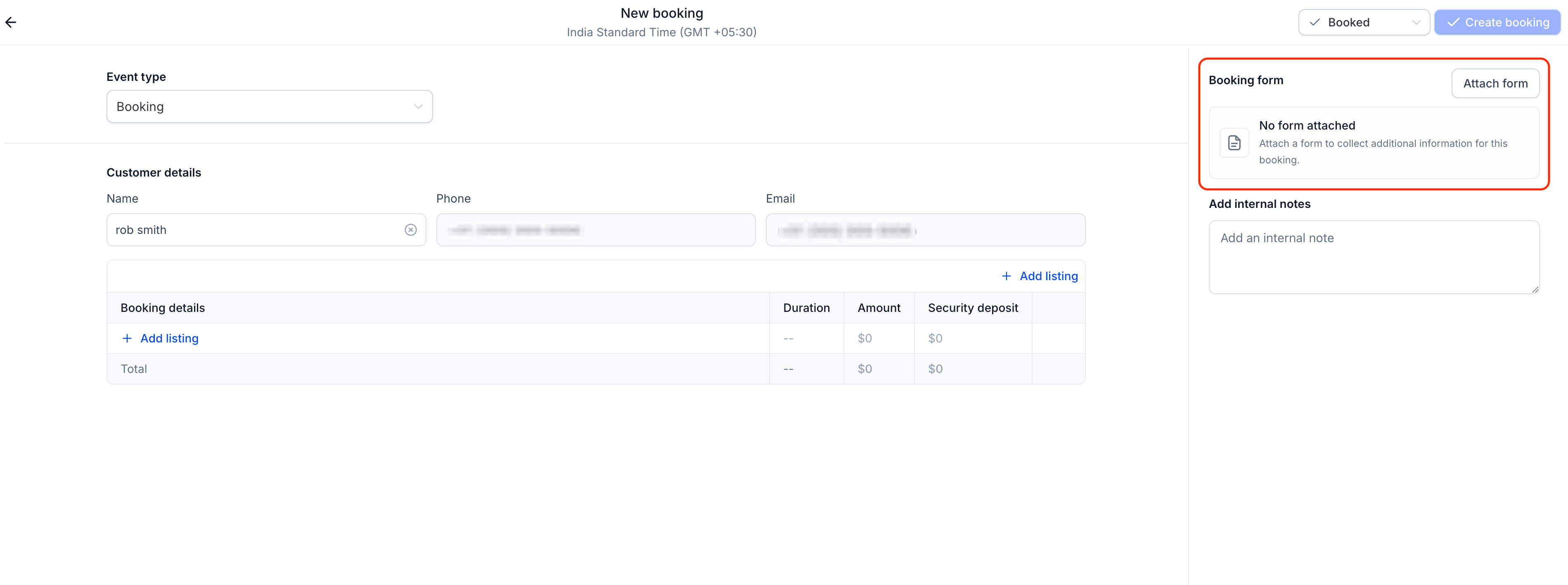
Service and rental bookings now include a Booking form section in the appointment modal. When you click Attach form, the selected form opens directly in your booking flow so you can complete it before saving. Using a form is optional, so you can still create bookings without attaching one if you prefer.
The right form, preselected
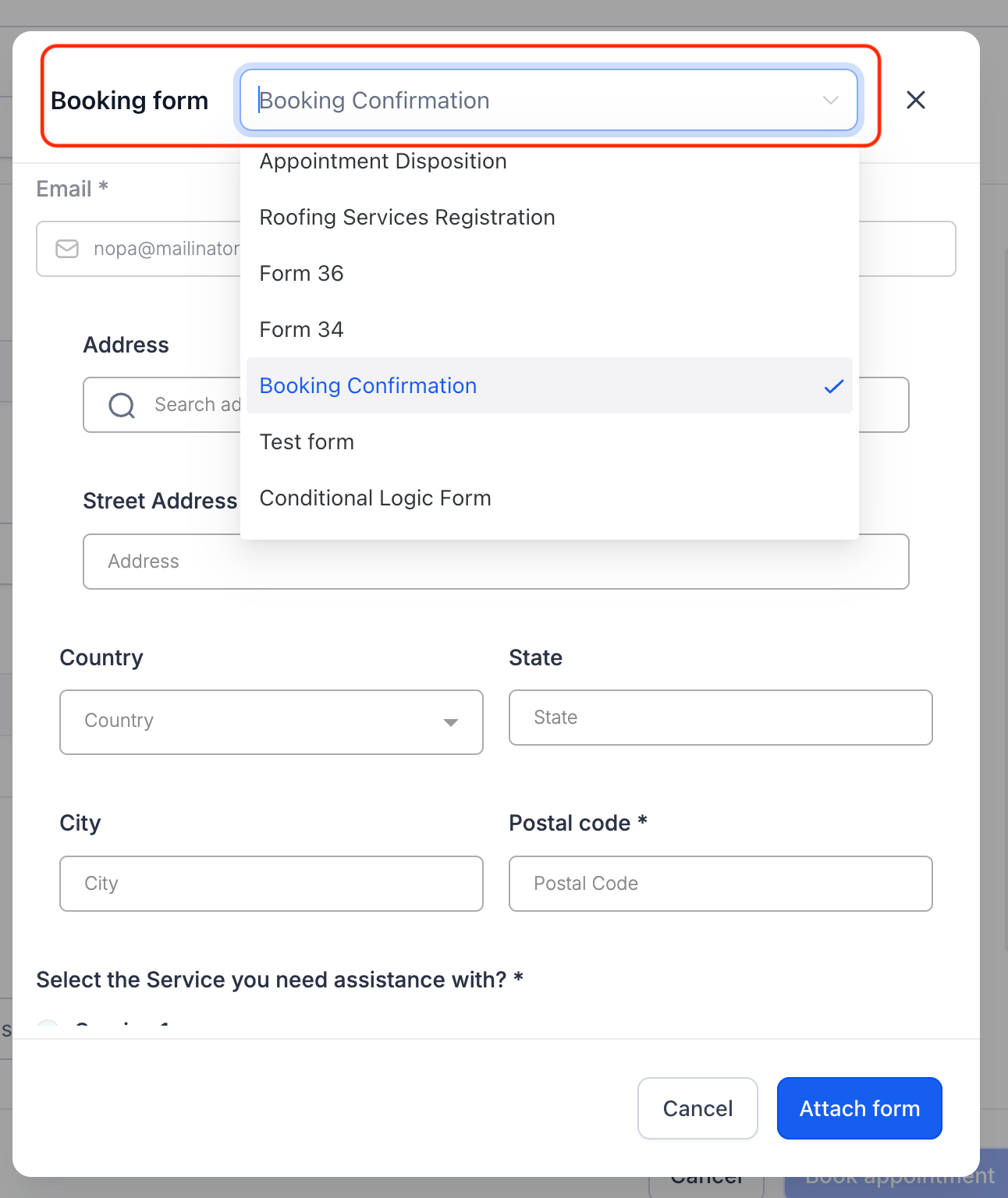
EveryCatch automatically preselects the form you have configured for that service or rental. If you need a different one, you can switch to any other available form using the dropdown in the Booking form section.
Contact details prefilled
When you choose a contact for the booking, EveryCatch prefills their first name, last name, email, and phone number into the attached form. You can review and update these details before you save the booking if anything has changed.
Only what your team needs
When you fill in a form from the appointment modal, elements meant for customer-facing pages are hidden. CAPTCHA checks, product selling blocks, and payment fields are left out so your team only sees the fields needed to capture booking and intake information.
How to use it
- Create a service or rental booking using the in-app appointment modal and select the contact for the booking.
- In the Booking form section of the modal, click Attach form to open the configured form.
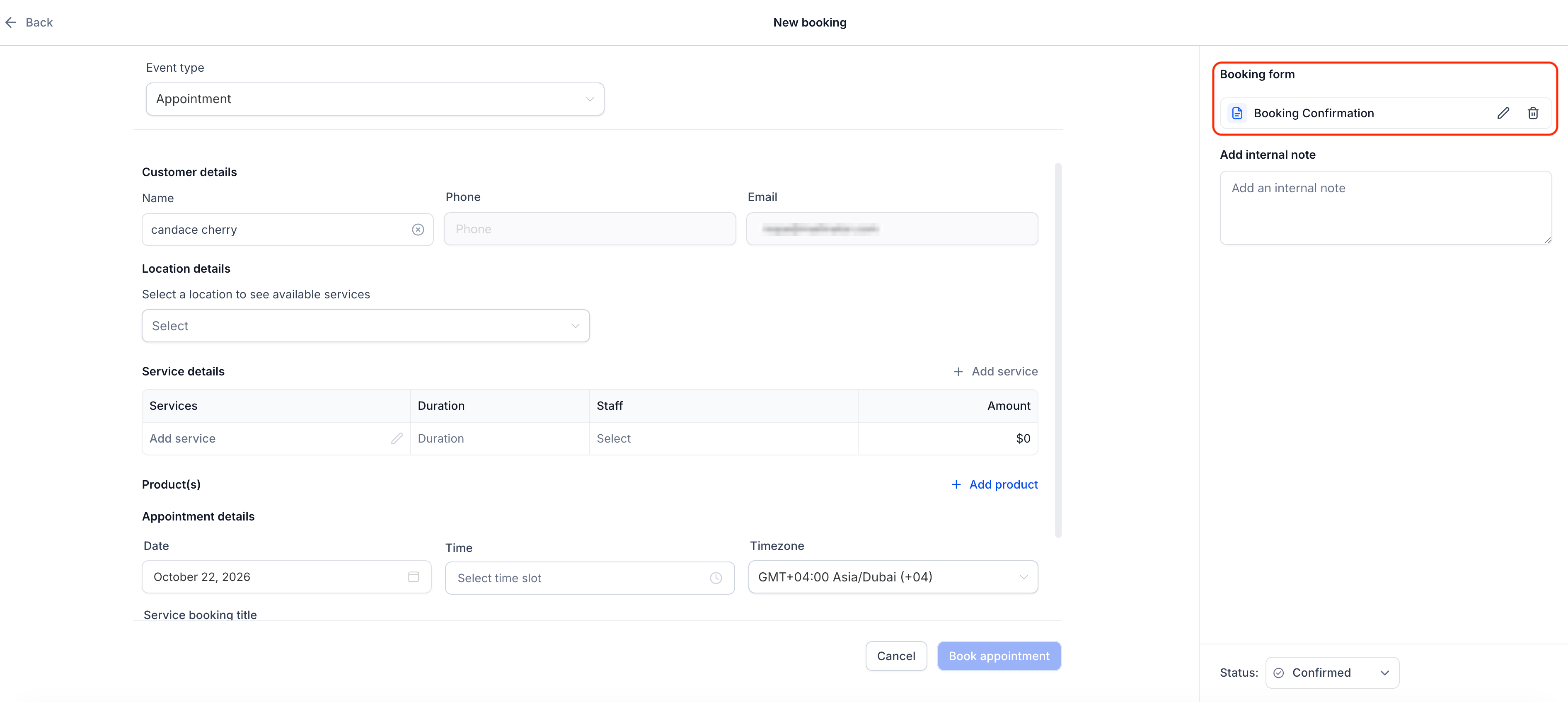
- Complete the form on the customer’s behalf, then finish creating the booking as usual.
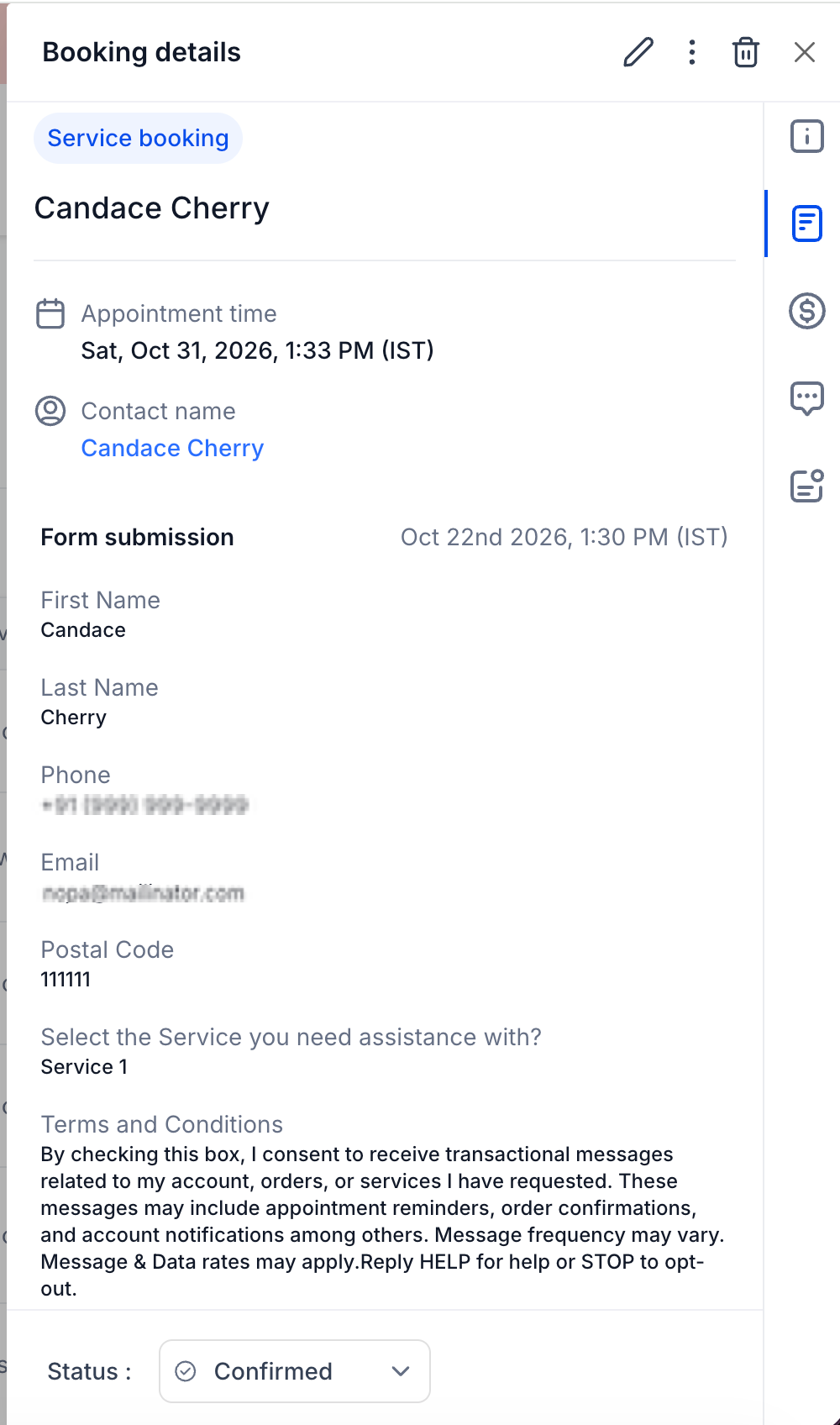
- To review the information later, open the appointment details and view the submitted form attached to that booking.
Note: Right now, you can only attach and complete a form while you are first creating the booking. Forms cannot be added or edited on an appointment after it has been created.
Why this matters
- Bookings your team creates manually follow the same intake process and capture the same information as online bookings.
- Important intake details are collected upfront and stored together with the booking record for easy reference.
- Prefilled contact details reduce manual typing, save time, and help avoid mismatched or duplicate contact information.